> ## Documentation Index
> Fetch the complete documentation index at: https://docs.twenty.com/llms.txt
> Use this file to discover all available pages before exploring further.
# Layout
> How to navigate, browse, and view records in Twenty.
export const VimeoEmbed = ({videoId, title = 'Video'}) =>
;
## The main layout
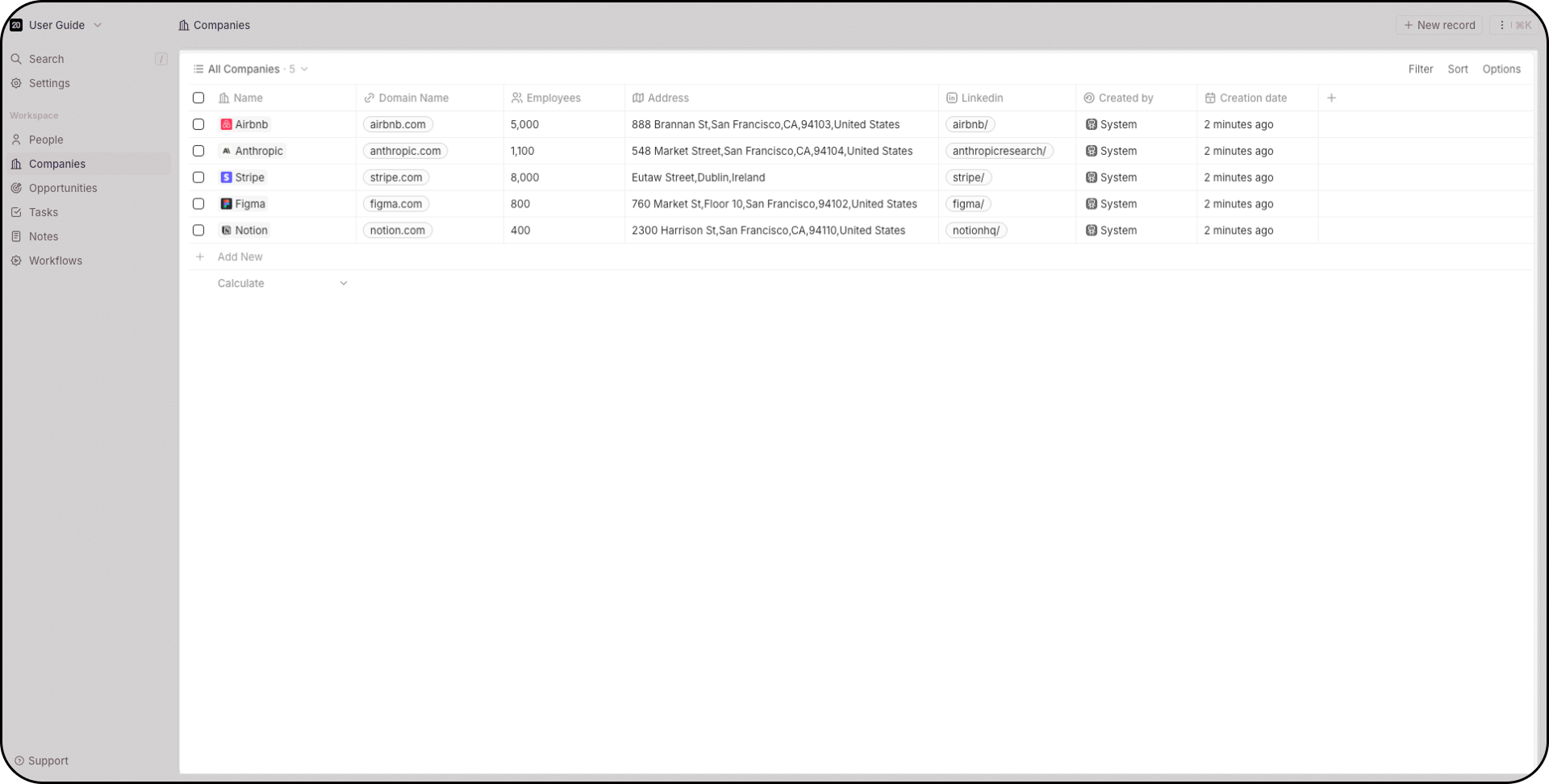
The center of the screen is where your records live — people, companies, opportunities, tasks, notes, dashboards, workflows, and any custom objects. You view, edit, and delete records here, and create new views.
 ## Navigation bar
The left sidebar gives you:
* **Workspace switcher** — switch between workspaces or create a new one (top dropdown)
* **Search** — press `/` to focus instantly, searches across all objects
* **Settings** — access from the top left
* **Favorites** — pinned views, unique per user
* **Object shortcuts** — quick access to People, Companies, Opportunities, etc.
* **Workflows** — create automations
Drag items to reorder, create folders to group related objects, hide what you don't use.
## Navigation bar
The left sidebar gives you:
* **Workspace switcher** — switch between workspaces or create a new one (top dropdown)
* **Search** — press `/` to focus instantly, searches across all objects
* **Settings** — access from the top left
* **Favorites** — pinned views, unique per user
* **Object shortcuts** — quick access to People, Companies, Opportunities, etc.
* **Workflows** — create automations
Drag items to reorder, create folders to group related objects, hide what you don't use.
 ## Command menu
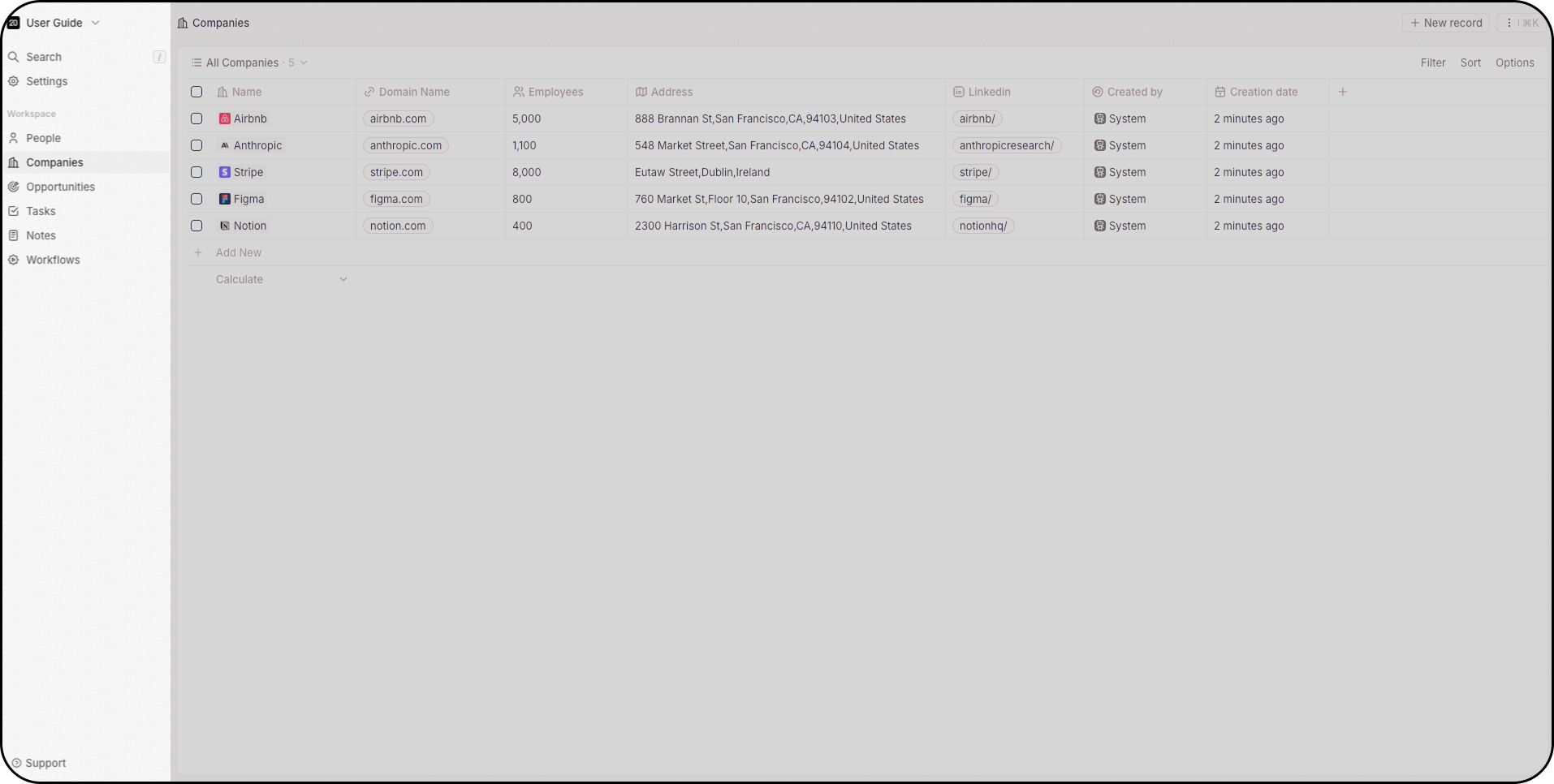
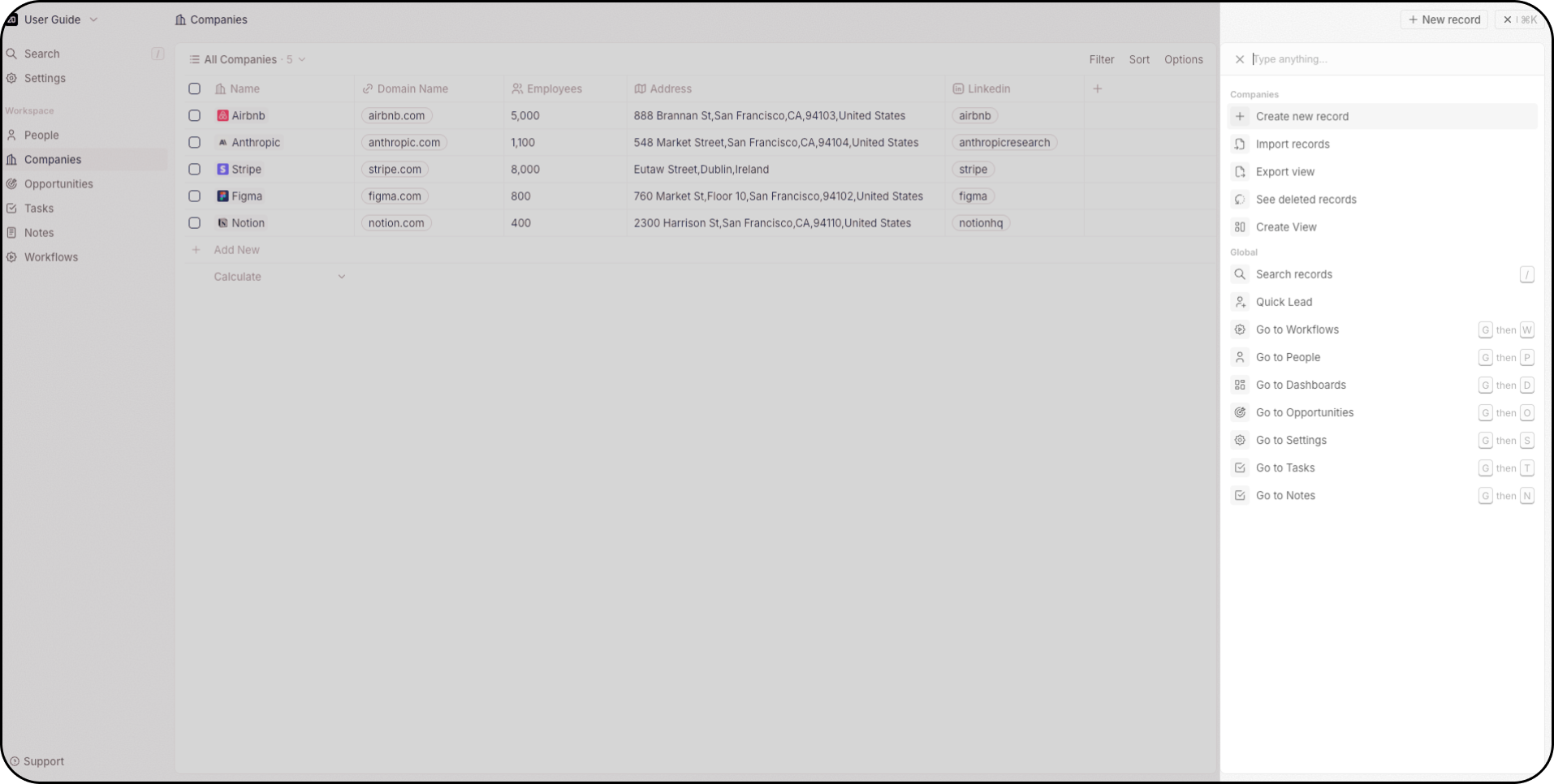
Press `Cmd+K` (Mac) or `Ctrl+K` (Windows) — or click the three dots in the top right. From here you can:
* Create new records
* Import and export data via CSV
* Create new views
* Access deleted records (Twenty supports soft and hard deletes)
* See keyboard shortcuts for navigating your workspace
## Command menu
Press `Cmd+K` (Mac) or `Ctrl+K` (Windows) — or click the three dots in the top right. From here you can:
* Create new records
* Import and export data via CSV
* Create new views
* Access deleted records (Twenty supports soft and hard deletes)
* See keyboard shortcuts for navigating your workspace
 ## Search
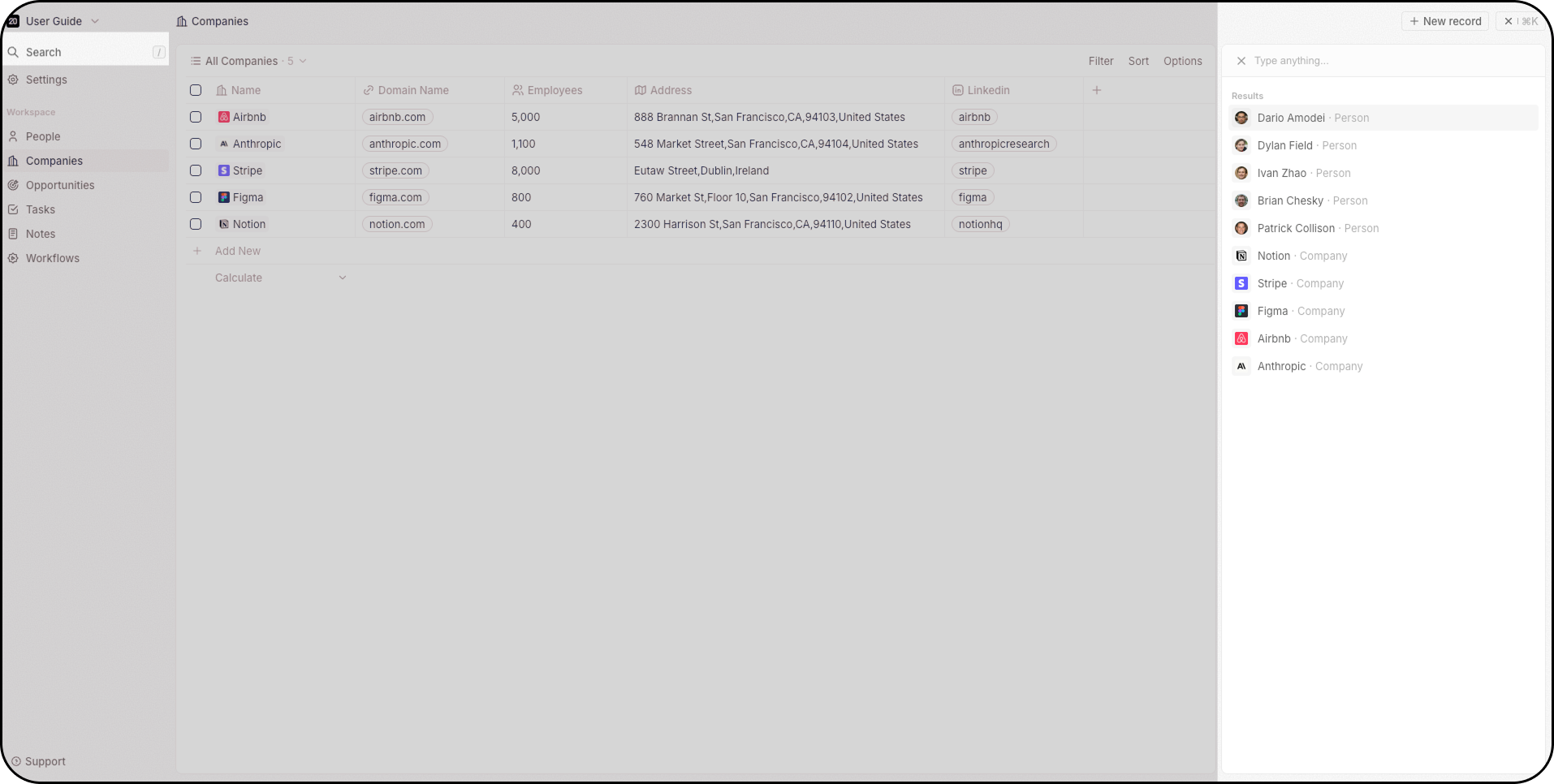
Accessible via the Command Menu, the top of the navigation bar, or by pressing `/`. Search works across all objects.
## Search
Accessible via the Command Menu, the top of the navigation bar, or by pressing `/`. Search works across all objects.
 ## Side panel
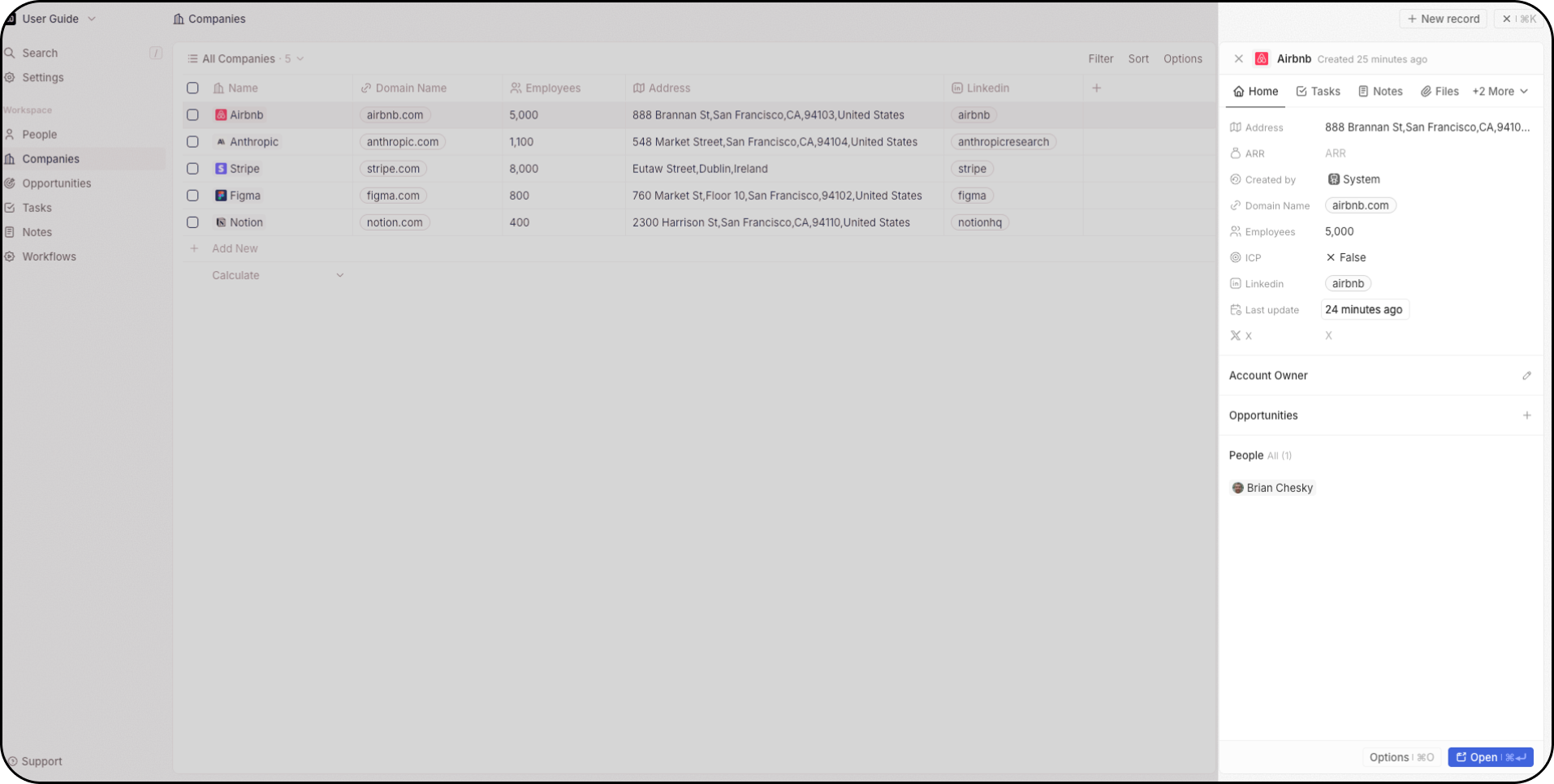
Click a record to open the side panel on the right — a quick overview of the record's key information without leaving the current page. Click **Open** to go to the full record page.
## Side panel
Click a record to open the side panel on the right — a quick overview of the record's key information without leaving the current page. Click **Open** to go to the full record page.
 ## Views
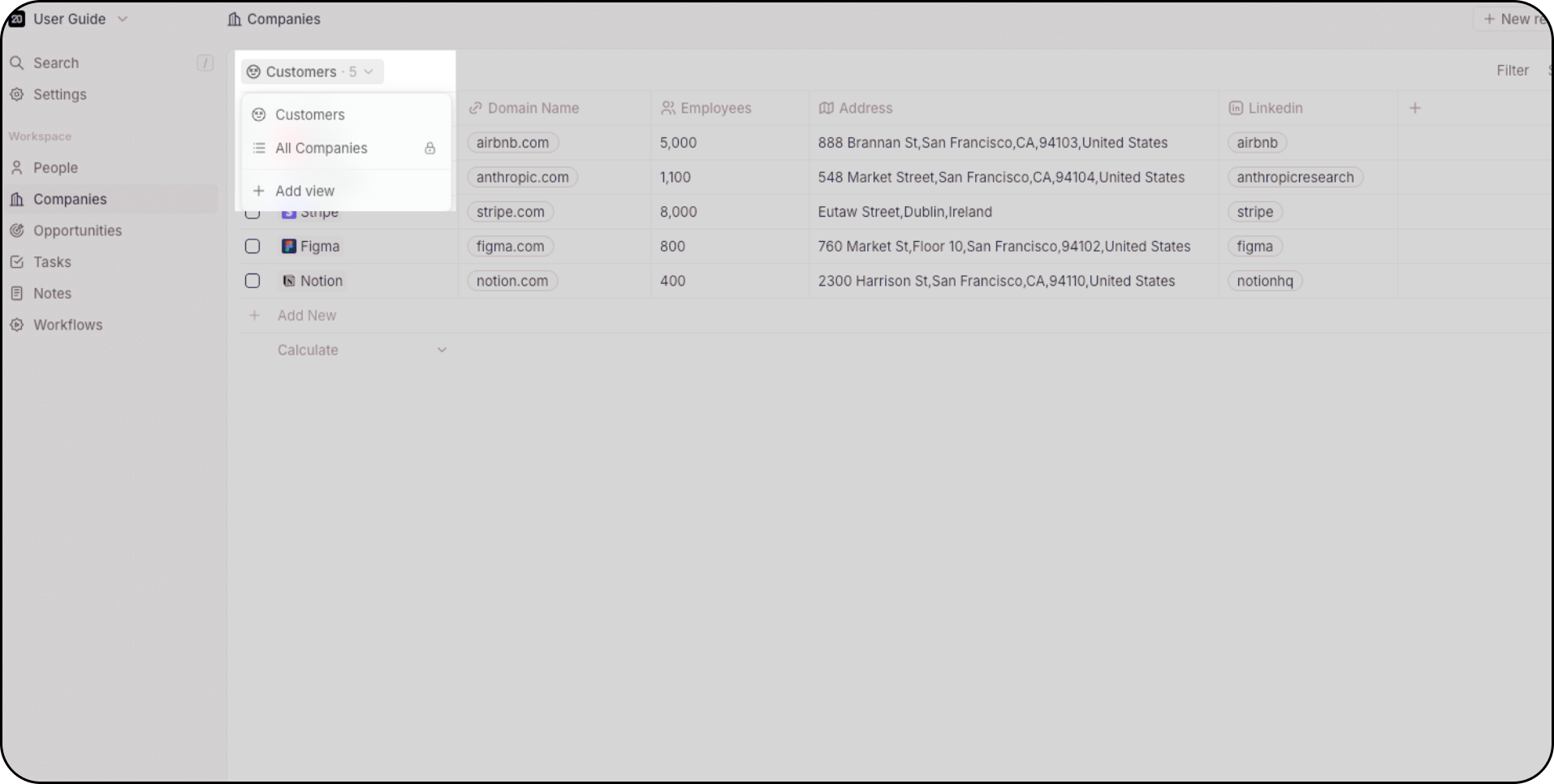
Every object supports multiple views — unlimited per object. Use the dropdown at the top left to switch between them.
* **Table** — spreadsheet-style rows and columns, with grouping, inline editing, and column customization
* **Kanban** — drag-and-drop cards organized by a select field, ideal for pipelines
* **Calendar** — records plotted by a date field for time-based planning
Each view saves its own filters, sorting, and field visibility. Share views with your workspace or keep them private. Favorite views for fast access from the sidebar.
## Views
Every object supports multiple views — unlimited per object. Use the dropdown at the top left to switch between them.
* **Table** — spreadsheet-style rows and columns, with grouping, inline editing, and column customization
* **Kanban** — drag-and-drop cards organized by a select field, ideal for pipelines
* **Calendar** — records plotted by a date field for time-based planning
Each view saves its own filters, sorting, and field visibility. Share views with your workspace or keep them private. Favorite views for fast access from the sidebar.
 ## Record pages
When you open a record, the detail page is built from configurable **tabs** and **widgets**. Add, remove, reorder, and resize widgets on a grid — fields, related records, emails, timeline, tasks, notes, files, charts, iframes, and more. Each object type has its own layout.
Navigation, views, record pages — detailed reference and how-tos.
## Record pages
When you open a record, the detail page is built from configurable **tabs** and **widgets**. Add, remove, reorder, and resize widgets on a grid — fields, related records, emails, timeline, tasks, notes, files, charts, iframes, and more. Each object type has its own layout.
Navigation, views, record pages — detailed reference and how-tos.