> ## Documentation Index
> Fetch the complete documentation index at: https://docs.twenty.com/llms.txt
> Use this file to discover all available pages before exploring further.
# 创建工作区
> 按照分步指南了解如何在 Twenty 上注册,选择订阅计划,并设置您的账户。
export const VimeoEmbed = ({videoId, title = 'Video'}) =>
;
## 步骤 1: 注册
1. 前往 [Twenty 注册](https://app.twenty.com)。
2. 选择您偏好的注册方式:
* **继续使用 Google** 进行 Google 账户注册。
* **继续使用 Microsoft** 进行 Microsoft 账户注册。
* 或者,**继续使用电子邮件** 进行注册。
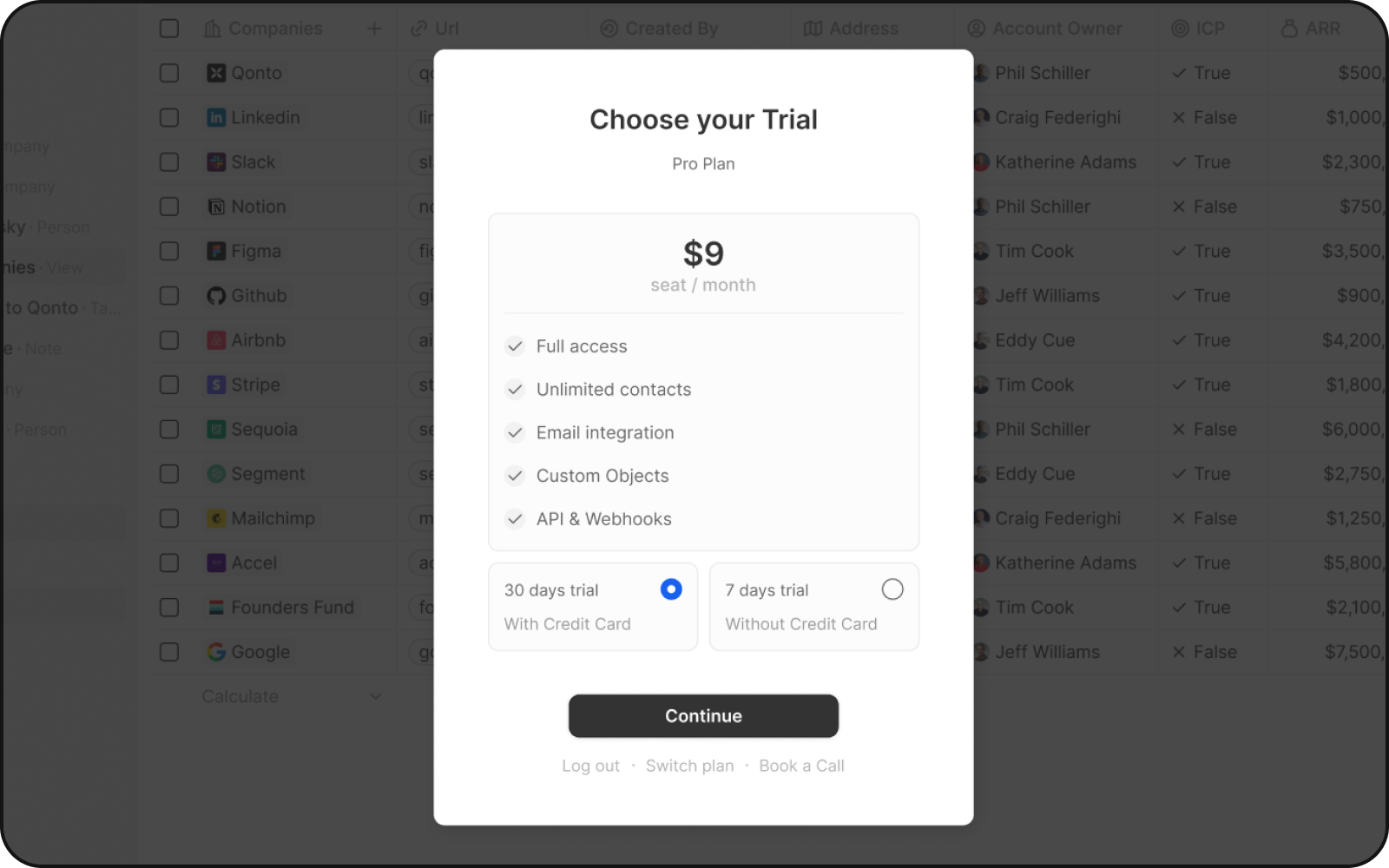
## 步骤 2:选择试用期
请选择两个试用期之一:
### 30 天
需要信用卡
### 7 天
无需信用卡
两个试用均包括:
* 完全访问
* 无限联系人
* 电子邮件集成
* 自定义对象
* API 和 Webhooks
您可以点击 "更改计划" 选择不同的计划或计费间隔。
 ## 步骤 3:支付确认及账户设置
通过 Stripe 批准付款后,您将被引导创建您的工作区和用户资料。 请记住您可以随时取消您的订阅。
## 支持
如有疑问或帮助,请通过[contact@twenty.com](mailto:contact@twenty.com)与专门的支持团队联系,或在[Discord](https://discord.gg/cx5n4Jzs57)上发送消息。
## 步骤 3:支付确认及账户设置
通过 Stripe 批准付款后,您将被引导创建您的工作区和用户资料。 请记住您可以随时取消您的订阅。
## 支持
如有疑问或帮助,请通过[contact@twenty.com](mailto:contact@twenty.com)与专门的支持团队联系,或在[Discord](https://discord.gg/cx5n4Jzs57)上发送消息。