> ## Documentation Index
> Fetch the complete documentation index at: https://docs.twenty.com/llms.txt
> Use this file to discover all available pages before exploring further.
# Forward a Shared Inbox from Microsoft 365
> Send mail from a Microsoft 365 shared mailbox into a Twenty email channel.
An email channel gives your workspace a shared address, like `contact@yourcompany.com`. Mail sent to that address has to reach Twenty somehow. You do that by forwarding the mailbox to the private address Twenty gives you.
Setup has two halves: create the channel in Twenty, then point Microsoft at it.
## Part 1: Create the channel in Twenty
1. Go to **Settings → Communication**.
2. Click **Add email channel**.
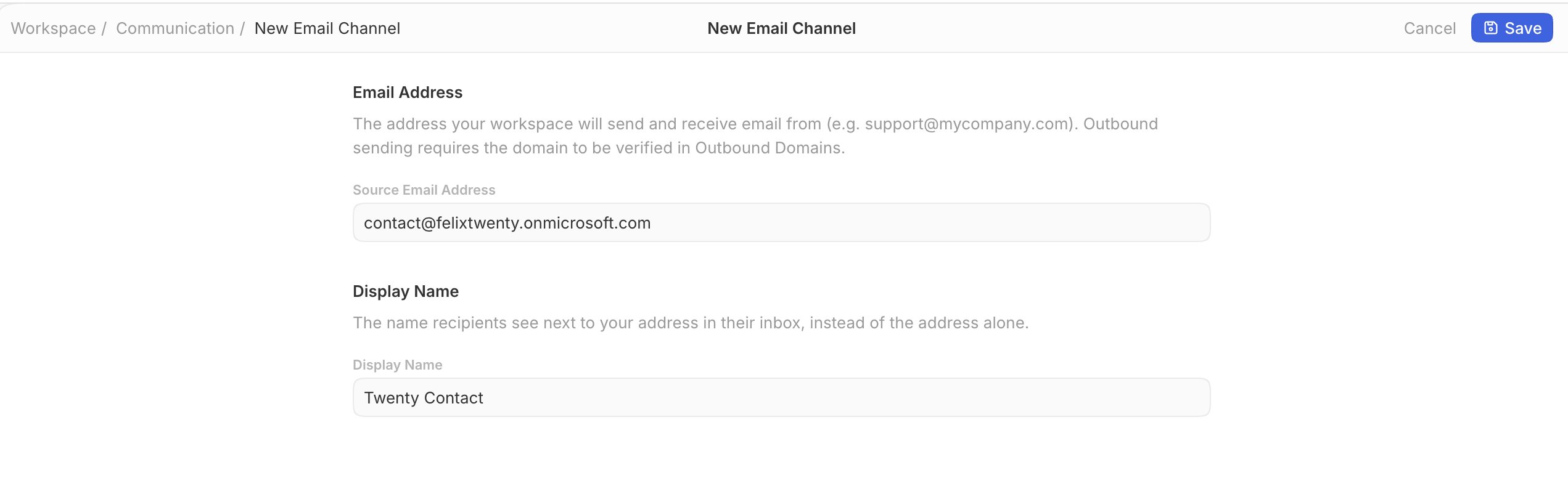
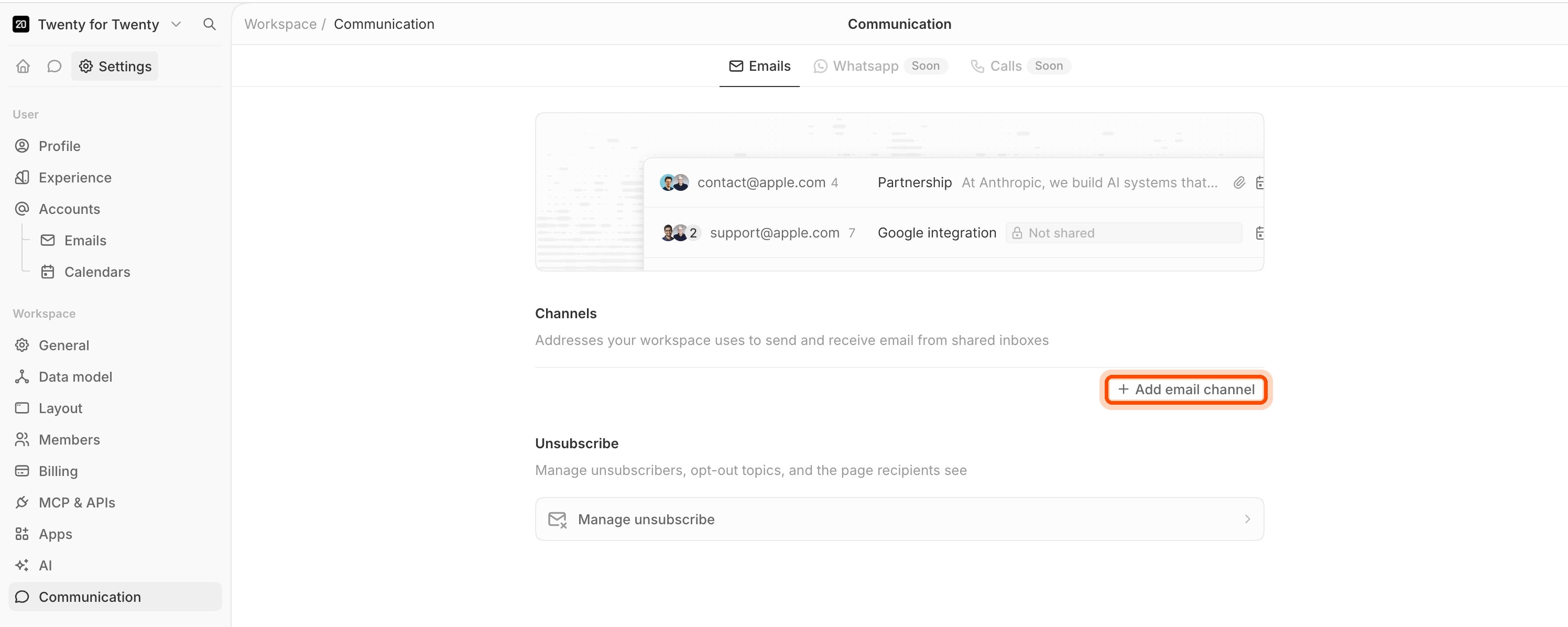 3. In **Source Email Address**, type the shared address you want to receive mail at, for example `contact@yourcompany.com`.
4. In **Display Name**, type the name recipients see, for example `Twenty Contact`.
5. Click **Save**.
3. In **Source Email Address**, type the shared address you want to receive mail at, for example `contact@yourcompany.com`.
4. In **Display Name**, type the name recipients see, for example `Twenty Contact`.
5. Click **Save**.
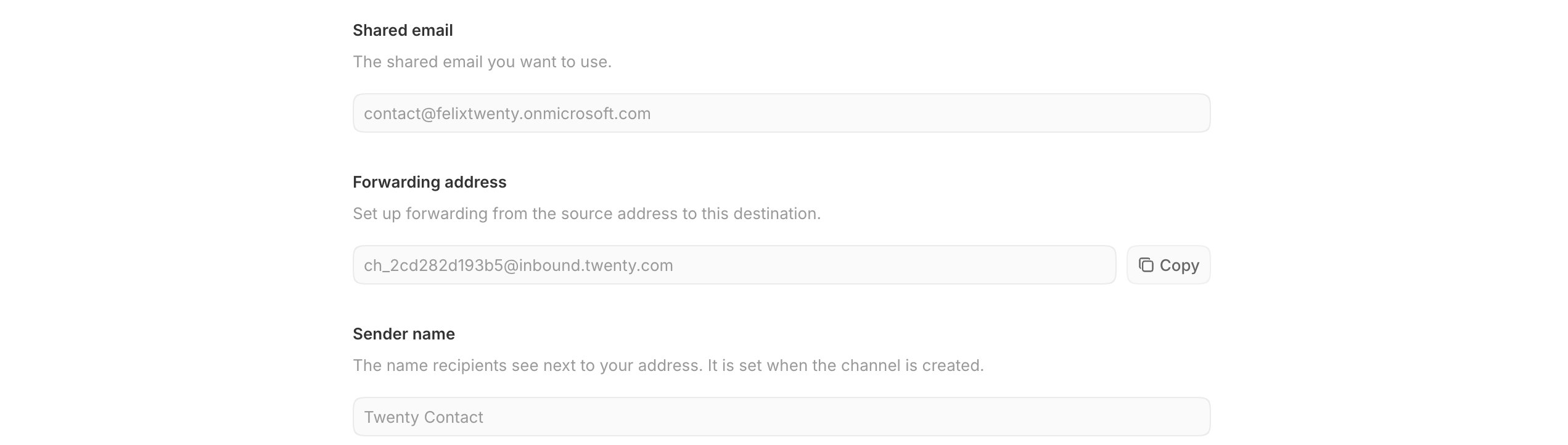
 6. Twenty now shows a **Forwarding address**. It looks like `ch_2cd282d193b5@inbound.twenty.com`. Click **Copy**.
 Each channel gets its own forwarding address. Never point two mailboxes at the
same one, or their mail will land in the same place.
## Part 2: Create the shared mailbox
Skip this part if `contact@yourcompany.com` already exists in Microsoft 365.
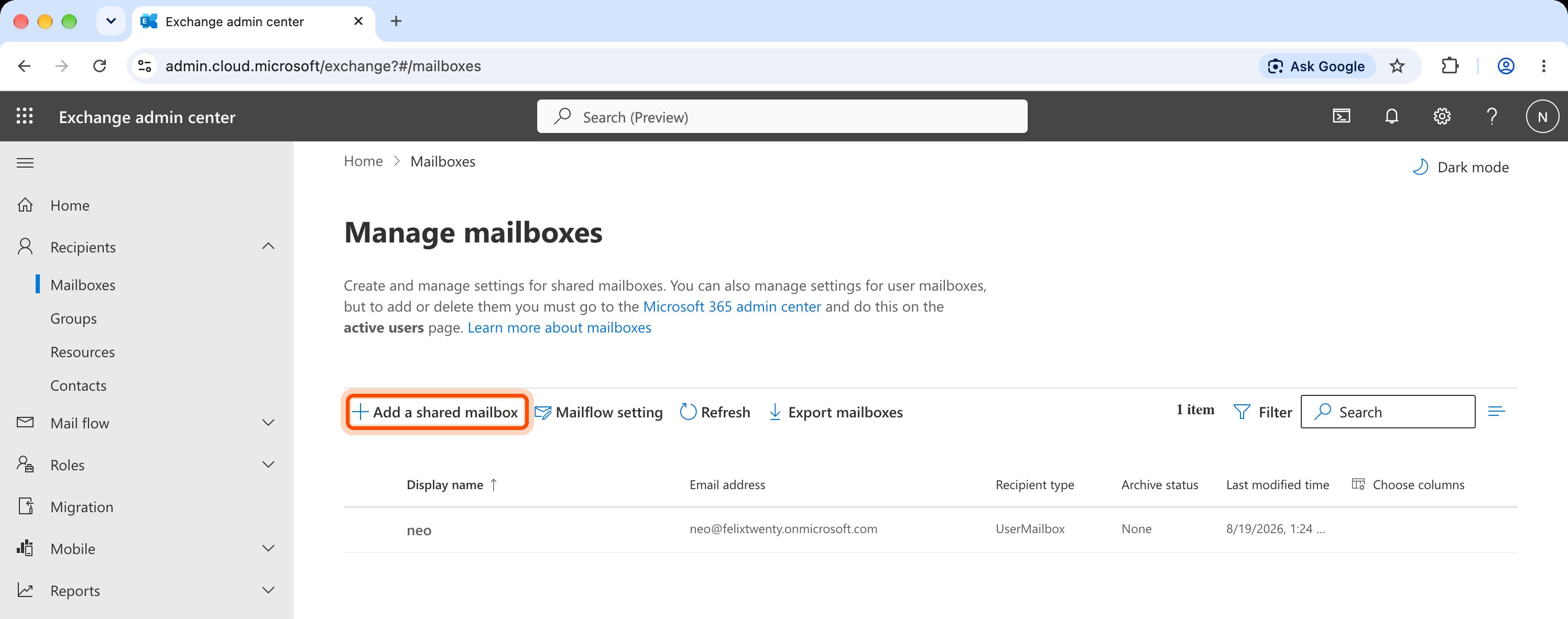
1. Open the [Exchange admin center](https://admin.cloud.microsoft/exchange).
2. Go to **Recipients → Mailboxes**.
3. Click **Add a shared mailbox**.
Each channel gets its own forwarding address. Never point two mailboxes at the
same one, or their mail will land in the same place.
## Part 2: Create the shared mailbox
Skip this part if `contact@yourcompany.com` already exists in Microsoft 365.
1. Open the [Exchange admin center](https://admin.cloud.microsoft/exchange).
2. Go to **Recipients → Mailboxes**.
3. Click **Add a shared mailbox**.
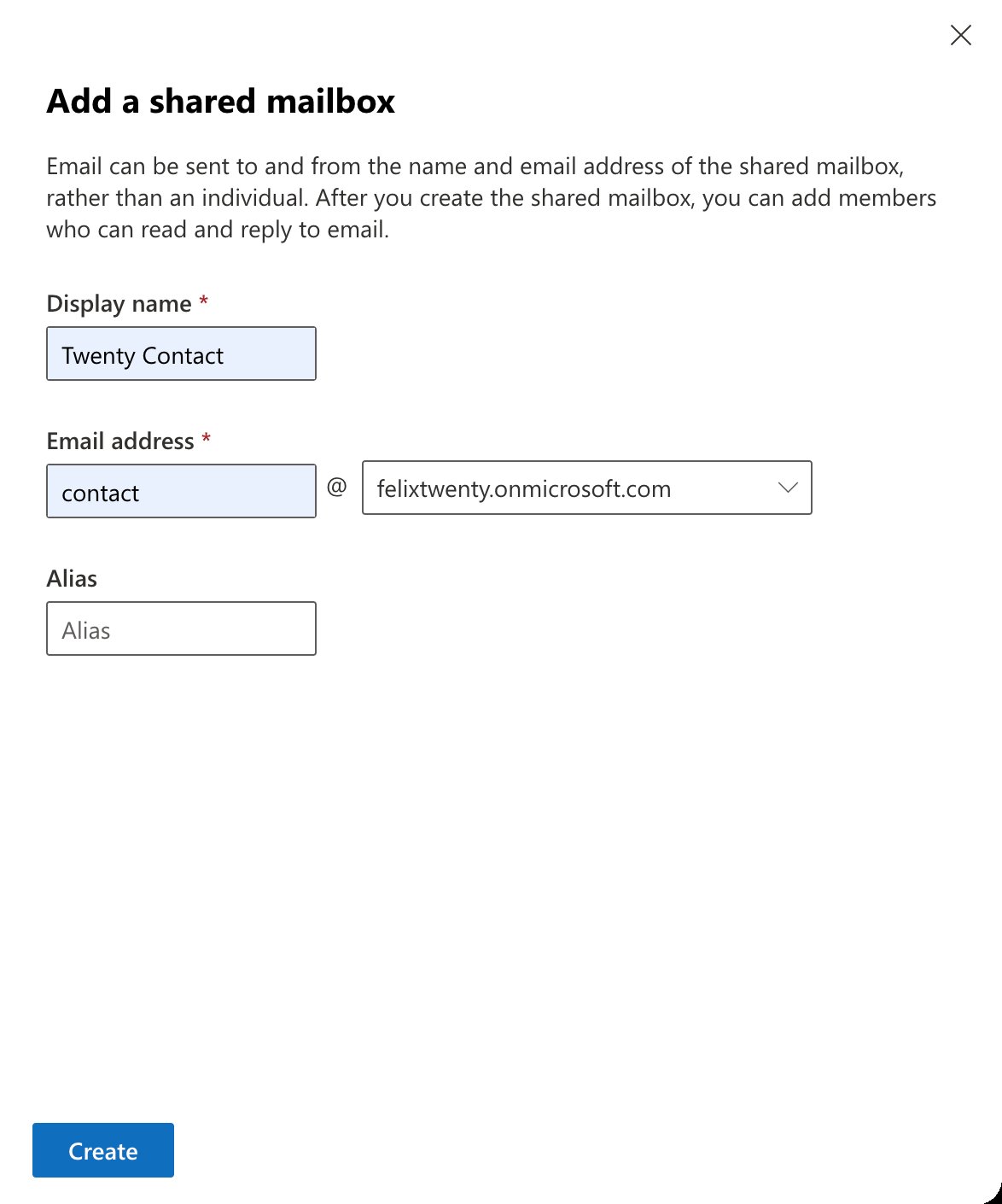
 4. Fill in the **Display name**.
5. Fill in the **Email address** and pick your domain.
6. Click **Create**. It takes a minute to appear in the list.
4. Fill in the **Display name**.
5. Fill in the **Email address** and pick your domain.
6. Click **Create**. It takes a minute to appear in the list.
 ## Part 3: Forward the mailbox to Twenty
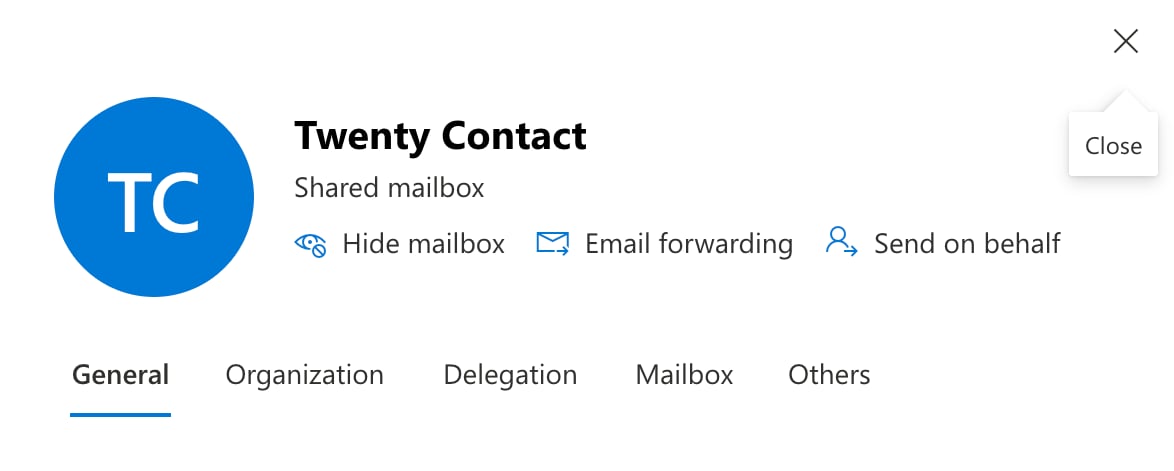
1. In **Recipients → Mailboxes**, click the mailbox to open it.
2. Click **Email forwarding**.
## Part 3: Forward the mailbox to Twenty
1. In **Recipients → Mailboxes**, click the mailbox to open it.
2. Click **Email forwarding**.
 3. Turn **Forward all emails sent to this mailbox** on.
4. Choose **Forward to an external email address** and paste the forwarding address you copied from Twenty.
5. Tick **Deliver message to both forwarding address and mailbox** so your team keeps a copy in Outlook.
6. Click **Save**.
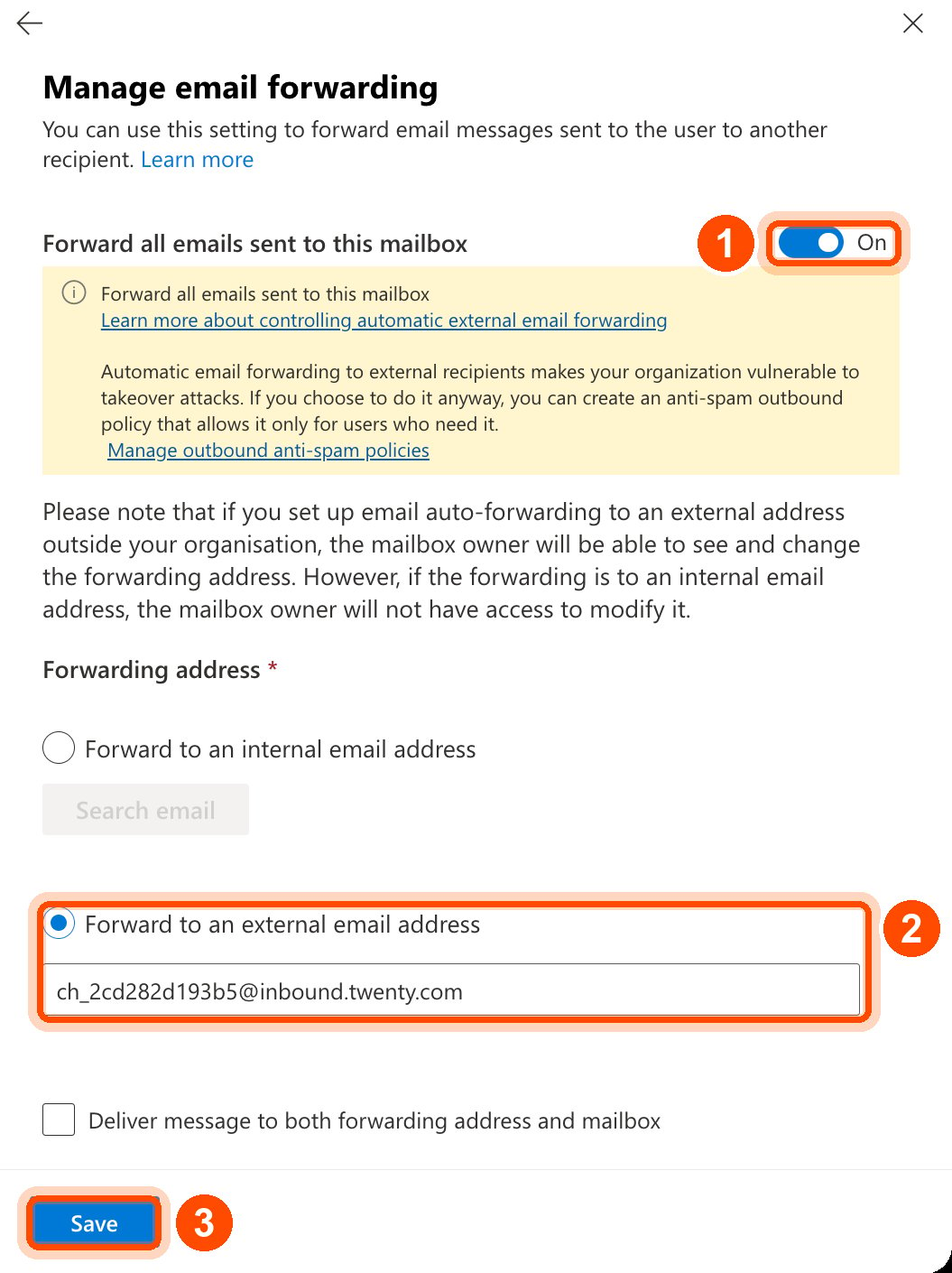
3. Turn **Forward all emails sent to this mailbox** on.
4. Choose **Forward to an external email address** and paste the forwarding address you copied from Twenty.
5. Tick **Deliver message to both forwarding address and mailbox** so your team keeps a copy in Outlook.
6. Click **Save**.
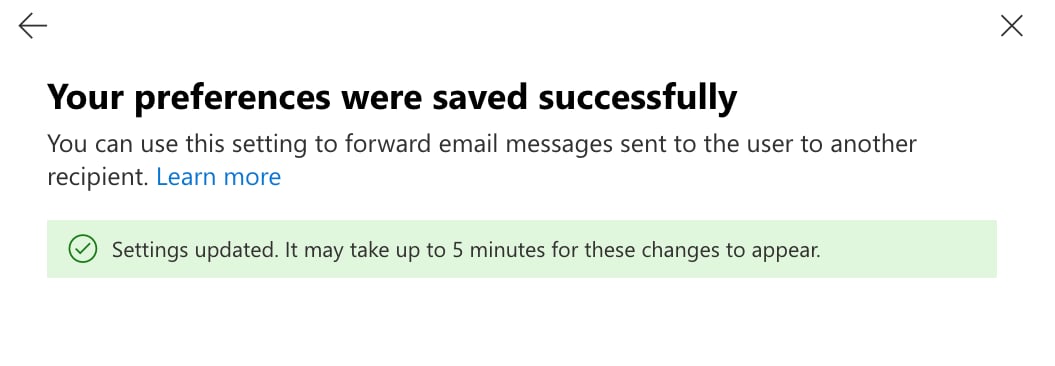 Microsoft says changes can take up to 5 minutes to apply.
## Part 4: Allow forwarding to external addresses
This step is easy to miss. Without it, no mail reaches Twenty.
By default, Microsoft 365 blocks automatic forwarding to addresses outside your organization. The mail is rejected and the original sender receives a bounce that reads:
```
5.7.520 Access denied, Your organization does not allow external forwarding.
```
To allow it:
1. Open the [Microsoft Defender portal](https://security.microsoft.com).
2. Go to **Email & collaboration → Policies & rules → Threat policies → Anti-spam**.
3. Open your **Anti-spam outbound policy**, or create a new one that applies only to your shared mailboxes.
4. Click **Edit protection settings**.
5. Set **Automatic forwarding rules** to **On - Forwarding is enabled**.
6. Save.
Turning this on for your whole tenant lets any compromised account forward
mail out. Create a policy scoped to only the shared mailboxes you are
connecting, rather than editing the default one.
## Part 5: Test it
Send an email from an outside address (a personal Gmail works) to `contact@yourcompany.com`. It should appear in Twenty within a minute or two.
## Troubleshooting
External forwarding is still blocked. Repeat Part 4 and confirm the policy you
edited applies to this mailbox.
Compare the forwarding address in Exchange character for character with the
one in Twenty. A single wrong character means the mail is delivered nowhere
useful and silently dropped.
**Deliver message to both forwarding address and mailbox** was left unticked.
Tick it and save.
Receiving and sending are separate. Sending requires your domain to be
verified under the channel's **Sending domain** section, which means adding
the DNS records Twenty lists there.
Using a different provider? See [Google Workspace](/user-guide/calendar-emails/how-tos/forward-a-shared-inbox-from-google-workspace) or [any other mail provider](/user-guide/calendar-emails/how-tos/forward-a-shared-inbox-from-any-mail-provider).
Microsoft says changes can take up to 5 minutes to apply.
## Part 4: Allow forwarding to external addresses
This step is easy to miss. Without it, no mail reaches Twenty.
By default, Microsoft 365 blocks automatic forwarding to addresses outside your organization. The mail is rejected and the original sender receives a bounce that reads:
```
5.7.520 Access denied, Your organization does not allow external forwarding.
```
To allow it:
1. Open the [Microsoft Defender portal](https://security.microsoft.com).
2. Go to **Email & collaboration → Policies & rules → Threat policies → Anti-spam**.
3. Open your **Anti-spam outbound policy**, or create a new one that applies only to your shared mailboxes.
4. Click **Edit protection settings**.
5. Set **Automatic forwarding rules** to **On - Forwarding is enabled**.
6. Save.
Turning this on for your whole tenant lets any compromised account forward
mail out. Create a policy scoped to only the shared mailboxes you are
connecting, rather than editing the default one.
## Part 5: Test it
Send an email from an outside address (a personal Gmail works) to `contact@yourcompany.com`. It should appear in Twenty within a minute or two.
## Troubleshooting
External forwarding is still blocked. Repeat Part 4 and confirm the policy you
edited applies to this mailbox.
Compare the forwarding address in Exchange character for character with the
one in Twenty. A single wrong character means the mail is delivered nowhere
useful and silently dropped.
**Deliver message to both forwarding address and mailbox** was left unticked.
Tick it and save.
Receiving and sending are separate. Sending requires your domain to be
verified under the channel's **Sending domain** section, which means adding
the DNS records Twenty lists there.
Using a different provider? See [Google Workspace](/user-guide/calendar-emails/how-tos/forward-a-shared-inbox-from-google-workspace) or [any other mail provider](/user-guide/calendar-emails/how-tos/forward-a-shared-inbox-from-any-mail-provider).