> ## Documentation Index
> Fetch the complete documentation index at: https://docs.twenty.com/llms.txt
> Use this file to discover all available pages before exploring further.
# Field Mapping
> How field mapping works during data import.
export const VimeoEmbed = ({videoId, title = 'Video'}) =>
;
## How Field Mapping Works
When you upload a file, Twenty analyzes your columns and attempts to match them to existing fields.
### Automatic Mapping
Twenty tries to match columns based on:
* Column header names (exact or similar matches)
* Data type detection (dates, numbers, emails)
* Common field patterns
**Quick tip:** Export a few rows from the object you want to import. The exported file will have the exact column names Twenty expects, making automatic mapping seamless during import.
### Manual Mapping Options
For each column, you can:
* **Map to a field**: Select the matching Twenty field from a dropdown
* **Do not map**: Skip the column entirely (data won't be imported)
**Fields must exist before import.** The import creates records, not fields. Create custom fields under **Settings → Data Model** before importing.
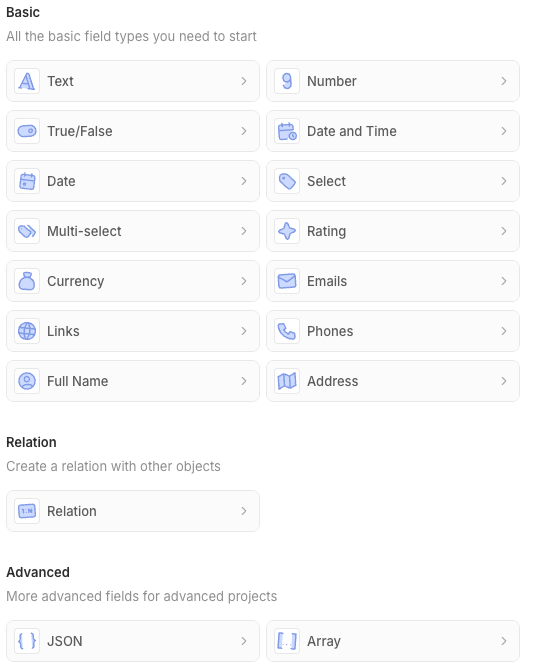
## Field Type Compatibility
All field types available in the Data Model are supported for import.
You can also import `id` values to either assign a specific ID to new records or update existing ones.
 ## Data Format Requirements
**Some fields have special syntax.** We recommend downloading the sample file before preparing your import to see the expected syntax for each field type.
### Address Fields
Address is a nested field with multiple columns. Some can be left empty.
* **Address / Address 1**: Street address line 1
* **Address / Address 2**: Street address line 2
* **Address / City**: City name
* **Address / State**: State or province
* **Address / Country**: Country name
* **Address / Post Code**: Postal/ZIP code
### Array Fields
Use the following format:
```
["value1","value2"]
```
### Boolean Fields
Use `TRUE` or `FALSE` (uppercase) - not `true` or `false`
### Currency Fields
Currency is a nested field with two columns that **both must be filled**:
* **Amount / Amount**: The numeric value (e.g., `1234.56`)
* **Amount / Currency**: The currency code (e.g., `USD`, `EUR`)
### Date Fields
Supported formats:
* `YYYY-MM-DD` (recommended)
* `MM/DD/YYYY`
* `DD/MM/YYYY`
* ISO 8601 format
### Domain Fields
* It is recommended to use the format `https://domain.com` to avoid creating duplicates, as this is the format used for Companies created by the mailbox and calendar synchronizations
* A `Domain Label` and `Domain URL` can be filled: best practice is to fill `domain.com` in the label and `https://domain.com` in the url
* Domains must be unique within the Companies object
* **Domains must be unique within the file to import**
### Email Fields
* Must be valid email format
* Emails must be unique within the People object
* **Emails must be unique within the file to import**
* For additional emails: use **Emails / Primary Email** for the main email, and **Emails / Additional Emails** with this format:
```
["jane@twenty.com","jane.doe@twenty.com"]
```
### ID Fields
Specifying an `id` during import is optional. Twenty auto-generates one if not provided.
Use cases for mapping an `id` column:
* **Set a specific ID**: Choose the UUID for newly created records
* **Update existing records**: Match against existing records to update them instead of creating duplicates. In that case, it is recommended to not map the other unique fields: mapping only one unique field ensures a smoother import.
If you provide an `id`, it must be in UUID format (e.g., `c776ee49-f608-4a77-8cc8-6fe96ae1e43f`).
### JSON Fields
Use valid JSON format:
```
{"key":"value","key2":"value2"}
```
### Links Fields
Similar to Domain fields:
* Fill both the label and URL columns: **Links / Link URL** and **Links / Link Label**
* Use full URL format: `https://example.com`
* For secondary links, use **Links / Secondary Links** column with this format:
```
[{"url":"https://twenty.com","label":"Twenty"}]
```
### Multi-Select Fields
Use the **API names** (not the display labels) in the following format:
```
["VALUE1","VALUE2"]
```
See [here](#finding-api-names-for-select-fields) where to find the API names.
New select options will not be created automatically by the import. They must be added under **Settings → Data Model** before importing.
**Import overwrites; it does not add.**
If a record already has `VALUE2` and `VALUE3` selected, and you import `["VALUE1"]`, the record will only have `VALUE1` after import. The previous selections are replaced, not merged.
### Number Fields
* Numbers only
* Decimals use period: `1234.56`
* No thousands separators
### Phone Fields
Phone is a nested field with multiple columns that **must be filled**
* **Phones / Primary Phone Number**: The phone number (e.g., `4159095555`)
* **Phones / Primary Phone Country Code**: Country code (e.g., `US`)
* **Phones / Primary Phone Calling Code**: Dialing code (e.g., `+1`)
### Rating Fields
Use the API name format: `RATING_1`, `RATING_2`, `RATING_3`, `RATING_4`, `RATING_5`
### Relation Fields
Please see our dedicated article: [Import Relations Between Objects](/user-guide/data-migration/capabilities/import-relations)
### Select Fields
Use the **API name** of the option (not the display label):
```
VALUE1
```
See [here](#finding-api-names-for-select-fields) where to find the API names.
New select options will not be created automatically by the import. They must be added under **Settings → Data Model** before importing.
### Text Fields
* No special formatting required
* Leading/trailing spaces are trimmed
## Finding API Names
For Select, Multi-Select, and Array fields with predefined options, you must use the **API names**, not the display labels.
### How to Find API Names
1. Go to **Settings → Data Model**
2. Select the object and field
3. Enable **Advanced mode** (toggle at the bottom right of the settings page)
4. View the API name for each option
## Data Format Requirements
**Some fields have special syntax.** We recommend downloading the sample file before preparing your import to see the expected syntax for each field type.
### Address Fields
Address is a nested field with multiple columns. Some can be left empty.
* **Address / Address 1**: Street address line 1
* **Address / Address 2**: Street address line 2
* **Address / City**: City name
* **Address / State**: State or province
* **Address / Country**: Country name
* **Address / Post Code**: Postal/ZIP code
### Array Fields
Use the following format:
```
["value1","value2"]
```
### Boolean Fields
Use `TRUE` or `FALSE` (uppercase) - not `true` or `false`
### Currency Fields
Currency is a nested field with two columns that **both must be filled**:
* **Amount / Amount**: The numeric value (e.g., `1234.56`)
* **Amount / Currency**: The currency code (e.g., `USD`, `EUR`)
### Date Fields
Supported formats:
* `YYYY-MM-DD` (recommended)
* `MM/DD/YYYY`
* `DD/MM/YYYY`
* ISO 8601 format
### Domain Fields
* It is recommended to use the format `https://domain.com` to avoid creating duplicates, as this is the format used for Companies created by the mailbox and calendar synchronizations
* A `Domain Label` and `Domain URL` can be filled: best practice is to fill `domain.com` in the label and `https://domain.com` in the url
* Domains must be unique within the Companies object
* **Domains must be unique within the file to import**
### Email Fields
* Must be valid email format
* Emails must be unique within the People object
* **Emails must be unique within the file to import**
* For additional emails: use **Emails / Primary Email** for the main email, and **Emails / Additional Emails** with this format:
```
["jane@twenty.com","jane.doe@twenty.com"]
```
### ID Fields
Specifying an `id` during import is optional. Twenty auto-generates one if not provided.
Use cases for mapping an `id` column:
* **Set a specific ID**: Choose the UUID for newly created records
* **Update existing records**: Match against existing records to update them instead of creating duplicates. In that case, it is recommended to not map the other unique fields: mapping only one unique field ensures a smoother import.
If you provide an `id`, it must be in UUID format (e.g., `c776ee49-f608-4a77-8cc8-6fe96ae1e43f`).
### JSON Fields
Use valid JSON format:
```
{"key":"value","key2":"value2"}
```
### Links Fields
Similar to Domain fields:
* Fill both the label and URL columns: **Links / Link URL** and **Links / Link Label**
* Use full URL format: `https://example.com`
* For secondary links, use **Links / Secondary Links** column with this format:
```
[{"url":"https://twenty.com","label":"Twenty"}]
```
### Multi-Select Fields
Use the **API names** (not the display labels) in the following format:
```
["VALUE1","VALUE2"]
```
See [here](#finding-api-names-for-select-fields) where to find the API names.
New select options will not be created automatically by the import. They must be added under **Settings → Data Model** before importing.
**Import overwrites; it does not add.**
If a record already has `VALUE2` and `VALUE3` selected, and you import `["VALUE1"]`, the record will only have `VALUE1` after import. The previous selections are replaced, not merged.
### Number Fields
* Numbers only
* Decimals use period: `1234.56`
* No thousands separators
### Phone Fields
Phone is a nested field with multiple columns that **must be filled**
* **Phones / Primary Phone Number**: The phone number (e.g., `4159095555`)
* **Phones / Primary Phone Country Code**: Country code (e.g., `US`)
* **Phones / Primary Phone Calling Code**: Dialing code (e.g., `+1`)
### Rating Fields
Use the API name format: `RATING_1`, `RATING_2`, `RATING_3`, `RATING_4`, `RATING_5`
### Relation Fields
Please see our dedicated article: [Import Relations Between Objects](/user-guide/data-migration/capabilities/import-relations)
### Select Fields
Use the **API name** of the option (not the display label):
```
VALUE1
```
See [here](#finding-api-names-for-select-fields) where to find the API names.
New select options will not be created automatically by the import. They must be added under **Settings → Data Model** before importing.
### Text Fields
* No special formatting required
* Leading/trailing spaces are trimmed
## Finding API Names
For Select, Multi-Select, and Array fields with predefined options, you must use the **API names**, not the display labels.
### How to Find API Names
1. Go to **Settings → Data Model**
2. Select the object and field
3. Enable **Advanced mode** (toggle at the bottom right of the settings page)
4. View the API name for each option