> ## Documentation Index
> Fetch the complete documentation index at: https://docs.twenty.com/llms.txt
> Use this file to discover all available pages before exploring further.
# Manage Unsubscribes and Topics
> See who opted out and let people choose which updates they receive.
Every campaign includes an unsubscribe link. Twenty keeps track of who uses it. Topics give people a little more control: they can leave your newsletter while still receiving product updates.
## How unsubscribing works
Every campaign email includes:
* A line in the footer: "Don't want these emails? Unsubscribe."
* The one-click unsubscribe headers that Gmail, Yahoo and other email apps use to show their own **Unsubscribe** button.
The link opens an unsubscribe page on your domain, for example `unsubscribe.yourcompany.com`:
* **No public topics**: people see one **Unsubscribe** button.
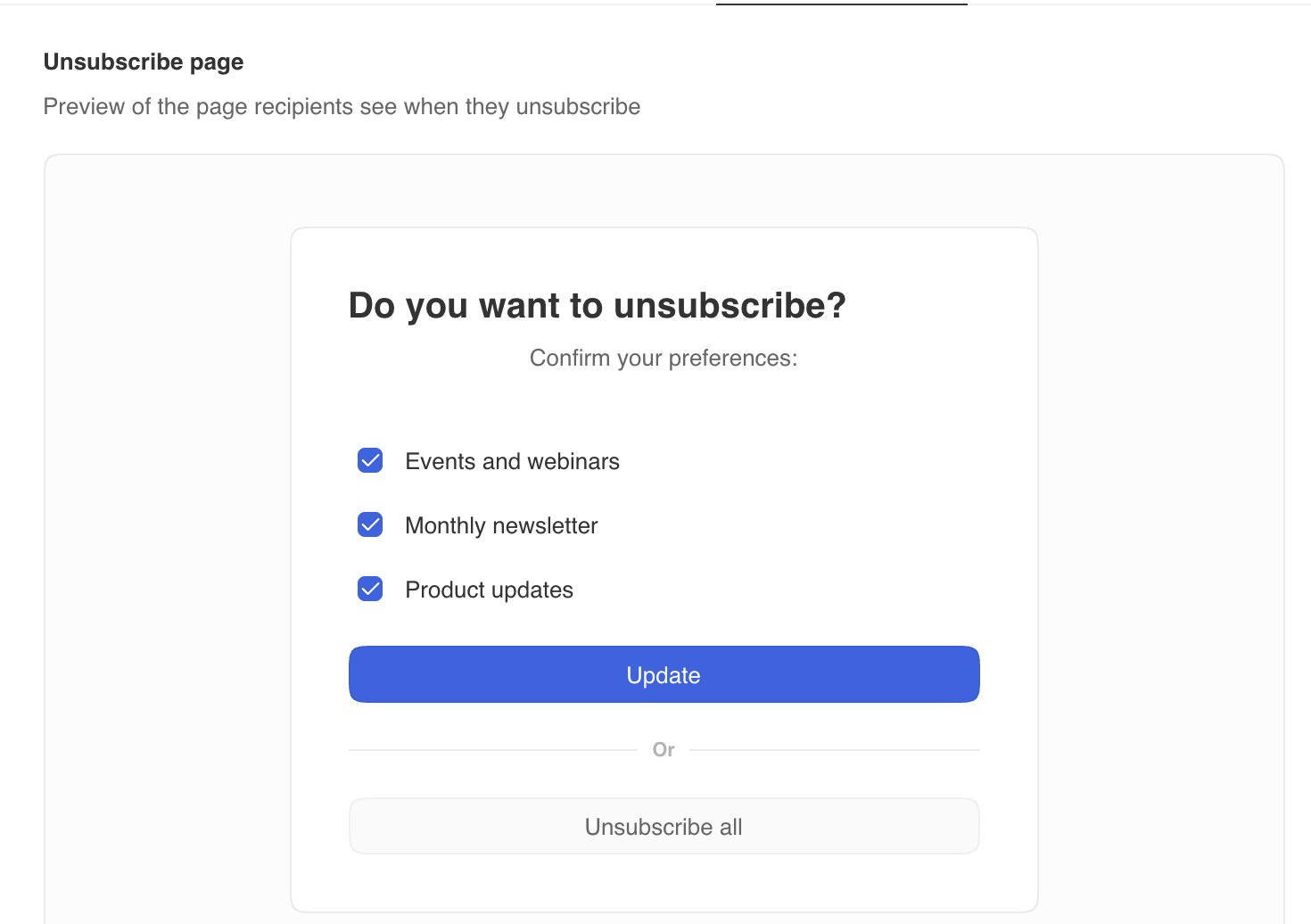
* **Public topics**: people see one checkbox for each topic. They can untick topics and click **Update**, or click **Unsubscribe all**.
An unsubscribe takes effect right away. Twenty skips that person in later campaigns.
 The unsubscribe button in Gmail, Yahoo, and other email apps removes a person
from all your campaigns, not just the topic in the email they received.
## Part 1: Create topics
Topics are types of email, such as **Newsletter**, **Product updates**, or **Events**.
1. Go to **Settings → Communication**.
2. Under **Unsubscribe**, click **Manage unsubscribe**.
3. Open the **Topics** tab and click **Add topic**.
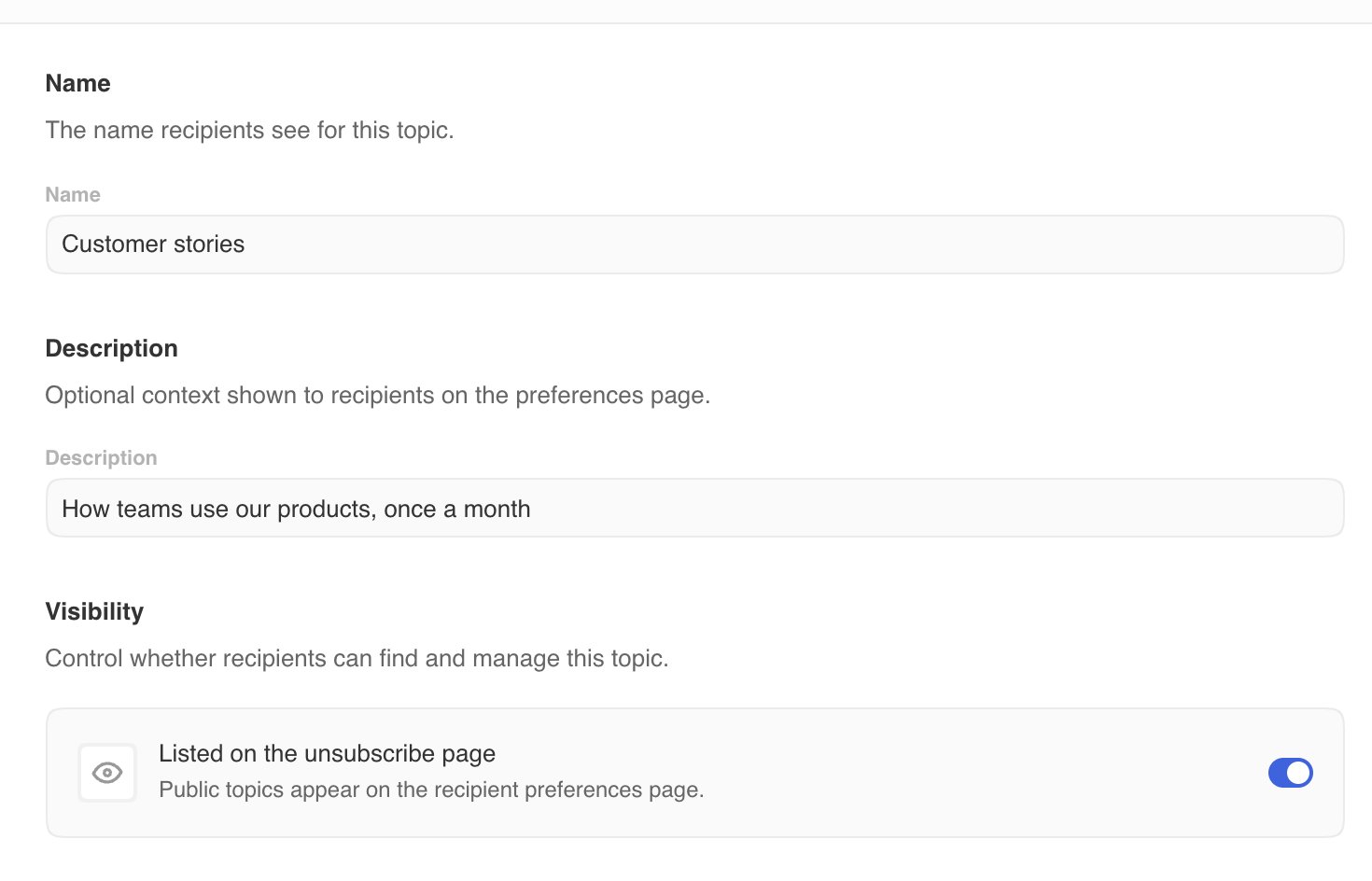
4. In **Name**, enter the name people see, for example `Newsletter`.
5. In **Description**, you can explain the emails for your team.
6. Turn on **Listed on the unsubscribe page** to show the topic to recipients.
7. Click **Save**.
| Visibility | Behavior |
| ----------- | ----------------------------------------------------------------------------------------- |
| **Public** | People see the topic on the unsubscribe page and can leave it on its own. |
| **Private** | People never see it. Use it to group campaigns for your team. It still respects opt-outs. |
New topics are private until you turn on **Listed on the unsubscribe page**.
The unsubscribe button in Gmail, Yahoo, and other email apps removes a person
from all your campaigns, not just the topic in the email they received.
## Part 1: Create topics
Topics are types of email, such as **Newsletter**, **Product updates**, or **Events**.
1. Go to **Settings → Communication**.
2. Under **Unsubscribe**, click **Manage unsubscribe**.
3. Open the **Topics** tab and click **Add topic**.
4. In **Name**, enter the name people see, for example `Newsletter`.
5. In **Description**, you can explain the emails for your team.
6. Turn on **Listed on the unsubscribe page** to show the topic to recipients.
7. Click **Save**.
| Visibility | Behavior |
| ----------- | ----------------------------------------------------------------------------------------- |
| **Public** | People see the topic on the unsubscribe page and can leave it on its own. |
| **Private** | People never see it. Use it to group campaigns for your team. It still respects opt-outs. |
New topics are private until you turn on **Listed on the unsubscribe page**.
 ## Part 2: Use a topic in a campaign
In the campaign's **Email** tab, choose a topic under **Unsubscribe topic**. The field appears after you create your first topic.
When the campaign sends, Twenty skips:
* People who unsubscribed from this topic.
* People who unsubscribed from everything.
People who only left a different topic still receive it.
## Part 3: See who unsubscribed
1. Go to **Settings → Communication**.
2. Under **Unsubscribe**, click **Manage unsubscribe**.
3. Open the **Unsubscribers** tab.
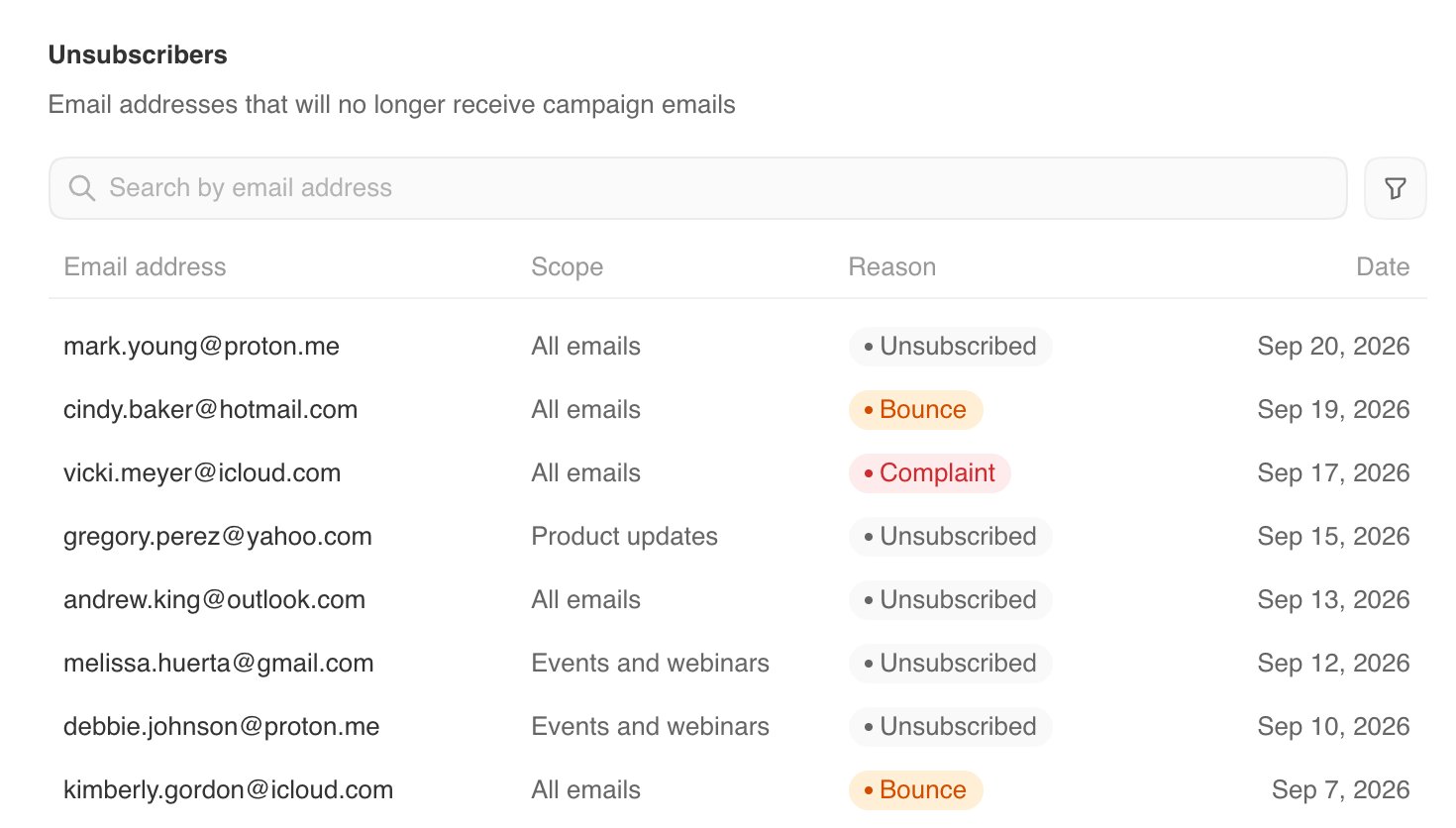
The list shows every address that no longer receives campaigns:
| Column | What it shows |
| ----------------- | -------------------------------------------------------------------------------------------------------------- |
| **Email address** | The address Twenty skips. |
| **Scope** | **All emails**, or the topic they left. |
| **Reason** | **Unsubscribed**, **Bounce** (the address does not exist), or **Complaint** (they reported the email as spam). |
| **Date** | When it happened. |
Use search and filters to find an address, reason, or topic.
## Part 2: Use a topic in a campaign
In the campaign's **Email** tab, choose a topic under **Unsubscribe topic**. The field appears after you create your first topic.
When the campaign sends, Twenty skips:
* People who unsubscribed from this topic.
* People who unsubscribed from everything.
People who only left a different topic still receive it.
## Part 3: See who unsubscribed
1. Go to **Settings → Communication**.
2. Under **Unsubscribe**, click **Manage unsubscribe**.
3. Open the **Unsubscribers** tab.
The list shows every address that no longer receives campaigns:
| Column | What it shows |
| ----------------- | -------------------------------------------------------------------------------------------------------------- |
| **Email address** | The address Twenty skips. |
| **Scope** | **All emails**, or the topic they left. |
| **Reason** | **Unsubscribed**, **Bounce** (the address does not exist), or **Complaint** (they reported the email as spam). |
| **Date** | When it happened. |
Use search and filters to find an address, reason, or topic.
 Bounces and spam complaints are permanent. Sending to those addresses again
can hurt your domain's reputation, so Twenty does not allow it.
## Preview the unsubscribe page
The **Unsubscribe page** tab shows what people see with your current public topics. Nothing is saved in the preview.
## Troubleshooting
Only public topics appear on the unsubscribe page. Open the topic and turn on
**Listed on the unsubscribe page**.
They may have used the unsubscribe button in their email app, which removes
them from all campaigns. Only the link in the email footer lets them choose
specific topics.
If you have public topics, they can open the unsubscribe link in an email
from the last 30 days, tick the topics they want, and click **Update**.
Bounces and spam complaints cannot be undone.
Bounces and spam complaints are permanent. Sending to those addresses again
can hurt your domain's reputation, so Twenty does not allow it.
## Preview the unsubscribe page
The **Unsubscribe page** tab shows what people see with your current public topics. Nothing is saved in the preview.
## Troubleshooting
Only public topics appear on the unsubscribe page. Open the topic and turn on
**Listed on the unsubscribe page**.
They may have used the unsubscribe button in their email app, which removes
them from all campaigns. Only the link in the email footer lets them choose
specific topics.
If you have public topics, they can open the unsubscribe link in an email
from the last 30 days, tick the topics they want, and click **Update**.
Bounces and spam complaints cannot be undone.