> ## Documentation Index
> Fetch the complete documentation index at: https://docs.twenty.com/llms.txt
> Use this file to discover all available pages before exploring further.
# Set Up a Sending Domain
> Verify your domain so you can send campaigns from your own address.
Campaigns come from an address on your domain, such as `news@yourcompany.com`. Before Twenty can send from it, Gmail, Outlook, and other providers need proof that you own the domain. You add that proof as DNS records where your domain is managed.
You will create the address in Twenty, add the DNS records, then verify them.
Twenty's records use their own host names, such as
`twenty-bounce.yourcompany.com` and `unsubscribe.yourcompany.com`. They do not
change the records your day-to-day email relies on, so you can use your main
domain. The only exception is DMARC, which applies to the whole domain.
Twenty suggests it only when you do not already have one.
## Before you start
Before you start, make sure you have:
* **Access to your DNS provider**: the company where you manage your domain records, such as Cloudflare, GoDaddy, or Namecheap. This is not always the company you bought the domain from.
* **The Workspace settings permission** in Twenty.
## Part 1: Create the address in Twenty
The sending domain comes from an email channel. If you already set up a shared inbox in Twenty, the domain is already there. Skip to Part 2.
1. Go to **Settings → Communication**.
2. Click **Add email channel**.
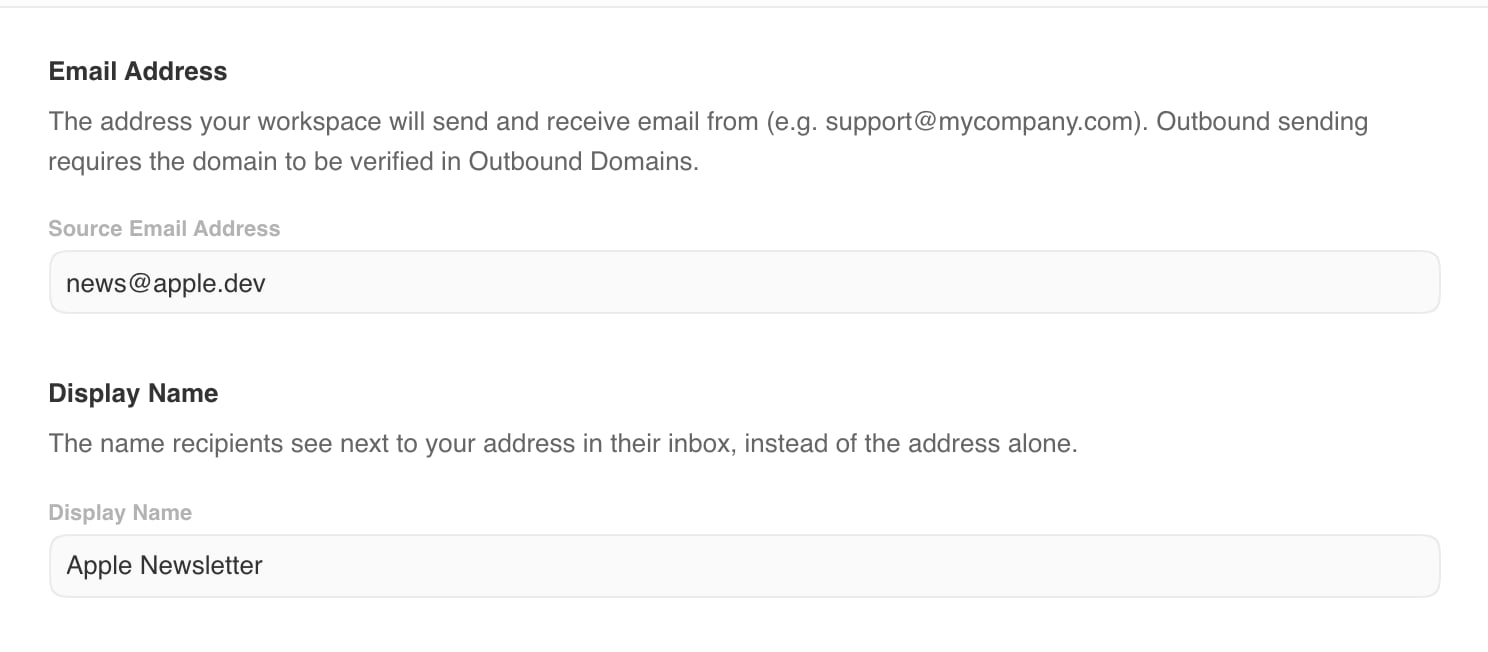
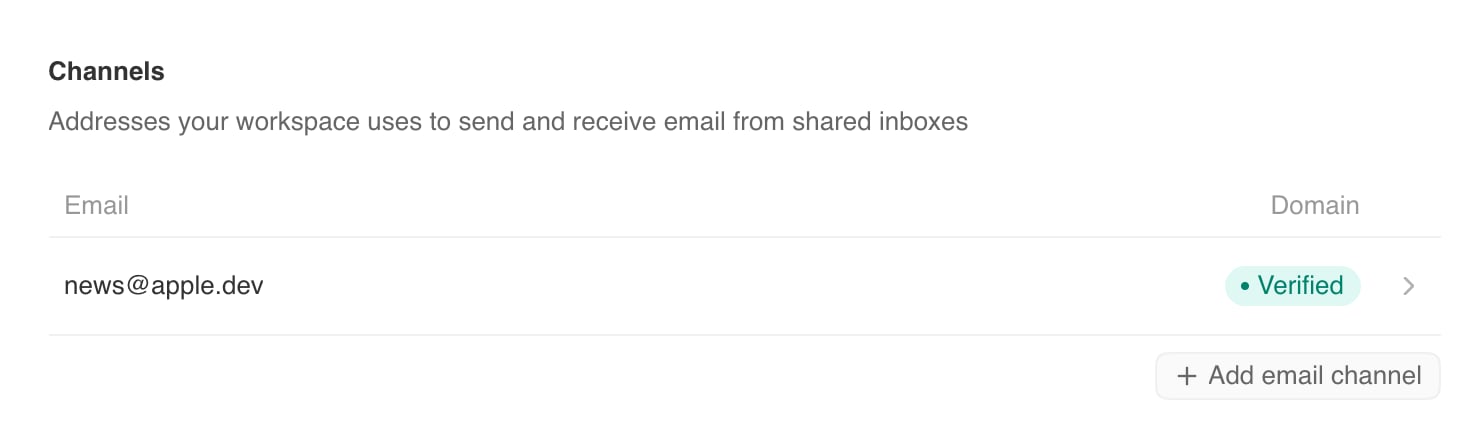 3. In **Source Email Address**, enter the address you want to use, for example `news@yourcompany.com`. Twenty uses the part after `@` as the sending domain.
4. In **Display Name**, enter the name people see in their inbox, for example `Acme Newsletter`.
5. Click **Save**.
3. In **Source Email Address**, enter the address you want to use, for example `news@yourcompany.com`. Twenty uses the part after `@` as the sending domain.
4. In **Display Name**, enter the name people see in their inbox, for example `Acme Newsletter`.
5. Click **Save**.
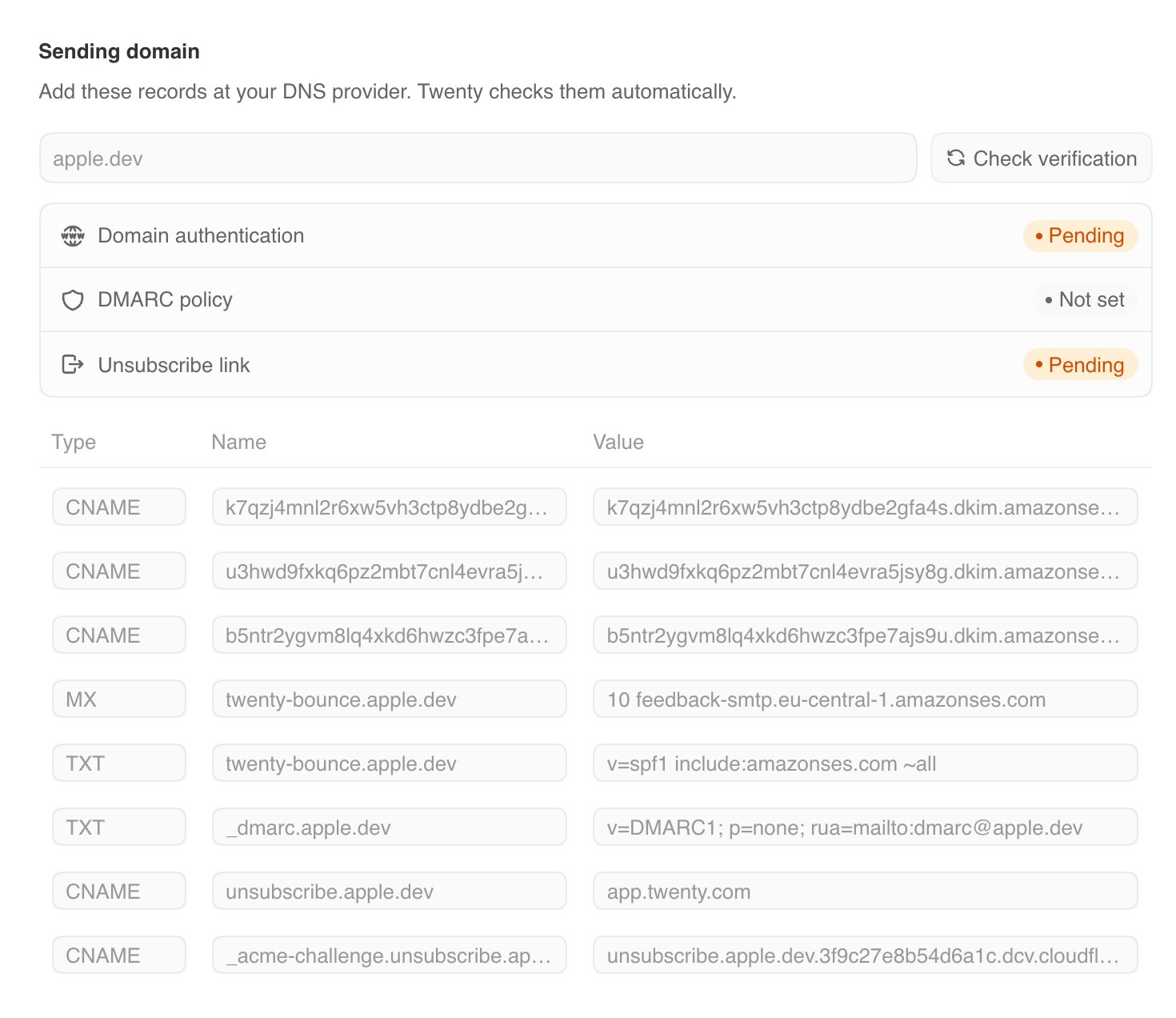
 Twenty opens the channel. Scroll to **Sending domain**. It lists the DNS records you need, with a copy button next to each value.
 A domain can only be verified in one Twenty workspace. Twenty tells you if it
is already being used elsewhere.
## Part 2: Understand the records
| Group | Records | What it does |
| ------------------------- | ------------------------------------------------------------------------------------------------- | --------------------------------------------------------------------------------------------------------------------------------------- |
| **Domain authentication** | Three `CNAME` records ending in `._domainkey`, plus an `MX` and a `TXT` record on `twenty-bounce` | Shows that Twenty can send for your domain (DKIM and SPF). The `twenty-bounce` records also send bounce reports back to Twenty. |
| **DMARC policy** | One `TXT` record on `_dmarc` | Tells providers what to do with mail that fails the checks. Twenty only lists it if you do not have a DMARC record. |
| **Unsubscribe link** | Two `CNAME` records, on `unsubscribe` and `_acme-challenge.unsubscribe` | Hosts the unsubscribe page on your domain, for example `unsubscribe.yourcompany.com`. You cannot send campaigns until this is verified. |
Add every record Twenty shows. Gmail, Yahoo, and Outlook reject bulk email that is not authenticated.
If your domain already has a DMARC record, keep it. Do not add another one:
providers treat two DMARC records as if you had none.
## Part 3: Add the records at your DNS provider
For each record, add a new entry at your DNS provider and copy these values from Twenty:
* **Type**: `CNAME`, `MX` or `TXT`.
* **Name**: sometimes called **Host**.
* **Value**: sometimes called **Target**, **Points to**, **Content**, or **Answer**.
For the `MX` record, Twenty shows the priority before the value, such as `10 feedback-smtp.eu-central-1.amazonses.com`. Most providers have a separate **Priority** field. Put `10` there and the rest in the value.
Many providers add your domain to the end of **Name** automatically. If yours
does, enter only the part before your domain. For
`twenty-bounce.yourcompany.com`, enter `twenty-bounce`. Otherwise the record
becomes `twenty-bounce.yourcompany.com.yourcompany.com` and will not verify.
Follow your provider's instructions, using the values from Twenty:
| Provider | Their guide | Watch out for |
| ------------------- | ----------------------------------------------------------------------------------------------------------------------------------------------------------------- | --------------------------------------------------------------------------------------------------------- |
| Amazon Route 53 | [Working with records](https://docs.aws.amazon.com/Route53/latest/DeveloperGuide/rrsets-working-with.html) | Wrap `TXT` values in double quotes. |
| Azure DNS | [Manage DNS records](https://learn.microsoft.com/en-us/azure/dns/dns-getstarted-portal) | Only works if the domain uses Azure's name servers. |
| Bluehost | [Add, edit or delete DNS entries](https://www.bluehost.com/help/article/dns-management-add-edit-or-delete-dns-entries) | Enter only the host part in **Host Record**. |
| Cloudflare | [Create DNS records](https://developers.cloudflare.com/dns/manage-dns-records/how-to/create-dns-records/) | Set every `CNAME` to **DNS only** (grey cloud). A proxied record never verifies. |
| DigitalOcean | [Manage DNS records](https://docs.digitalocean.com/products/networking/dns/how-to/manage-records/) | Only works if the domain uses DigitalOcean's name servers. |
| Gandi | [DNS records](https://docs.gandi.net/en/domain_names/common_operations/dns_records.html) | End `CNAME` values with a dot, as in `abc.dkim.amazonses.com.` |
| GoDaddy | [Add a CNAME record](https://www.godaddy.com/help/add-a-cname-record-19236) | Enter only the host part in **Name**. GoDaddy adds your domain itself. |
| Google Cloud DNS | [Manage records](https://cloud.google.com/dns/docs/records) | Only works if the domain uses Google Cloud's name servers. |
| Hostinger | [Manage DNS records](https://www.hostinger.com/support/1583249-how-to-manage-dns-records-at-hostinger/) | Only works if the domain uses Hostinger's name servers. |
| Hover | [Edit DNS records](https://help.hover.com/hc/en-us/articles/217282457-how-to-edit-dns-records-a-aaaa-cname-mx-txt-srv-) | Enter only the host part in **Hostname**. |
| IONOS | [Manage DNS settings](https://www.ionos.com/help/domains/general-information-about-dns-settings/managing-dns-settings-in-control-center/) | Enter only the host part in **Host name**. |
| Name.com | [Add a CNAME record](https://www.name.com/support/articles/115004895548-adding-a-cname-record) | Enter only the host part in **Host**. |
| Namecheap | [Add TXT, SPF, DKIM and DMARC records](https://www.namecheap.com/support/knowledgebase/article.aspx/317/2237/how-do-i-add-txtspfdkimdmarc-records-for-my-domain/) | Only works if the domain uses Namecheap BasicDNS, FreeDNS or PremiumDNS. Enter only the host part. |
| Netlify | [DNS records](https://docs.netlify.com/manage/domains/configure-domains/dns-records/) | Only works if the domain uses Netlify's name servers. |
| Network Solutions | [Manage Advanced DNS records](https://www.networksolutions.com/help/article/manage-dns-adns-records) | Enter only the host part. |
| OVHcloud | [Create a CNAME record](https://docs.ovhcloud.com/en/guides/web-cloud/domains/dns-zone-cname-record-creation) | Enter only the host part in **Subdomain**. |
| Porkbun | [Edit DNS records](https://kb.porkbun.com/article/68-how-to-edit-dns-records) | Enter only the host part in **Host**. |
| Squarespace Domains | [Edit your domain's DNS records](https://support.squarespace.com/hc/en-us/articles/360002101888-Edit-your-domain-s-DNS-records) | Squarespace blocks a record that conflicts with an existing one instead of replacing it. |
| Vercel | [Manage DNS records](https://vercel.com/docs/domains/managing-dns-records) | Only works if the domain uses Vercel's name servers. Otherwise, add the records where your DNS is hosted. |
| Wix | [Manage DNS records](https://support.wix.com/en/article/managing-dns-records-in-your-wix-account) | Only works if the domain uses Wix's name servers. Otherwise, add the records where your DNS is hosted. |
If your provider is not listed, look for **DNS**, **DNS records**, **Zone editor**, or **Advanced DNS** in your domain settings.
## Part 4: Verify
Twenty checks your records every hour. To check now, click **Check verification** in **Sending domain**.
DNS changes usually work within an hour, but some providers take up to 48 hours. The domain moves from **Pending** to **Verified** when Twenty finds the authentication records. The **Unsubscribe link** also needs to show **Verified** before you can send campaigns.
A domain can only be verified in one Twenty workspace. Twenty tells you if it
is already being used elsewhere.
## Part 2: Understand the records
| Group | Records | What it does |
| ------------------------- | ------------------------------------------------------------------------------------------------- | --------------------------------------------------------------------------------------------------------------------------------------- |
| **Domain authentication** | Three `CNAME` records ending in `._domainkey`, plus an `MX` and a `TXT` record on `twenty-bounce` | Shows that Twenty can send for your domain (DKIM and SPF). The `twenty-bounce` records also send bounce reports back to Twenty. |
| **DMARC policy** | One `TXT` record on `_dmarc` | Tells providers what to do with mail that fails the checks. Twenty only lists it if you do not have a DMARC record. |
| **Unsubscribe link** | Two `CNAME` records, on `unsubscribe` and `_acme-challenge.unsubscribe` | Hosts the unsubscribe page on your domain, for example `unsubscribe.yourcompany.com`. You cannot send campaigns until this is verified. |
Add every record Twenty shows. Gmail, Yahoo, and Outlook reject bulk email that is not authenticated.
If your domain already has a DMARC record, keep it. Do not add another one:
providers treat two DMARC records as if you had none.
## Part 3: Add the records at your DNS provider
For each record, add a new entry at your DNS provider and copy these values from Twenty:
* **Type**: `CNAME`, `MX` or `TXT`.
* **Name**: sometimes called **Host**.
* **Value**: sometimes called **Target**, **Points to**, **Content**, or **Answer**.
For the `MX` record, Twenty shows the priority before the value, such as `10 feedback-smtp.eu-central-1.amazonses.com`. Most providers have a separate **Priority** field. Put `10` there and the rest in the value.
Many providers add your domain to the end of **Name** automatically. If yours
does, enter only the part before your domain. For
`twenty-bounce.yourcompany.com`, enter `twenty-bounce`. Otherwise the record
becomes `twenty-bounce.yourcompany.com.yourcompany.com` and will not verify.
Follow your provider's instructions, using the values from Twenty:
| Provider | Their guide | Watch out for |
| ------------------- | ----------------------------------------------------------------------------------------------------------------------------------------------------------------- | --------------------------------------------------------------------------------------------------------- |
| Amazon Route 53 | [Working with records](https://docs.aws.amazon.com/Route53/latest/DeveloperGuide/rrsets-working-with.html) | Wrap `TXT` values in double quotes. |
| Azure DNS | [Manage DNS records](https://learn.microsoft.com/en-us/azure/dns/dns-getstarted-portal) | Only works if the domain uses Azure's name servers. |
| Bluehost | [Add, edit or delete DNS entries](https://www.bluehost.com/help/article/dns-management-add-edit-or-delete-dns-entries) | Enter only the host part in **Host Record**. |
| Cloudflare | [Create DNS records](https://developers.cloudflare.com/dns/manage-dns-records/how-to/create-dns-records/) | Set every `CNAME` to **DNS only** (grey cloud). A proxied record never verifies. |
| DigitalOcean | [Manage DNS records](https://docs.digitalocean.com/products/networking/dns/how-to/manage-records/) | Only works if the domain uses DigitalOcean's name servers. |
| Gandi | [DNS records](https://docs.gandi.net/en/domain_names/common_operations/dns_records.html) | End `CNAME` values with a dot, as in `abc.dkim.amazonses.com.` |
| GoDaddy | [Add a CNAME record](https://www.godaddy.com/help/add-a-cname-record-19236) | Enter only the host part in **Name**. GoDaddy adds your domain itself. |
| Google Cloud DNS | [Manage records](https://cloud.google.com/dns/docs/records) | Only works if the domain uses Google Cloud's name servers. |
| Hostinger | [Manage DNS records](https://www.hostinger.com/support/1583249-how-to-manage-dns-records-at-hostinger/) | Only works if the domain uses Hostinger's name servers. |
| Hover | [Edit DNS records](https://help.hover.com/hc/en-us/articles/217282457-how-to-edit-dns-records-a-aaaa-cname-mx-txt-srv-) | Enter only the host part in **Hostname**. |
| IONOS | [Manage DNS settings](https://www.ionos.com/help/domains/general-information-about-dns-settings/managing-dns-settings-in-control-center/) | Enter only the host part in **Host name**. |
| Name.com | [Add a CNAME record](https://www.name.com/support/articles/115004895548-adding-a-cname-record) | Enter only the host part in **Host**. |
| Namecheap | [Add TXT, SPF, DKIM and DMARC records](https://www.namecheap.com/support/knowledgebase/article.aspx/317/2237/how-do-i-add-txtspfdkimdmarc-records-for-my-domain/) | Only works if the domain uses Namecheap BasicDNS, FreeDNS or PremiumDNS. Enter only the host part. |
| Netlify | [DNS records](https://docs.netlify.com/manage/domains/configure-domains/dns-records/) | Only works if the domain uses Netlify's name servers. |
| Network Solutions | [Manage Advanced DNS records](https://www.networksolutions.com/help/article/manage-dns-adns-records) | Enter only the host part. |
| OVHcloud | [Create a CNAME record](https://docs.ovhcloud.com/en/guides/web-cloud/domains/dns-zone-cname-record-creation) | Enter only the host part in **Subdomain**. |
| Porkbun | [Edit DNS records](https://kb.porkbun.com/article/68-how-to-edit-dns-records) | Enter only the host part in **Host**. |
| Squarespace Domains | [Edit your domain's DNS records](https://support.squarespace.com/hc/en-us/articles/360002101888-Edit-your-domain-s-DNS-records) | Squarespace blocks a record that conflicts with an existing one instead of replacing it. |
| Vercel | [Manage DNS records](https://vercel.com/docs/domains/managing-dns-records) | Only works if the domain uses Vercel's name servers. Otherwise, add the records where your DNS is hosted. |
| Wix | [Manage DNS records](https://support.wix.com/en/article/managing-dns-records-in-your-wix-account) | Only works if the domain uses Wix's name servers. Otherwise, add the records where your DNS is hosted. |
If your provider is not listed, look for **DNS**, **DNS records**, **Zone editor**, or **Advanced DNS** in your domain settings.
## Part 4: Verify
Twenty checks your records every hour. To check now, click **Check verification** in **Sending domain**.
DNS changes usually work within an hour, but some providers take up to 48 hours. The domain moves from **Pending** to **Verified** when Twenty finds the authentication records. The **Unsubscribe link** also needs to show **Verified** before you can send campaigns.
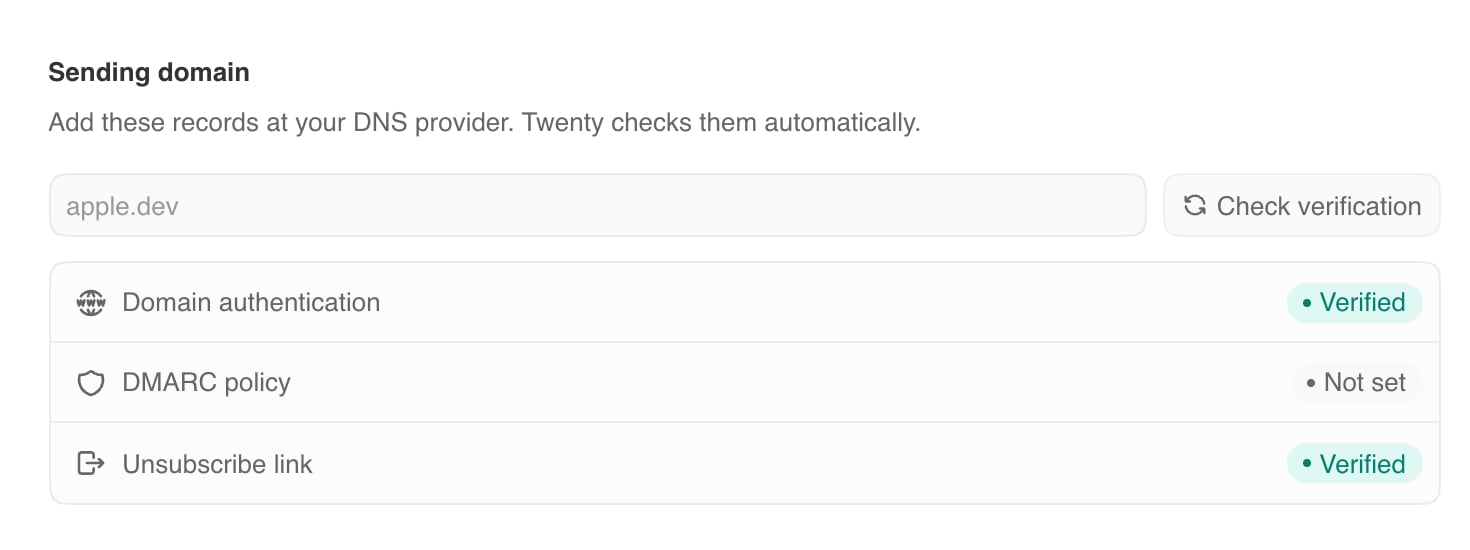 The **DMARC policy** row always shows **Not set**. That is expected: Twenty suggests the record but does not check it.
## Troubleshooting
Open your DNS provider and compare each **Name** with the value in Twenty.
The usual problem is that the provider added your domain a second time, as
described in Part 3. Also check that you added the records where your DNS is
actually hosted. Records in your registrar's panel do nothing if your name
servers point somewhere else.
Set every `CNAME` to **DNS only**. With the orange cloud on, Cloudflare
returns its own servers instead of the value Twenty gave you.
Twenty stops checking a failed domain. Fix the records, then click **Check
verification**.
Your DNS provider did not answer when Twenty checked. Twenty keeps checking
every hour, so this usually fixes itself.
The two unsubscribe records are checked separately and can take longer because
Twenty also creates a secure certificate for them. Check that both `CNAME`
records exist—on `unsubscribe` and `_acme-challenge.unsubscribe`—then wait up
to an hour.
Put `10` in **Priority** and only the host name in the value, such as
`feedback-smtp.eu-central-1.amazonses.com`. Do not put `10` in the value.
Next, read the [best practices](/user-guide/email-campaigns/how-tos/email-campaign-best-practices), then [send your first campaign](/user-guide/email-campaigns/how-tos/send-your-first-campaign).
The **DMARC policy** row always shows **Not set**. That is expected: Twenty suggests the record but does not check it.
## Troubleshooting
Open your DNS provider and compare each **Name** with the value in Twenty.
The usual problem is that the provider added your domain a second time, as
described in Part 3. Also check that you added the records where your DNS is
actually hosted. Records in your registrar's panel do nothing if your name
servers point somewhere else.
Set every `CNAME` to **DNS only**. With the orange cloud on, Cloudflare
returns its own servers instead of the value Twenty gave you.
Twenty stops checking a failed domain. Fix the records, then click **Check
verification**.
Your DNS provider did not answer when Twenty checked. Twenty keeps checking
every hour, so this usually fixes itself.
The two unsubscribe records are checked separately and can take longer because
Twenty also creates a secure certificate for them. Check that both `CNAME`
records exist—on `unsubscribe` and `_acme-challenge.unsubscribe`—then wait up
to an hour.
Put `10` in **Priority** and only the host name in the value, such as
`feedback-smtp.eu-central-1.amazonses.com`. Do not put `10` in the value.
Next, read the [best practices](/user-guide/email-campaigns/how-tos/email-campaign-best-practices), then [send your first campaign](/user-guide/email-campaigns/how-tos/send-your-first-campaign).