> ## Documentation Index
> Fetch the complete documentation index at: https://docs.twenty.com/llms.txt
> Use this file to discover all available pages before exploring further.
# Navigate Around Twenty
> Get a quick overview of how to navigate through the platform and where to take different types of actions.
## The Main Layout
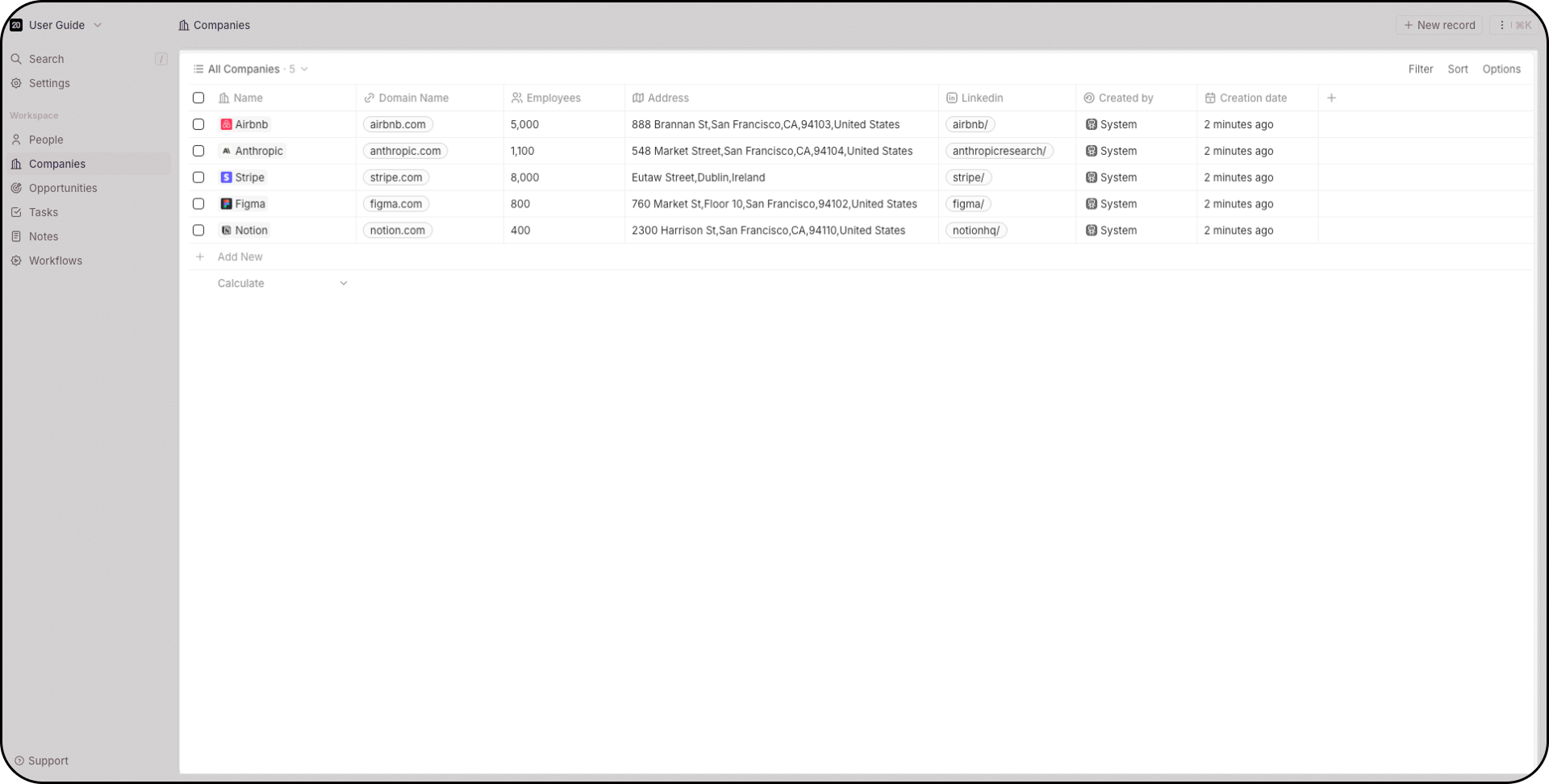
The center of the screen is **where your records live**: people, companies, opportunities, tasks, notes, dashboards, workflows and any other object you created. This is where the day-to-day work happens.
You can **view, edit, delete records** from there as well as **creating new views**.
 ## The Navigation Bar
On the left side, from the top to the bottom, you'll be able to:
* Switch between your **several workspaces** using the dropdown menu or create a new workspace
* Use the **search bar** (press `/` to focus on it instantly)
* Open the **Settings** section
* Have direct access to your **Favourites views**. Favourites are unique for each user.
* Switch between different objects
* **Create automations** using workflows
## The Navigation Bar
On the left side, from the top to the bottom, you'll be able to:
* Switch between your **several workspaces** using the dropdown menu or create a new workspace
* Use the **search bar** (press `/` to focus on it instantly)
* Open the **Settings** section
* Have direct access to your **Favourites views**. Favourites are unique for each user.
* Switch between different objects
* **Create automations** using workflows
 ## The Command Menu
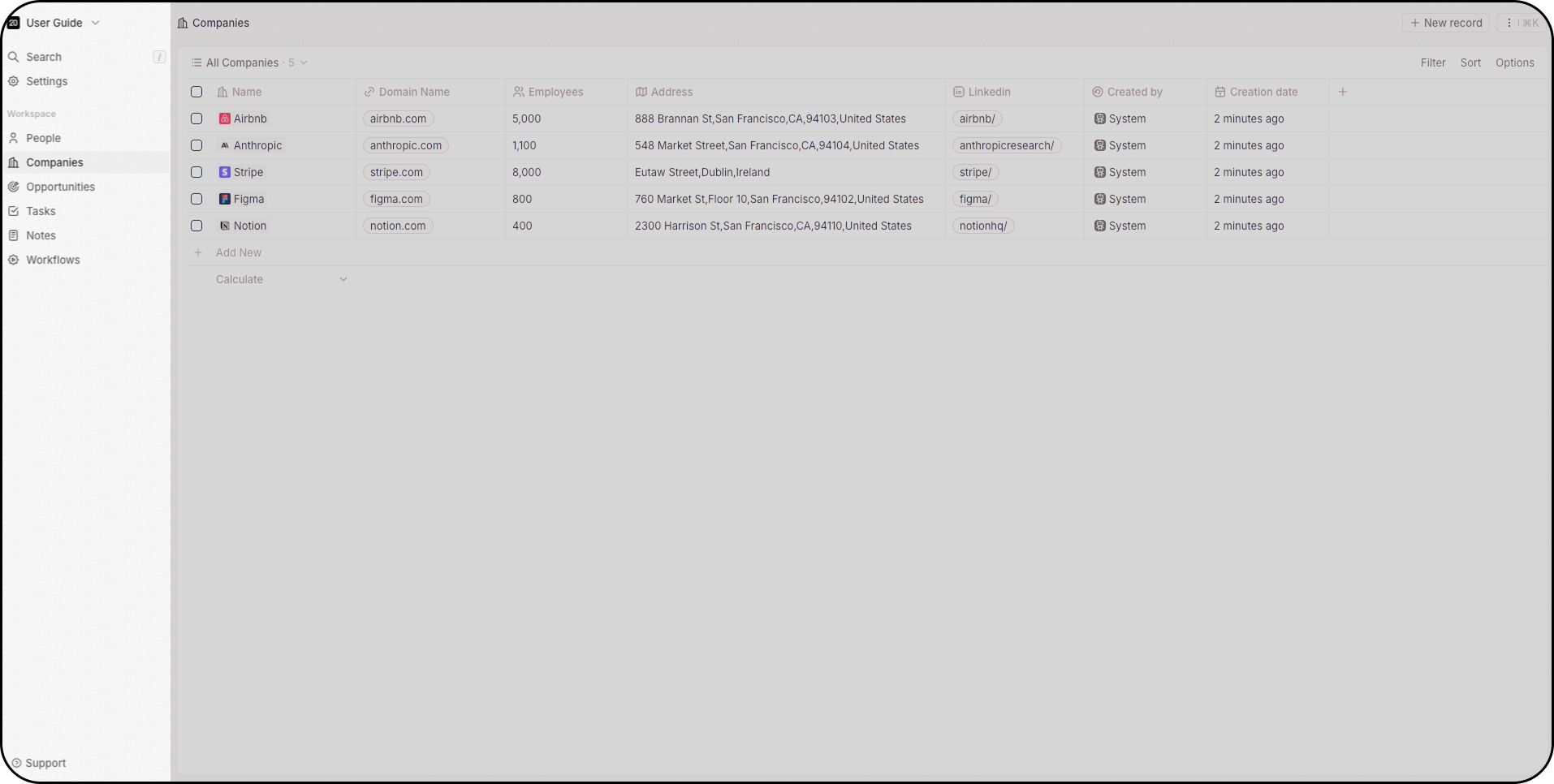
The command menu gives you **quick access to actions** in Twenty. You can access it in two ways:
* **Keyboard shortcut**: Press `Cmd + K` (Mac) or `Ctrl + K` (Windows)
* **Mouse**: Click the three dots in the top right corner
From there, you can:
* Create new records
* **Import and export data via csv**
* Create new views
* Access deleted records (Twenty supports soft and hard deletes)
* See the keyboard shortcuts to quickly access objects in your workspace
## The Command Menu
The command menu gives you **quick access to actions** in Twenty. You can access it in two ways:
* **Keyboard shortcut**: Press `Cmd + K` (Mac) or `Ctrl + K` (Windows)
* **Mouse**: Click the three dots in the top right corner
From there, you can:
* Create new records
* **Import and export data via csv**
* Create new views
* Access deleted records (Twenty supports soft and hard deletes)
* See the keyboard shortcuts to quickly access objects in your workspace
 ## The Search Bar
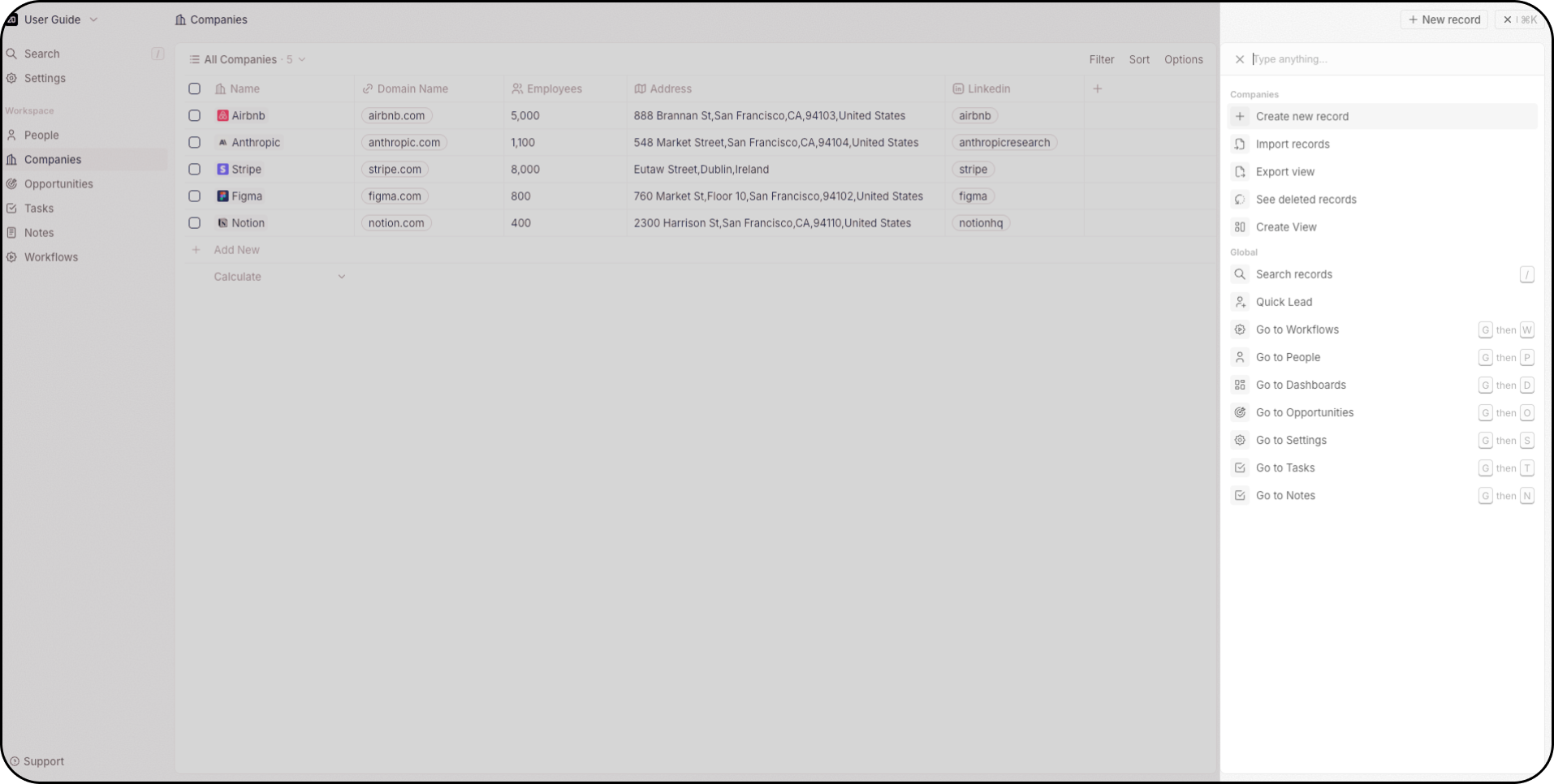
+The search bar is accessible via the Command Menu, at the top of your navigation bar, or by pressing `/` to focus on it instantly. Search works across all objects.
## The Search Bar
+The search bar is accessible via the Command Menu, at the top of your navigation bar, or by pressing `/` to focus on it instantly. Search works across all objects.
 ## The Side Panel
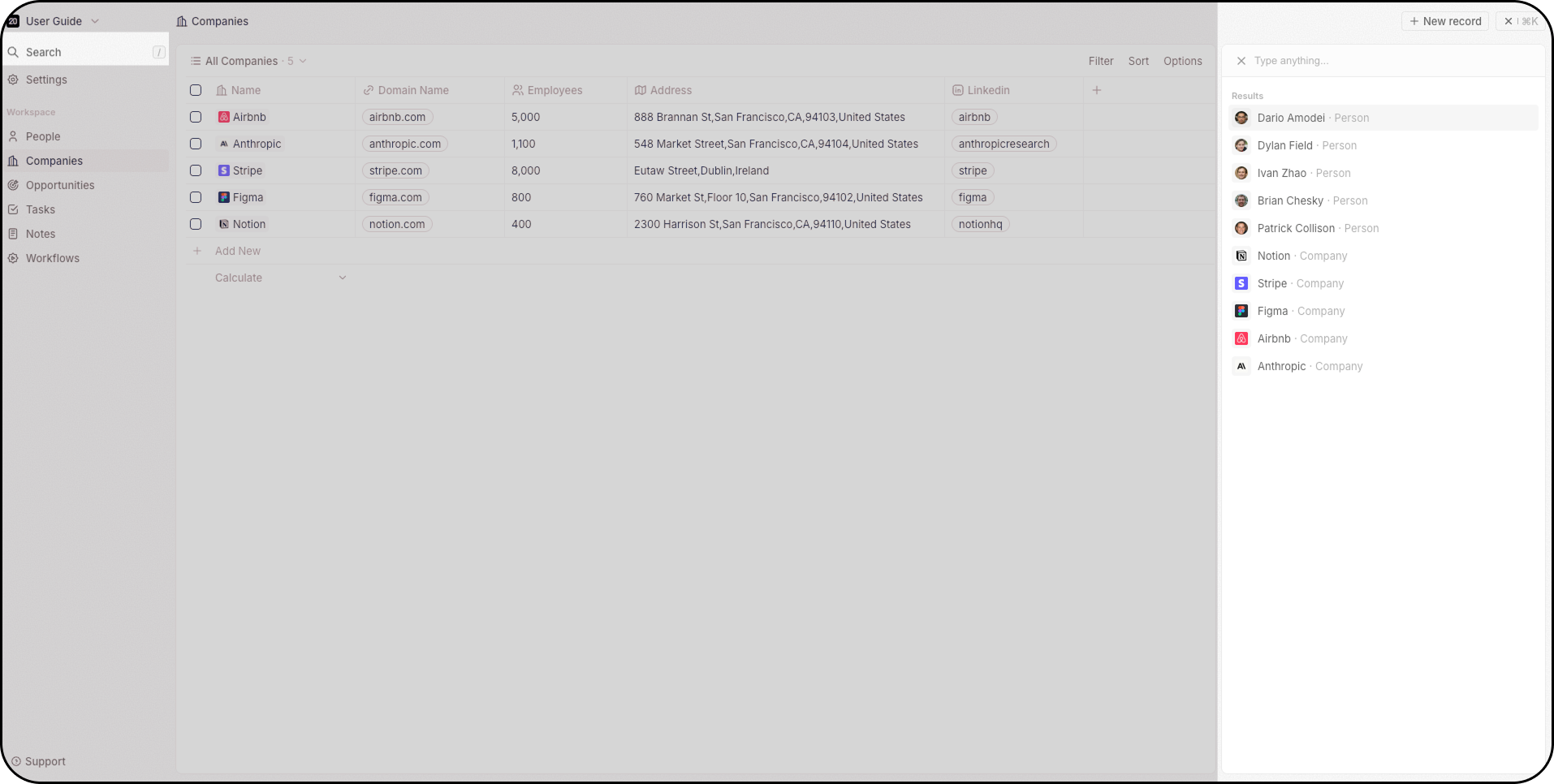
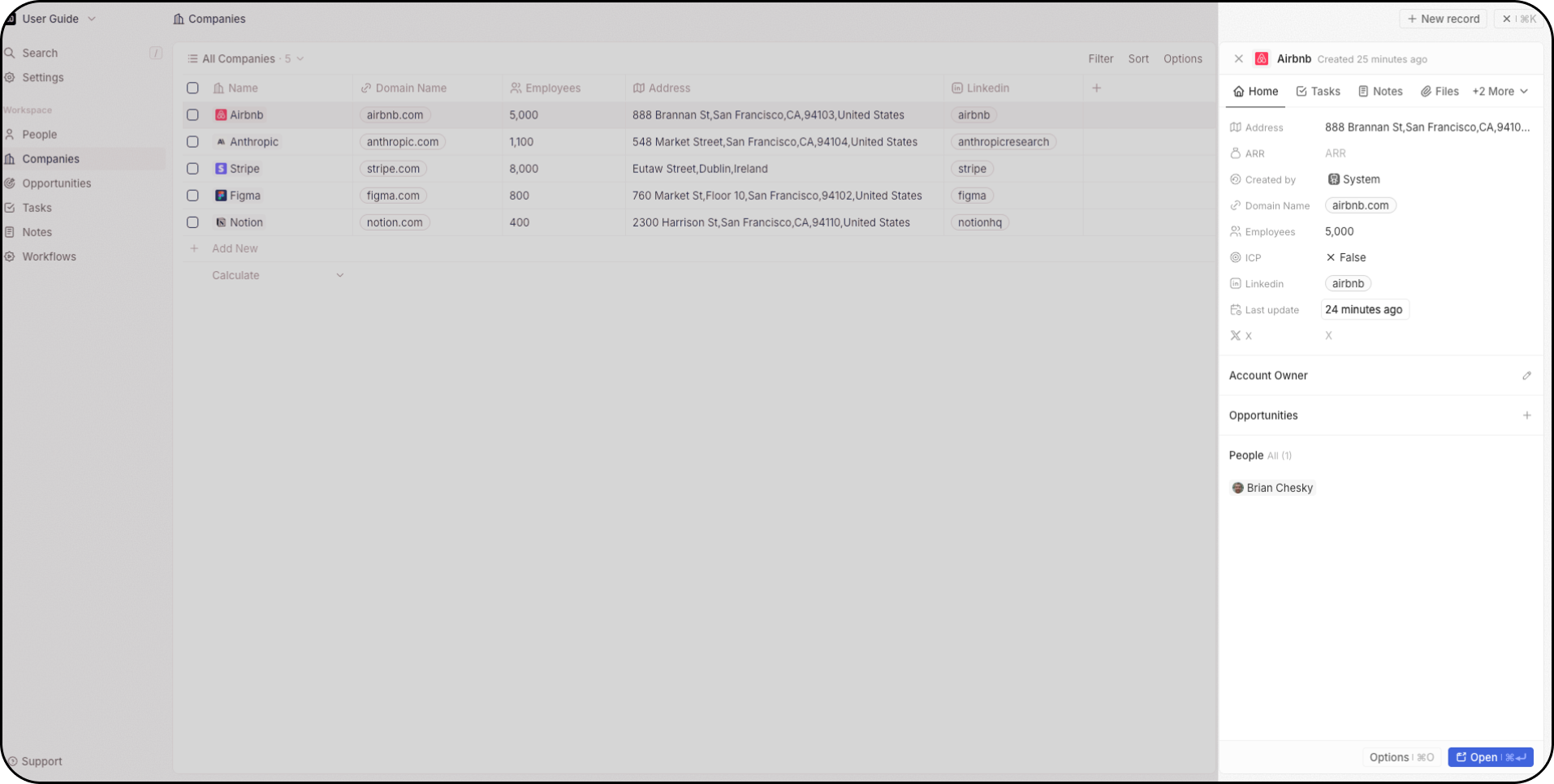
When you click on a record, the side panel appears on the right. This gives you a quick overview of the record's key information, without bringing you to another page. From there, you can decide to close this overview or to get additional information about this record, clicking on the Open button.
## The Side Panel
When you click on a record, the side panel appears on the right. This gives you a quick overview of the record's key information, without bringing you to another page. From there, you can decide to close this overview or to get additional information about this record, clicking on the Open button.
 ## Views
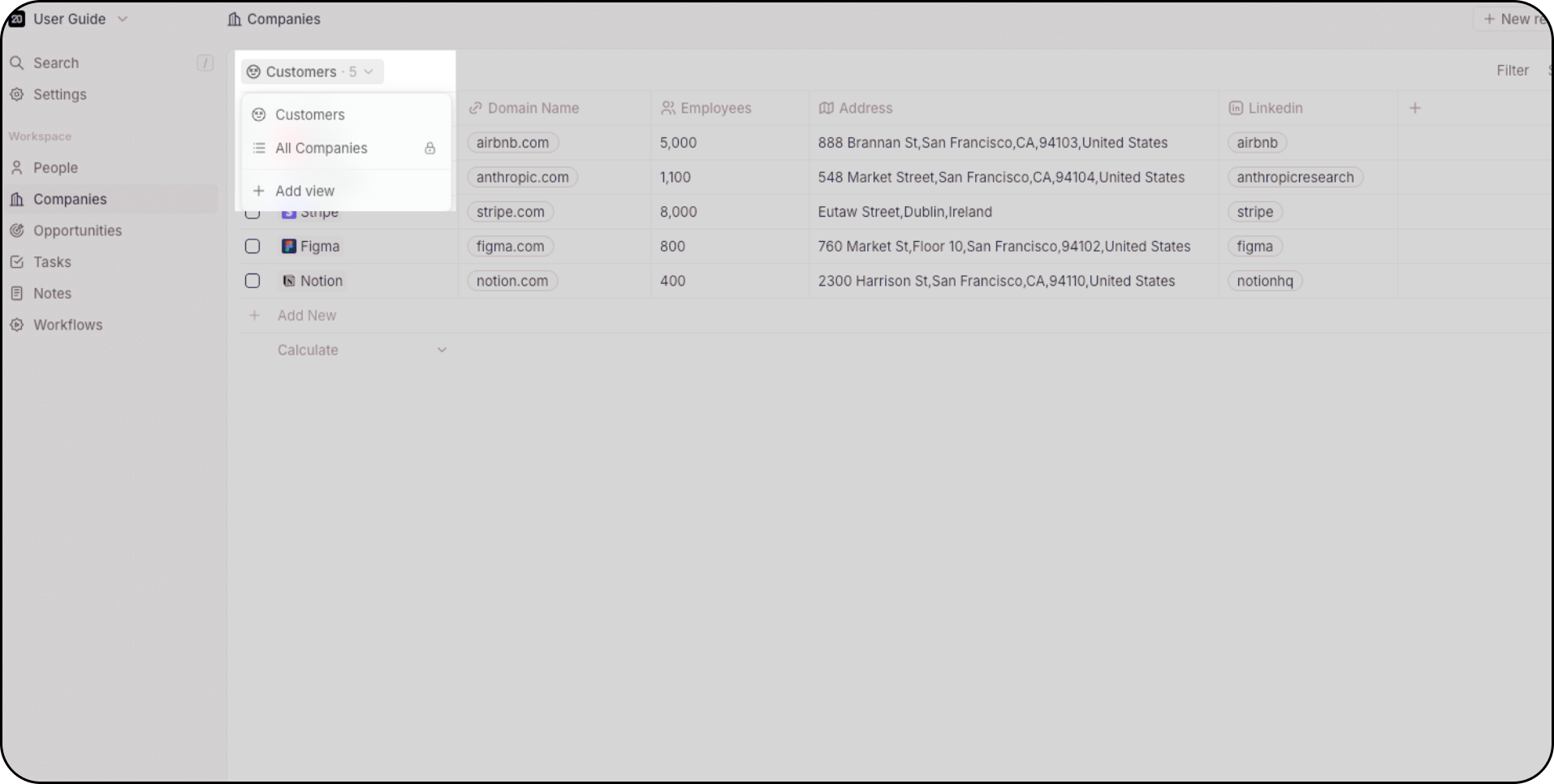
Every object (like Opportunities or People) supports multiple views. You're not limited in the number of views per object.
Use the dropdown menu at the top left of the main layout to switch between the different views. For example:
* Use a Kanban view to track opportunities by stage
* Use Group By view to create sections and improve efficiency
* Use filters to focus on specific records (e.g. leads created last week)
* Save filtered views to reuse them later
* Favourite views for fast access
## Views
Every object (like Opportunities or People) supports multiple views. You're not limited in the number of views per object.
Use the dropdown menu at the top left of the main layout to switch between the different views. For example:
* Use a Kanban view to track opportunities by stage
* Use Group By view to create sections and improve efficiency
* Use filters to focus on specific records (e.g. leads created last week)
* Save filtered views to reuse them later
* Favourite views for fast access
 If you're new to Views, read our [Views & Pipelines guide](/user-guide/views-pipelines/overview) to learn how to create and customize them.
## Settings
Open your Settings from the top left to:
* **Connect your mailbox and calendar** accounts for seamless email and calendar sync
* Customize your **data model**: create custom objects, fields, and relationships
* **Access the API playground and configure webhooks**
* **Manage user permissions** and workspace access controls
* Invite team members and manage user roles
* Edit your profile and workspace preferences
* Configure billing and monitor workflow credits usage
* Discover and enable upcoming features (under Updates → Early Access)
* **Access Support** to reach out via live chat
* **Open the Documentation** to browse the User Guide and developer docs
If you do not see all those sections under Settings, reach out to your workspace administrator - some of them have restricted access.
If you're new to Views, read our [Views & Pipelines guide](/user-guide/views-pipelines/overview) to learn how to create and customize them.
## Settings
Open your Settings from the top left to:
* **Connect your mailbox and calendar** accounts for seamless email and calendar sync
* Customize your **data model**: create custom objects, fields, and relationships
* **Access the API playground and configure webhooks**
* **Manage user permissions** and workspace access controls
* Invite team members and manage user roles
* Edit your profile and workspace preferences
* Configure billing and monitor workflow credits usage
* Discover and enable upcoming features (under Updates → Early Access)
* **Access Support** to reach out via live chat
* **Open the Documentation** to browse the User Guide and developer docs
If you do not see all those sections under Settings, reach out to your workspace administrator - some of them have restricted access.