> ## Documentation Index
> Fetch the complete documentation index at: https://docs.twenty.com/llms.txt
> Use this file to discover all available pages before exploring further.
# Kanban Board Views
> Learn how to use Kanban views to visualize and manage your workflows.
export const VimeoEmbed = ({videoId, title = 'Video'}) =>
;
## About Kanban Views
Kanban views visually map out process flows, where each column stands for a distinct stage and each card represents a record.
## Move Cards between Stages
You can move each card between stages as it goes through your workflow by dragging and dropping. To proceed, hold your click on a card and move it to the next stage.
## Add and Delete Stages
You can tailor your workflow to suit your needs using stages, which represent a value in a Select Field:
### Add Stages
To add a stage, access the Select field settings by navigating to Settings > Data Model, selecting your object, and then the field your Kanban board depends on.
### Remove Stages
To remove a stage, hover the stage name or the `⋮` icon, click `Edit from settings` in the Select field settings, and then click **Delete** next to the relevant stage.
## Display Fields
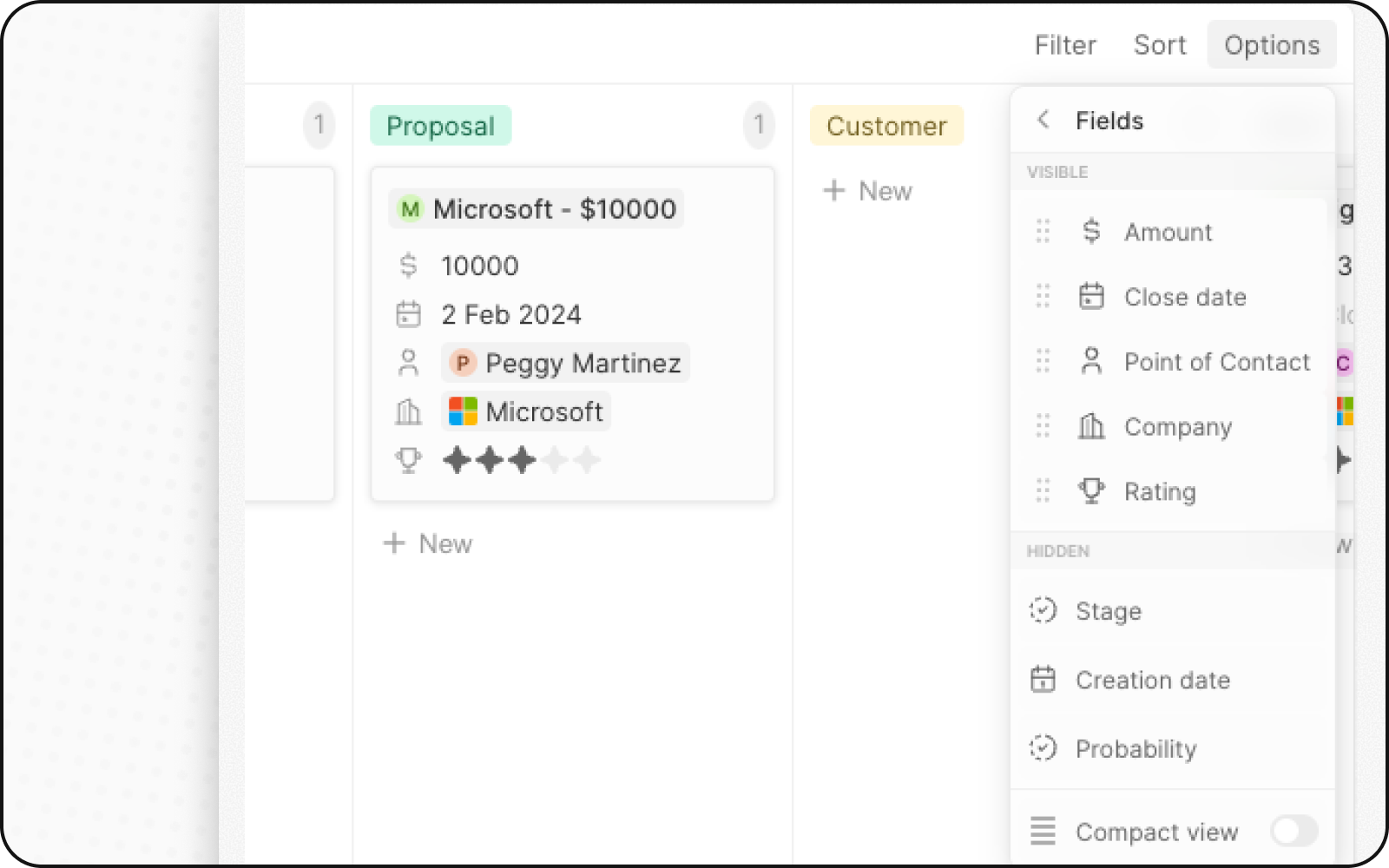
You can configure your Kanban board to display some fields and hide others. To hide a field, click on **Options** on the top right, then on **Fields** to bring up the list of options. Look for the field needed in the Hidden Fields section and click on the eye button to display the field.
You can also rearrange the order of fields by holding down the field name and dragging it to where you want it.
 ## Compact View
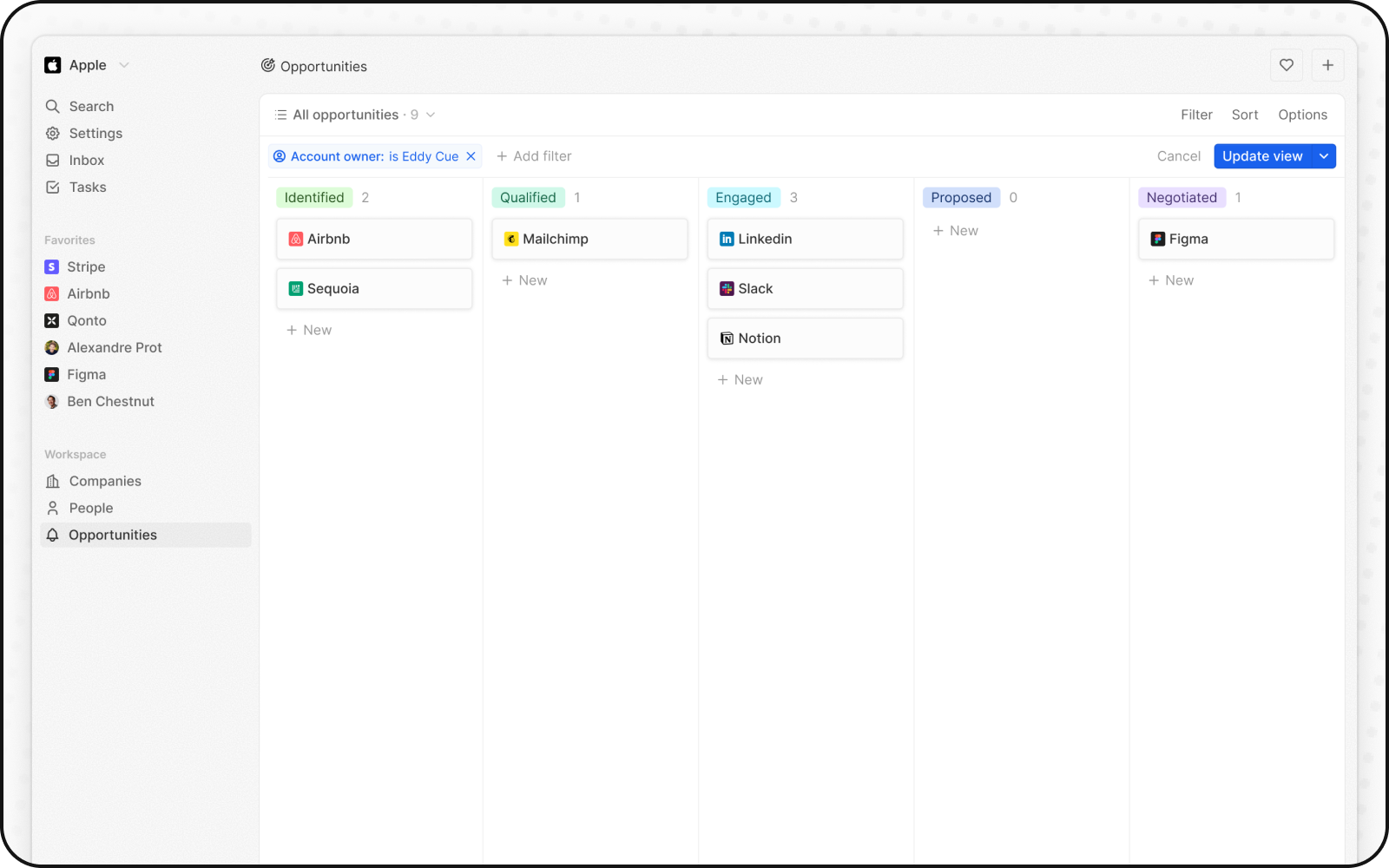
You can hide all the fields and get an overview of all records at a glance. To enable:
1. Click **Options** on the top right
2. Turn on the toggle for **Compact view**
## Compact View
You can hide all the fields and get an overview of all records at a glance. To enable:
1. Click **Options** on the top right
2. Turn on the toggle for **Compact view**
 ## Column Aggregations
Each column in a Kanban view can display aggregated values at the top, helping you understand your data at a glance.
### Available Aggregations
| Aggregation | Description |
| ----------- | --------------------------------------------- |
| **Count** | Number of records in the column |
| **Sum** | Total of a numeric field (e.g., deal amounts) |
| **Average** | Average value of a numeric field |
| **Min** | Lowest value |
| **Max** | Highest value |
### Configuring Aggregations
1. Click on the number displayed next to the Stage value, at the top of a column
2. Select the aggregation type
3. Choose the field to aggregate
**Example:** Show total deal value per stage by aggregating the Amount field with Sum.
## When to Use Kanban Views
Kanban views are ideal for:
* **Sales pipelines**: Track deals through stages from lead to close
* **Project management**: Monitor tasks through workflow states
* **Recruitment**: Track candidates through hiring stages
* **Any staged process**: Visualize any workflow with defined stages
## Best Practices
### Organize Your Stages
* **Limit stages**: 5-7 stages is ideal for visibility
* **Clear naming**: Use descriptive stage names
* **Logical order**: Arrange stages in process order
### Optimize Card Display
* **Show key fields**: Display only the most important information
* **Use compact view**: For high-level overviews
* **Color coding**: Use stage colors to quickly identify status
### Maintain Data Quality
* **Update regularly**: Keep cards moving through stages
* **Archive completed**: Move closed items out of active view
* **Review stale cards**: Follow up on cards stuck in stages
## Column Aggregations
Each column in a Kanban view can display aggregated values at the top, helping you understand your data at a glance.
### Available Aggregations
| Aggregation | Description |
| ----------- | --------------------------------------------- |
| **Count** | Number of records in the column |
| **Sum** | Total of a numeric field (e.g., deal amounts) |
| **Average** | Average value of a numeric field |
| **Min** | Lowest value |
| **Max** | Highest value |
### Configuring Aggregations
1. Click on the number displayed next to the Stage value, at the top of a column
2. Select the aggregation type
3. Choose the field to aggregate
**Example:** Show total deal value per stage by aggregating the Amount field with Sum.
## When to Use Kanban Views
Kanban views are ideal for:
* **Sales pipelines**: Track deals through stages from lead to close
* **Project management**: Monitor tasks through workflow states
* **Recruitment**: Track candidates through hiring stages
* **Any staged process**: Visualize any workflow with defined stages
## Best Practices
### Organize Your Stages
* **Limit stages**: 5-7 stages is ideal for visibility
* **Clear naming**: Use descriptive stage names
* **Logical order**: Arrange stages in process order
### Optimize Card Display
* **Show key fields**: Display only the most important information
* **Use compact view**: For high-level overviews
* **Color coding**: Use stage colors to quickly identify status
### Maintain Data Quality
* **Update regularly**: Keep cards moving through stages
* **Archive completed**: Move closed items out of active view
* **Review stale cards**: Follow up on cards stuck in stages