> ## Documentation Index
> Fetch the complete documentation index at: https://docs.twenty.com/llms.txt
> Use this file to discover all available pages before exploring further.
# Create a Kanban View for Projects
> Track projects through stages using a visual board.
export const VimeoEmbed = ({videoId, title = 'Video'}) =>
;
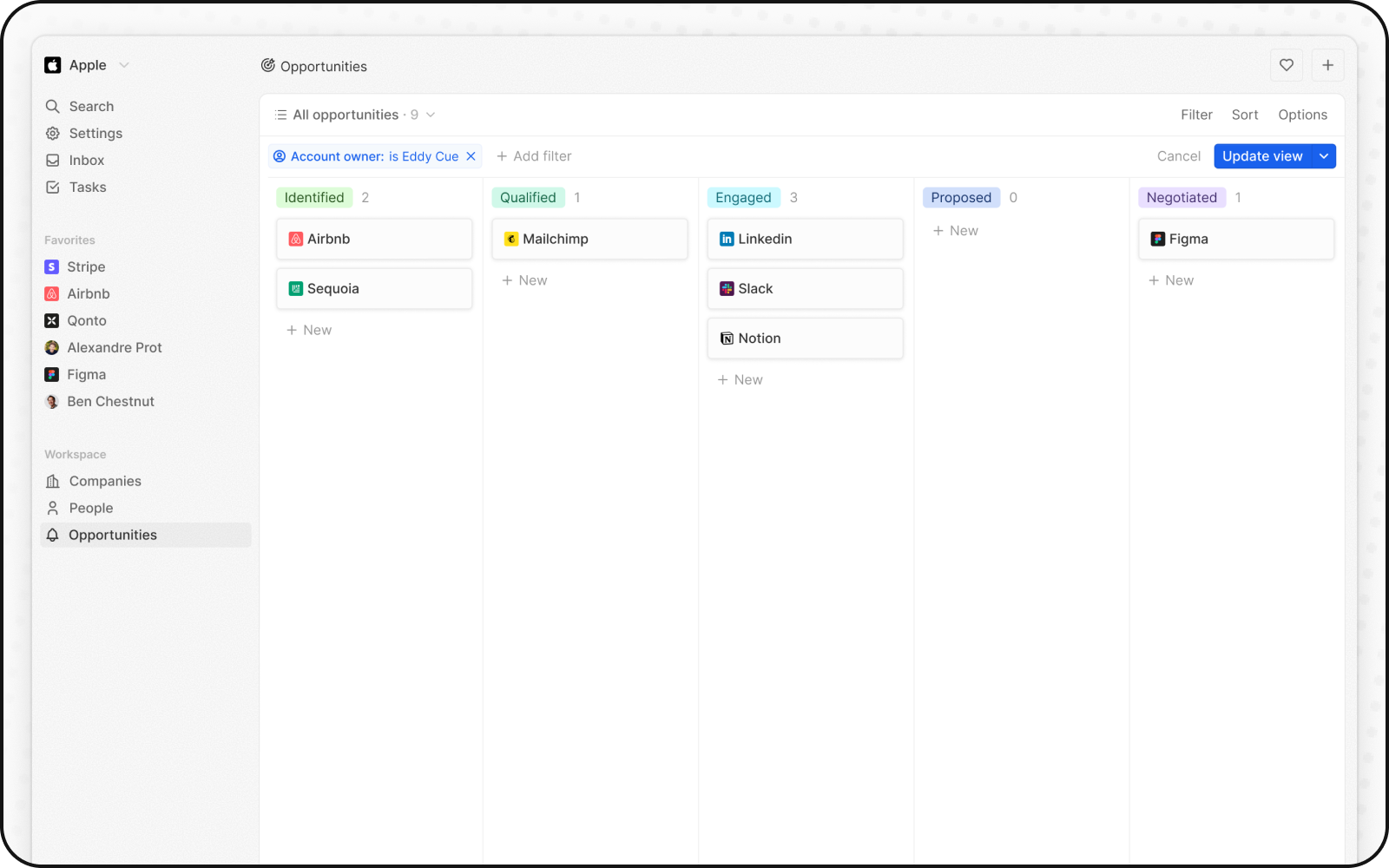
Use a Kanban view to visualize your projects (or any object with stages) as cards moving through columns.
## Prerequisites
Your object needs a **Select field** to use as columns (e.g., Status, Stage, Phase).
If you don't have one:
1. Go to **Settings → Data Model**
2. Select your object
3. Add a Select field with your stage options
## Steps
1. Navigate to your object (e.g., Projects, Tasks)
2. Click the view dropdown → **+ Add view**
3. Name your view (e.g., "Project Board")
4. Click **Create**
5. Click **Options** and select **Kanban** as the layout
6. The view uses your Select field for columns automatically
7. Click **Save**
## Configure Your Board
### Show Key Fields on Cards
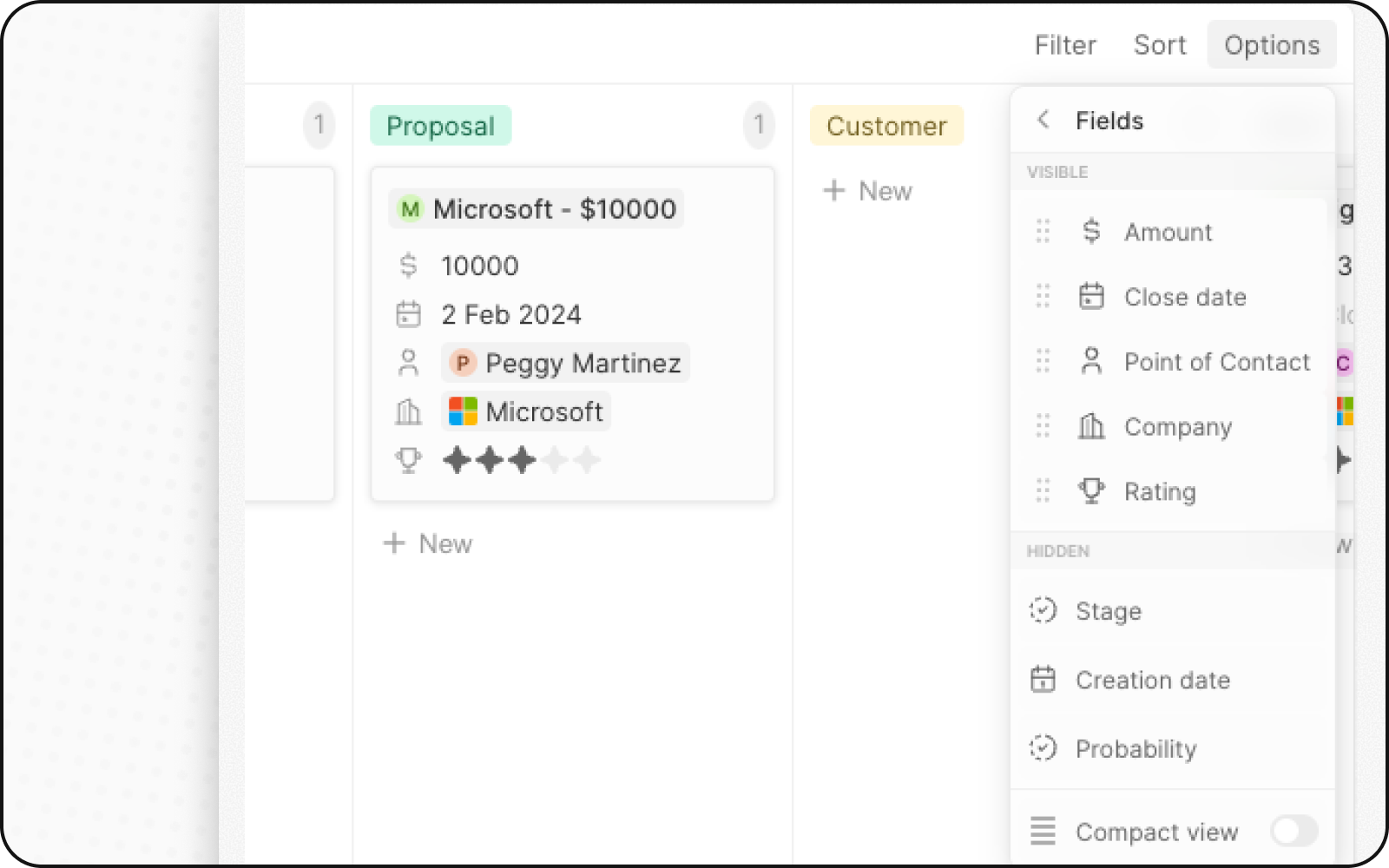
1. Click **Options → Fields**
2. Find fields in the "Hidden Fields" section
3. Click the **eye icon** to display them on cards
4. Drag to reorder
 ### Enable Compact View
For a high-level overview:
1. Click **Options**
2. Turn on **Compact view**
Cards show only the record name.
### Enable Compact View
For a high-level overview:
1. Click **Options**
2. Turn on **Compact view**
Cards show only the record name.
 ### Add Aggregations
Show counts or totals at the top of each column:
1. Click the number next to a column name
2. Select an aggregation (Count, Sum, etc.)
3. Choose a field if needed
## Moving Cards
Drag and drop cards between columns to update their status.
## Example: Task Board
| Column (Status) | Cards |
| --------------- | ----------------- |
| **To Do** | New tasks |
| **In Progress** | Active work |
| **Review** | Awaiting approval |
| **Done** | Completed |
## Related
* [Kanban Views](/user-guide/views-pipelines/capabilities/kanban-views) — aggregations, compact view, stages
* [How to Set Up a Sales Pipeline](/user-guide/views-pipelines/how-tos/set-up-a-sales-pipeline) — Kanban for Opportunities
### Add Aggregations
Show counts or totals at the top of each column:
1. Click the number next to a column name
2. Select an aggregation (Count, Sum, etc.)
3. Choose a field if needed
## Moving Cards
Drag and drop cards between columns to update their status.
## Example: Task Board
| Column (Status) | Cards |
| --------------- | ----------------- |
| **To Do** | New tasks |
| **In Progress** | Active work |
| **Review** | Awaiting approval |
| **Done** | Completed |
## Related
* [Kanban Views](/user-guide/views-pipelines/capabilities/kanban-views) — aggregations, compact view, stages
* [How to Set Up a Sales Pipeline](/user-guide/views-pipelines/how-tos/set-up-a-sales-pipeline) — Kanban for Opportunities