> ## Documentation Index
> Fetch the complete documentation index at: https://docs.twenty.com/llms.txt
> Use this file to discover all available pages before exploring further.
# Create a Table View with Grouping
> Organize your records into collapsible groups by field value.
export const VimeoEmbed = ({videoId, title = 'Video'}) =>
;
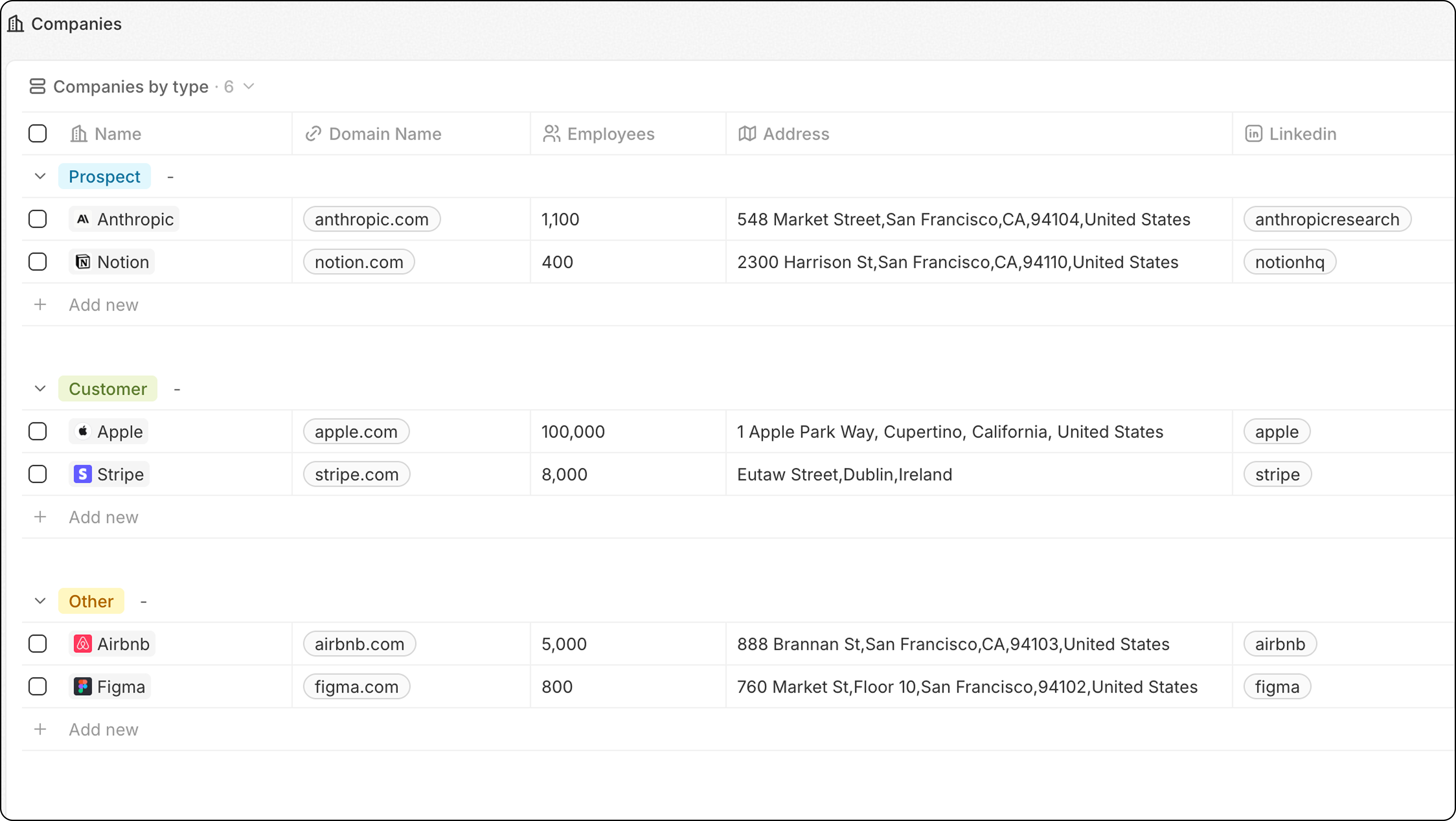
Group your table view by a Select field to organize records into collapsible sections.
 ## Steps
1. Navigate to the object (People, Companies, etc.)
2. Click the view dropdown → **+ Add view**
3. Name your view (e.g., "Companies by Type")
4. Click **Create**
5. Click **Options → Group**
6. Choose a Select field to group by
7. Click **Save**
## Configure Group Order
Under **Options → Group → Sort**, choose how groups are ordered:
| Option | Description |
| ------------------------ | --------------------------------------------- |
| **Alphabetical** | A to Z |
| **Reverse alphabetical** | Z to A |
| **Manual order** | Drag groups to reorder under "Visible groups" |
Click the **eye icon** next to a group to hide it from the view.
**For best performance, limit to 10-15 visible groups.** If you need more, consider using a Dashboard instead.
## Example: Companies by Industry
1. Go to **Companies**
2. Create a new view named "By Industry"
3. Click **Options → Group**
4. Select the **Industry** field
5. Save
Now your companies are organized by industry, making it easy to focus on one segment at a time.
## Related
* [Table Views](/user-guide/views-pipelines/capabilities/table-views) — all table view features
* [Filters and Sorting](/user-guide/views-pipelines/capabilities/filters-and-sorting) — combine grouping with filters
## Steps
1. Navigate to the object (People, Companies, etc.)
2. Click the view dropdown → **+ Add view**
3. Name your view (e.g., "Companies by Type")
4. Click **Create**
5. Click **Options → Group**
6. Choose a Select field to group by
7. Click **Save**
## Configure Group Order
Under **Options → Group → Sort**, choose how groups are ordered:
| Option | Description |
| ------------------------ | --------------------------------------------- |
| **Alphabetical** | A to Z |
| **Reverse alphabetical** | Z to A |
| **Manual order** | Drag groups to reorder under "Visible groups" |
Click the **eye icon** next to a group to hide it from the view.
**For best performance, limit to 10-15 visible groups.** If you need more, consider using a Dashboard instead.
## Example: Companies by Industry
1. Go to **Companies**
2. Create a new view named "By Industry"
3. Click **Options → Group**
4. Select the **Industry** field
5. Save
Now your companies are organized by industry, making it easy to focus on one segment at a time.
## Related
* [Table Views](/user-guide/views-pipelines/capabilities/table-views) — all table view features
* [Filters and Sorting](/user-guide/views-pipelines/capabilities/filters-and-sorting) — combine grouping with filters