> ## Documentation Index
> Fetch the complete documentation index at: https://docs.twenty.com/llms.txt
> Use this file to discover all available pages before exploring further.
# Display Number of Emails Received
> Create a workflow to automatically count and display the number of emails received from each contact.
export const VimeoEmbed = ({videoId, title = 'Video'}) =>
;
 ## Overview
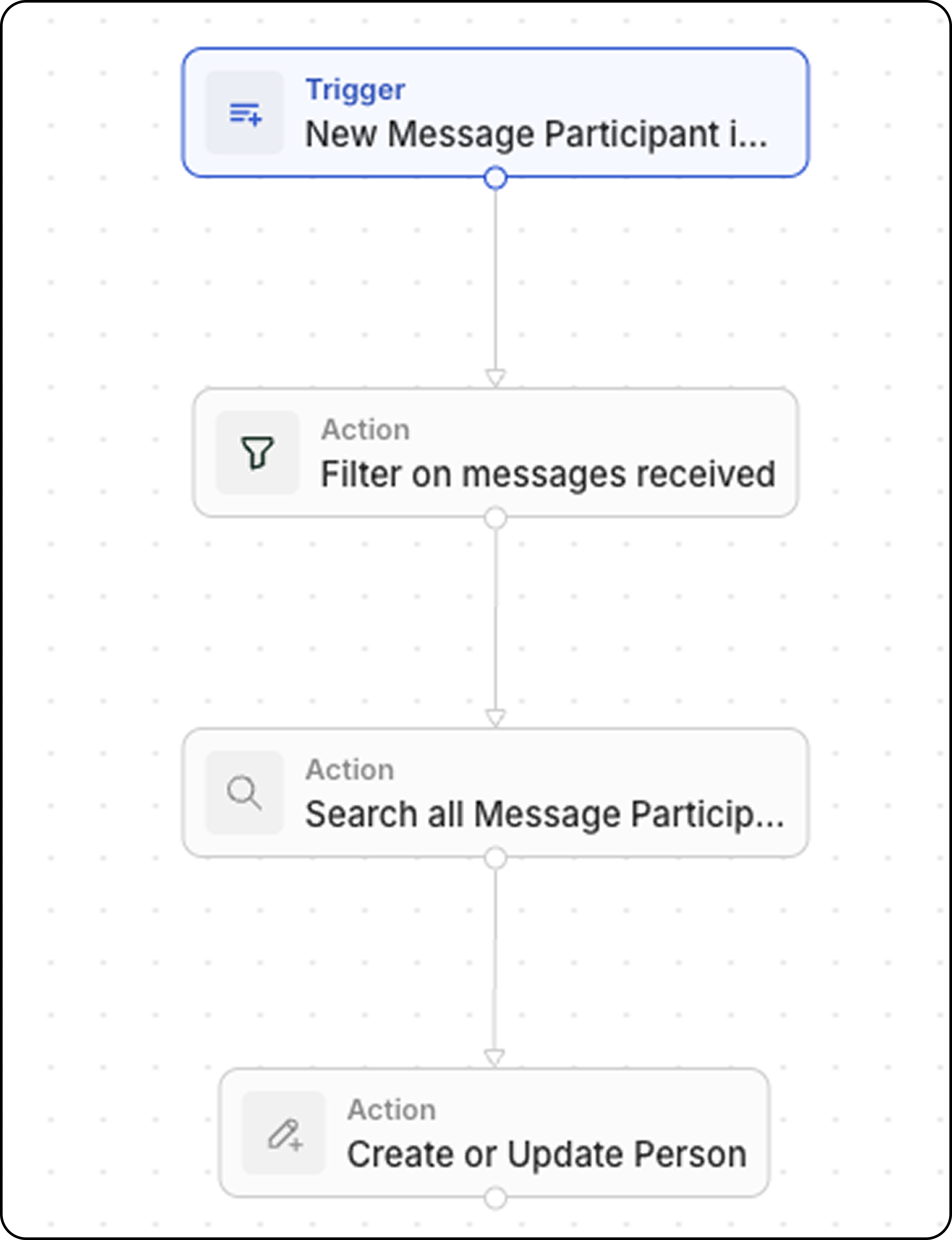
This workflow triggers every time a new email is received and updates a custom field on the Person record with the total count of emails from that sender.
## Prerequisites
Before setting up this workflow, create a custom field on the **People** object:
1. Go to **Settings → Data Model → People**
2. Add a new **Number** field
3. Name it something like "Number of emails received from this person"
## Step-by-Step Setup
### Step 1: Configure the Trigger
1. Go to **Workflows** and create a new workflow
2. Select **Record is Created** as the trigger
3. Choose **Message Participants** (available under Advanced objects)
A Message Participant is a combination of a message ID and a person ID, creating one unique record per message. This is easier to track than Messages directly because we can access the `handle` field, which contains the sender's (or recipient's) email address.
### Step 2: Filter on Role
1. Add a **Filter** action
2. Set the condition: **Role** equals **FROM**
This ensures you only count messages sent by this person, not messages sent to them.
### Step 3: Search All Message Participants with Same Handle
1. Add a **Search Records** action
2. Select **Message Participants** as the object
3. Add filters: **Handle** equals the handle from the trigger (the sender's email address) and **Role** equals **FROM**
4. Increase the **Limit** from 1 to **200** (the maximum)
This finds all messages from this email address to get the total count.
The Search Records action is limited to returning 200 records maximum. However, since you're only using the `totalCount` value (not the individual records), this step will return the total number of emails sent by this person.
### Step 4: Update the Person Record with a Create or Update Record action
1. Add a **Create or Update Record** action
2. Select **People** as the object
3. Find the person by matching their email to the `handle` from the Message Participant
4. Set your custom "Number of emails received" field to `{{searchRecords.totalCount}}`
The `totalCount` value from the Search Records action represents the total number of emails received from this person.
## Related
* [Workflow Actions](/user-guide/workflows/capabilities/workflow-actions)
* [Create Custom Fields](/user-guide/data-model/how-tos/customize-your-data-model)
* [Search Records Action](/user-guide/workflows/capabilities/workflow-actions#search-records)
## Overview
This workflow triggers every time a new email is received and updates a custom field on the Person record with the total count of emails from that sender.
## Prerequisites
Before setting up this workflow, create a custom field on the **People** object:
1. Go to **Settings → Data Model → People**
2. Add a new **Number** field
3. Name it something like "Number of emails received from this person"
## Step-by-Step Setup
### Step 1: Configure the Trigger
1. Go to **Workflows** and create a new workflow
2. Select **Record is Created** as the trigger
3. Choose **Message Participants** (available under Advanced objects)
A Message Participant is a combination of a message ID and a person ID, creating one unique record per message. This is easier to track than Messages directly because we can access the `handle` field, which contains the sender's (or recipient's) email address.
### Step 2: Filter on Role
1. Add a **Filter** action
2. Set the condition: **Role** equals **FROM**
This ensures you only count messages sent by this person, not messages sent to them.
### Step 3: Search All Message Participants with Same Handle
1. Add a **Search Records** action
2. Select **Message Participants** as the object
3. Add filters: **Handle** equals the handle from the trigger (the sender's email address) and **Role** equals **FROM**
4. Increase the **Limit** from 1 to **200** (the maximum)
This finds all messages from this email address to get the total count.
The Search Records action is limited to returning 200 records maximum. However, since you're only using the `totalCount` value (not the individual records), this step will return the total number of emails sent by this person.
### Step 4: Update the Person Record with a Create or Update Record action
1. Add a **Create or Update Record** action
2. Select **People** as the object
3. Find the person by matching their email to the `handle` from the Message Participant
4. Set your custom "Number of emails received" field to `{{searchRecords.totalCount}}`
The `totalCount` value from the Search Records action represents the total number of emails received from this person.
## Related
* [Workflow Actions](/user-guide/workflows/capabilities/workflow-actions)
* [Create Custom Fields](/user-guide/data-model/how-tos/customize-your-data-model)
* [Search Records Action](/user-guide/workflows/capabilities/workflow-actions#search-records)