跳转到主要内容

Documentation Index

Fetch the complete documentation index at: https://docs.twenty.com/llms.txt

Use this file to discover all available pages before exploring further.

Prerequisites

  • Node.js 24+Download
  • Yarn 4 — bundled with Node via Corepack. Enable it: corepack enable
  • DockerDownload. Needed to run a local Twenty server. Skip if you already have Twenty running elsewhere.
Building a Twenty app has three phases. The scaffolder collapses them into one happy-path command, but each phase is a separate concept — when something fails, knowing which phase you’re in tells you what to fix.
PhaseWhat you doToolResult
1. ScaffoldGenerate the app’s source codenpx create-twenty-appA TypeScript project on disk
2. Run a serverStart a Twenty server to sync intoDocker + yarn twenty serverA running Twenty instance
3. SyncLive-sync your code to the serveryarn twenty devYour changes appear in the UI

Phase 1 — Scaffold your project

Create a new app from the template:
npx create-twenty-app@latest my-twenty-app
You’ll be prompted for a name and description — press Enter for the defaults. This generates a TypeScript project in my-twenty-app/ with a starter application-config.ts, a default role, a CI workflow, and an integration test. After this phase: you have an app’s source code on your machine. It isn’t running yet — that’s Phase 2.

Phase 2 — Run a local Twenty server

Your app needs a Twenty server to sync into. The server is a full Twenty instance — UI, GraphQL API, PostgreSQL — running locally in Docker. Your local code uploads its definitions to that server, which makes them appear in the UI. The scaffolder offers to start one for you:
Would you like to set up a local Twenty instance?
  • Yes (recommended) — pulls the twentycrm/twenty-app-dev Docker image and starts it on port 2020. Make sure Docker is running first.
  • No — choose this if you already have a Twenty server you want to connect to. You can wire it up later with yarn twenty remote add.
Should start local instance?
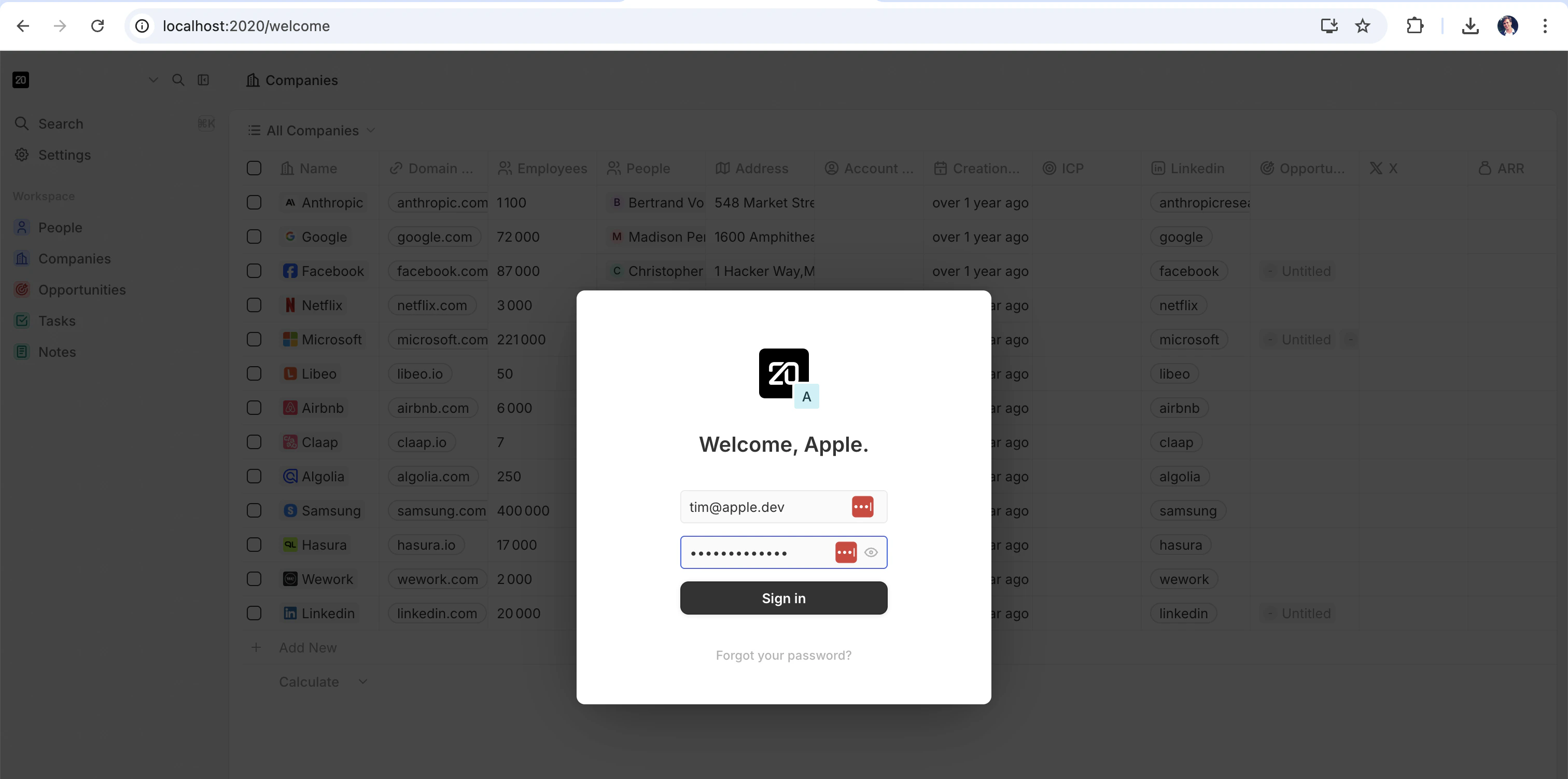
Once the server is up, a browser opens for sign-in. Use the pre-seeded demo account:
  • Email: tim@apple.dev
  • Password: tim@apple.dev
Twenty login screen
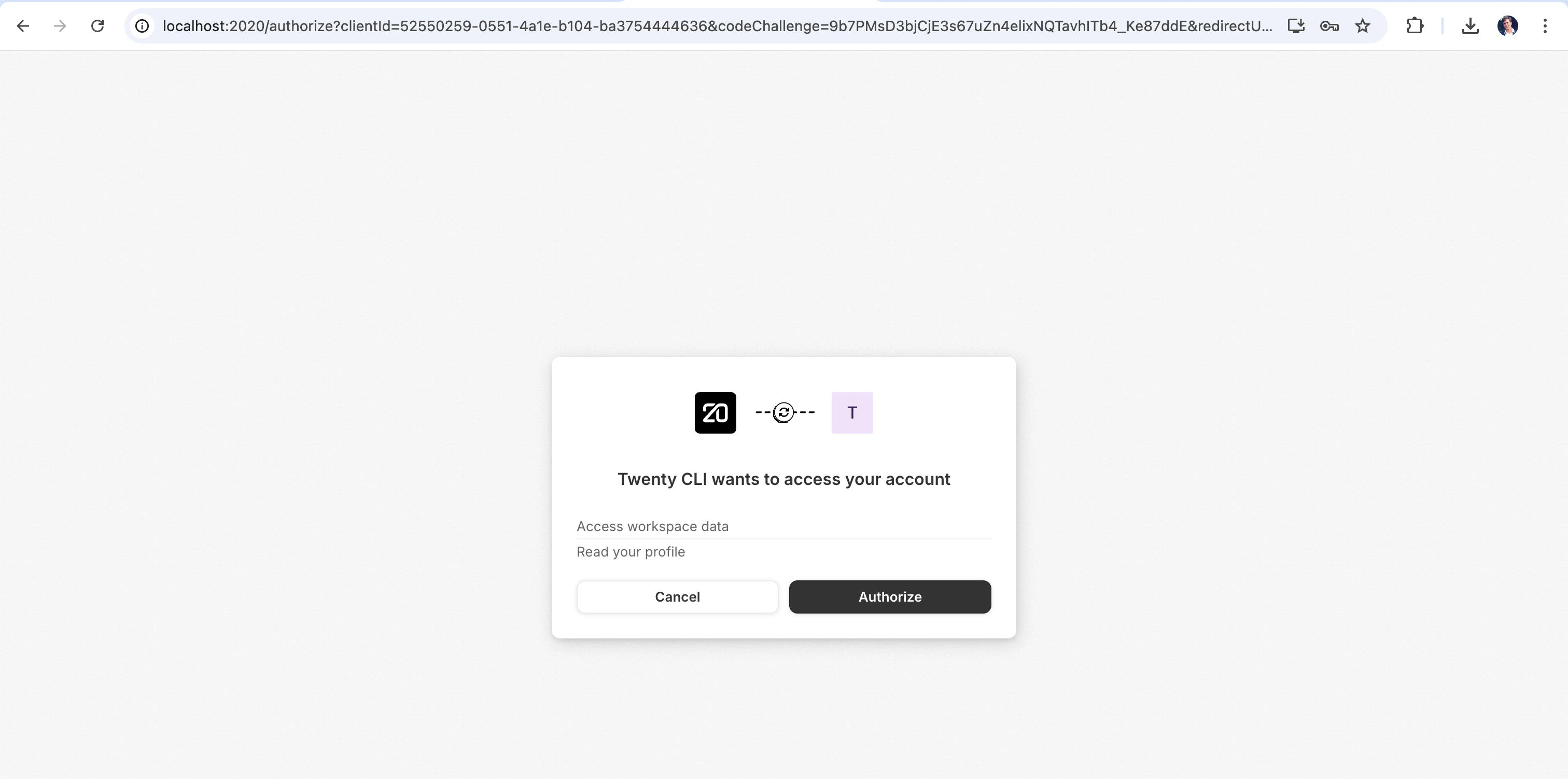
Click Authorize on the next screen — this gives the CLI access to your workspace.
Twenty CLI authorization screen
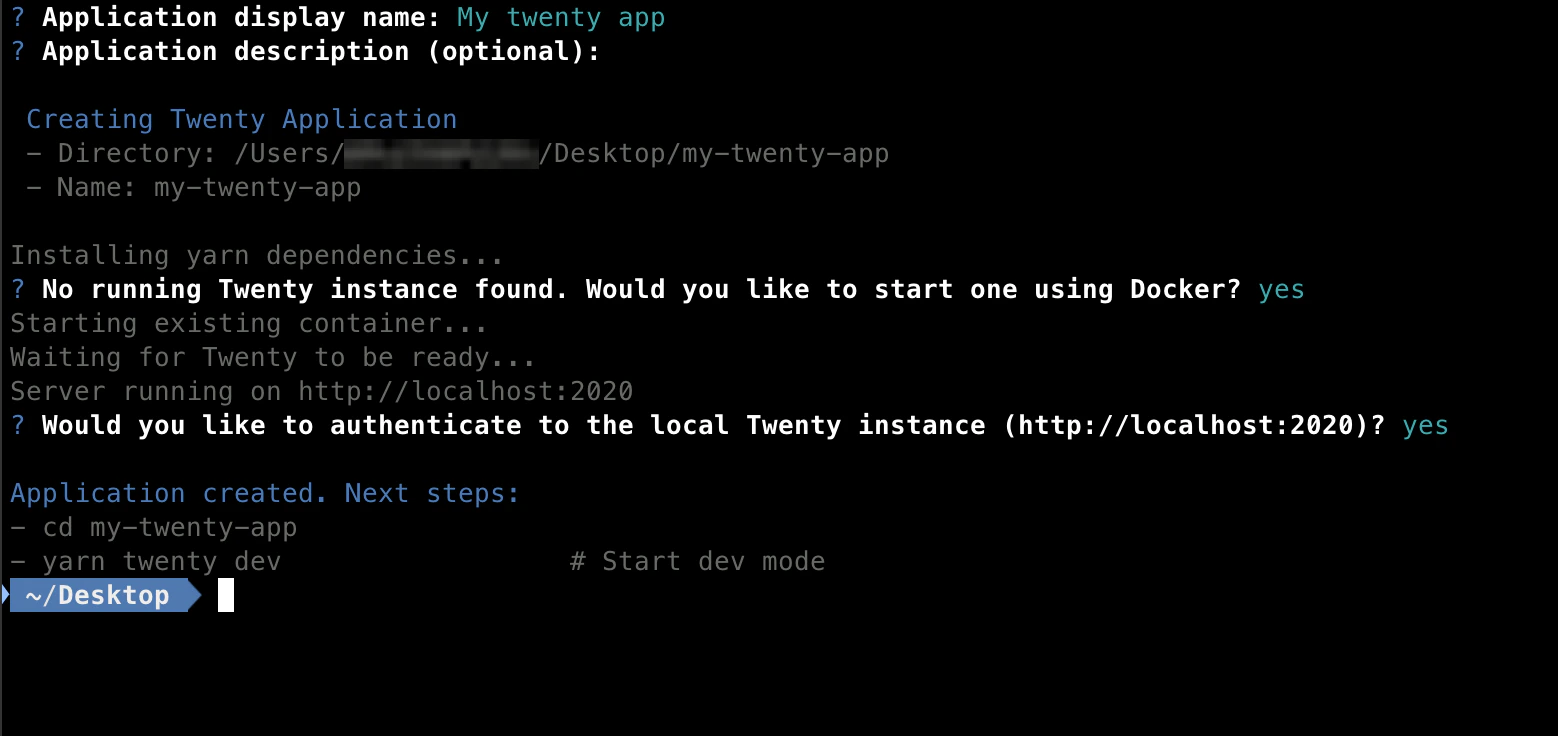
Your terminal will confirm everything is set up.
App scaffolded successfully
After this phase: you have a running Twenty server at http://localhost:2020 with your CLI authorized to sync to it.
If Docker isn’t installed or running, the scaffolder will tell you the right start command for your OS. Once Docker is up, you can resume with yarn twenty server start — no need to re-scaffold.

Phase 3 — Sync your changes

This is the inner loop you’ll spend most of your time in.
cd my-twenty-app
yarn twenty dev
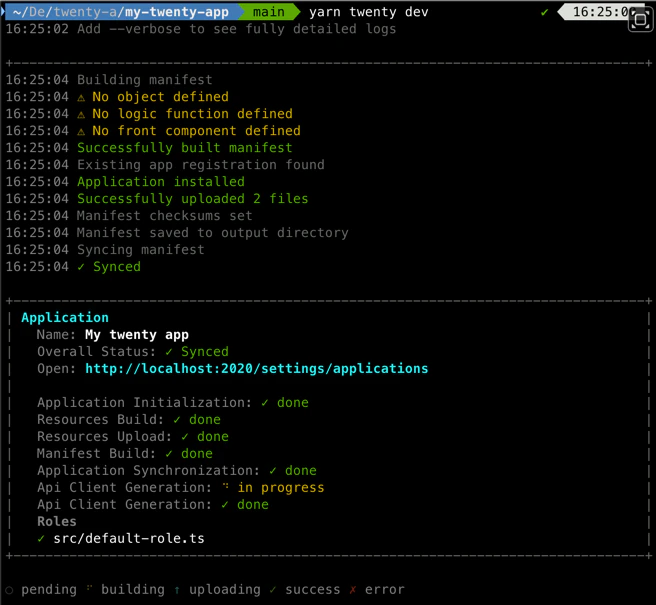
This watches src/, rebuilds on every change, and syncs the result to the server. Edit a file, save, and within a second the server reflects the change. You’ll see a live status panel in your terminal. For more detailed output (build logs, sync requests, error traces), add --verbose.
Dev mode terminal output
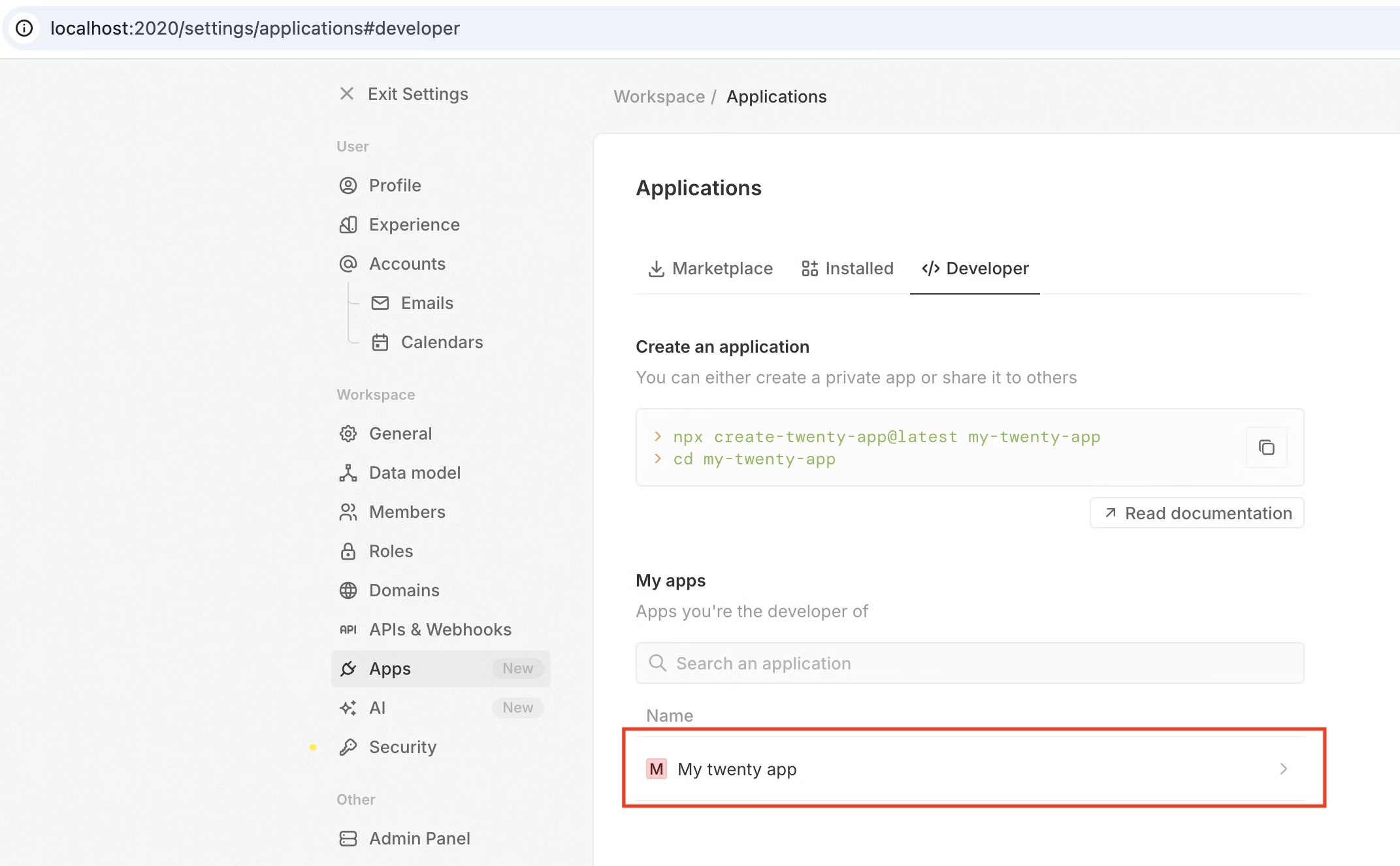
Open http://localhost:2020/settings/applications#developer. You should see your app under Your Apps.
Your Apps list showing My twenty app
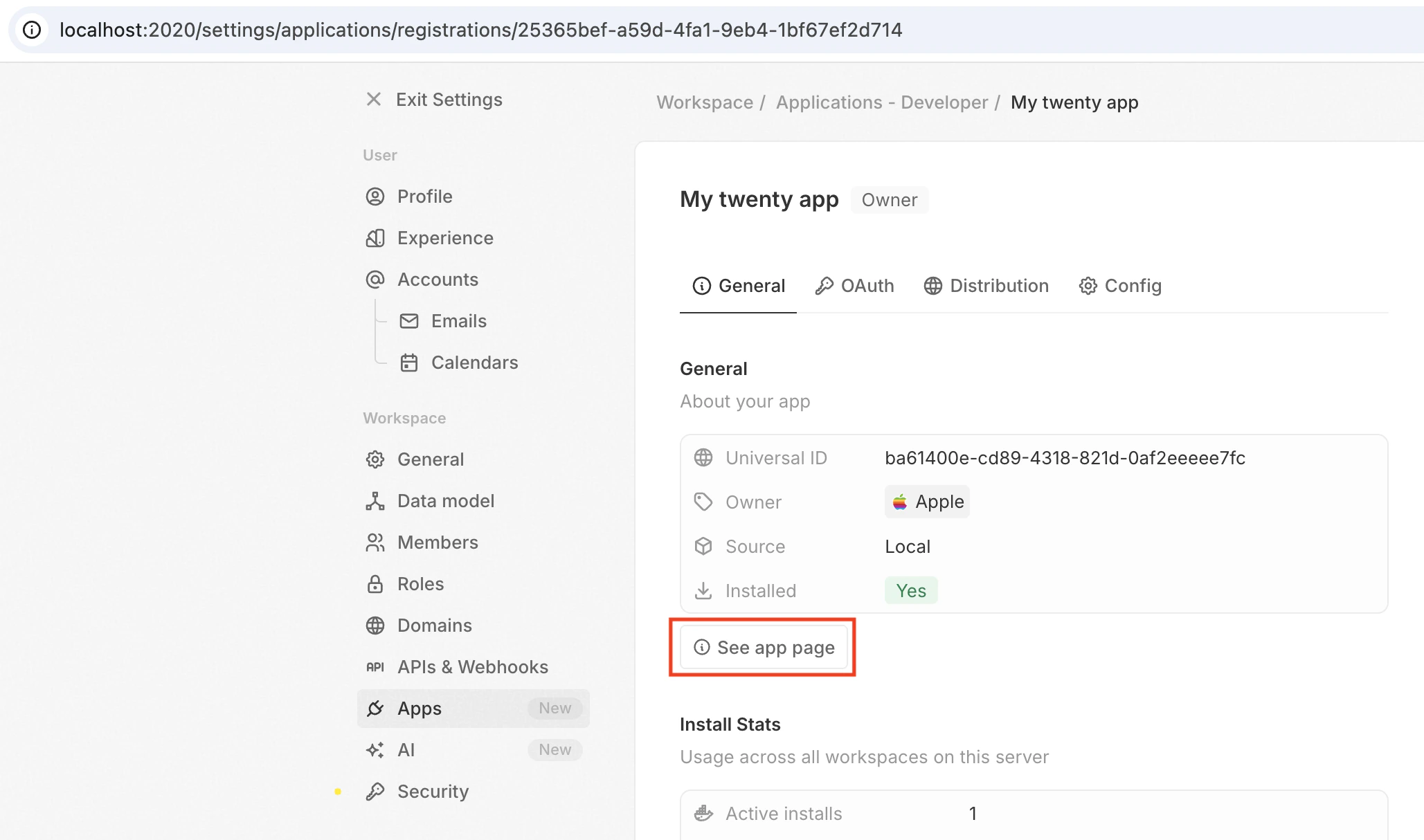
Click My twenty app to see its application registration — a server-level record describing your app (name, identifier, OAuth credentials, source). One registration can be installed across multiple workspaces on the same server.
Application registration details
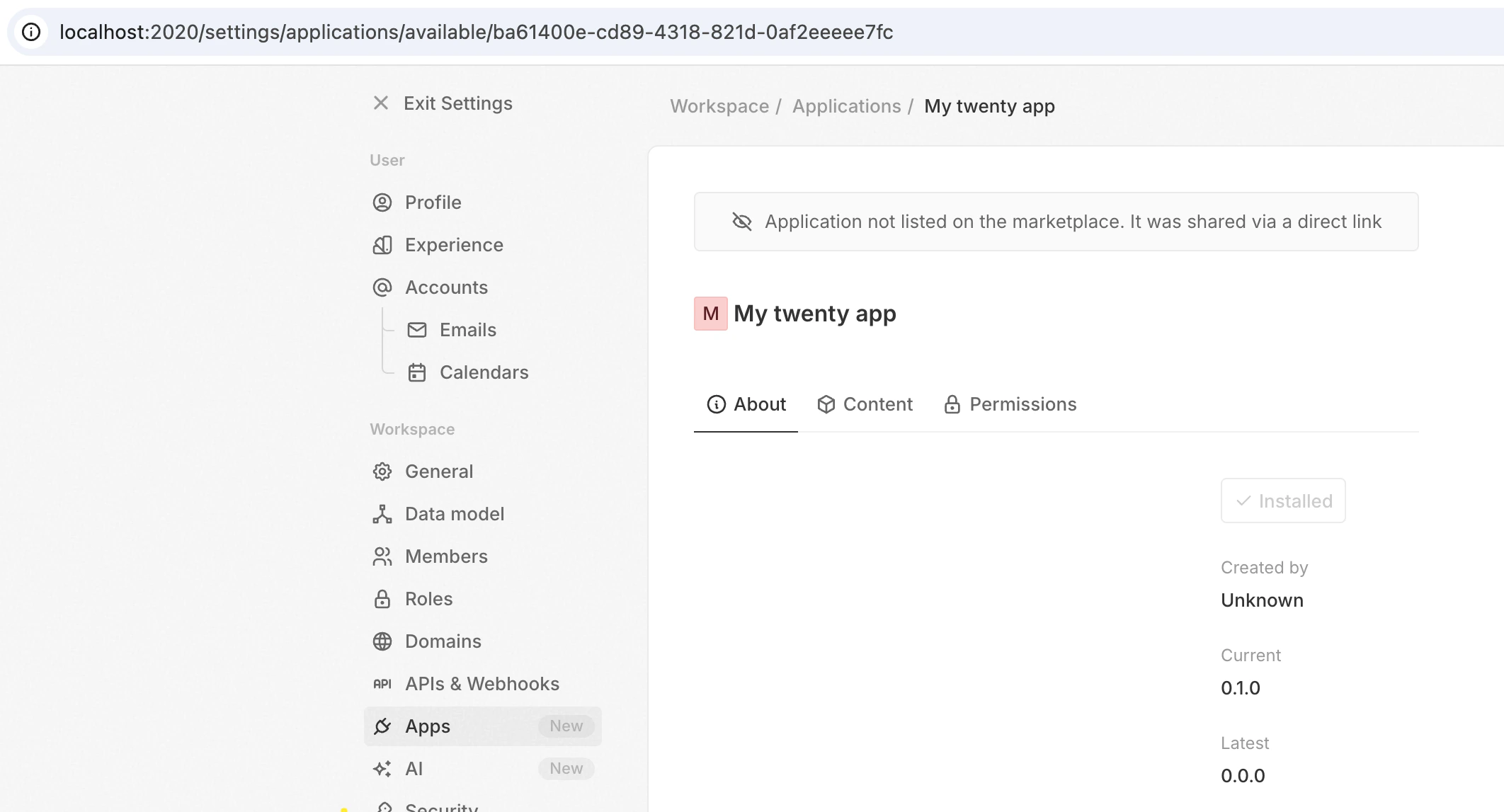
Click View installed app to see the workspace install. The About tab shows version and management options.
Installed app
After this phase: you have a live development loop. Edit any file in src/ and it appears in the UI.

One-shot sync for CI and scripts

Pass --once to run a single build + sync and exit — same pipeline, no watcher:
yarn twenty dev --once
CommandBehaviorWhen to use
yarn twenty devWatches and re-syncs on every change. Runs until you stop it.Interactive local development.
yarn twenty dev --onceSingle build + sync, exits 0 on success, 1 on failure.CI, pre-commit hooks, AI agents, scripted workflows.
Both modes need a server in development mode and an authenticated remote.
Dev mode is only available on Twenty instances running in development (NODE_ENV=development). Production instances reject dev sync requests — use yarn twenty deploy to deploy to production servers. See Publishing.

Starting from an example

Use --example to start with a more complete project (custom objects, fields, logic functions, front components):
npx create-twenty-app@latest my-twenty-app --example postcard
Examples live in twenty-apps/examples. You can also scaffold individual entities into an existing project with yarn twenty add — see Scaffolding.

What you can build

Apps are composed of entities — each defined as a TypeScript file with a single export default:
EntityWhat it does
Objects & FieldsCustom data models (Post Card, Invoice, etc.) with typed fields
Logic functionsServer-side TypeScript triggered by HTTP routes, cron schedules, or database events
Front componentsReact components that render inside Twenty’s UI (side panel, widgets, command menu)
Skills & AgentsAI capabilities — reusable instructions and autonomous assistants
Views & NavigationPre-configured list views and sidebar menu items
Page layoutsCustom record detail pages with tabs and widgets
Full reference: Concepts.

Next steps

Config

Application identity, default role, install hooks, public assets.

Data

Objects, fields, and bidirectional relations.

Logic

Logic functions, skills, agents, and OAuth connections.

Layout

Views, navigation, page layouts, front components.

Operations

CLI, testing, remotes, CI, and publishing your app.