
표준 개체
표준 객체는 시작을 돕기 위해 워크스페이스에 미리 정의되어 있습니다. Twenty의 모든 사용자가 접근할 수 있는 공유 데이터 모델의 일부입니다. 기본 상태로 사용하거나 사용자 정의하거나 비활성화할 수 있습니다.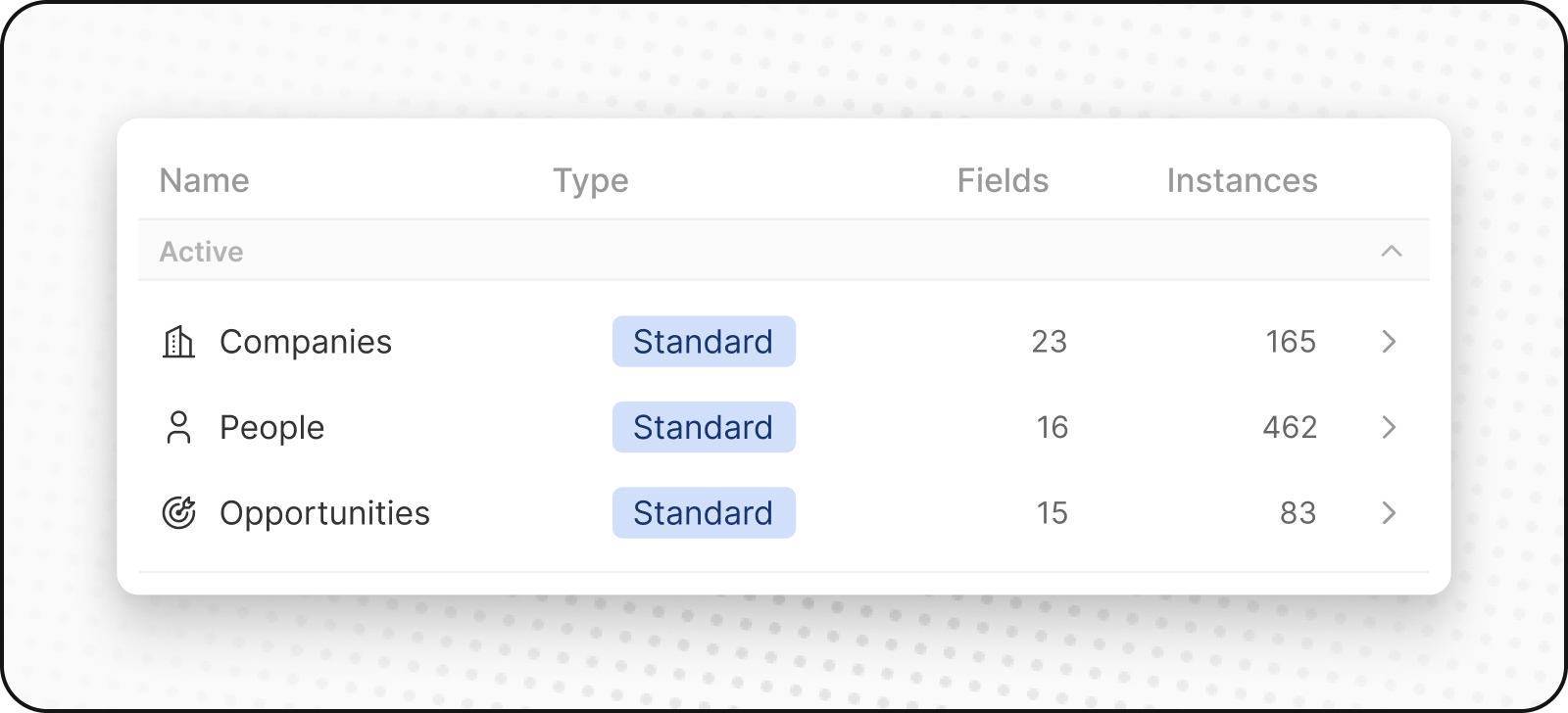
사람들
People 객체는 연락처를 저장합니다. 연락처 정보 및 상호 작용 기록이 포함되어 있어 모든 고객 상호 작용을 한 곳에서 볼 수 있습니다.
회사
Companies 객체는 비즈니스 계정을 저장합니다. 업종, 규모 및 위치와 같은 세부정보가 포함됩니다. Companies는 People 및 Opportunities 객체와 연결됩니다.
기회
Opportunities 객체는 거래 관련 데이터를 저장합니다. 잠재 매출의 진행 상황을 발굴부터 성사까지 추적하며, 단계, 거래 규모, 연결된 계정, 예상 마감일을 기록합니다. 캔반 레이아웃에서 판매 파이프라인을 볼 수 있습니다.
노트
Notes 객체는 사람, 회사, 영업 기회 및 기타 레코드에 첨부할 수 있는 자유 형식의 메모를 저장합니다. 메모를 사용해 회의 요약, 중요한 세부정보, 기타 맥락 정보를 기록하세요.
작업
Tasks 객체는 할 일과 실행 항목을 저장합니다. 작업은 사람, 회사, 영업 기회 및 기타 레코드에 연결할 수 있습니다. 마감일, 담당자, 완료 상태를 추적하여 후속 조치를 철저히 관리하세요.
사용자 지정 개체
사용자 지정 객체를 사용하면 조직에 고유하며 표준 객체로는 처리할 수 없는 정보를 저장할 수 있습니다. 예를 들어, SpaceX의 경우 로켓 및 발사에 대한 사용자 정의 개체를 만들 수 있습니다.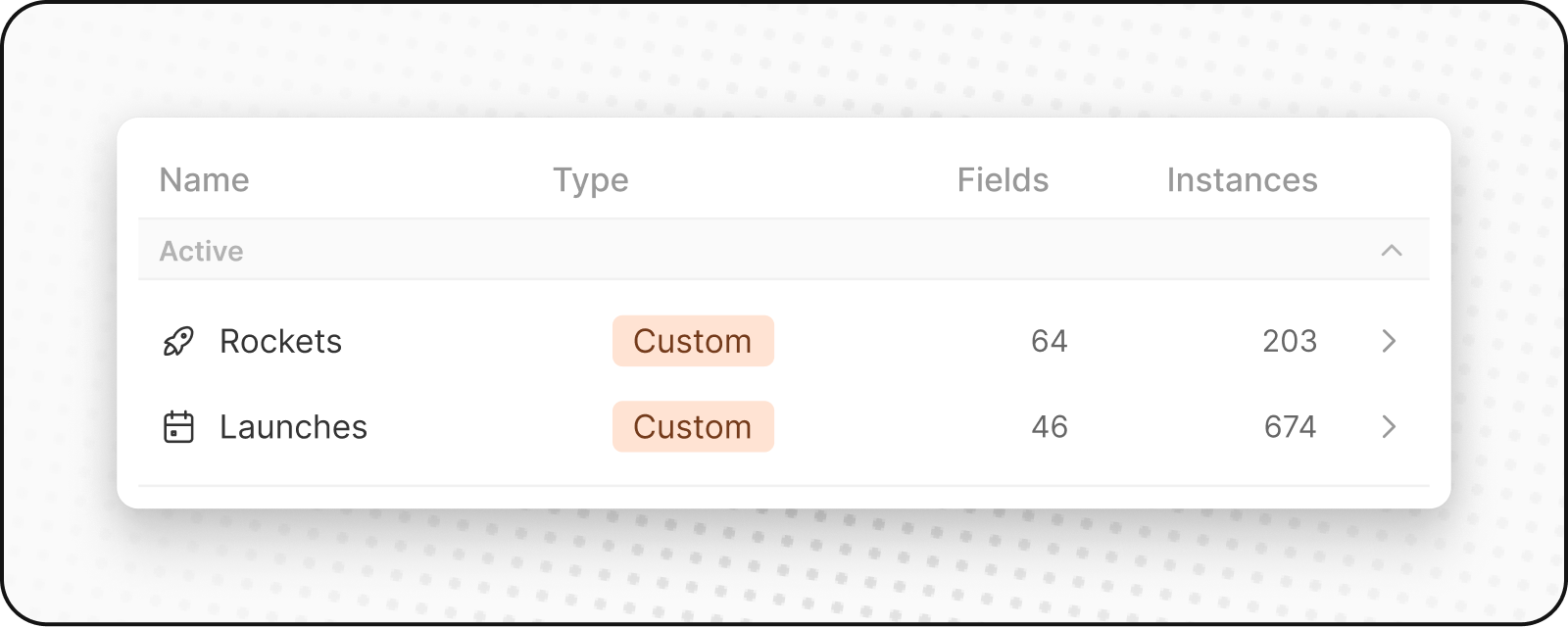
새 사용자 지정 객체 생성
새 사용자 지정 객체를 만들려면:- 왼쪽 사이드바에서 설정으로 이동하세요.
- 워크스페이스에서 데이터 모델로 이동하세요. 여기에서 기존 표준 및 사용자 정의 개체(활성 및 비활성 포함)의 개요를 볼 수 있습니다.
- 상단에서
+ New object를 클릭하세요. 단수 및 복수 이름을 입력하고 아이콘을 선택한 다음 사용자 정의 객체에 대한 설명을 추가하고 저장(오른쪽 상단)을 누릅니다. 사용자 지정 객체의 예로 Listing을 사용할 경우, 단수형은 “listing”, 복수형은 “listings”이며, 설명은 “호스트가 숙소를 홍보하기 위해 생성한 목록”처럼 작성할 수 있습니다. - 이제 사용자 지정 객체가 생성되어 사이드바에 표시됩니다. 바로 레코드를 추가할 수 있습니다.
객체 관리
객체 비활성화
표준 또는 사용자 지정 객체가 필요하지 않은 경우:- 설정 → 데이터 모델로 이동하세요
- 비활성화하려는 객체를 찾아 클릭하세요
- 객체의 Settings 탭으로 이동하세요
Deactivate버튼을 클릭하세요- 객체는 워크스페이스에서 숨겨지지만 데이터는 유지됩니다
객체 재활성화
비활성화된 객체를 다시 사용하려면:- 설정 → 데이터 모델로 이동하세요
Deactivated필터를 활성화하세요- 비활성화된 객체를 찾으세요(이름 옆에
Deactivated가 표시됩니다) ⋮를 클릭한 다음Activate를 클릭해 다시 활성화하세요- 객체와 해당 모든 데이터가 복원됩니다
모범 사례
사용자 지정 객체를 생성해야 할 때
- 고유한 비즈니스 엔터티: 업계나 프로세스에 특화된 항목
- 복잡한 관계: 여러 엔터티 간의 연결을 추적해야 할 때
- 확장 가능한 데이터: 매우 많은 인스턴스가 생길 수 있을 때
대신 필드를 사용해야 할 때
- 단순 속성: 기존 객체를 설명하는 속성
- 카테고리 또는 레이블: 기존 레코드를 분류하는 방법
- 단일 값: 별도의 라이프사이클이 필요하지 않은 정보
객체 이름
- 명확하고 설명적인 이름을 사용하세요: 객체가 무엇을 나타내는지 분명하게 하세요
- 규칙을 따르세요: 객체 이름에는 단수를, 컬렉션에는 복수를 사용하세요
- 팀을 고려하세요: 모두가 이해할 수 있는 이름을 선택하세요