
前端组件可用位置
在 Twenty 中,前端组件可以在三个位置进行渲染:- 侧边栏 — 非无头的前端组件会在右侧侧边栏中打开。 当前端组件从命令菜单触发时,这是默认行为。
- 小部件(仪表盘和记录页面) — 前端组件可以作为小部件嵌入到页面布局中。 在配置仪表盘或记录页面布局时,用户可以添加前端组件小部件。
- 应用设置 — 使用
defineSettingsFrontComponent()定义后,该前端组件将作为一个部分渲染在应用的 Settings 选项卡中,以替代默认的变量配置界面。
- 将它与命令菜单项配对 —— 将其注册到命令菜单(Cmd+K)中,并可选地将其设为固定快速操作。
- 将它作为小部件嵌入到页面布局中 —— 将其放置在记录详情页面或仪表盘上。
- 使用
defineSettingsFrontComponent()定义 — 将其渲染为应用 Settings 选项卡中的一个部分,以替代默认的变量配置界面。
基础示例
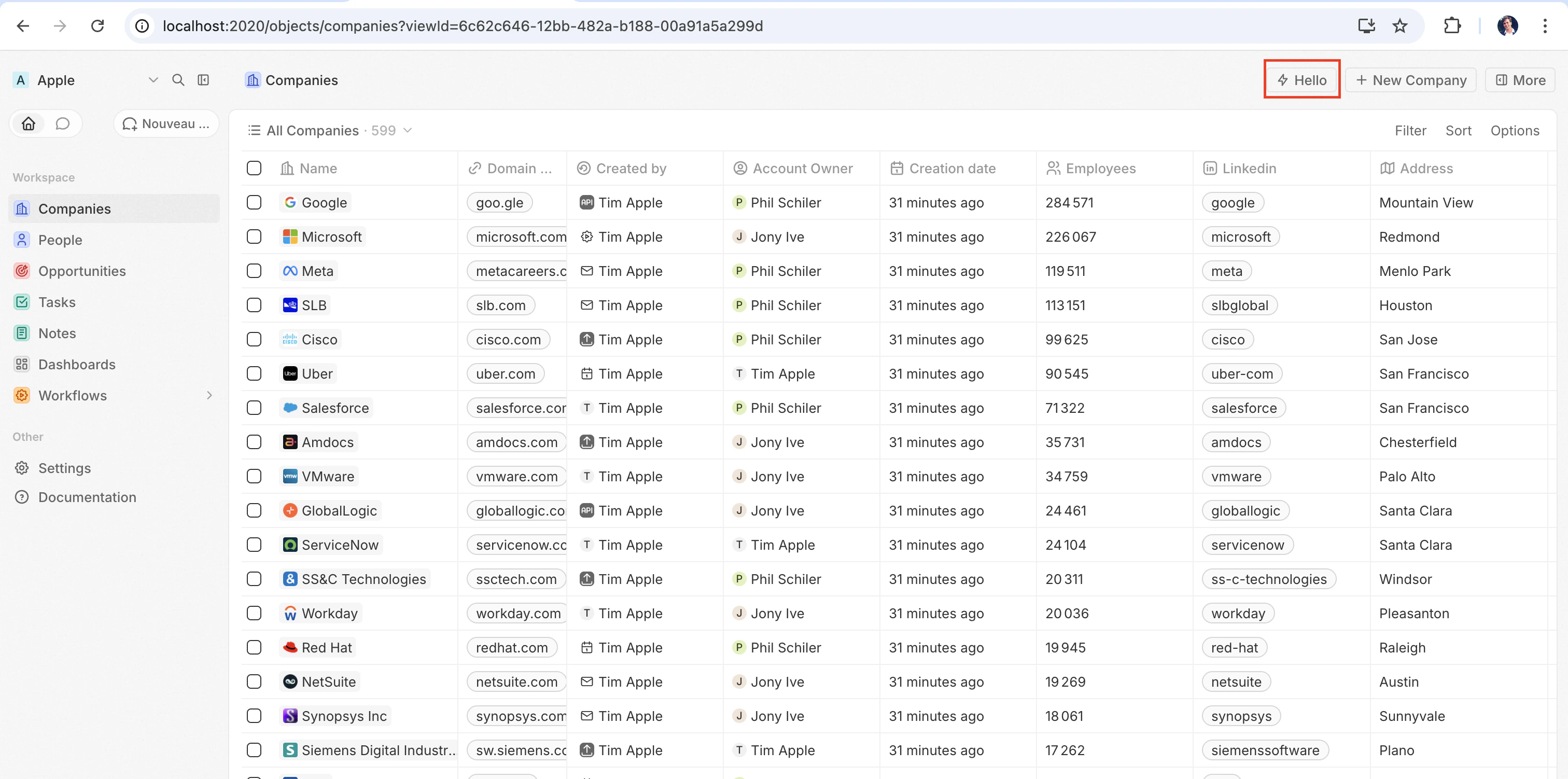
最快看到前端组件实际效果的方式是将它与defineCommandMenuItem配对,这样它就会显示为页面右上角的快速操作按钮:
src/front-components/hello-world.tsx
src/command-menu-items/hello-world.command-menu-item.ts
yarn twenty dev 同步后(或单次运行 yarn twenty apply),快速操作会出现在页面右上角:
配置字段
在页面上放置前端组件
除了命令之外,你还可以在页面布局中将其添加为小部件,从而将前端组件直接嵌入记录页面。 详情请参见页面布局。自定义设置组件
要在应用的 Settings 选项卡中,用你自己的组件替换自动生成的变量配置界面,请使用defineSettingsFrontComponent 而不是 defineFrontComponent 来进行定义。 它使用相同的配置字段(除了 isHeadless,由于设置组件始终会渲染可见的 UI,因此不接受该字段),并另外将该组件标记为应用的设置 UI。
该组件会渲染为设置选项卡内的一个部分,而不是替换整个选项卡。 Twenty 的系统管理部分——自动升级、App URL 和连接——始终渲染在它上方,且无法被应用覆盖。
src/front-components/app-settings.tsx
无头与非无头
前端组件有两种由isHeadless 选项控制的渲染模式:
非无头(默认) — 该组件会渲染可见的 UI。 从命令菜单触发时,它会在侧边栏中打开。 当 isHeadless 为 false 或被省略时,这是默认行为。
无头 (isHeadless: true) — 该组件会在后台以不可见的方式挂载。 它不会打开侧边栏。 无头组件旨在用于执行逻辑后自行卸载的操作——例如运行异步任务、导航到某个页面或显示确认模态框。 它们与下文介绍的 SDK Command 组件天然契合。
src/front-components/sync-tracker.tsx
null,Twenty 会跳过为其渲染容器——布局中不会出现空白区域。 该组件仍可访问所有 hooks 和宿主通信 API。
SDK Command 组件
twenty-sdk 包提供了四个为无头前端组件设计的 Command 辅助组件。 每个组件都会在挂载时执行一个操作,通过显示 snackbar 通知来处理错误,并在完成后自动卸载该前端组件。
从 twenty-sdk/front-component 导入它们:
Command— 通过execute属性运行异步回调。CommandLink— 导航到某个应用路径。 属性:to、params、queryParams、options。CommandModal— 打开一个确认模态框。 如果用户确认,则执行execute回调。 属性:title、subtitle、execute、confirmButtonText、confirmButtonAccent。CommandOpenSidePanelPage— 打开一个侧边栏页面。 Props 取决于page—— 例如,ViewRecord需要recordId+objectNameSingular(以及一个可选的tabid,用于在特定标签页中打开该记录),其他页面需要pageTitle+pageIcon。
Command 从命令菜单运行一个操作:
src/front-components/run-action.tsx
src/command-menu-items/run-action.command-menu-item.ts
CommandModal 在执行前请求确认:
src/front-components/delete-draft.tsx
CommandOpenSidePanelPage 的示例,用于在特定标签页的侧边栏中打开当前记录。 tab 是页面布局的标签页 id(默认布局使用类似 company-tab-emails 或 company-tab-timeline 这样的 id;自定义布局使用标签页自身的 id)。 如果该 id 在记录的布局中不存在,则会改为打开默认标签页:
src/front-components/open-company-emails.tsx
调用逻辑函数
前端组件在浏览器端的 Web Worker 中运行,该 Web Worker 被沙盒化在不透明来源的 iframe 中,而逻辑函数在服务器端运行。 二者之间没有直接的进程内调用——前端组件通过 HTTP 访问逻辑函数。 使用httpRouteTriggerSettings 声明的逻辑函数,可以通过其路由路径在 HTTP 上进行访问。 RestApiClient 会将以 /s/ 开头的路径视为应用路由,将其解析到你的函数提供服务的 URL,并使用 TWENTY_APP_ACCESS_TOKEN 对其进行认证。
在 Twenty Cloud 上,HTTP 触发的逻辑函数通过每个工作区的专用域名提供服务,域名为 https://\<your-workspace-subdomain>.withtwenty.com\<path>。 对于外部调用方,请从函数的 HTTP trigger 设置或应用的 Settings 选项卡中复制准确的 URL。
无头前端组件可以通过 Command 组件在挂载时执行调用,然后自动卸载:
src/front-components/sync-prs.tsx
RestApiClient 的路径是逻辑函数的 httpRouteTriggerSettings.path,并以 /s 作为前缀。 保持 isAuthRequired: true;Twenty 为你的组件生成的 TWENTY_APP_ACCESS_TOKEN 会对请求进行认证:
src/logic-functions/fetch-prs.logic-function.ts
TWENTY_APP_ACCESS_TOKEN 会被自动注入——参见 应用变量。 由于机密应用变量永远不会暴露给前端组件,请将 API 密钥和其他敏感逻辑保留在逻辑函数中,而不是前端组件中。调用 Twenty REST API
要在前端组件中调用应用 HTTP 路由或读取、写入 Twenty 记录,请使用来自twenty-client-sdk/rest 的 RestApiClient。 它会将 /s/... 路径发送到你工作区的函数基础 URL,而将包括 /rest/... 在内的其他所有路径发送到 TWENTY_API_URL。
它始终以查看页面的人的身份行事。 runAs: 'application' 仅是逻辑函数选项:组件永远不会收到你自己的应用令牌,因此在此请求它会抛出错误。 将需要访问应用自身资源的工作放在逻辑函数后面,并改为调用该函数。
options 接受 headers、query(查询字符串参数记录;空值会被跳过),以及通过 signal 传入的 AbortSignal。 非 FormData 类型的对象 body 会被自动进行 JSON 序列化。 在收到 401 时,客户端会通过宿主刷新一次访问令牌,然后重试该请求。
基础 URL 和令牌默认会从环境中解析得到。 在需要时将覆盖项传递给构造函数——例如在测试中:
RestApiClientError,其中包含 status、statusText、url 和已解析的 body:
访问运行时上下文
在组件内部,使用 SDK 的 hooks 获取当前用户、记录和组件实例:src/front-components/record-info.tsx
应用程序变量
在defineApplication() 中定义、且 isSecret: false 的应用程序变量,可以通过 getApplicationVariable 实用工具在前端组件中使用:
src/front-components/greeting.tsx
type 为何,getApplicationVariable 始终返回一个 string(或 undefined)。 该字符串会按照类型被一致地序列化(布尔值为 "true" / "false",数字为十进制字符串,数组 / 对象为 JSON),与逻辑函数 process.env 使用的格式相同 —— 需要你自行解析(Number(...)、JSON.parse(...)、=== 'true')。 参见变量类型。
以下系统变量始终可以通过 process.env 获取:
TWENTY_FUNCTIONS_URL
Twenty 还会将 TWENTY_FUNCTIONS_URL 注入到前端组件和逻辑函数中:也就是你的应用的 HTTP 触发逻辑函数所提供服务的基础 URL。
之所以存在这个变量,是因为该 URL 并不总是 Twenty 服务器本身。 在 Twenty Cloud 上,应用路由通过每个工作区的专用域名提供服务(https://\<your-workspace-subdomain>.withtwenty.com,或者在已配置时为应用的主公共域名),以便应用生成的响应运行在一个与 Twenty 应用源不同的隔离源上。 自托管和本地实例会在服务器本身的 /s 前缀下提供应用路由,并且可能完全不会设置该变量。 由于基础 URL 会因工作区和实例而异,你的代码不能将其硬编码——服务器会在运行时注入正确的值。
你很少需要直接读取它。 通过 RestApiClient 使用带有 /s/ 前缀的路径来调用你的路由,客户端会为你解析 URL:它会去掉 /s 前缀并将请求发往 TWENTY_FUNCTIONS_URL,在该变量未设置时则回退到 \<TWENTY_API_URL>/s。 使用 resolveUrl('/s/\<path>') 来在不发送请求的情况下获取绝对 URL,例如用于链接。 仅在手动构建 URL 时才直接读取该变量:
宿主通信 API
前端组件可以使用来自twenty-sdk 的函数触发导航、模态框和通知:
下面是一个示例,使用宿主 API 在操作完成后显示一条 snackbar 并关闭侧边栏:
src/front-components/archive-record.tsx
存储
localStorage 和 sessionStorage 的工作方式与在普通页面中相同,使用标准的同步 API。 你的键会限定在你的应用安装和已登录用户范围内:其他应用无法读取它们,且当另一位用户在同一浏览器中登录时,将从一个空的存储开始。 写入 localStorage 的值在重新加载后仍会保留在设备上;sessionStorage 在整个浏览器会话期间有效。
src/front-components/note-draft.tsx
QuotaExceededError,与浏览器 API 的行为相同。
处理多个记录
使用useSelectedRecordIds() 来处理多个已选记录。 这对于批量操作很有用:
src/front-components/bulk-export.tsx
src/command-menu-items/bulk-export.command-menu-item.ts
公共资源
前端组件可以使用getPublicAssetUrl 访问应用的 public/ 目录中的文件:
在前端组件之间共享依赖项
默认情况下,每个前端组件都会打包自己导入的库的副本,所以如果一个应用有五个组件,就会随应用一起打包五份 React。 在应用的package.json 中声明共享依赖项,只构建这些库一次,让应用的每个组件都从单个缓存文件中加载它们:
package.json
src/front-components/counter.tsx
- 每个应用一个共享依赖项 bundle。 该 bundle 由应用自身的依赖项构建而成,因此你可以完全掌控要发布的版本。
- 列出你导入的精确说明符(specifier)。
twenty-ui/input和twenty-ui/display是两个条目;仅有包名并不能涵盖其子路径。 列出react会自动涵盖react/jsx-runtime。 - 将
react-dom/client与react一起共享。 每个组件都通过createRoot进行渲染,因此如果将其省略,每个组件仍会各自打包 React DOM。 - bundle 会被缓存。 它通过带有内容哈希的 URL 提供,并使用长期有效且不可变的缓存策略,因此只会被下载一次,并在应用的所有组件之间复用,直到其中某个依赖发生变化。
- 未导入任何共享包的组件永远不会下载该 bundle。
样式
前端组件支持多种样式方案。 你可以使用:- 内联样式 —
style={{ color: 'red' }} - Twenty UI 组件 — Twenty 自身的组件库;请参阅下文的 使用 Twenty UI 组件
- Emotion — 使用
@emotion/react的 CSS-in-JS - Styled-components —
styled.div模式 - Tailwind CSS — 工具类
- 任何 CSS-in-JS 库(与 React 兼容)
使用 Twenty UI 组件
Twenty 通过twenty-ui 包提供其组件库。 前端组件可以将其用于按钮、标签、状态徽章、Chip、头像、图标、排版,以及能够自动匹配工作区明暗主题的主题令牌。
安装
将该包添加到你的应用中,并固定为你的 Twenty 实例所提供的版本:twenty-ui 会在构建时被打包进你的前端组件中,因此它只需要作为你的应用的依赖——在运行时无需任何配置。
导入组件
请从匹配的子路径而不是包根路径导入,这样只有你使用到的组件才会被打包进你的 bundle:图标
从twenty-ui/icon 导入单个图标:
IconsProvider、useIcons 和 iconsState——它们会引入完整的 Tabler 图标集(数 MB 大小)。
主题和主题令牌
Twenty UI 组件会自动匹配工作区的明暗主题——渲染器会在宿主上应用当前启用的配色方案,组件会基于该方案解析自己的颜色。 要在你自己的行内样式中使用相同的设计令牌,请调用useTheme() hook。 它会返回与当前主题关联的 Twenty 主题令牌(间距、颜色、圆角、字体),你的组件中无需设置 ThemeProvider:
useTheme() 是一个 hook,你需要在组件主体内部读取令牌,因此这些值始终能反映实时的主题。 同一份令牌映射也作为常量 themeCssVariables 导出,但在前端组件中更推荐使用 useTheme()——在应用清单被抽取时,解引用 themeCssVariables 的模块级常量可能会是 undefined。
如果需要显式地根据当前配色方案做分支判断,可从 twenty-sdk/front-component 中使用 useColorScheme() 读取,它会返回 'light' 或 'dark'。
目前的限制
正在开发前台组件。 渲染、样式处理、事件处理、元素测量以及浏览器存储都运行良好。 任何 超出 这些范围的操作(在 ref 上调用 DOM 方法、监听元素尺寸变化、在组件树之外进行传送)目前都缺失或不完整,并且其中大多数都会静默失败:既不会抛出异常,也不会有 TypeScript 错误,因为脚手架是基于完整的浏览器 DOM 进行类型定义的。 如果其中任何一项阻碍了你,打开一个 issue,以便它能被优先处理。布局和测量
元素可以自行测量:宿主会将几何信息镜像到沙箱中,因此读取在本地完成,但可能会滞后一帧;而首次读取一个从未被测量过的元素时会返回零值。 写入之后,在requestAnimationFrame 回调或 effect 中重新读取。
基于
getBoundingClientRect 的定位现在可用了,但任何通过 ResizeObserver 监测尺寸变化的东西(recharts 的 ResponsiveContainer、Floating UI 的 autoUpdate)仍然不可用。 无论如何都应优先使用 CSS 进行布局:你的样式表可以作用到真实页面,因此 flexbox、grid、aspect-ratio、clamp() 和 @container 都会正常工作,没有帧延迟。
requestAnimationFramework, fetch, setTimeout 和 queueMicrotask 在没有窗口前缀的情况下工作。 只有window.requestAnimationFramework(...)和朋友投掷.DOM access
一个ref 给予你一个沙盒元素,而不是一个 HTMLEment 。
Portal间隙是为什么Radix、Headless UI、MUI和react-selected popover默认不会渲染任何内容。 大多数人接受一个容器prop;指向一个你渲染的元素。
事件
鼠标、指针、触摸、拖拽、键盘、焦点,input/change/submit,scroll/wheel/contextmenu 以及 animationend/transitionend 会传递到宿主元素,另外还有一些按元素区分的事件:load/error 在 img 上,剪贴板和输入法合成事件在 input/textarea 上,媒体事件在 video/audio 上,toggle 在 details/dialog 上。 其他任何事件(onAuxClick、onSelect、onInvalid、onReset、onAnimationStart、指针捕获、非 img 上的 onLoad)都会在没有任何警告的情况下被丢弃。
document.addEventListener() 和 window ddEventListener()注册时没有错误,永远不发生火灾,这就是为什么当指针离开开始的元素时拖动停止。 event.preventDefault()也没有跨过;表单提交、draego/drop和链接点击已经是你的守卫。
属性和样式
每个元素都会将其自身的属性转发到宿主 DOM(a 上的 href,img 上的 src/alt,input 上的 value/placeholder/disabled 等),并且在每个元素上都有一组通用属性:id、className、style、title、tabIndex、role、draggable 以及任何 aria-* / data-* 属性(使用连字符形式,因此会丢弃 ariaLabel)。 外面的任何东西都被静默丢弃了,因此表达了自定义为 data * 。
组件的 CSS(无论来自 import './styles.css'、CSS-in-JS 还是 style 元素)都会被注入到宿主页面的 head 中,且是未作用域化的(unscoped)。 所以类名称与 Twenty 自己碰撞(前缀它们,永远不会写上div ● v.... }选择器’和@media匹配浏览器窗口而不是你的小部件 (使用 @container 和你自己的 container-type)。 内联 style props 不受影响。
存储和网络
localStorage 和 sessionStorage 由 Twenty 提供,而不是由浏览器提供:组件在一个不透明来源的 worker 中运行,因此主机会代表你的应用存储这些值。 有关它们的作用域和限制,请参见storage。 IndexedDB、cookies、Cache API 和 BroadcastChannel 仍然不可用。 要在多设备之间持久化状态,请调用logic function并使用其key-value store。
fetch 工作, 附有警告:
- 调用20API和您的应用路由由主机代理,所以偏好
RestApiClient。 在代理来电时,AbortSignal和另一个RequestInit选项被丢弃,只支持string和URLSearchParams。 - 其它来源将沙盒留给
原始:null,所以第三方API只有在发送Access-Control-Allow-ource:*时才能解答。 从逻辑函数调用它。 fetch('/rest/people)永远不匹配20个API,因为沙盒没有页面URL解决相对路径。
媒体捕获
navigator.mediaDevices.getUserMedia() 和 MediaRecorder 通过 sandbox polyfill 在 front 组件中运行,因此标准录制代码可以不做修改地运行,并且 MediaRecorder.isTypeSupported 会对常见的容器/编解码器组合给出支持情况。 详细的 getUserMedia 约束对象会被接受但不会被转发 —— 宿主会使用其针对所请求媒体类型的默认设置进行捕获 —— 并且在应用之间同一时间只能有一个捕获处于活动状态。 使用 uploadFile 宿主函数存储已录制的 Blob。
其他差距
- 文件内容。 类型为
file的input只会向你的处理函数提供文件的元数据,而不是字节本身,因此无法使用FileReader。 要上传你的代码已经持有的Blob(例如由MediaRecorder生成的Blob),请使用uploadFile宿主函数。 - 拖放payloads. 拖动事件触发,但
event.dataTransfer是未定义的。 - Node 内置。
fs、path和node:crypto失败,所以将其移动到一个逻辑函数。 Web Crypto,fetch,TextEncoder和URL都是可用的。 iframe始终会在没有allow-same-origin的情况下重新沙箱化,因此依赖其自身会话的嵌入内容会呈现为未登录状态。 它也没有onLoad文件。