
How Field Mapping Works
When you upload a file, Twenty analyzes your columns and attempts to match them to existing fields.Automatic Mapping
Twenty tries to match columns based on:- Column header names (exact or similar matches)
- Data type detection (dates, numbers, emails)
- Common field patterns
Quick tip: Export a few rows from the object you want to import. The exported file will have the exact column names Twenty expects, making automatic mapping seamless during import.
Manual Mapping Options
For each column, you can:- Map to a field: Select the matching Twenty field from a dropdown
- Do not map: Skip the column entirely (data won’t be imported)
Fields must exist before import. The import creates records, not fields. Create custom fields under Settings → Data Model before importing.
Field Type Compatibility
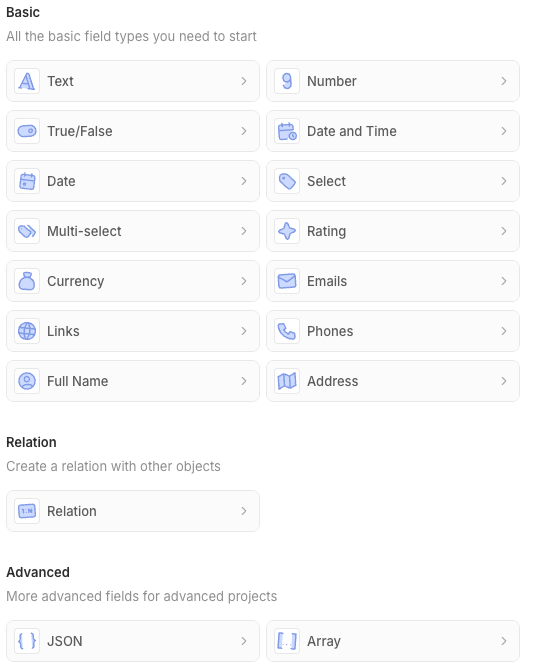
All field types available in the Data Model are supported for import. You can also importid values to either assign a specific ID to new records or update existing ones.
Data Format Requirements
Some fields have special syntax. We recommend downloading the sample file before preparing your import to see the expected syntax for each field type.
Address Fields
Address is a nested field with multiple columns. Some can be left empty.- Address / Address 1: Street address line 1
- Address / Address 2: Street address line 2
- Address / City: City name
- Address / State: State or province
- Address / Country: Country name
- Address / Post Code: Postal/ZIP code
Array Fields
Use the following format:Boolean Fields
UseTRUE or FALSE (uppercase) - not true or false
Currency Fields
Currency is a nested field with two columns that both must be filled:- Amount / Amount: The numeric value (e.g.,
1234.56) - Amount / Currency: The currency code (e.g.,
USD,EUR)
Date Fields
Supported formats:YYYY-MM-DD(recommended)MM/DD/YYYYDD/MM/YYYY- ISO 8601 format
Domain Fields
- It is recommended to use the format
https://domain.comto avoid creating duplicates, as this is the format used for Companies created by the mailbox and calendar synchronizations - A
Domain LabelandDomain URLcan be filled: best practice is to filldomain.comin the label andhttps://domain.comin the url - Domains must be unique within the Companies object
- Domains must be unique within the file to import
Email Fields
- Must be valid email format
- Emails must be unique within the People object
- Emails must be unique within the file to import
- For additional emails: use Emails / Primary Email for the main email, and Emails / Additional Emails with this format:
ID Fields
Specifying anid during import is optional. Twenty auto-generates one if not provided.
Use cases for mapping an id column:
- Set a specific ID: Choose the UUID for newly created records
- Update existing records: Match against existing records to update them instead of creating duplicates. In that case, it is recommended to not map the other unique fields: mapping only one unique field ensures a smoother import.
If you provide an
id, it must be in UUID format (e.g., c776ee49-f608-4a77-8cc8-6fe96ae1e43f).JSON Fields
Use valid JSON format:Links Fields
Similar to Domain fields:- Fill both the label and URL columns: Links / Link URL and Links / Link Label
- Use full URL format:
https://example.com - For secondary links, use Links / Secondary Links column with this format:
Multi-Select Fields
Use the API names (not the display labels) in the following format:New select options will not be created automatically by the import. They must be added under Settings → Data Model before importing.
Number Fields
- Numbers only
- Decimals use period:
1234.56 - No thousands separators
Phone Fields
Phone is a nested field with multiple columns that must be filled- Phones / Primary Phone Number: The phone number (e.g.,
4159095555) - Phones / Primary Phone Country Code: Country code (e.g.,
US) - Phones / Primary Phone Calling Code: Dialing code (e.g.,
+1)
Rating Fields
Use the API name format:RATING_1, RATING_2, RATING_3, RATING_4, RATING_5
Relation Fields
Please see our dedicated article: Import Relations Between ObjectsSelect Fields
Use the API name of the option (not the display label):New select options will not be created automatically by the import. They must be added under Settings → Data Model before importing.
Text Fields
- No special formatting required
- Leading/trailing spaces are trimmed
Finding API Names
For Select, Multi-Select, and Array fields with predefined options, you must use the API names, not the display labels.How to Find API Names
- Go to Settings → Data Model
- Select the object and field
- Enable Advanced mode (toggle at the bottom right of the settings page)
- View the API name for each option