
Vue d’ensemble
Ce guide vous accompagne pour importer vos entreprises dans Twenty. Les entreprises doivent être importées en premier car les Personnes et les Opportunités sont liées aux Entreprises.Avant de démarrer
Liste de vérification des prérequis
Votre fichier est au format CSV, XLSX ou XLS
Le fichier contient moins de 10 000 enregistrements
Aucun domaine en double dans votre fichier
Tous les champs personnalisés existent dans Paramètres → Modèle de données
Besoin d’importer plus de 10 000 entreprises ? Divisez en plusieurs fichiers ou utilisez l’importation via l’API.
Étape 1 : Préparer vos données d’entreprises
Champs obligatoires et recommandés
Format du domaine
Colonnes de domaine :- Domaine / Libellé du domaine :
acme.com - Domaine / URL du domaine :
https://acme.com
Format de l’adresse
L’adresse est un champ imbriqué avec plusieurs colonnes :Exemple de structure CSV
Astuce : Cliquez sur Télécharger le fichier d’exemple lors de l’import pour voir les noms de colonnes exacts attendus par Twenty.
Étape 2 : Accéder à la fonction d’importation
Option 1 : Depuis la vue Entreprises- Accédez à Entreprises dans la barre latérale gauche
- Cliquez sur l’icône ⋮ en haut à droite
- Sélectionnez Importer des enregistrements
- Appuyez sur
Cmd + K(Mac) ouCtrl + K(Windows) - Tapez “import”
- Sélectionnez Importer des enregistrements
- Choisissez Entreprises
Étape 3 : Téléverser votre fichier
- Cliquez sur Sélectionner un fichier
- Choisissez votre fichier CSV, XLSX ou XLS
- Attendez que Twenty analyse votre fichier
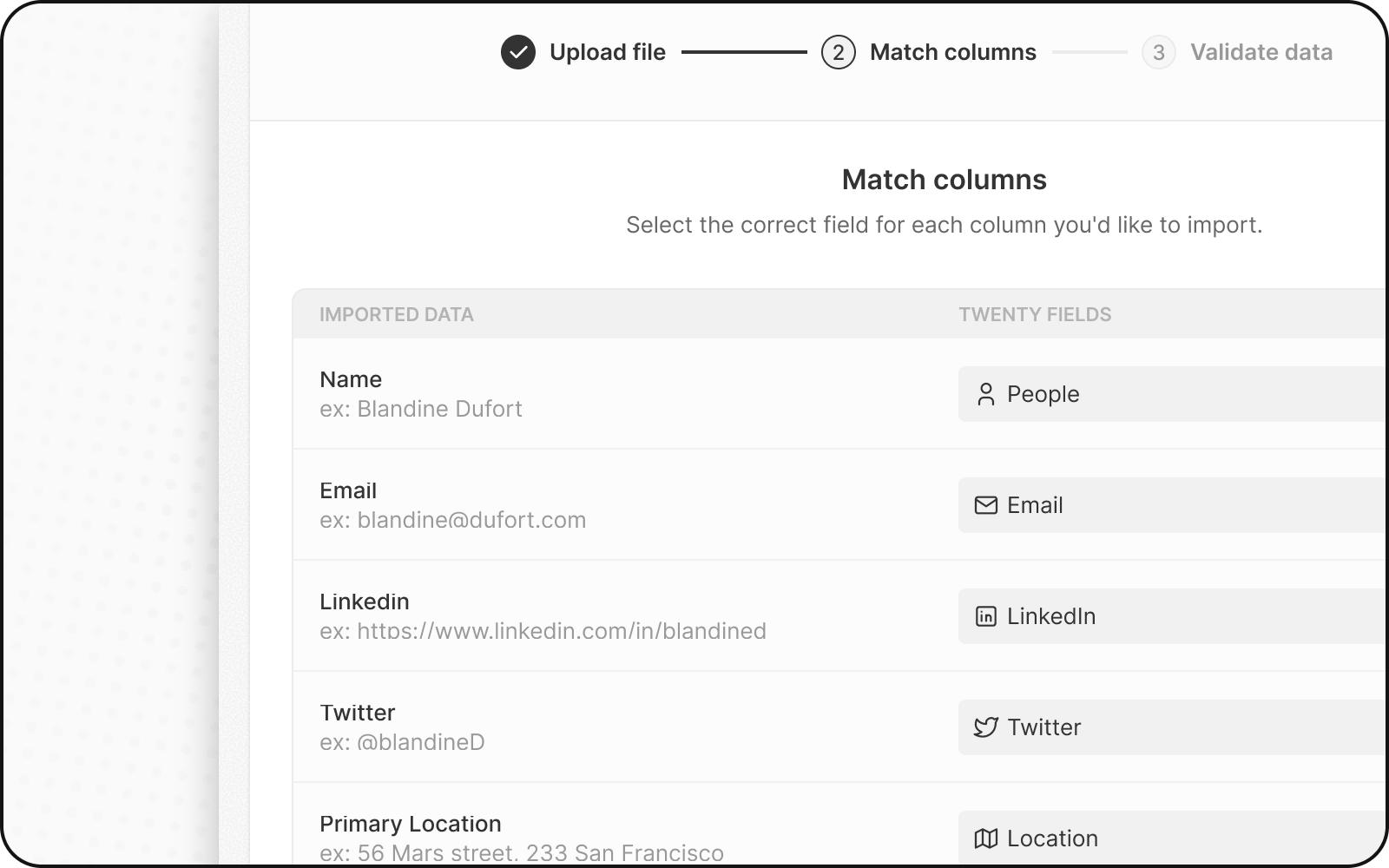
Étape 4 : Associer vos colonnes
Twenty tente automatiquement d’associer vos colonnes aux champs. Vérifiez et ajustez :- Vérifiez les correspondances automatiques — assurez-vous qu’elles sont correctes
- Corrigez les correspondances incorrectes — cliquez sur la liste déroulante pour sélectionner le bon champ
- Ignorer des colonnes — sélectionnez Do not map pour les colonnes que vous ne souhaitez pas importer
Règles de mappage importantes
- Domaine : Associez à Domaine / URL du domaine (et non au Libellé du domaine)
- Adresse : Associez chaque partie à sa colonne spécifique (Ville, État, etc.)
- Champs de sélection : les valeurs doivent correspondre aux options existantes (ou vous les associerez à l’étape suivante)
Étape 5 : Faire correspondre les valeurs des champs de sélection
Si vous avez des champs Sélection ou Multi-sélection :- Twenty affiche vos valeurs à côté des options existantes
- Faites correspondre chaque valeur de votre fichier à une option Twenty
- Ou créez de nouvelles options si nécessaire
Les options de sélection utilisent les noms d’API, pas les libellés d’affichage. Accédez à Paramètres → Modèle de données → activez le Mode avancé pour voir les noms d’API.
Étape 6 : Examiner et corriger les erreurs
Avant de terminer l’import, Twenty valide vos données :- Cliquez sur Prochaines étapes
- Les lignes comportant des erreurs sont mises en évidence en jaune
- Corrigez les erreurs directement — cliquez sur une cellule et modifiez la valeur
- Supprimez les lignes problématiques — cliquez sur le X pour ignorer cette ligne
Erreurs courantes lors de l’import d’entreprises
Étape 7 : Finaliser l’import
- Vérifiez le récapitulatif de l’import
- Cliquez sur Confirmer pour importer
- Attendez la fin de l’import
- Vérifiez en examinant quelques enregistrements
Après l’import des entreprises
Vous pouvez maintenant importer des enregistrements liés aux entreprises :- Importer des personnes — liez-les aux entreprises à l’aide du domaine
- Importez des opportunités — liez-les aux entreprises
- Vérifiez l’import — faites un contrôle ponctuel de quelques enregistrements pour vous assurer que les données sont correctes
Mise à jour des entreprises existantes
Pour mettre à jour des entreprises au lieu d’en créer de nouvelles :- Incluez la colonne
domainouiddans votre fichier - Twenty fait correspondre les enregistrements à partir de cet identifiant unique
- Les entreprises existantes sont mises à jour ; les nouvelles sont créées
FAQ
Pourquoi deux entreprises ne peuvent-elles pas avoir le même domaine ?
Pourquoi deux entreprises ne peuvent-elles pas avoir le même domaine ?
Le domaine est un identifiant unique dans Twenty. Cela évite les entreprises en double et garantit que la synchronisation des e-mails associe correctement les e-mails à la bonne entreprise.
Que faire si j'ai des entreprises sans domaine ?
Que faire si j'ai des entreprises sans domaine ?
Vous pouvez laisser le domaine vide. Cependant, nous recommandons d’ajouter des domaines lorsque c’est possible pour une meilleure qualité des données et une liaison automatique des e-mails.
Puis-je importer des entreprises sans aucune personne liée ?
Puis-je importer des entreprises sans aucune personne liée ?
Oui! Vous pouvez d’abord importer des entreprises, puis importer des Personnes plus tard et les lier en utilisant le domaine de l’entreprise.
Que se passe-t-il si j'importe un domaine qui existe déjà ?
Que se passe-t-il si j'importe un domaine qui existe déjà ?
Si vous incluez un identifiant unique (domaine ou id) correspondant à une entreprise existante, Twenty met à jour cette entreprise au lieu de créer un doublon.
Comment corriger les erreurs 'duplicate domain' ?
Comment corriger les erreurs 'duplicate domain' ?
idde l’entreprise pour mettre à jour l’enregistrement existant.