메인 콘텐츠로 건너뛰기

Overview

This guide walks you through importing your contacts (People) into Twenty. Import Companies first if you want to link People to Companies.

Before You Start

Prerequisites Checklist

Your file is CSV, XLSX, or XLS format
File has fewer than 10,000 records
No duplicate email addresses in your file
Companies imported first (if linking People to Companies)
All custom fields exist in Settings → Data Model
Import Companies Before PeopleIf you want to link People to Companies, import Companies first. The Company must exist before you can reference it.

Step 1: Prepare Your Contact Data

FieldRequired?FormatNotes
EmailRecommended[email protected]Must be unique
First NameRecommendedText
Last NameRecommendedText
CompanyOptionalDomain or IDLinks to existing Company
PhoneOptionalMultiple columnsSee below
Job TitleOptionalText
Custom fieldsOptionalVariesMust exist in Data Model

Email Format

  • Must be valid email format: [email protected]
  • Must be unique — no duplicates in your file or in Twenty
  • For additional emails, use the Emails / Additional Emails column:

Phone Format

Phone is a nested field requiring multiple columns:
ColumnExample
Phones / Primary Phone Number4159095555
Phones / Primary Phone Country CodeUS
Phones / Primary Phone Calling Code+1

Linking to Companies

Add a column with the Company’s unique identifier:
Column NameFormatExample
companyDomainURL formathttps://acme.com
companyIdUUIDc776ee49-f608-4a77-8cc8-6fe96ae1e43f
Use Domain URL format (https://acme.com), not the label. This matches how Companies are stored in Twenty.

Sample CSV Structure

firstName,lastName,email,jobTitle,companyDomain,Phones / Primary Phone Number,Phones / Primary Phone Country Code
John,Smith,[email protected],CEO,https://acme.com,4159095555,US
Jane,Doe,[email protected],CTO,https://widgets.co,2125551234,US
Pro tip: Click Download sample file during import or export a few existing People to see the exact column names Twenty expects.

Step 2: Access the Import Feature

Option 1: From the People View
  1. Navigate to People in the left sidebar
  2. Click the icon on the top right
  3. Select Import records
Option 2: Using Command Menu
  1. Press Cmd + K (Mac) or Ctrl + K (Windows)
  2. Type “import”
  3. Select Import records
  4. Choose People

Step 3: Upload Your File

  1. Click Select file
  2. Choose your CSV, XLSX, or XLS file
  3. Wait for Twenty to analyze your file

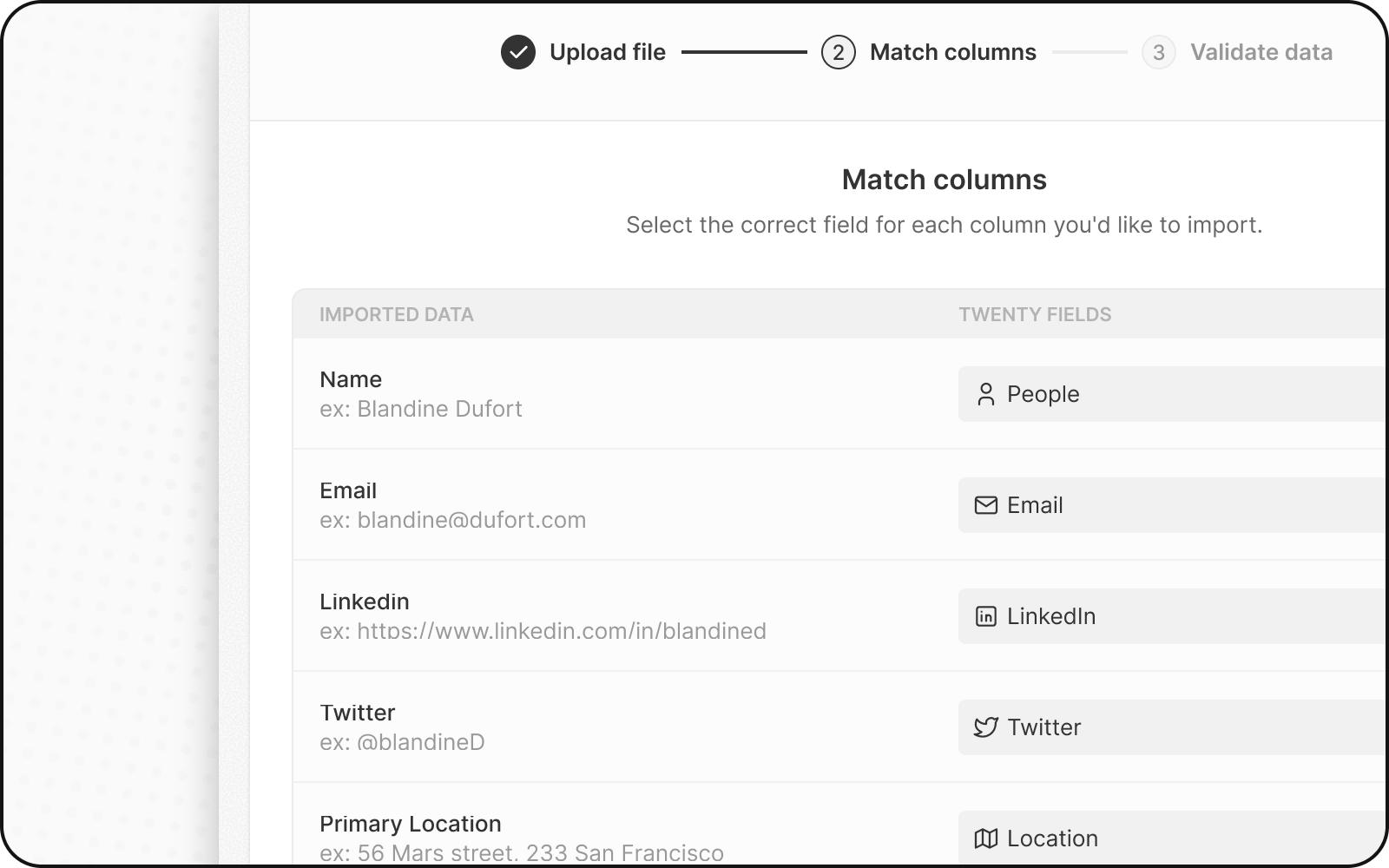
Step 4: Map Your Columns

Twenty automatically tries to match your columns to fields. Review and adjust:
  1. Check automatic mappings — verify they’re correct
  2. Fix incorrect mappings — click the dropdown to select the right field
  3. Skip columns — select Do not map for columns you don’t want to import

Important Mapping Rules

Column TypeMap ToNotes
Company referenceCompany relation fieldUse domain OR id, not both
EmailEmailPrimary email address
Additional emailsEmails / Additional EmailsArray format
PhoneSeparate columnsNumber, Country Code, Calling Code

Mapping the Company Relation

When mapping the company column:
  1. Find your company reference column (e.g., companyDomain)
  2. Map it to the Company relation field
  3. Twenty will link each Person to the matching Company
Map only ONE unique identifier for relations.Don’t map both companyId AND companyDomain. Choose one—preferably domain since it’s human-readable.

Step 5: Map Select Field Values

If you have Select or Multi-Select fields (like Lead Source):
  1. Twenty shows your values alongside existing options
  2. Match each value in your file to a Twenty option
  3. Or create new options if needed
Select options use API names, not display labels. Check Settings → Data Model → Enable Advanced mode to see API names.

Step 6: Review and Fix Errors

Before completing the import, Twenty validates your data:
  1. Click Next Steps
  2. Rows with errors are highlighted in yellow
  3. Fix errors directly — click a cell and edit the value
  4. Remove problematic rows — click the X to skip that row

Common Contact Import Errors

ErrorCauseSolution
Duplicate emailEmail already exists in Twenty or fileRemove duplicate or update existing record
Invalid email formatEmail format incorrectFix to [email protected]
Relation not foundCompany doesn’t existImport Companies first or fix the reference
Missing required fieldRequired field is emptyFill in the value or remove the row

Step 7: Complete the Import

  1. Review the import summary
  2. Click Confirm to import
  3. Wait for the import to complete
  4. Verify by checking a few records and their Company links

After Importing Contacts

Your contacts are now in Twenty! Next steps:
  1. Verify Company links — open a few People records to confirm they’re linked to the right Company
  2. Import Opportunities — if needed, link them to People and Companies
  3. Set up email sync — connect your mailbox to see email history on contact records

Updating Existing Contacts

To update contacts instead of creating new ones:
  1. Include the email or id column in your file
  2. Twenty matches records by this unique identifier
  3. Existing contacts are updated; new ones are created
See How to Update Existing Records for details.

FAQ

Email is a unique identifier in Twenty. This prevents duplicate contacts and ensures email sync correctly links emails to the right person.
You can leave the email empty. However, we recommend adding emails when possible for better data quality and email sync functionality.
Import Companies first, then import People. The Company must exist before you can reference it.
Yes! Create a custom field marked as “unique” in your data model to store the external ID. Note: the field name id is reserved for Twenty’s internal ID.
The Company you’re referencing doesn’t exist. Either import the Company first, or check that the domain/ID exactly matches an existing Company.

Troubleshooting

Having issues? Check: