
Overview
Twenty offers flexible pricing to fit teams of all sizes, whether you prefer cloud hosting or self-hosting.Cloud Plans
Pro (Cloud)
For teams ready to scale:- All core CRM features
- Email and calendar sync
- Workflows and automations
- Standard support
Premium features (SSO, row-level permissions, AI usage data and more) are not included in the Pro plan.
Organization (Cloud)
For larger teams with advanced needs:- Everything in Pro
- Premium features: SSO integration, row-level permissions, AI usage data and more
- Priority support
Self-Hosted Plans
Free (Self-Hosted)
Host Twenty on your own infrastructure at no cost:- All Pro features included
- Community support via Discord
- Full control over your data
Organization (Self-Hosted)
For teams who need premium features while self-hosting:- All Pro features
- Premium features: SSO integration, row-level permissions, AI usage data and more
- Twenty team support
- No requirement to publish custom code as open-source before distributing
Premium Features
Premium features are only available on the Organization plans (Cloud or Self-Hosted):- SSO integration: Single Sign-On with your identity provider
- Row-level permissions: Fine-grained access control at the record level
- AI usage data: Track AI consumption across the workspace
- Audit logs: Check what each workspace member has been doing
- Email campaigns: Plan which emails should be sent (available soon)
- Unlimited workspaces: Create as many workspaces as you want (self-hosted only)
- Private source code: No requirement to publish changes to a publicly available repository (self-hosted only)
Switching Plans
Upgrade to Organization
- Go to Settings → Billing → Plans
- Click Switch to Organization
- Confirm your upgrade
Downgrade to Pro
- Go to Settings → Billing → Plans
- Click Switch to Pro
- Confirm your downgrade
Switch to Yearly Billing
- Go to Settings → Billing
- Click Upgrade to Yearly
- Save with annual billing
Switch to Monthly Billing
- Go to Settings → Billing
- Click Downgrade to Monthly
- Save with monthly billing
Get an Organization Key
The Organization (Self-Hosted) plan runs on your own infrastructure. To get started, install Twenty with Docker Compose, then follow the steps below to activate your Organization license. If you already have a self-hosted Twenty instance, you can get your Organization key directly from its settings:- Go to Settings → Admin Panel → Organization
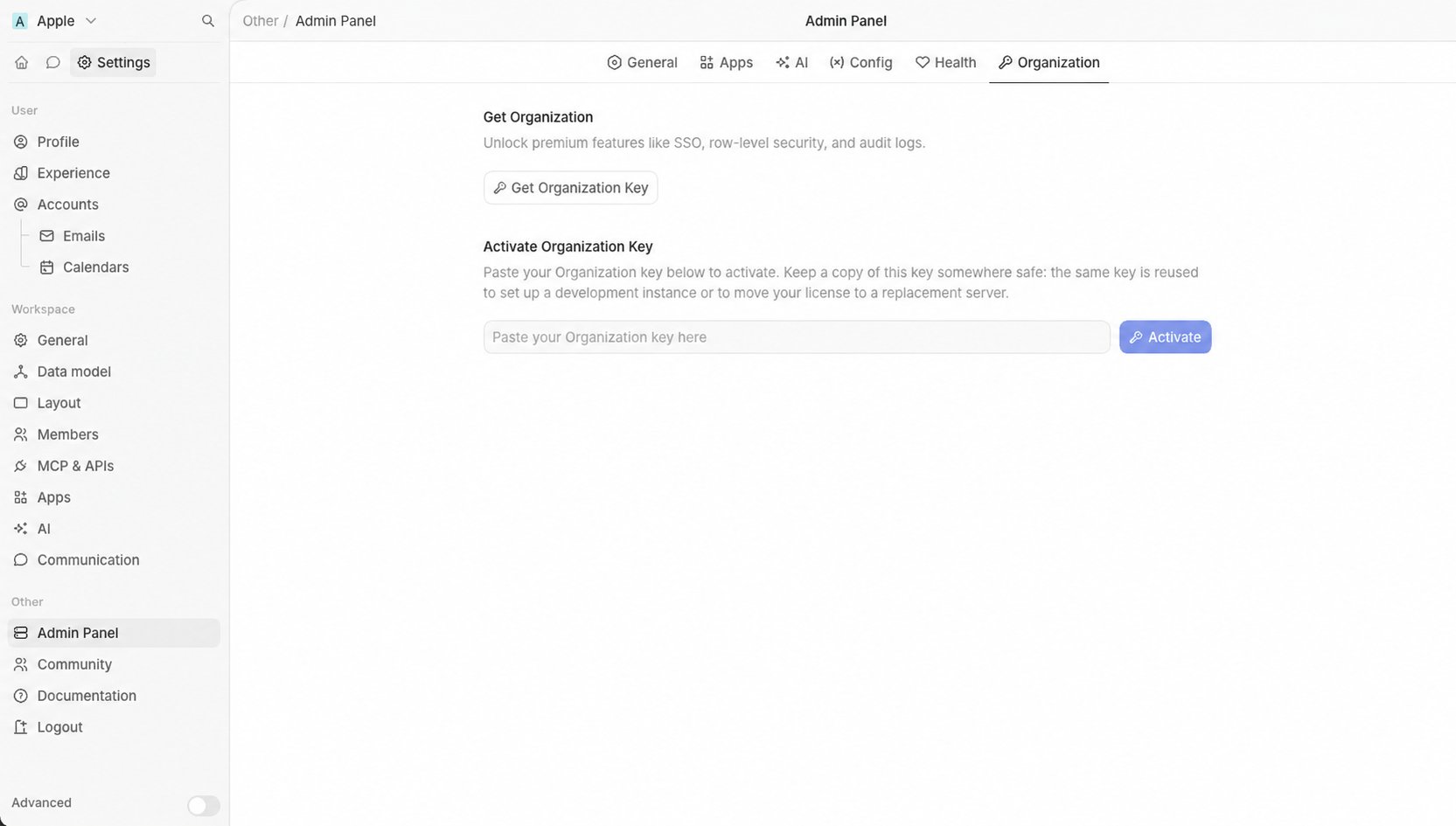
- Click Get Organization Key
- When you are redirected to Stripe, enter your payment details and confirm
- When your Organization key is displayed, paste it into the Organization settings page and activate the Organization license