
Cómo funciona la asignación de campos
Cuando cargas un archivo, Twenty analiza las columnas e intenta hacerlas coincidir con los campos existentes.Asignación automática
Twenty intenta hacer coincidir las columnas en función de:- Nombres de encabezados de columna (coincidencias exactas o similares)
- Detección de tipo de datos (fechas, números, correos electrónicos)
- Patrones de campo comunes
Consejo rápido: Exporta algunas filas del objeto que quieres importar. El archivo exportado tendrá los nombres de columna exactos que Twenty espera, lo que hará que la asignación automática sea fluida durante la importación.
Opciones de asignación manual
Para cada columna, puedes:- Asignar a un campo: Selecciona el campo correspondiente de Twenty desde un menú desplegable
- No asignar: Omite la columna por completo (los datos no se importarán)
Los campos deben existir antes de la importación. La importación crea registros, no campos. Crea campos personalizados en Settings → Data Model antes de importar.
Compatibilidad de tipos de campo
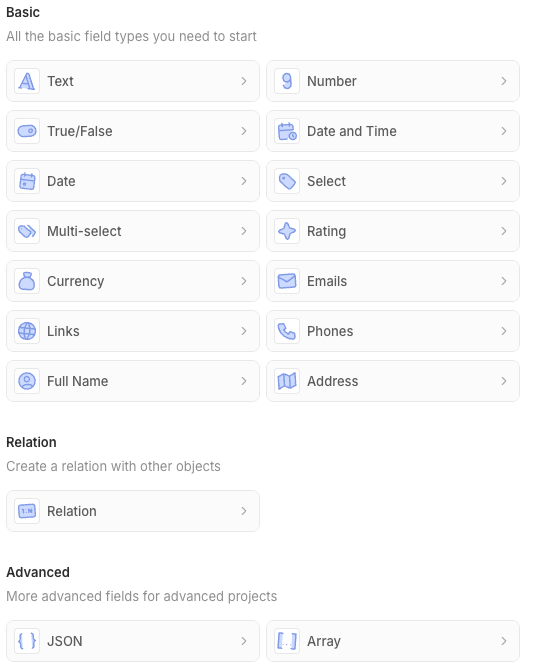
Todos los tipos de campo disponibles en el Data Model son compatibles con la importación. También puedes importar valores deid para asignar un ID específico a los nuevos registros o actualizar los existentes.
Requisitos de formato de datos
Algunos campos tienen una sintaxis especial. Recomendamos descargar el archivo de muestra antes de preparar la importación para ver la sintaxis esperada para cada tipo de campo.
Campos de dirección
Dirección es un campo anidado con múltiples columnas. Algunos se pueden dejar vacíos.- Address / Address 1: Primera línea de la dirección
- Address / Address 2: Segunda línea de la dirección
- Address / City: Nombre de la ciudad
- Address / State: Estado o provincia
- Address / Country: Nombre del país
- Address / Post Code: Código postal/ZIP
Campos de array
Usa el siguiente formato:Campos booleanos
UsaTRUE o FALSE (mayúsculas), no true o false
Campos de moneda
Moneda es un campo anidado con dos columnas que ambas deben completarse:- Amount / Amount: El valor numérico (p. ej.,
1234.56) - Amount / Currency: El código de la moneda (p. ej.,
USD,EUR)
Campos de fecha
Formatos admitidos:YYYY-MM-DD(recomendado)MM/DD/YYYYDD/MM/YYYY- Formato ISO 8601
Campos de dominio
- Se recomienda usar el formato
https://domain.compara evitar crear duplicados, ya que este es el formato utilizado para las Companies creadas por las sincronizaciones del buzón y del calendario - Se pueden completar
Domain LabelyDomain URL: la mejor práctica es ponerdomain.comen la etiqueta yhttps://domain.comen la URL - Los dominios deben ser únicos dentro del objeto Companies
- Los dominios deben ser únicos dentro del archivo a importar
Campos de correo electrónico
- Debe tener un formato de correo electrónico válido
- Los correos electrónicos deben ser únicos dentro del objeto People
- Los correos electrónicos deben ser únicos dentro del archivo a importar
- Para correos adicionales: usa Emails / Primary Email para el correo principal y Emails / Additional Emails con este formato:
Campos ID
Es opcional especificar unid durante la importación. Twenty lo genera automáticamente si no se proporciona.
Casos de uso para asignar una columna id:
- Establecer un ID específico: Elige el UUID para los registros recién creados
- Actualizar registros existentes: Haz coincidir con los registros existentes para actualizarlos en lugar de crear duplicados. En ese caso, se recomienda no asignar los otros campos únicos: asignar solo un campo único garantiza una importación más fluida.
Si proporcionas un
id, debe estar en formato UUID (p. ej., c776ee49-f608-4a77-8cc8-6fe96ae1e43f).Campos JSON
Usa un formato JSON válido:Campos de enlaces
Similar a los campos de dominio:- Completa ambas columnas de etiqueta y URL: Links / Link URL y Links / Link Label
- Usa el formato de URL completo:
https://example.com - Para enlaces secundarios, usa la columna Links / Secondary Links con este formato:
Campos de selección múltiple
Usa los nombres de la API (no las etiquetas visibles) con el siguiente formato:Las nuevas opciones de selección no se crearán automáticamente mediante la importación. Deben agregarse en Settings → Data Model antes de importar.
Campos numéricos
- Solo números
- Los decimales usan punto:
1234.56 - Sin separadores de miles
Campos de teléfono
Teléfono es un campo anidado con múltiples columnas que deben completarse- Phones / Primary Phone Number: El número de teléfono (p. ej.,
4159095555) - Phones / Primary Phone Country Code: Código de país (p. ej.,
US) - Phones / Primary Phone Calling Code: Código de marcación (p. ej.,
+1)
Campos de calificación
Usa el formato de nombre de API:RATING_1, RATING_2, RATING_3, RATING_4, RATING_5
Campos de Relación
Consulta nuestro artículo dedicado: Importar relaciones entre objetosCampos de Selección
Usa el nombre de la API de la opción (no la etiqueta visible):Las nuevas opciones de Select no se crearán automáticamente mediante la importación. Deben agregarse en Configuración → Modelo de datos antes de importar.
Campos de texto
- No se requiere formato especial
- Los espacios iniciales y finales se eliminan
Encontrar nombres de la API
Para los campos Select, Multi-Select y Array con opciones predefinidas, debes usar los nombres de la API, no las etiquetas visibles.Cómo encontrar los nombres de la API
- Ve a Configuración → Modelo de datos
- Selecciona el objeto y el campo
- Activa el modo avanzado (interruptor en la parte inferior derecha de la página de configuración)
- Consulta el nombre de la API de cada opción