
Acerca de los Campos
Los campos son como columnas en una hoja de cálculo. Almacenan diferentes tipos de datos como texto, números o fechas. Los campos pueden ser estándar (integrados) o personalizados (los que usted crea).Campos Estándar
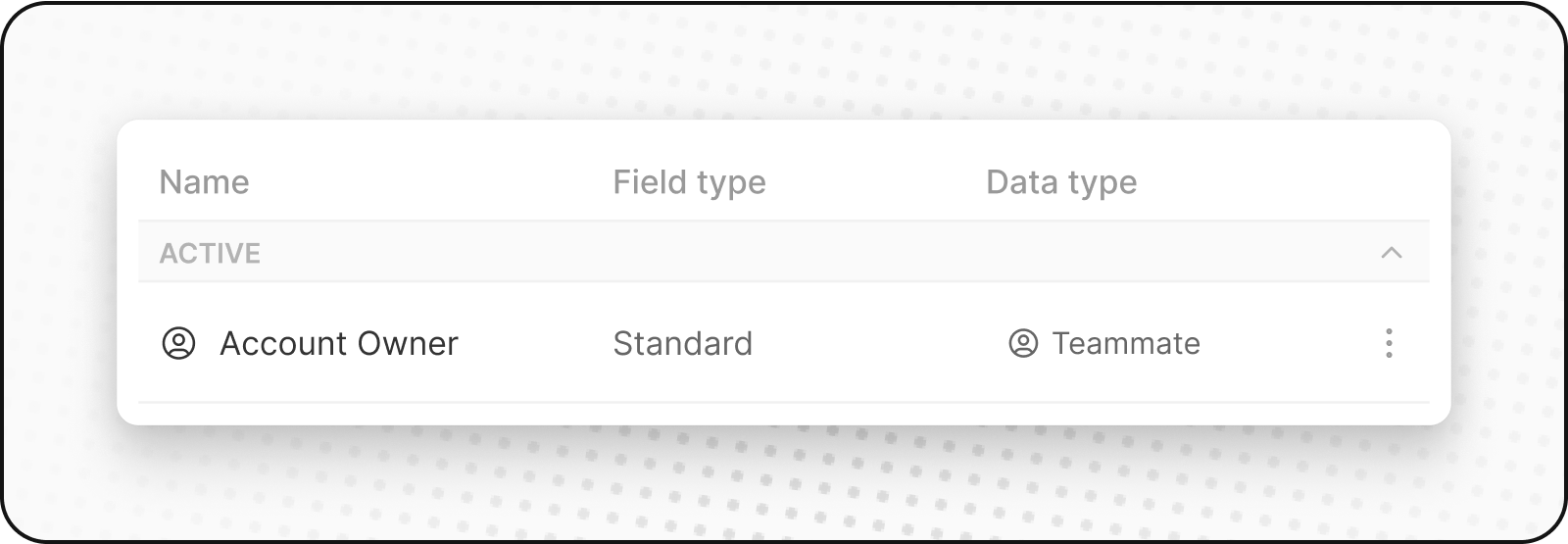
Los campos estándar vienen integrados con Twenty para cubrir necesidades empresariales comunes. Por ejemplo,Nombre y Apellido son campos estándar en el objeto Personas. Almacenan datos de texto para nombres individuales.
No puede eliminar campos estándar, pero puede desactivarlos si no los necesita.
También puede personalizar las opciones de los campos estándar de tipo SELECT, por ejemplo, las opciones para la Etapa en Oportunidades.
Campos Personalizados
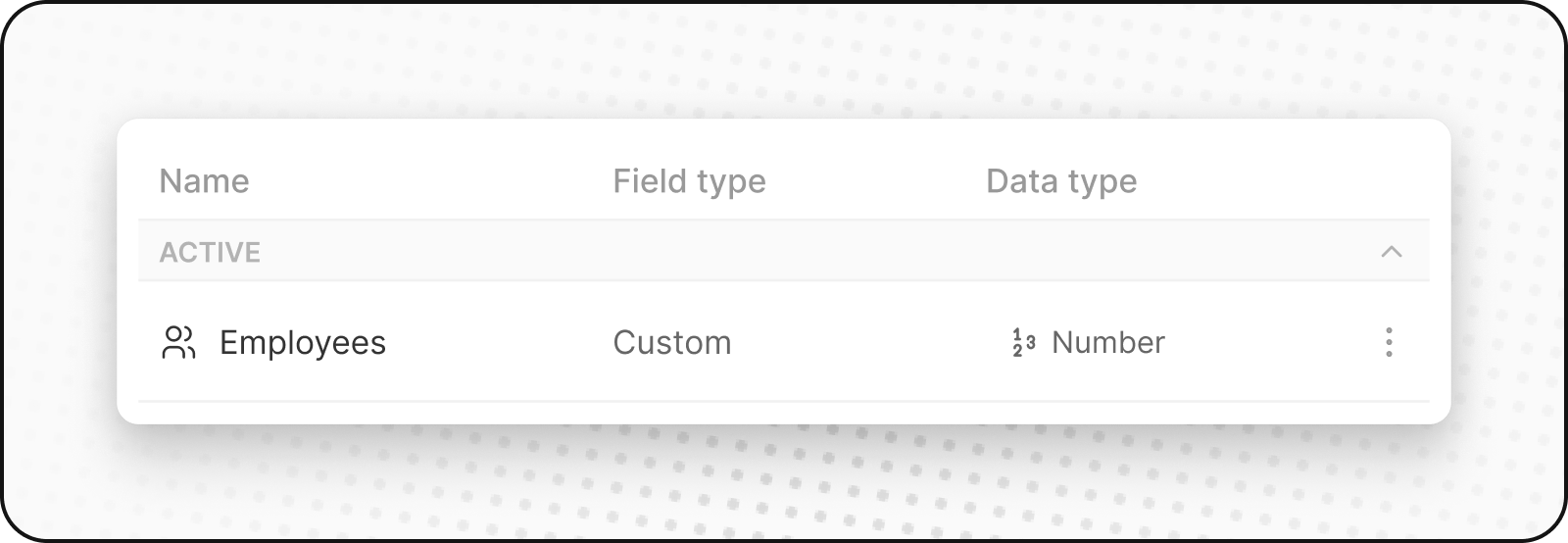
Se pueden añadir campos personalizados a cualquier objeto. Puede almacenar texto, números, fechas, selecciones desplegables y más. Utilice campos personalizados para rastrear información específica de su negocio. Por ejemplo, un campo personalizado para SpaceX podría serEstado Activo del Cohete, indicando si un cohete está operativo.
Tipos de campo
Twenty admite varios tipos de campo:Crear un Campo Personalizado
Para agregar un campo personalizado a cualquier objeto, siga estos pasos:- Vaya a
Configuraciónen la barra lateral izquierda. - Vaya a
Modelo de Datos, luego seleccione el objeto que desea personalizar. - Proceda haciendo clic en
+ Nuevo Campo. - Elija un nombre de campo y tipo que se adapten a sus requisitos. Considere agregar una descripción de campo para una mejor comprensión.
Campos.
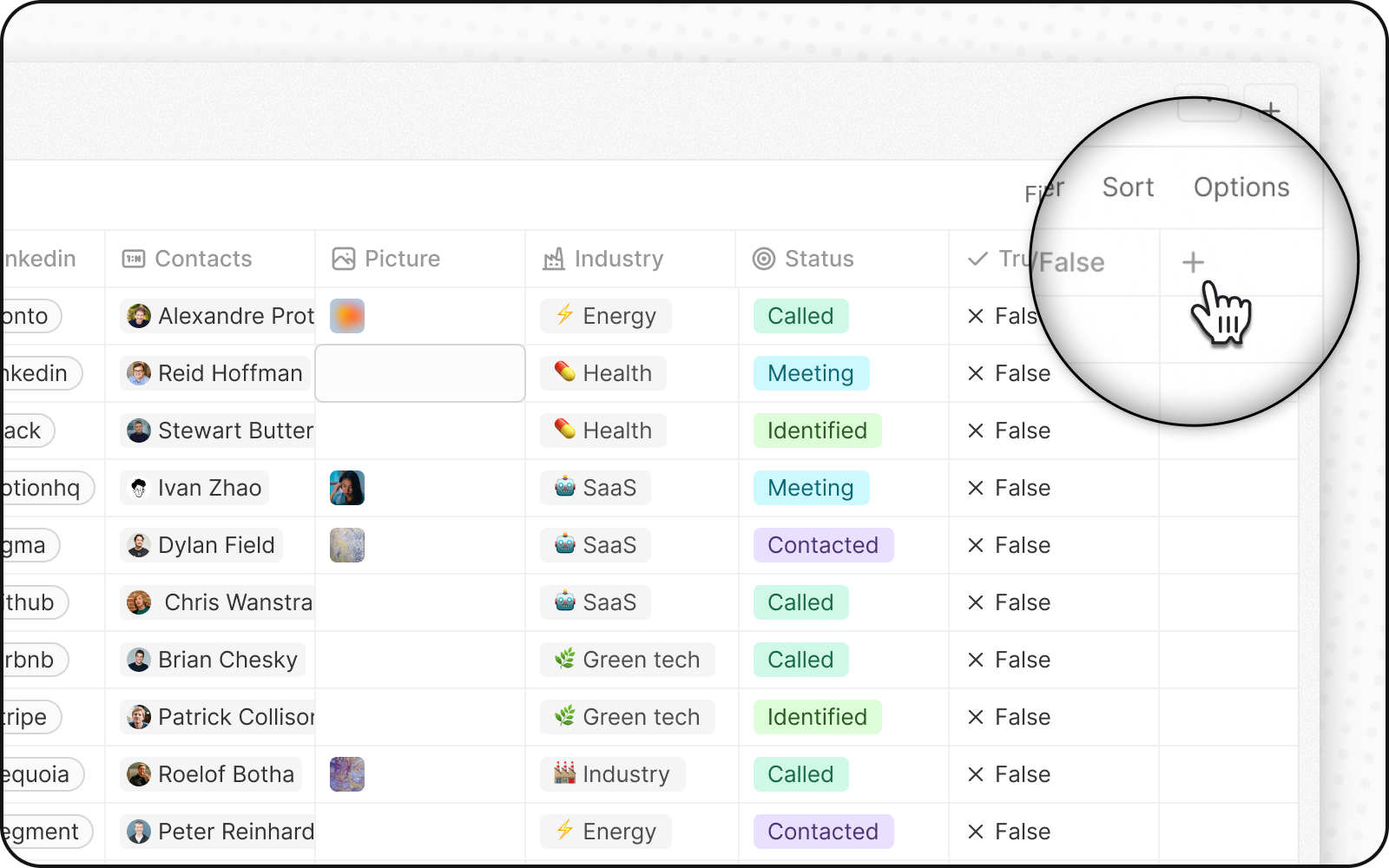
Forma rápida: Haga clic en el botón + en la esquina superior derecha de cualquier tabla de objetos, luego seleccione Personalizar campos. Esto lo lleva directamente a la configuración del Modelo de Datos.
Desactivar un campo
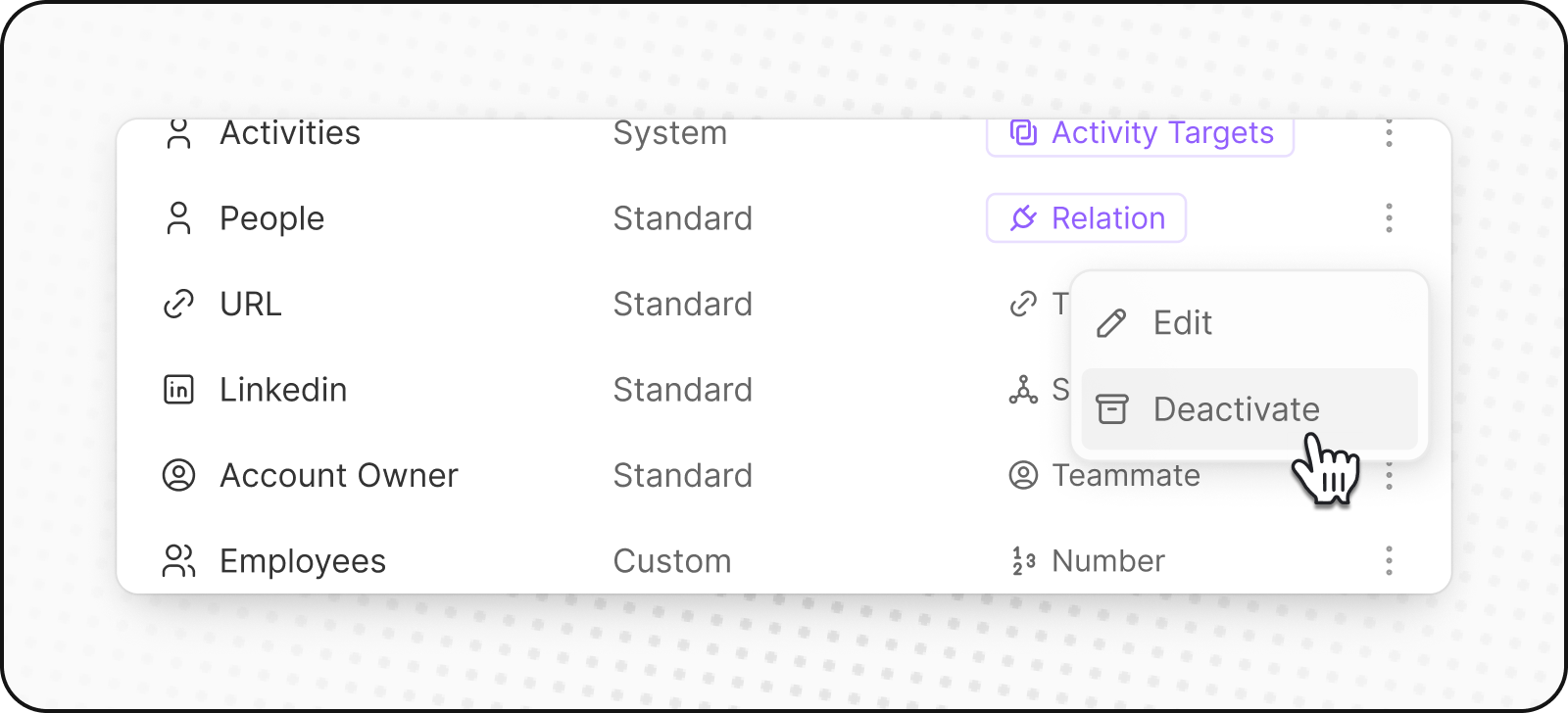
Puede desactivar un campo para ocultarlo de la aplicación sin perder sus datos. Piense en ello como ocultar el campo en lugar de eliminarlo. Así es como puede hacerlo:- Encuentre el campo que desea desactivar en la configuración de su objeto.
- Haga clic en los tres puntos
⋮junto al campo para abrir el menú. - Seleccione
Desactivaren el menú desplegable.
- En la aplicación: El campo desaparece y no puede añadir nuevos valores.
- Relaciones existentes: Si es un campo de relación, las conexiones existentes permanecen, pero no puede crear nuevas.
- Acceso API: Aún puede acceder al campo y sus datos a través de la API.
Hacer Campos Únicos
Haga un campo único para asegurar que registros distintos no puedan tener el mismo valor. Por ejemplo, las direcciones de correo electrónico son únicas para cada persona. Si recibe un error al establecer la unicidad, verifique los valores duplicados en sus datos (incluso registros eliminados).Índices (avanzado)
Los índices de base de datos se gestionan automáticamente; crear índices propios rara vez es necesario y es fácil equivocarse. Con el modo avanzado activado, cada objeto tiene una sección de Índices enSettings → Data Model → <object> para los casos en los que sabes que necesitas uno.
Mejores Prácticas de Configuración de Campos
Convenciones y Limitaciones de Nombres
- Los nombres singulares y plurales deben ser distintos: Nuestra API GraphQL necesita nombres distintos para mutaciones
- Nombres de campos protegidos: algunos nombres están reservados para uso del sistema (p. ej.,
Type,Application)
Campos de Moneda y Teléfono
- Moneda predeterminada: se puede configurar a través del modelo de datos
- Códigos de país predeterminados: se pueden configurar para campos de teléfono a través del modelo de datos
Campos de Selección
- Se puede seleccionar una opción predeterminada para cada campo de Selección
Campos de Texto del Registro
- Cada objeto tiene un campo principal de visualización: Este campo aparece en la columna más a la izquierda y representa el registro cuando se vincula a otros objetos. Debe ser un campo de texto. Por ejemplo, las Personas utilizan
Nombrecomo el campo principal, por lo que cuando vincula una persona a una empresa, verá su nombre en la vista de la empresa.