
Acerca de los activadores
Los flujos de trabajo siempre comienzan con un solo disparador que define cuándo debe ejecutarse la automatización.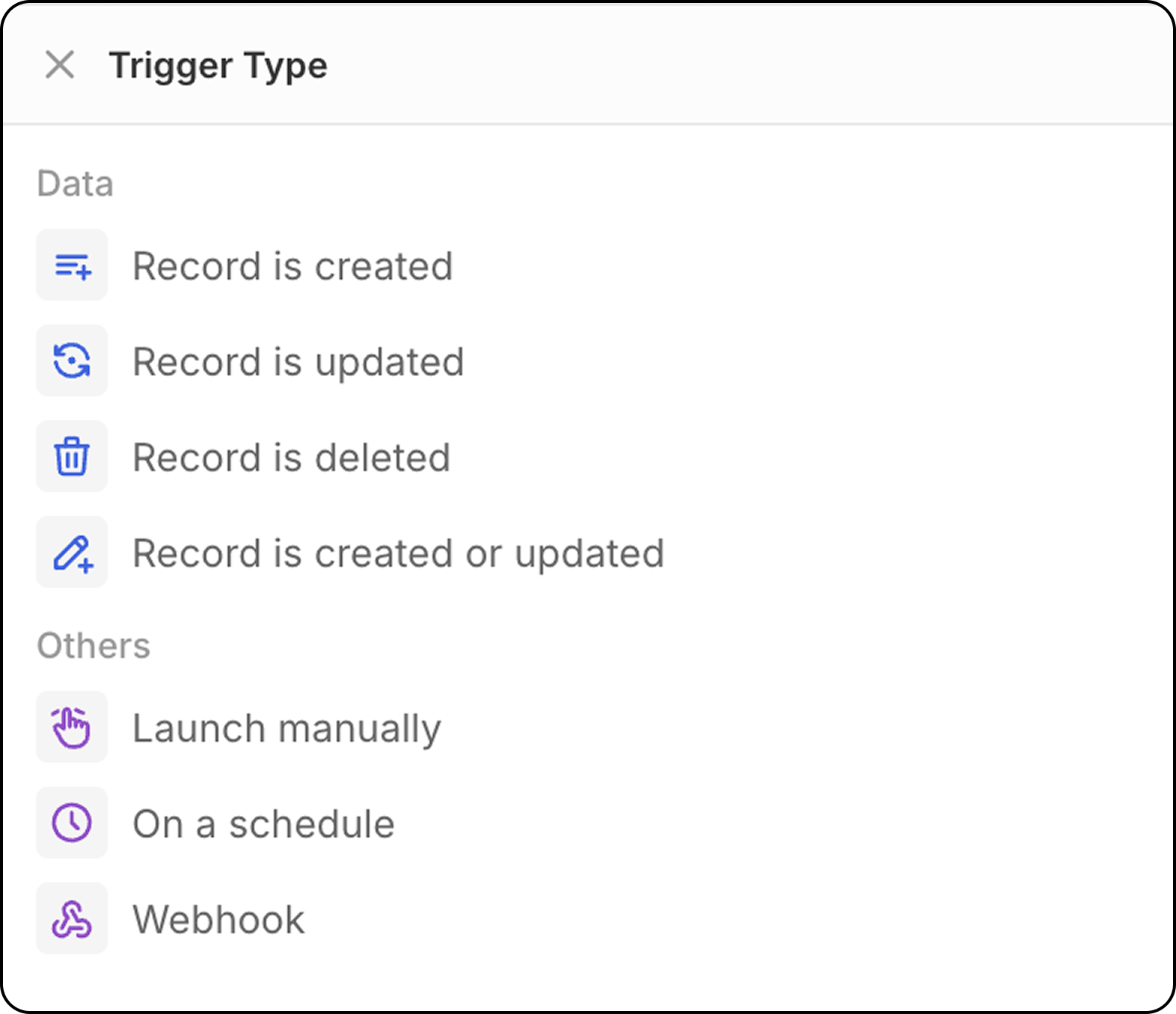
Se crea un registro
Inicia el flujo de trabajo cuando se crea un nuevo registro en un objeto seleccionado (Personas, Empresas, Oportunidades o cualquier objeto personalizado). Configuración: Selecciona el tipo de objeto para monitorear nuevos registros.- Este disparador es ideal para registros creados por CSV, buzón de correo y sincronización de calendario, o API.
- No se recomienda para registros creados manualmente: con este activador, los flujos de trabajo comienzan tan pronto como se crea el registro. Ya que la interfaz de usuario veinte ofrece guardado automático en la marcha (no hay modo de edición y luego una validación para guardar registros), el flujo de trabajo se activará antes de que el usuario introduzca todos los campos.
Para activar este flujo de trabajo en registros creados manualmente, se recomienda usar el activador
Record is created or updateden su lugar.
Se actualiza un registro
Inicia el flujo de trabajo cuando se realizan cambios en un registro existente. Configuración:- Selecciona el tipo de objeto
- Opcionalmente especifica qué campos monitorear para cambios
Se actualiza o se crea un registro
Inicia el flujo de trabajo cuando un registro es creado o actualizado en un objeto seleccionado. ¿Por qué esto es importante?:- Importaciones API/CSV: Los registros se crean con todos los campos poblados inmediatamente
- Creación manual: Los registros se crean primero, luego los campos se agregan en actualizaciones posteriores
- Selecciona el tipo de objeto para monitorear
- Opcionalmente especifica qué campos monitorear para cambios
- El flujo de trabajo se activará tanto en la creación inicial como en cualquier actualización posterior
Se elimina un registro
Inicia el flujo de trabajo cuando un registro es eliminado de un objeto. Configuración: Selecciona el tipo de objeto para monitorear eliminaciones.Activador manual
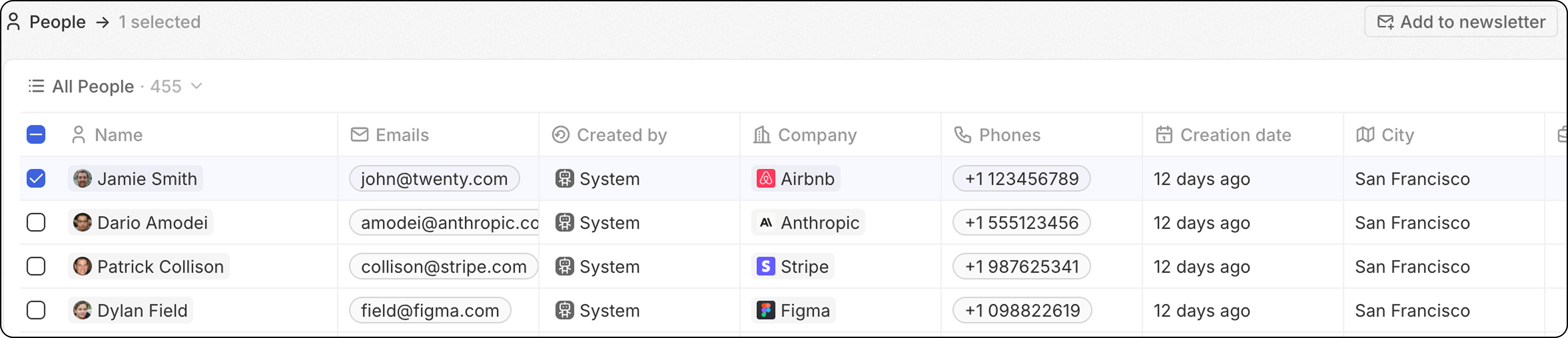
Inicia el flujo de trabajo cuando es desencadenado por una acción del usuario. Se puede acceder a este activador a través del menúCmd+K o mediante un botón personalizado que se mostrará en la barra de navegación superior después de seleccionar uno o varios registros.
- Global: No se requiere ningún registro para activar este flujo de trabajo. El flujo de trabajo se activa desde el menú de comandos
Cmd+Ken cualquier lugar (desde cualquier objeto) y no utiliza registros como entrada.
-
Single: El flujo de trabajo se ejecutará de principio a fin tantas veces como haya registros seleccionados.
Límite flexible: 100 ejecuciones/minuto. A partir de ese punto, los flujos de trabajo permanecen en estado “Not Started” y se procesan gradualmente—ya sea mediante un trabajo en segundo plano o cuando otro flujo de trabajo entra en la cola. Esto significa que puedes seleccionar más de 100 registros con un único activador; la ejecución solo será más lenta.
- Bulk: El flujo de trabajo se ejecutará una vez, proporcionando la lista completa de registros como entrada. Esto significa que el flujo de trabajo debe contener una Acción Iterator.
Esto es más avanzado y es ideal para quienes quieren optimizar la cantidad de ejecuciones del flujo de trabajo.
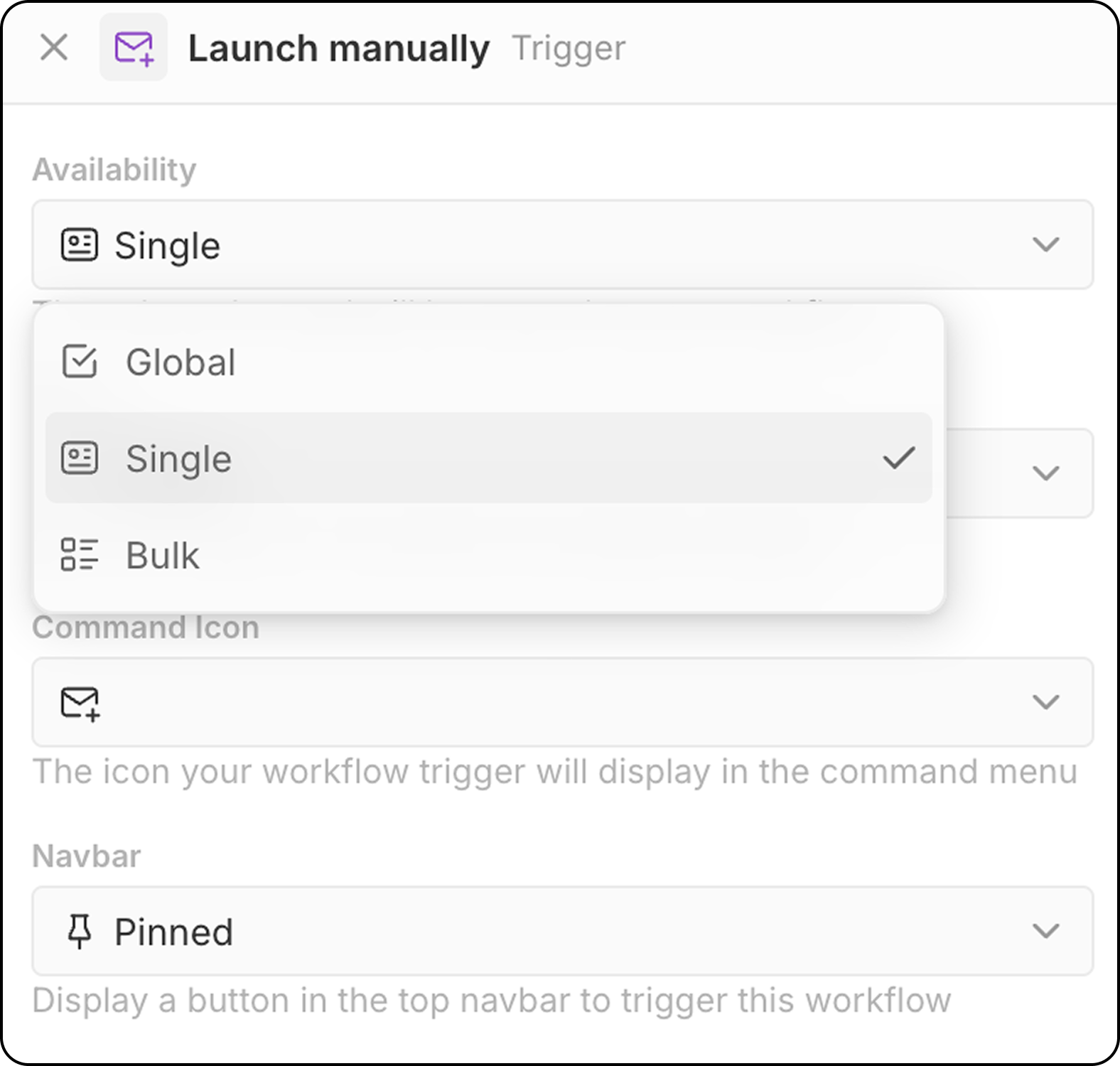
- Selecciona el objeto de destino (para disponibilidad individual y en masa)
- Elige un ícono de comando para el disparador del flujo de trabajo
- Configura la ubicación en la barra de navegación (fijado o no fijado)
- Menú
Cmd+Kpara encontrar e iniciar flujos de trabajo manuales - Botón personalizado en la barra de navegación superior (si está configurado)
Activador basado en tiempo: según un horario
Inicia el flujo de trabajo de forma recurrente según lo defina. Configuración:- Selecciona la unidad de tiempo (minutos, horas, días)
- Ingresa un valor o usa expresiones cron personalizadas para una programación avanzada
Zona horaria: Los flujos de trabajo programados se ejecutan en UTC. Al configurar las horas para programaciones diarias, convierte tu hora local a UTC.
Activador externo: Webhook
Inicia el flujo de trabajo cuando se recibe una solicitud GET o POST de un servicio externo.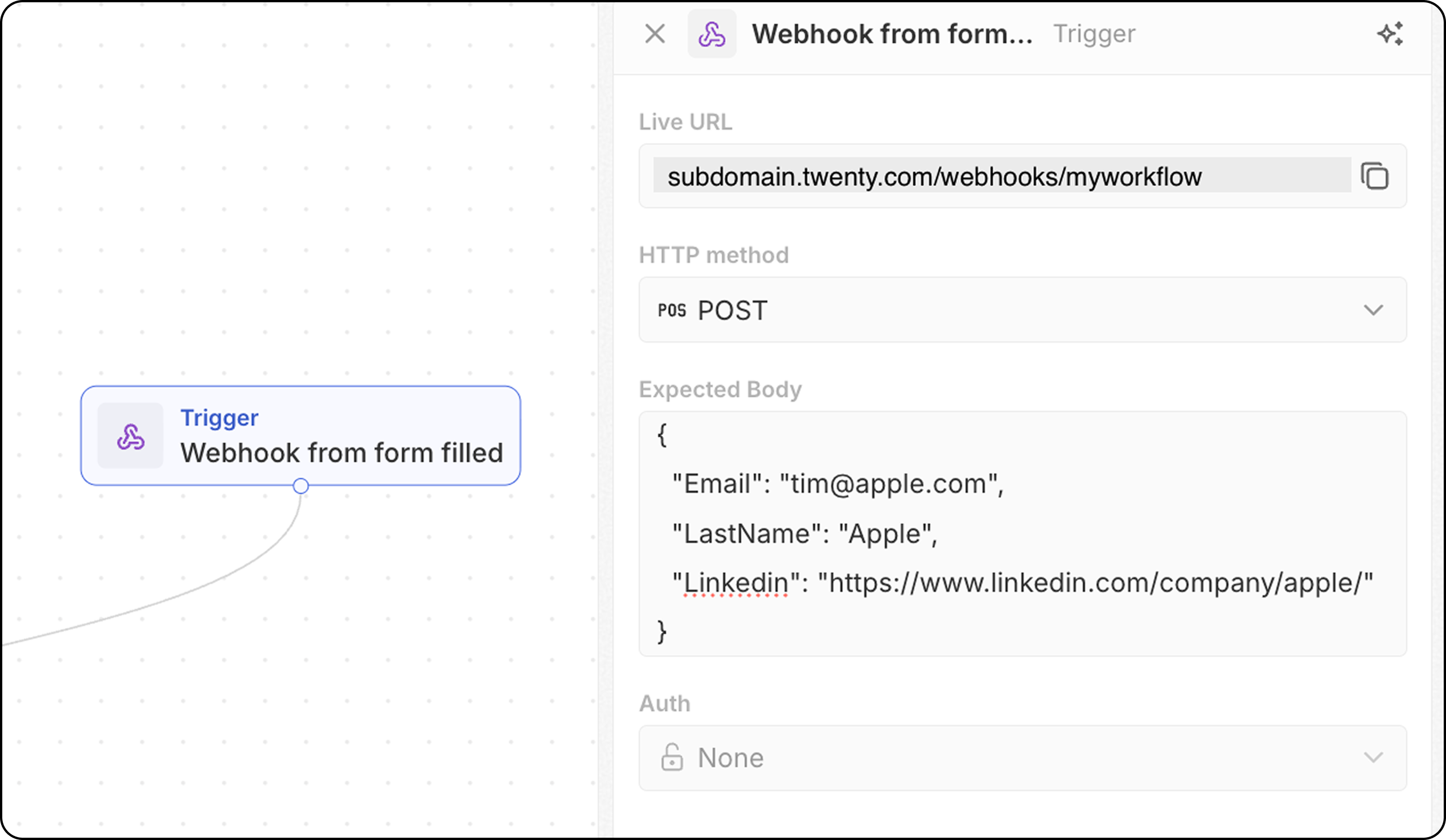
- El flujo de trabajo proporciona una URL de webhook única—cópiala y agrégala a tu sistema externo como el endpoint a invocar.
- Para solicitudes POST, define la estructura del cuerpo esperada para que Twenty sepa qué datos esperar. Añade aquí los campos que recibirás y que se necesitarán más abajo en tu flujo de trabajo.
- Configura la autenticación (próximamente).