
Standart Nesneler
Standart nesneler, işe başlamanıza yardımcı olmak için çalışma alanınızda önceden tanımlanmış varlıklardır. Bunlar, Twenty kullanıcıları tarafından erişilebilen, paylaşılan bir veri modelinin parçasıdır. Onları olduğu gibi kullanabilir, özelleştirebilir veya devre dışı bırakabilirsiniz.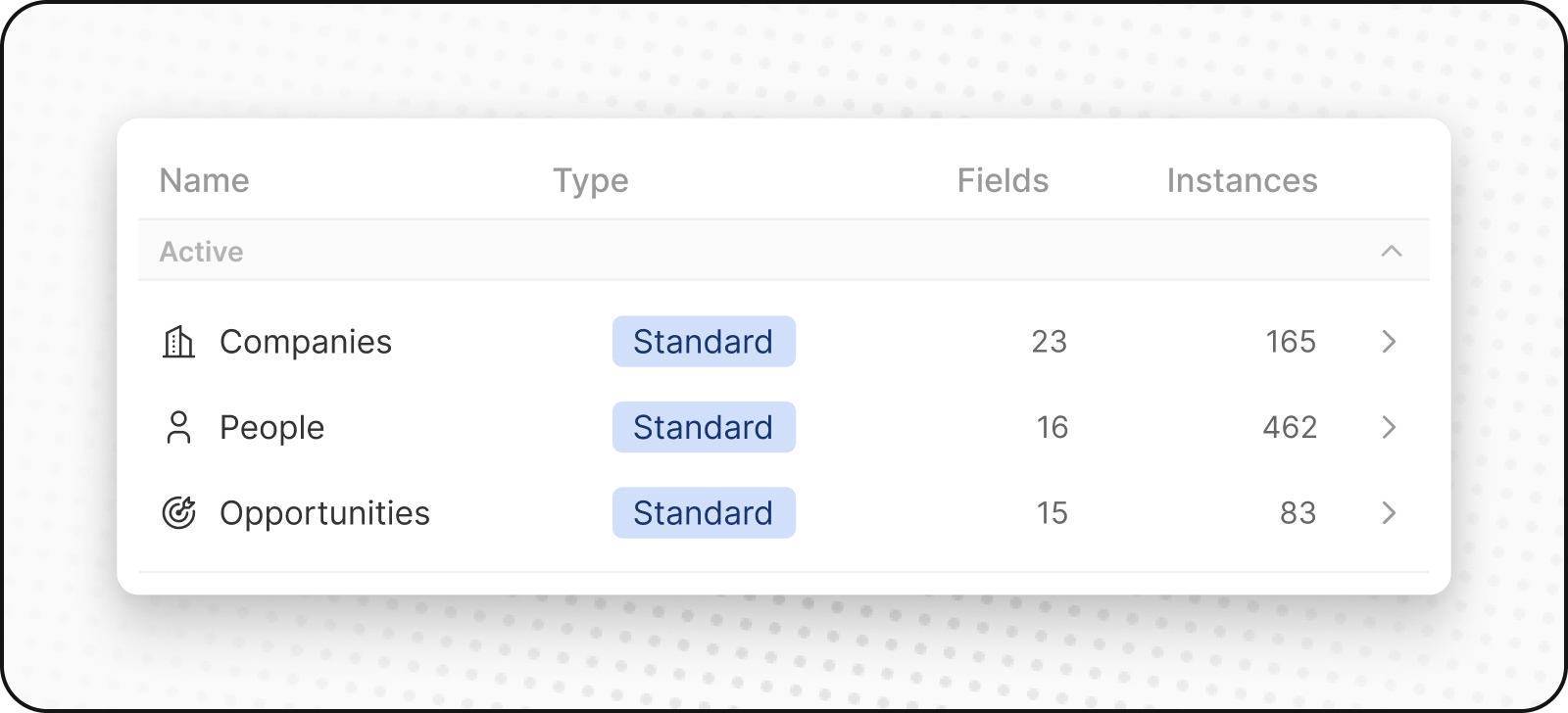
İnsanlar
İnsanlar nesnesi, kişilerinizi saklar. Bu nesne, iletişim detayları ve etkileşim geçmişini içerir, böylece tüm müşteri etkileşimlerinizi tek bir yerde görebilirsiniz.
Şirketler
Şirketler nesnesi, iş hesaplarınızı saklar. Endüstri, boyut ve konum gibi detayları içerir. Şirketler, hem İnsanlar hem de Fırsatlar nesnelerine bağlanır.
Fırsatlar
Fırsatlar nesnesi, işle ilgili verileri saklar. Potansiyel satışların araştırmadan kapanışa kadar olan ilerlemesini izler; aşamaları, fırsat tutarlarını, ilişkili hesabı ve beklenen kapanış tarihini kaydeder. Satış boru hattınızı kanban düzeninde görüntüleyebilirsiniz.
Notlar
Notes nesnesi, Kişiler, Şirketler, Fırsatlar ve diğer kayıtlara eklenebilen serbest biçimli notları saklar. Toplantı özetlerini, önemli ayrıntıları veya bağlamsal bilgileri kaydetmek için notları kullanın.
Görevler
Tasks nesnesi, yapılacaklar ve eylem öğelerini saklar. Görevler Kişiler, Şirketler, Fırsatlar ve diğer kayıtlara bağlanabilir. Takiplerinizi etkin şekilde sürdürebilmek için son tarihleri, atanan kişileri ve tamamlama durumunu izleyin.
Özel Nesneler
Özel nesneler, standart nesnelerin işleyemediği, kuruluşunuza özgü bilgileri saklamanıza olanak tanır. Örneğin, SpaceX iseniz, Roketler ve Fırlatmalar için özel bir nesne oluşturmak isteyebilirsiniz.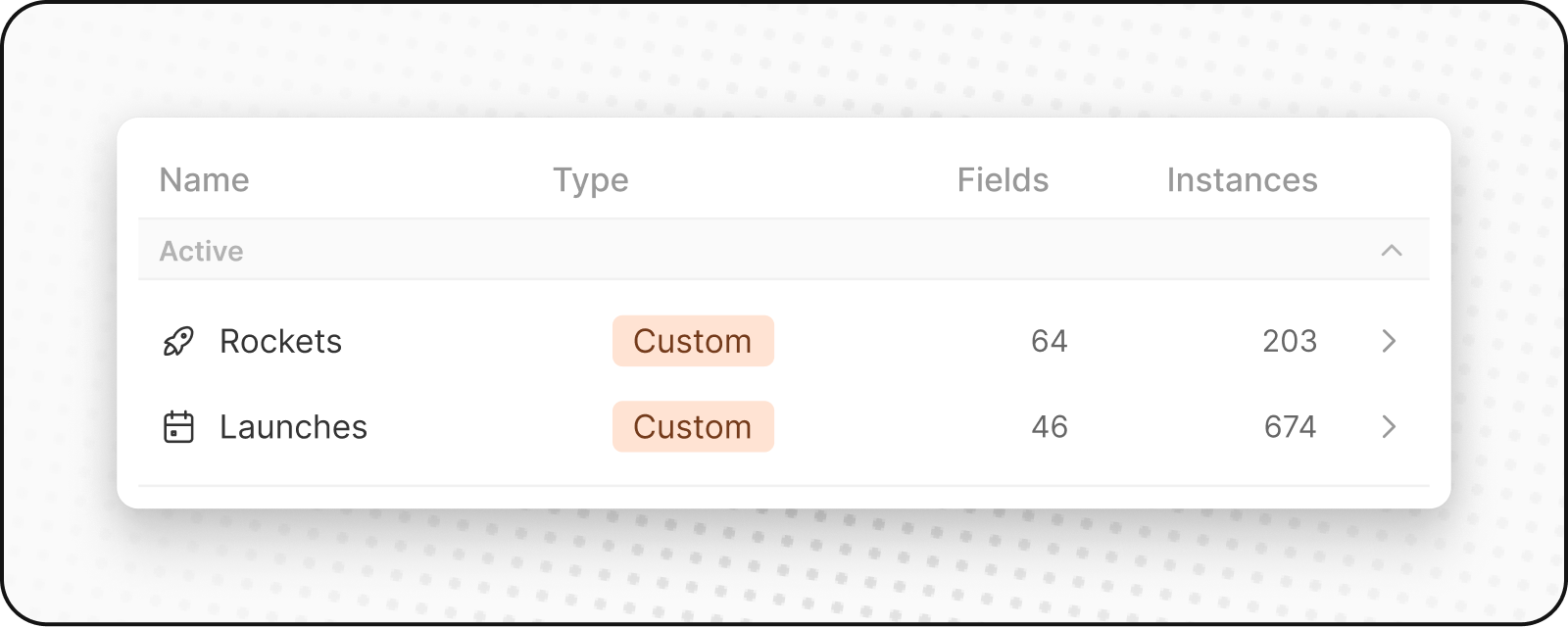
Yeni Bir Özel Nesne Oluşturma
Yeni bir özel nesne oluşturmak için:- Soldaki kenar çubuğundan Ayarlar’a gidin.
- Çalışma Alanı altında, Veri Modeline gidin. Burada mevcut tüm Standart ve Özel nesnelerinizin (hem aktif hem de devre dışı bırakılmış) genel görünümünü görebileceksiniz.
- Üstteki
+ Yeni nesnebutonuna tıklayın. Adı (tekil ve çoğul olarak), bir simge seçip özel nesneniz için bir açıklama ekleyin ve Kaydet’e tıklayın (sağ üstte). Özel nesne olarak ilanı kullanarak, tekil “ilan” ve çoğul “ilanlar” olur, “Ev sahiplerinin mülklerini sergilemek için oluşturdukları ilanlar.” gibi bir açıklamayla. - Özel nesneniz oluşturuldu ve kenar çubuğunuzda görünecek. Hemen ona kayıt eklemeye başlayabilirsiniz.
Nesneleri Yönetme
Nesneleri Devre Dışı Bırakma
Standart veya özel bir nesneye ihtiyacınız yoksa:- Ayarlar → Veri Modeli’ne gidin
- Devre dışı bırakmak istediğiniz nesneyi bulun ve tıklayın
- Nesnenin Ayarlar sekmesine gidin
Devre Dışı Bırakdüğmesine tıklayın- Nesne çalışma alanınızdan gizlenecek ancak veriler korunur
Nesneleri Yeniden Etkinleştirme
Devre dışı bırakılmış bir nesneyi geri getirmek için:- Ayarlar → Veri Modeli’ne gidin
Devre Dışıfiltresini etkinleştirin- Devre dışı bırakılmış nesneleri arayın (adlarının yanında
Devre Dışıyazar) - Yeniden etkinleştirmek için
⋮menüsüne ve ardındanEtkinleştire tıklayın - Nesne ve tüm verileri geri yüklenecektir
En İyi Uygulamalar
Özel Nesneleri Ne Zaman Oluşturmalısınız
- Benzersiz iş varlıkları: Sektörünüze veya sürecinize özgü unsurlar
- Karmaşık ilişkiler: Birden çok varlık arasındaki bağlantıları izlemeniz gerektiğinde
- Ölçeklenebilir veriler: Bir şeyin çok sayıda örneğine sahip olabileceğiniz durumlarda
Bunun Yerine Alanları Ne Zaman Kullanmalısınız
- Basit öznitelikler: Mevcut nesneleri tanımlayan özellikler
- Kategoriler veya etiketler: Mevcut kayıtları sınıflandırma yöntemleri
- Tekil değerler: Kendi yaşam döngüsüne ihtiyaç duymayan bilgiler
Nesne Adlandırma
- Açık, açıklayıcı adlar kullanın: Nesnenin neyi temsil ettiğini açıkça belli edin
- Kurallara uyun: Nesne adı için tekil, koleksiyon için çoğul kullanın
- Ekibinizi dikkate alın: Herkesin anlayacağı adları seçin