
Kanban Görünümleri Hakkında
Kanban görünümleri, her sütunun farklı bir aşamayı ve her kartın bir kaydı temsil ettiği süreç akışlarını görsel olarak haritalandırır.Kartları Aşamalar Arasında Taşıma
Kartların her birini, iş akışınız boyunca bir kartı tıklayıp basılı tutarak ve ardından bir sonraki aşamaya sürükleyerek aşamalar arasında taşıyabilirsiniz.Aşamaları Ekleme ve Silme
Her biri bir Seçim alanındaki değeri temsil eden aşamaları kullanarak iş akışınızı ihtiyaçlarınıza göre uyarlayabilirsiniz:Aşamaları Ekle
Bir aşama eklemek için Ayarlar > Veri Modeli’ne giderek Seçim alanı ayarlarına erişin, nesnenizi seçin ve ardından Kanban panonuzun bağlı olduğu alanı seçin.Aşamaları Kaldırma
Bir aşamayı kaldırmak için aşama adının veya⋮ simgesinin üzerine gelin, Seçim alanı ayarlarında Ayarlar'dan Düzenleye tıklayın ve ardından ilgili aşamanın yanındaki Sil düğmesine tıklayın.
Alanları Görüntüleme
Kanban tahtanızı bazı alanları gösterecek ve diğerlerini gizleyecek şekilde yapılandırabilirsiniz. Bir alanı göstermek veya gizlemek için sağ üstteki Seçenekler’e, ardından seçenekler listesini açmak için Alanlar’a tıklayın ve alanı göstermek veya gizlemek için alanın yanındaki göz simgesine tıklayın. Alanların sırasını değiştirmek için alan adını basılı tutup istediğiniz yere sürükleyin.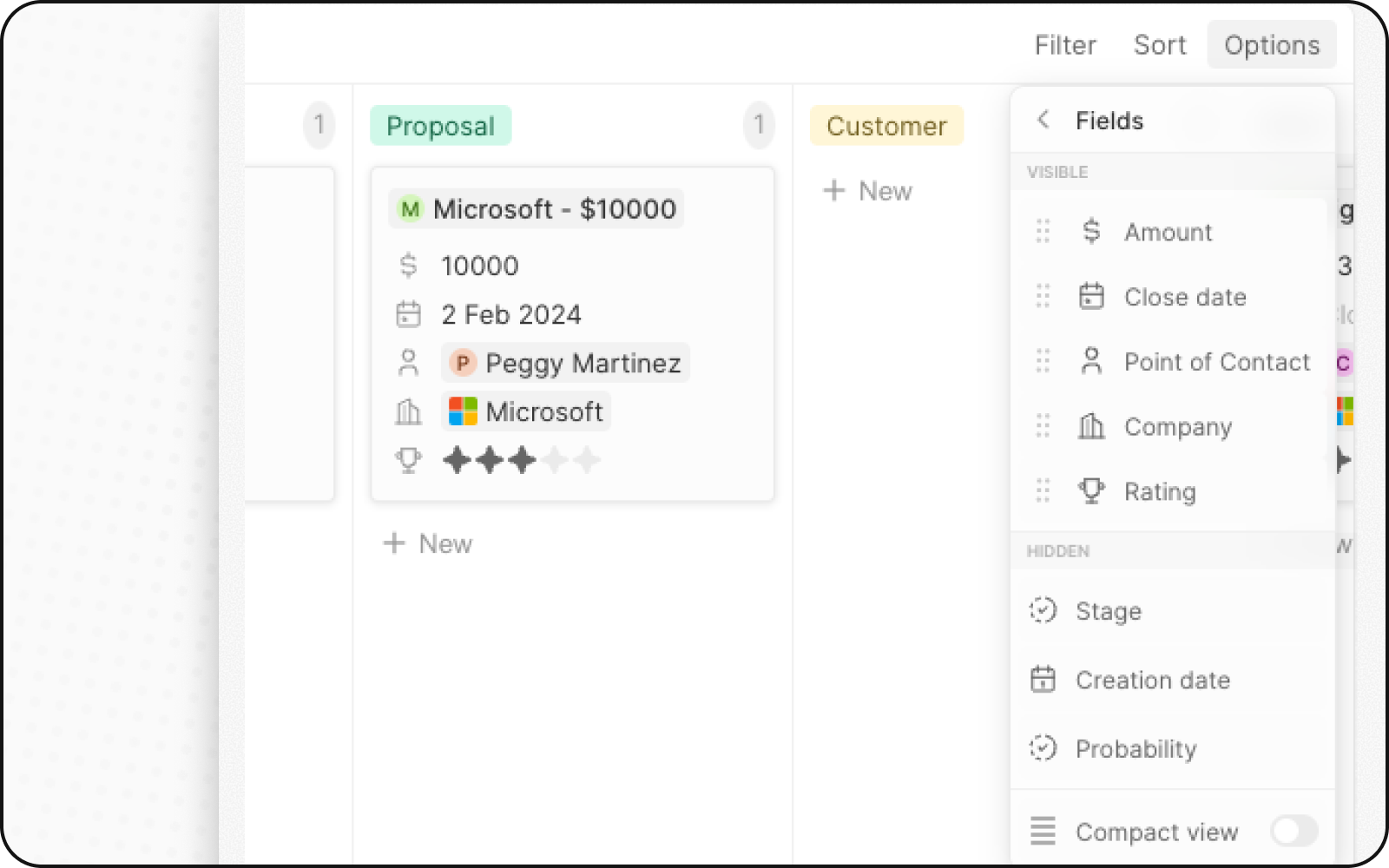
Kompakt Görünüm
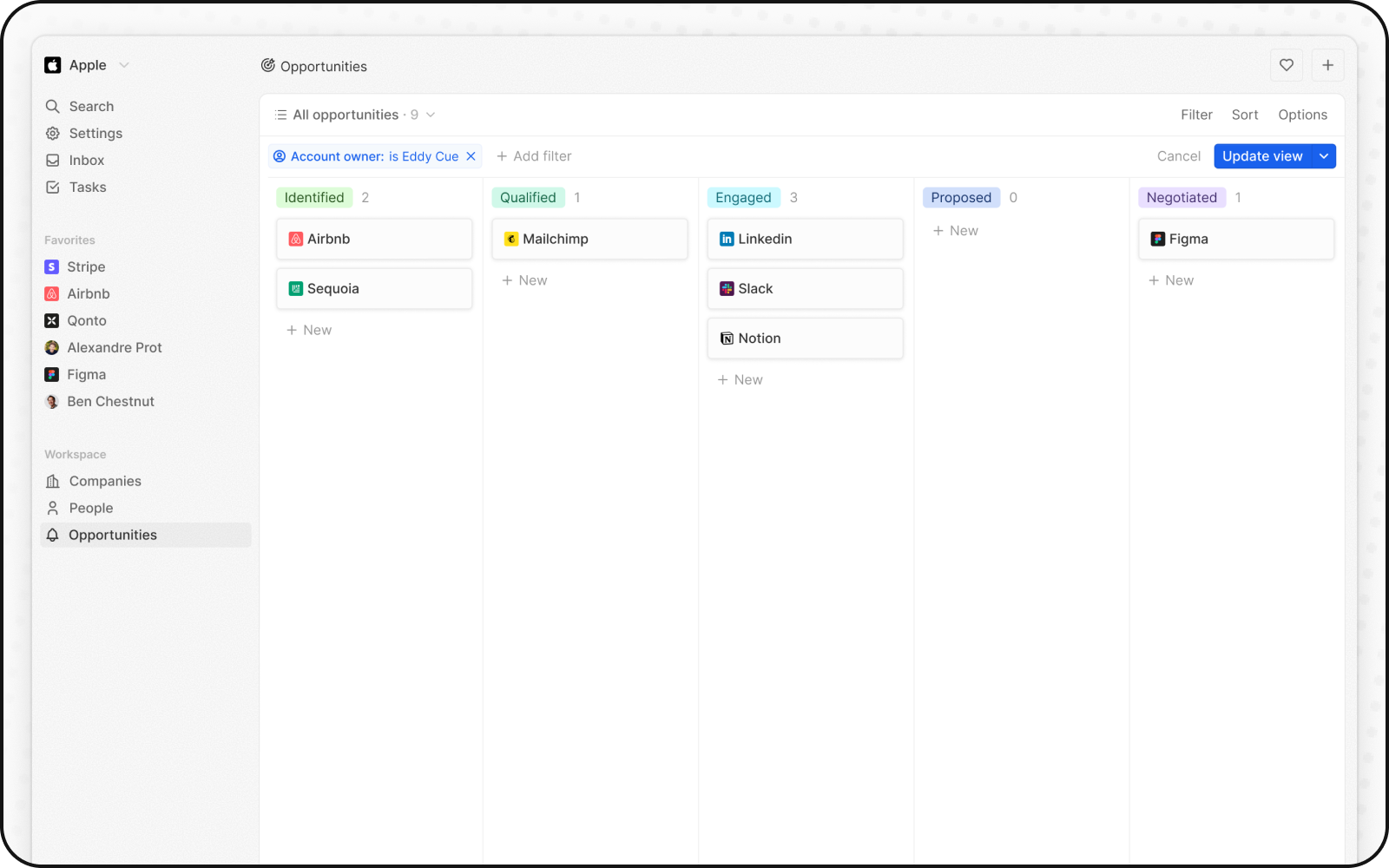
Tüm alanları gizleyebilir ve tüm kayıtların genel görünümünü bir bakışta elde edebilirsiniz. Etkinleştirmek için:- Sağ üst köşedeki Options’a tıklayın
- Compact view için anahtarı açın
Sütun Toplamaları
Bir Kanban görünümündeki her sütun, üst kısmında toplanmış değerleri görüntüleyebilir; bu da verilerinizi bir bakışta anlamanıza yardımcı olur.Kullanılabilir Toplamalar
Toplamaları Yapılandırma
- Bir sütunun üst kısmındaki Aşama değerinin yanında görüntülenen sayıya tıklayın
- Toplama türünü seçin
- Toplanacak alanı seçin
Kanban Görünümleri Ne Zaman Kullanılır
Kanban görünümleri şunlar için idealdir:- Satış boru hatları: Anlaşmaları, adaydan kapanışa kadar aşamalar boyunca takip edin
- Proje yönetimi: Görevleri iş akışı durumları boyunca izleyin
- İşe alım: Adayları işe alım aşamaları boyunca takip edin
- Aşamalı herhangi bir süreç: Tanımlanmış aşamalara sahip herhangi bir iş akışını görselleştirin
En İyi Uygulamalar
Aşamalarınızı Düzenleyin
- Aşamaları sınırlayın: Görünürlük için 5-7 aşama idealdir
- Açık adlandırma: Açıklayıcı aşama adları kullanın
- Mantıksal sıralama: Aşamaları süreç sırasına göre düzenleyin
Kart Görünümünü Optimize Edin
- Temel alanları gösterin: Yalnızca en önemli bilgileri görüntüleyin
- Kompakt Görünüm’ü kullanın: Üst düzey genel bakışlar için
- Renk kodlaması: Durumu hızlıca belirlemek için aşama renklerini kullanın
Veri Kalitesini Koruyun
- Düzenli güncelleyin: Kartların aşamalar boyunca hareket etmesini sağlayın
- Tamamlanmışları arşivleyin: Kapanmış öğeleri aktif görünümün dışına taşıyın
- Eski kartları gözden geçirin: Aşamalarda takılı kalan kartların takibini yapın