
الكائنات القياسية
الكائنات القياسية هي كيانات مُعرّفة مسبقًا في مساحة العمل الخاصة بك لمساعدتك في البدء. هي جزء من نموذج بيانات مشترك يمكن الوصول إليه بواسطة جميع مستخدمي Twenty. يمكنك استخدامها كما هي أو تخصيصها أو تعطيلها.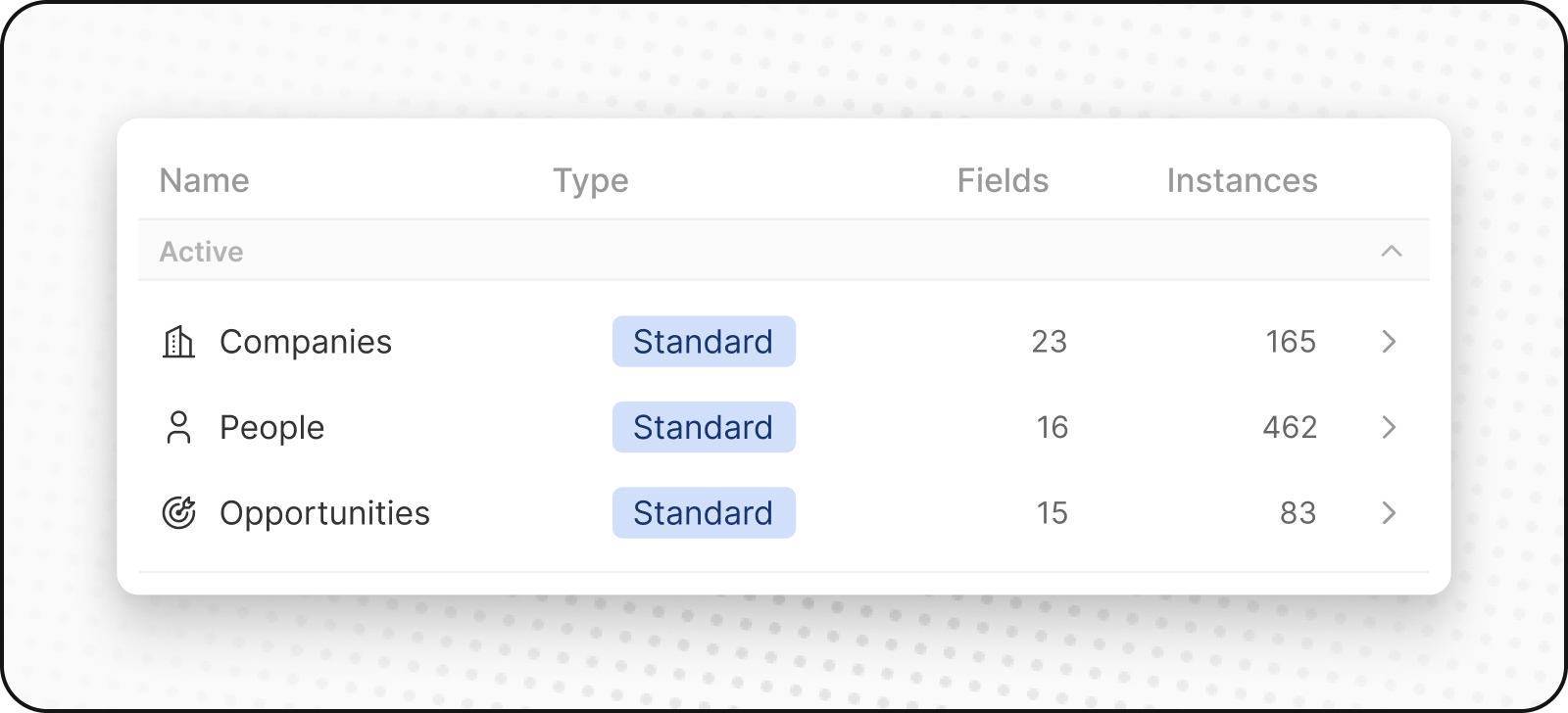
الأشخاص
كائن “الأشخاص” يخزن جهات الاتصال الخاصة بك. يتضمن تفاصيل الاتصال وتاريخ التفاعل، مما يتيح لك رؤية جميع تفاعلات العملاء في مكان واحد.الشركات
كائن “الشركات” يخزن المعلومات المتعلقة بحسابات العمل الخاصة بك. يتضمن تفاصيل مثل الصناعة والحجم والموقع. الشركات تتصل بكائنات “الأشخاص” و “الفرص”.الفرص
كائن “الفرص” يخزن البيانات المتعلقة بالصفقات. يتتبع تقدم المبيعات المحتملة من البداية إلى الإغلاق، مع تسجيل المراحل، أحجام الصفقات، الحساب المرتبط، وتاريخ الإغلاق المتوقع. يمكنك عرض مسار المبيعات الخاص بك في تخطيط كانبان.الملاحظات
يخزّن كائنNotes ملاحظات حرة يمكن إرفاقها بالأشخاص والشركات والفرص وسجلات أخرى. استخدم الملاحظات لالتقاط ملخصات الاجتماعات والتفاصيل المهمة أو أي معلومات سياقية.
المهام
يخزّن كائنTasks المهام المطلوب إنجازها وبنود العمل. يمكن ربط المهام بالأشخاص والشركات والفرص وسجلات أخرى. تتبّع تواريخ الاستحقاق والمكلّفين وحالة الإكمال للبقاء على اطّلاع بمتابعاتك.
كائنات مخصصة
تتيح لك الكائنات المخصصة تخزين المعلومات الفريدة لمنظمتك والتي لا يمكن للكائنات القياسية التعامل معها. على سبيل المثال، إذا كنت SpaceX، قد ترغب في إنشاء كائن مخصص للصواريخ والإطلاقات.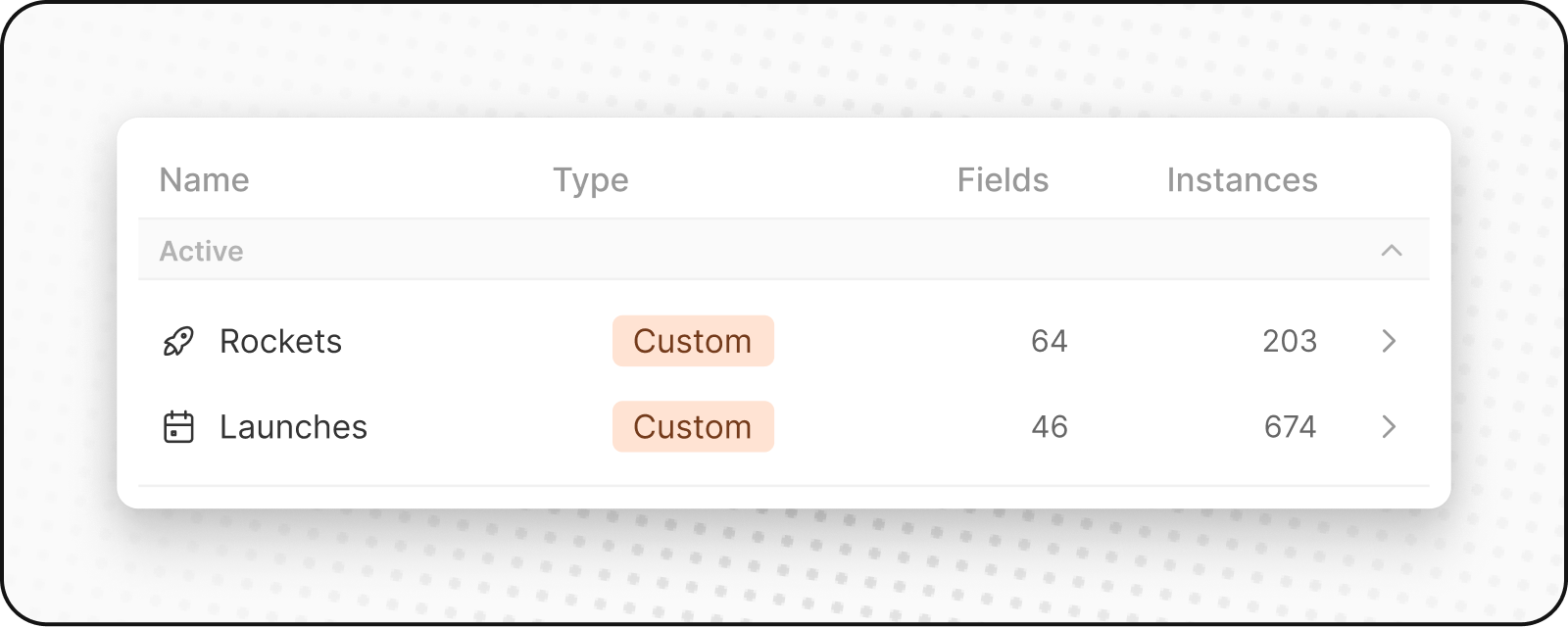
إنشاء كائن مخصص جديد
لإنشاء كائن مخصص جديد:- اذهب إلى الإعدادات في الشريط الجانبي الأيسر.
- تحت مساحة العمل، انتقل إلى نموذج البيانات. هنا ستتمكن من رؤية نظرة عامة على جميع الكائنات المعيارية والمخصصة الموجودة (نشطة وغير مفعلة).
- انقر على ”+ كائن جديد” في الأعلى. أدخل الاسم (مفرد وجمع)، اختر أيقونة، أضف وصفًا للكائن المخصص واضغط حفظ (في الزاوية العليا اليمنى). باستخدام القائمة كمثال للكائن المخصص، سيكون المفرد هو “قائمة” والجمع “قوائم” مع الوصف كمثل “قوائم قام المضيفون بإنشائها لعرض ممتلكاتهم.”
- تم الآن إنشاء الكائن المخصص الخاص بك وسيظهر في الشريط الجانبي لديك. يمكنك البدء في إضافة السجلات إليه فورًا.
إدارة الكائنات
إلغاء تنشيط الكائنات
إذا لم تكن بحاجة إلى كائن قياسي أو مخصص:- انتقل إلى الإعدادات → نموذج البيانات
- العثور على الكائن الذي تريد إلغاء تفعيله والنقر عليه
- اذهب إلى تبويب إعدادات الكائن
- انقر فوق زر “إلغاء التفعيل”
- سيتم إخفاء الكائن من مساحة العمل لديك ولكن سيتم الاحتفاظ بالبيانات
إعادة تنشيط الكائنات
لإعادة كائن تم إلغاء تنشيطه:- انتقل إلى الإعدادات → نموذج البيانات
- تمكين فلتر “معطل”
- ابحث عن الكائنات المعطلة (لديهم ‘تعطيل’ بجانب اسمه)
- انقر على
⋮ثمActivateلإعادة تنشيطه - سيتم استعادة الكائن وجميع بياناته
أفضل الممارسات
متى يجب إنشاء كائنات مخصصة
- كيانات عمل فريدة: أمور خاصة بمجالك أو بعملياتك
- علاقات معقّدة: عندما تحتاج إلى تتبّع الروابط بين عدة كيانات
- بيانات قابلة للتوسّع: عندما قد يكون لديك العديد من المثيلات لشيء ما
متى تستخدم الحقول بدلًا من ذلك
- سمات بسيطة: خصائص تصف الكائنات الموجودة
- فئات أو تسميات: طرق لتصنيف السجلات الموجودة
- قيم مفردة: معلومات لا تحتاج إلى دورة حياة خاصة بها
تسمية الكائنات
- استخدم أسماء واضحة ووصفية: اجعل ما يمثّله الكائن واضحًا
- اتّبع الاصطلاحات: استخدم المفرد لاسم الكائن، والجمع للمجموعة
- ضع فريقك في الاعتبار: اختر أسماء يفهمها الجميع