
O zobrazení Kanban
Kanban zobrazení vizuálně zobrazují tok procesů, kde každý sloupec představuje odlišnou fázi a každá karta reprezentuje záznam.Přesun karet mezi fázemi
Kliknutím na kartu a držením karty můžete přesunout každou kartu mezi jednotlivými fázemi, poté ji přetáhněte do další fáze.Přidání a odstranění fází
Můžete přizpůsobit svůj pracovní postup vašim potřebám pomocí fází, z nichž každá představuje hodnotu v poli Výběr:Přidat fáze
Chcete-li přidat fázi, přístup k nastavení pole pomocí přechodu do Nastavení > Datový model, výběr objektu a výběr pole, na kterém závisí vaše Kanban.Odstranit fáze
Chcete-li odstranit fázi, najeďte na název fáze nebo na ikonu⋮, klikněte na Upravit v nastavení v nastavení pole výběru a poté klikněte na Odstranit vedle příslušné fáze.
Zobrazená pole
Svou Kanban tabuli můžete nakonfigurovat tak, aby zobrazovala některá pole a skrývala jiná. Chcete-li zobrazit nebo skrýt pole, klikněte na Volby v pravém horním rohu. pak na polích zobrazíte seznam možností a klepněte na ikonu oka vedle pole pro zobrazení nebo skrývání. Pole můžete také přeuspořádat tak, že podržíte název pole a přetáhnete ho tam, kam chcete.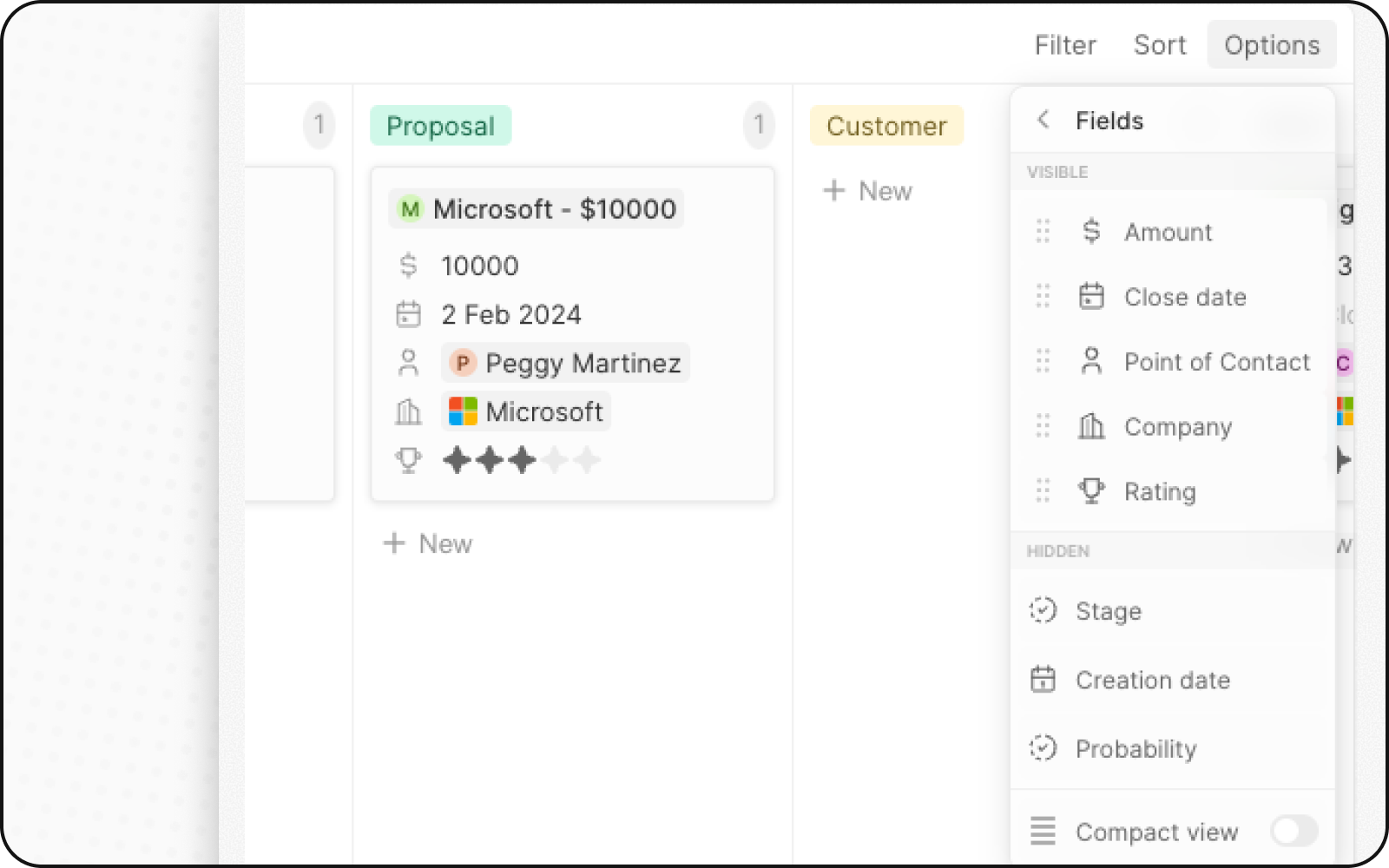
Kompaktní zobrazení
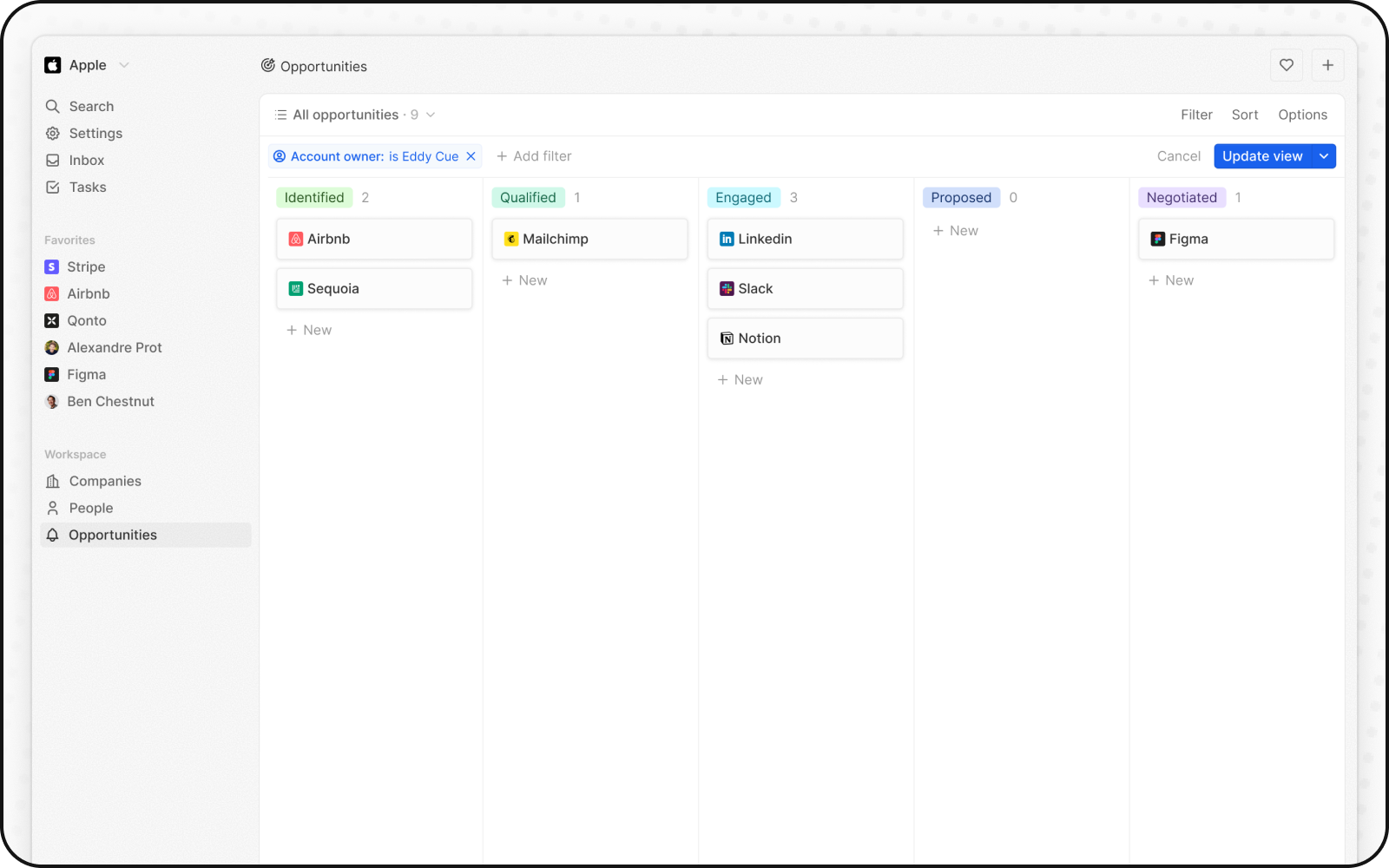
Můžete skrýt všechna pole a získat přehled o všech záznamech na první pohled. Chcete-li zapnout:- Klikněte vpravo nahoře na Možnosti
- Zapněte přepínač Kompaktní zobrazení
Agregace sloupců
Každý sloupec v kanbanovém zobrazení může nahoře zobrazovat agregované hodnoty, což pomáhá rychle pochopit vaše data.Dostupné agregace
Nastavení agregací
- Klikněte na číslo zobrazené vedle hodnoty fáze v horní části sloupce
- Vyberte typ agregace
- Zvolte pole pro agregaci
Kdy používat kanbanová zobrazení
Kanbanová zobrazení jsou ideální pro:- Prodejní pipeline: Sledujte obchody napříč fázemi od leadu po uzavření
- Projektové řízení: Sledujte úkoly napříč stavy pracovního postupu
- Nábor: Sledujte kandidáty jednotlivými fázemi náboru
- Jakýkoli vícestupňový proces: Vizualizujte jakýkoli pracovní postup s definovanými fázemi
Osvědčené postupy
Uspořádejte své fáze
- Omezte počet fází: 5-7 fází je ideálních pro přehlednost
- Jasné pojmenování: Používejte popisné názvy fází
- Logické pořadí: Uspořádejte fáze podle pořadí procesu
Optimalizujte zobrazení karet
- Zobrazujte klíčová pole: Zobrazte pouze nejdůležitější informace
- Použít kompaktní zobrazení: Pro vysoký přehled
- Barevné rozlišení: Používejte barvy fází pro rychlou identifikaci stavu
Udržujte kvalitu dat
- Pravidelně aktualizujte: Udržujte karty v pohybu napříč fázemi
- Archivujte dokončené: Přesuňte uzavřené položky mimo aktivní zobrazení
- Projděte zastaralé karty: Řešte karty, které ustrnuly ve fázích