メインコンテンツへスキップ

About Kanban Views

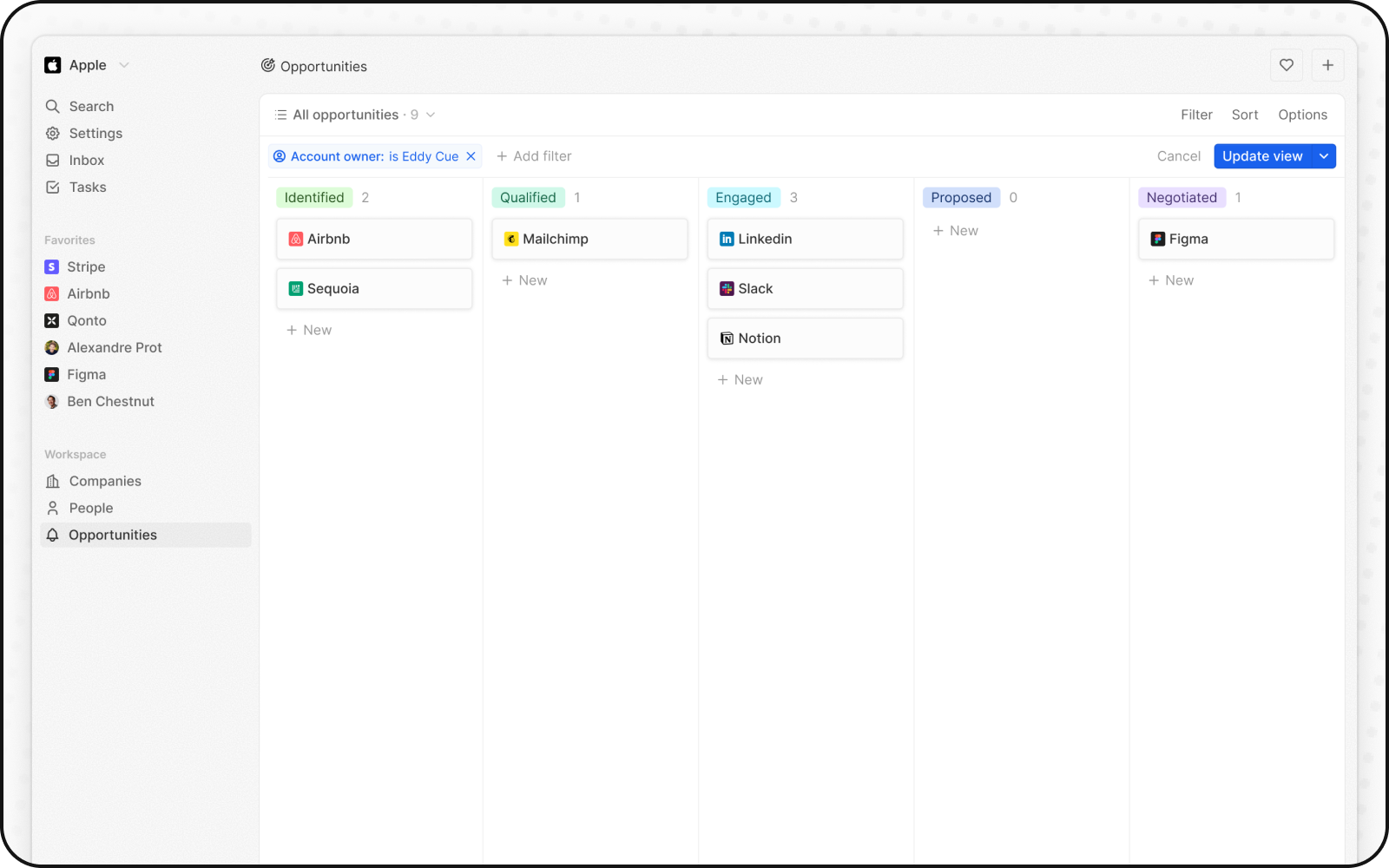
Kanban views visually map out process flows, where each column stands for a distinct stage and each card represents a record.

Move Cards between Stages

You can move each card between stages as it goes through your workflow by dragging and dropping. To proceed, hold your click on a card and move it to the next stage.

Add and Delete Stages

You can tailor your workflow to suit your needs using stages, which represent a value in a Select Field:

Add Stages

To add a stage, access the Select field settings by navigating to Settings > Data Model, selecting your object, and then the field your Kanban board depends on.

Remove Stages

To remove a stage, hover the stage name or the icon, click Edit from settings in the Select field settings, and then click Delete next to the relevant stage.

Display Fields

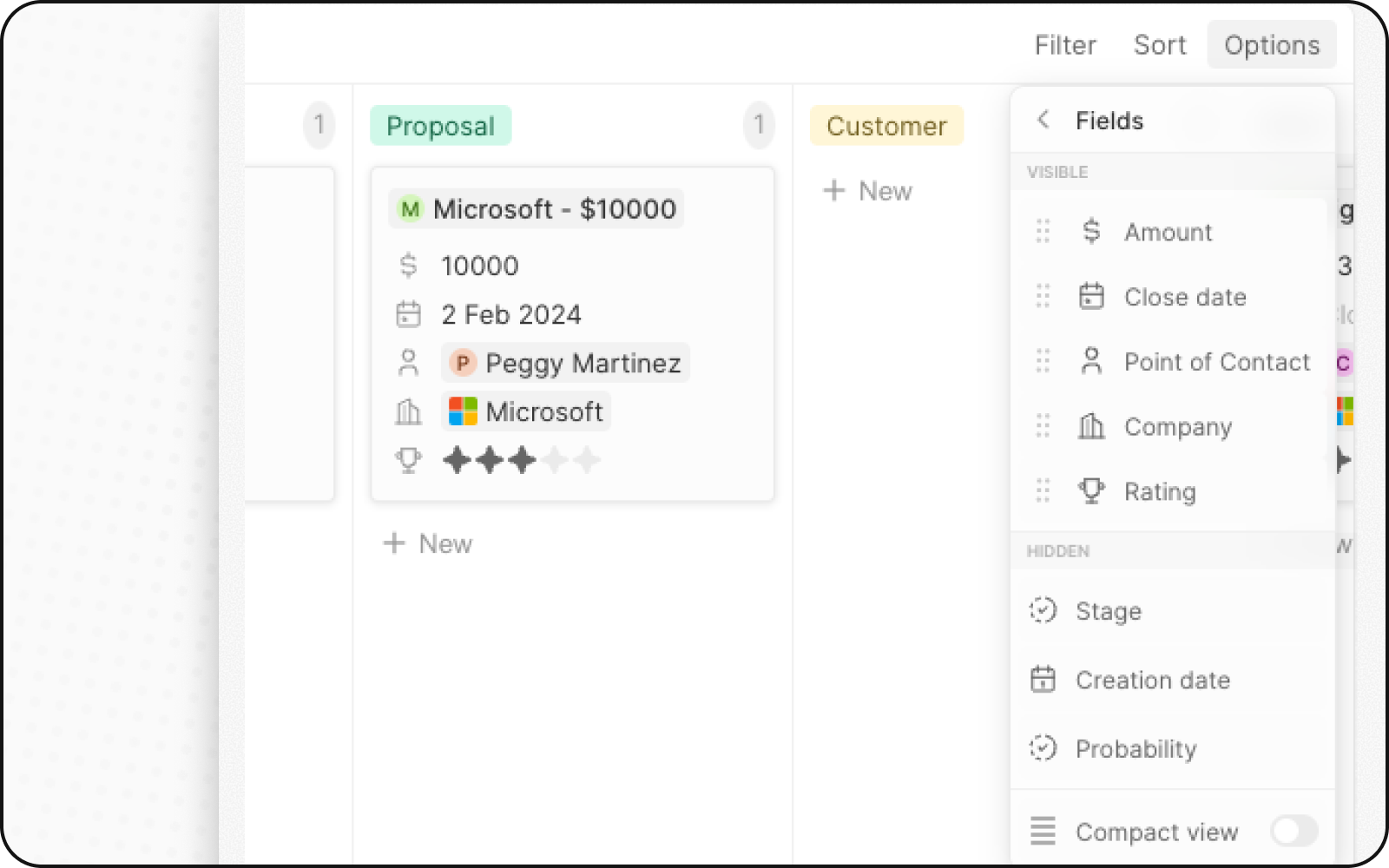
You can configure your Kanban board to display some fields and hide others. To hide a field, click on Options on the top right, then on Fields to bring up the list of options. Look for the field needed in the Hidden Fields section and click on the eye button to display the field. You can also rearrange the order of fields by holding down the field name and dragging it to where you want it.

Compact View

You can hide all the fields and get an overview of all records at a glance. To enable:
  1. Click Options on the top right
  2. Turn on the toggle for Compact view

Column Aggregations

Each column in a Kanban view can display aggregated values at the top, helping you understand your data at a glance.

Available Aggregations

AggregationDescription
CountNumber of records in the column
SumTotal of a numeric field (e.g., deal amounts)
AverageAverage value of a numeric field
MinLowest value
MaxHighest value

Configuring Aggregations

  1. Click on the number displayed next to the Stage value, at the top of a column
  2. Select the aggregation type
  3. Choose the field to aggregate
Example: Show total deal value per stage by aggregating the Amount field with Sum.

When to Use Kanban Views

Kanban views are ideal for:
  • Sales pipelines: Track deals through stages from lead to close
  • Project management: Monitor tasks through workflow states
  • Recruitment: Track candidates through hiring stages
  • Any staged process: Visualize any workflow with defined stages

Best Practices

Organize Your Stages

  • Limit stages: 5-7 stages is ideal for visibility
  • Clear naming: Use descriptive stage names
  • Logical order: Arrange stages in process order

Optimize Card Display

  • Show key fields: Display only the most important information
  • Use compact view: For high-level overviews
  • Color coding: Use stage colors to quickly identify status

Maintain Data Quality

  • Update regularly: Keep cards moving through stages
  • Archive completed: Move closed items out of active view
  • Review stale cards: Follow up on cards stuck in stages