
О канбан-представлениях
Канбан-представления наглядно отображают потоки процессов: каждый столбец соответствует отдельному этапу, а каждая карточка представляет запись.Перемещайте карточки между этапами
Вы можете перемещать каждую карточку между этапами по мере прохождения рабочего процесса, нажав и удерживая карточку, а затем перетащив её на следующий этап.Добавление и удаление этапов
Вы можете настроить ваш рабочий процесс в соответствии с вашими нуждами, используя этапы, каждый из которых представляет значение в поле выбора:Добавить стадии
Чтобы добавить этап, откройте настройки поля выбора, перейдя в Настройки > Модель данных, выберите объект, а затем поле, от которого зависит ваша канбан-доска.Удалить стадии
Чтобы удалить этап, наведите курсор на название этапа или значок⋮, щёлкните Редактировать в настройках в настройках поля выбора, затем нажмите Удалить рядом с соответствующим этапом.
Отображаемые поля
Вы можете настроить доску Канбан для отображения некоторых полей и скрытия других. Чтобы показать или скрыть поле, нажмите Параметры в правом верхнем углу, затем Поля, чтобы открыть список параметров, и нажмите на значок глаза рядом с полем, чтобы показать или скрыть его. Вы также можете изменить порядок полей, удерживая имя поля и перетаскивая его туда, где хотите видеть.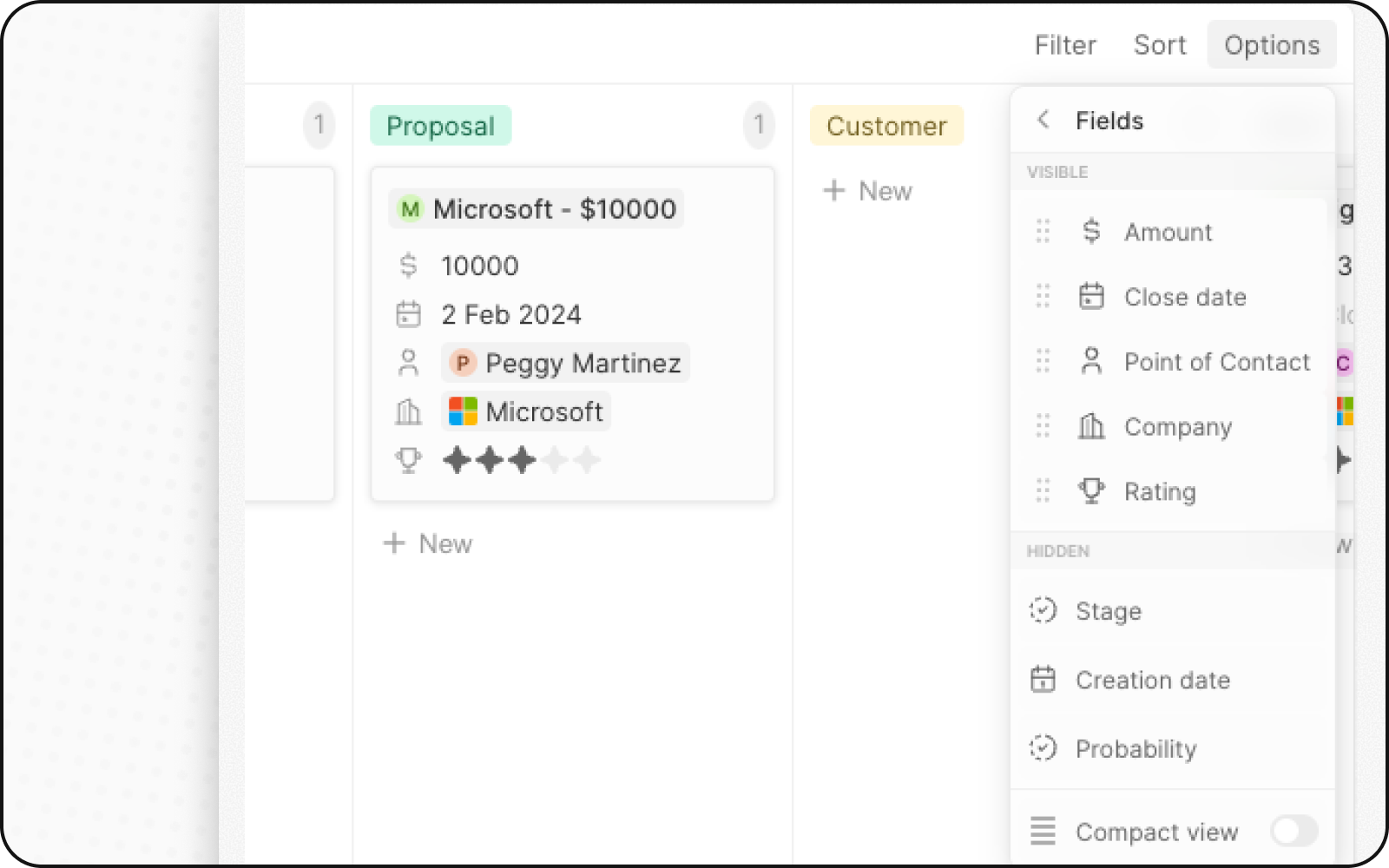
Компактный вид
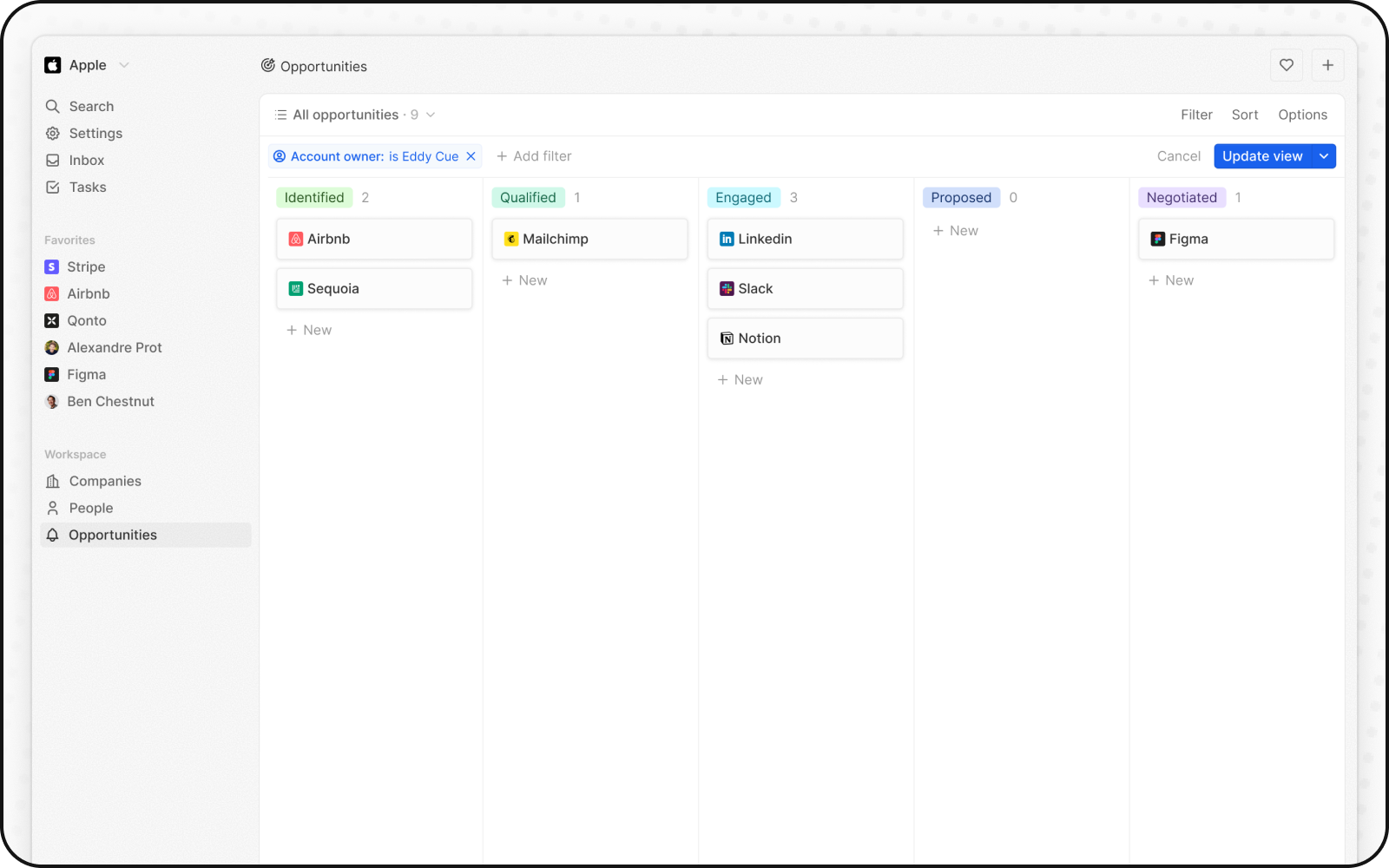
Вы можете скрыть все поля и получить обзор всех записей одним взглядом. Чтобы включить:- Нажмите Параметры в правом верхнем углу
- Включите переключатель Компактный вид
Агрегирование в столбцах
Каждый столбец в канбан-представлении может отображать вверху агрегированные значения, что помогает быстро оценить данные.Доступные агрегирования
Настройка агрегирования
- Щёлкните по числу, отображаемому рядом со значением этапа вверху столбца
- Выберите тип агрегирования
- Выберите поле для агрегирования
Когда использовать канбан-представления
Канбан-представления лучше всего подходят для:- Воронки продаж: Отслеживайте сделки по этапам — от лида до закрытия
- Управление проектами: Отслеживайте задачи по состояниям рабочего процесса
- Подбор персонала: Отслеживайте кандидатов по этапам найма
- Любой поэтапный процесс: Визуализируйте любой рабочий процесс с определёнными этапами
Лучшие практики
Организуйте этапы
- Ограничьте число этапов: 5-7 этапов — оптимально для наглядности
- Понятные названия: Используйте описательные названия этапов
- Логичный порядок: Расположите этапы в порядке процесса
Оптимизируйте отображение карточек
- Показывайте ключевые поля: Отображайте только самую важную информацию
- Используйте компактный вид: Для общего обзора
- Цветовое кодирование: Используйте цвета этапов для быстрого определения статуса
Поддерживайте качество данных
- Регулярно обновляйте: Продвигайте карточки по этапам
- Архивируйте завершённые: Перемещайте закрытые элементы из активного представления
- Проверяйте «застаивающиеся» карточки: Отслеживайте карточки, застрявшие на этапах