
О табличных представлениях
Табличные представления отображают записи в строках с настраиваемыми столбцами — как в электронной таблице. Это тип представления по умолчанию для большинства объектов.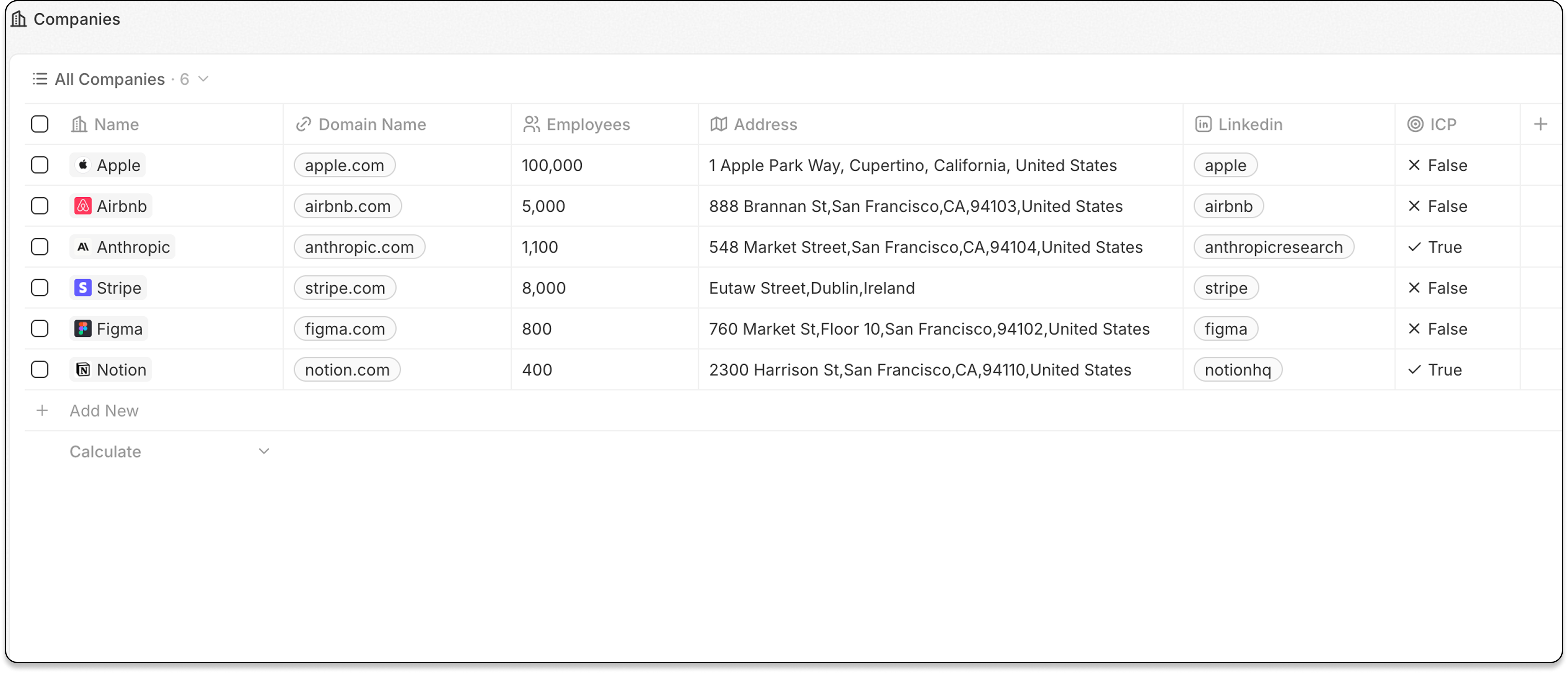
Возможности
Настройка столбцов
- Показывайте или скрывайте столбцы (поля)
- Изменяйте ширину столбцов
- Меняйте порядок столбцов перетаскиванием
Группировка по полю выбора
Организуйте записи в сворачиваемые группы по значению поля выбора.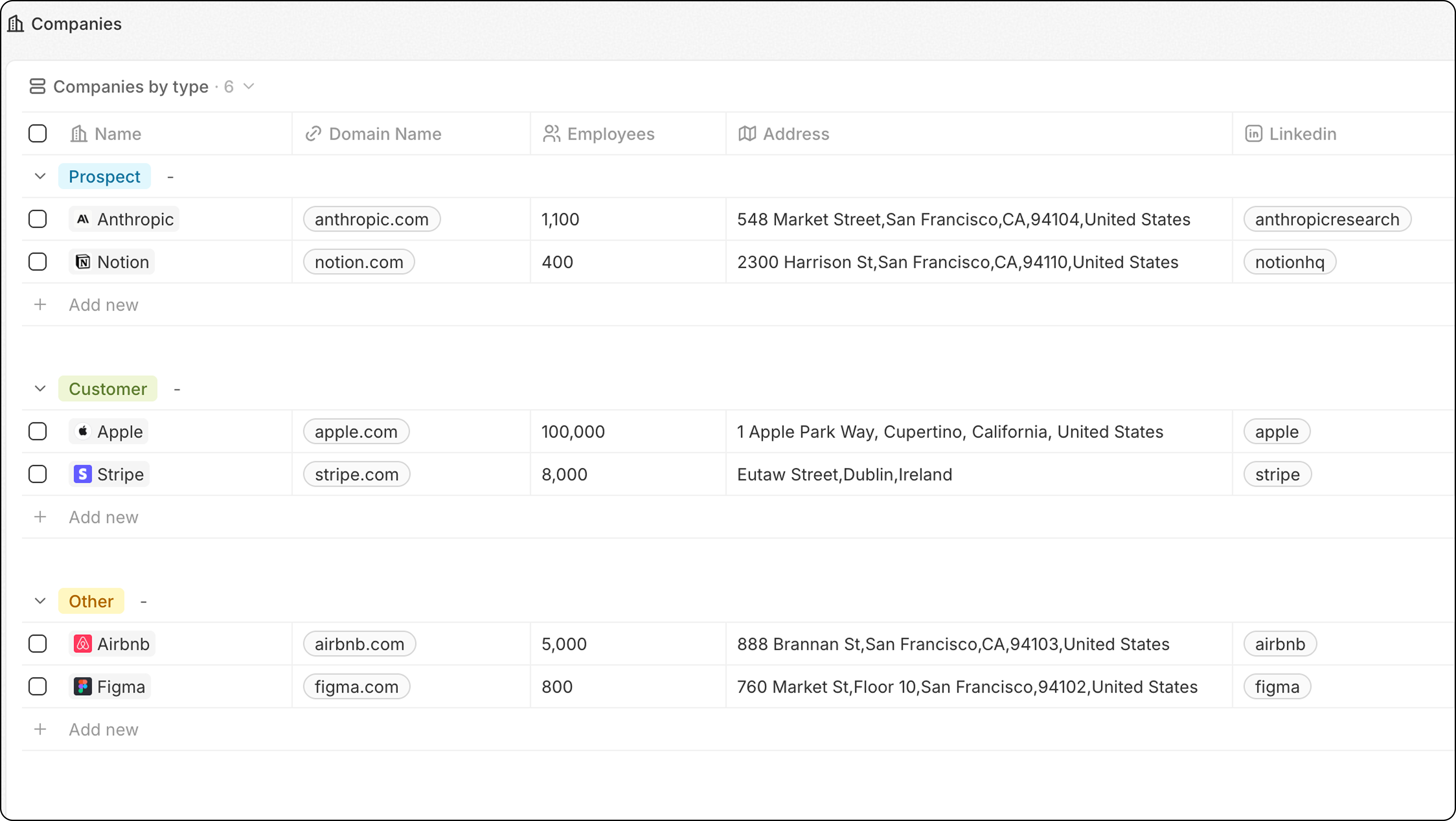
- Нажмите Параметры
- Выберите Группировка
- Выберите поле выбора
- Настройте порядок групп в Параметры → Группировка → Сортировка:
- По алфавиту или В обратном алфавитном порядке
- Вручную: Перетащите группы в разделе “Видимые группы”, чтобы изменить порядок
- Нажмите значок глаза рядом с группой, чтобы скрыть её
- Сгруппируйте компании по типу
- Сгруппируйте сделки по этапам
- Сгруппируйте задачи по статусу
Для лучшей производительности ограничьте количество видимых групп до 10–15 в одном представлении. Если нужно больше групп, рассмотрите возможность использования вместо этого панели мониторинга.
Ширина столбцов
Изменяйте размер столбцов, чтобы показывать больше или меньше содержимого:- Наведите курсор между двумя заголовками столбцов
- Щёлкните и перетащите границу столбца
- Отпустите, чтобы установить новую ширину
Когда использовать табличные представления
Табличные представления лучше всего подходят для:- Просмотра больших наборов данных — быстро просматривать множество записей
- Ввода данных — эффективно редактировать несколько записей
- Детального анализа — видеть множество полей одновременно
- Сортировки и фильтрации — находить конкретные записи
Связанные материалы
- Поля и столбцы — настройка отображаемых полей
- Фильтры и сортировка — сужение списка записей