
support@yourcompany.com, to your workspace. Every message it receives is linked to the right people and companies, so your whole team sees the full conversation.
How email channels work
You set up a channel in up to three stages. Stage 1 gives you a shared inbox. Stages 2 and 3 are optional and only needed if you want to send from the channel’s domain.
Stage 3 builds on stage 2. Stage 1 is independent: you can send campaigns from a domain without forwarding its inbox to Twenty.
Before you begin
Make sure you have:- The Workspace settings permission in Twenty.
- Access to the forwarding settings at your mail provider, such as Microsoft 365 or Google Workspace, for stage 1.
- Access to your DNS provider, such as Cloudflare or GoDaddy, for stages 2 and 3.
Stage 1: Receive email
Your mail provider forwards a copy of every incoming message to a private address that Twenty creates for the channel.1
Create the channel
Go to Settings → Communication and click Add email channel. Enter
the shared address and the display name people see, then click Save.
2
Copy the forwarding address
Twenty shows a Forwarding address ending in
@inbound.twenty.com. Click
Copy.3
Turn on forwarding at your mail provider
Follow the guide for Microsoft
365,
Google
Workspace
or any other
provider.
4
Send a test email
Send a message to the shared address from an outside account. It appears in
Twenty within a couple of minutes.
Stage 2: Reply from the shared address
Gmail, Outlook and other providers only deliver mail sent on behalf of your domain once you prove you own it. You do that by adding DNS records.1
Open the sending domain
In Settings → Communication, open the channel and scroll to Sending
domain.
2
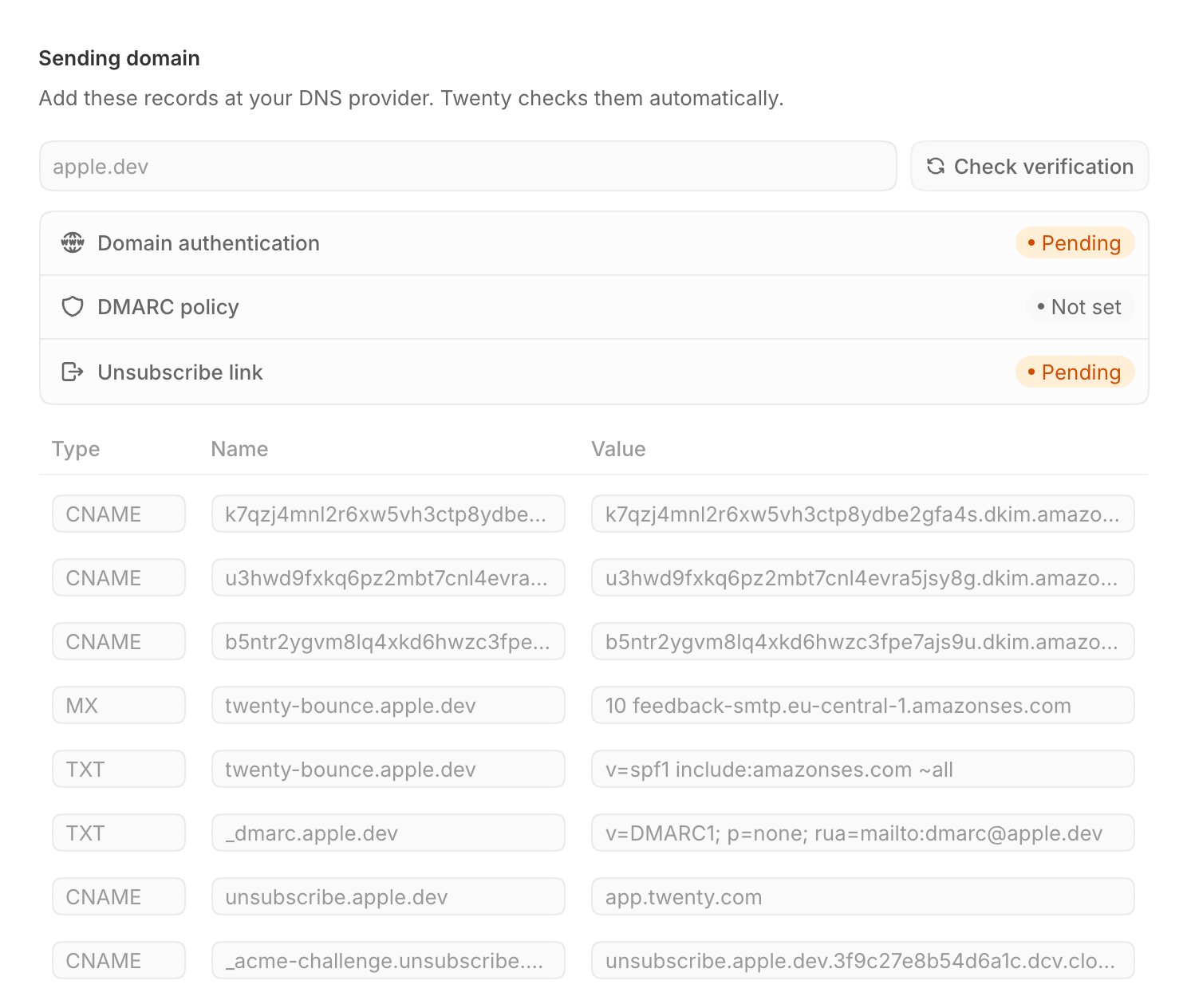
Add the authentication records
At your DNS provider, add the records listed under Domain
authentication: three
CNAME records ending in ._domainkey, plus an
MX and a TXT record on twenty-bounce. If Twenty also suggests a DMARC
record, add it too.3
Verify
Click Check verification. Domain authentication changes to
Verified once Twenty finds the records, usually within an hour and at
most 48 hours.
Not planning to send campaigns? Skip stage 3. The Unsubscribe link row
stays Pending, which has no effect on replies.
Stage 3: Send campaigns
Every campaign includes an unsubscribe link. Twenty hosts the unsubscribe page on your own domain, such asunsubscribe.yourcompany.com, so recipients see your brand rather than ours.
1
Add the unsubscribe records
In the same Sending domain section, add the two
CNAME records listed
under Unsubscribe link: one on unsubscribe and one on
_acme-challenge.unsubscribe.2
Verify
Click Check verification. Unsubscribe link changes to Verified,
usually within an hour. It can take a little longer than stage 2 because
Twenty also issues a security certificate for the page.
Frequently asked questions
Why does the Unsubscribe link stay Pending?
Why does the Unsubscribe link stay Pending?
If you have not added the unsubscribe records, that is expected and only
blocks campaigns. If you have added them, check that both
CNAME records
exist and wait up to an hour. On Cloudflare, set both records to DNS
only.Can I send campaigns without forwarding the inbox?
Can I send campaigns without forwarding the inbox?
Yes. Campaigns only need stages 2 and 3. Forwarding is what brings incoming
mail into Twenty.
Can I use the same domain in two workspaces?
Can I use the same domain in two workspaces?
No. A domain can be verified in one workspace only. Twenty tells you if it
is already in use elsewhere.
Related articles
Forward a shared inbox
Set up forwarding for any mail provider.
Set up a sending domain
Add and verify each DNS record, provider by provider.
Email Campaigns
Learn what campaigns can do for your sales team.
Send your first campaign
Build a list, write the email and send it.