
sales@yourcompany.com. Mail sent to that address has to reach Twenty somehow.
On Google Workspace that address is almost always a Google Group. You connect it by adding Twenty’s private forwarding address as a member of the group. Every message the group receives is then copied to Twenty, and your team continues to receive it as before.
This applies to new mail only. Twenty will not see messages the group received
before you set this up.
Before you start
You need two things:- Access: you must own the group, or be a Super Admin or Groups Admin in Google Workspace.
- A group that accepts outside addresses: Twenty’s forwarding address is external, so the group has to accept external members and accept mail from outside your company. Part 2 covers both.
Part 1: Create the channel in Twenty
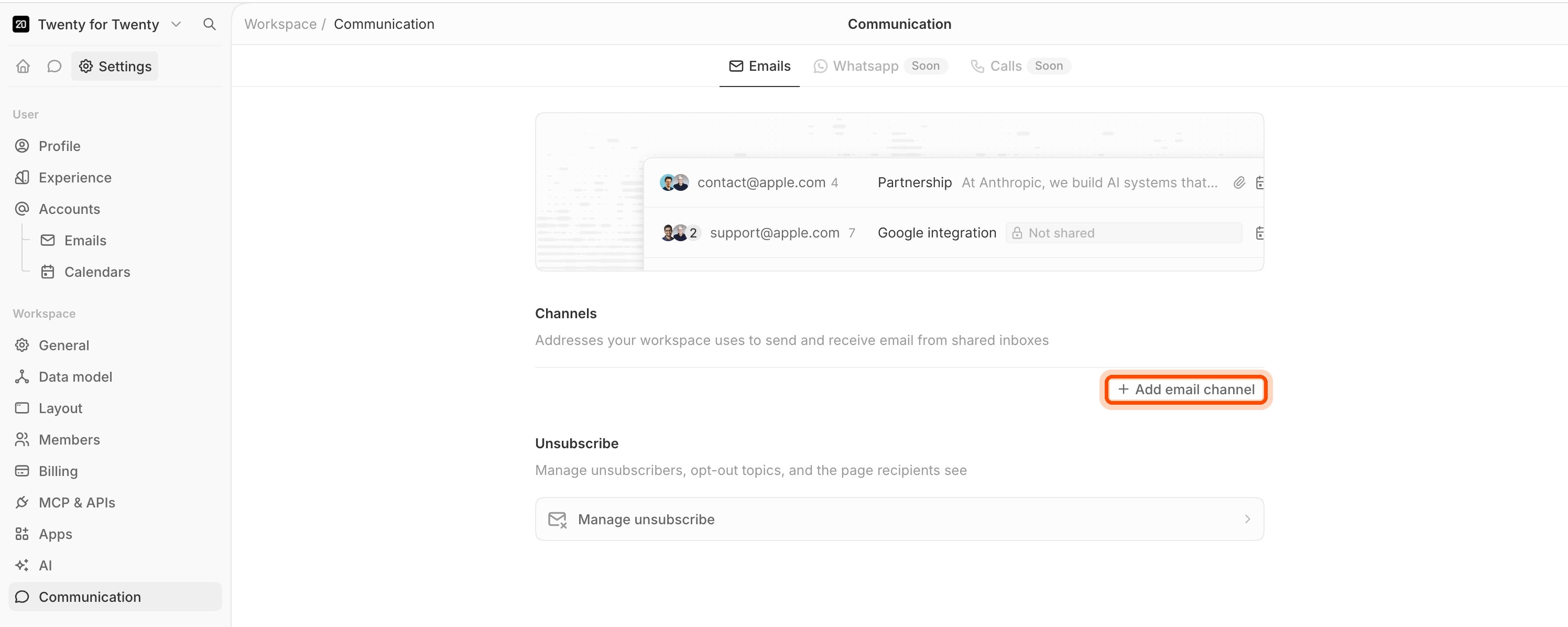
- Go to Settings → Communication.
- Click Add email channel.
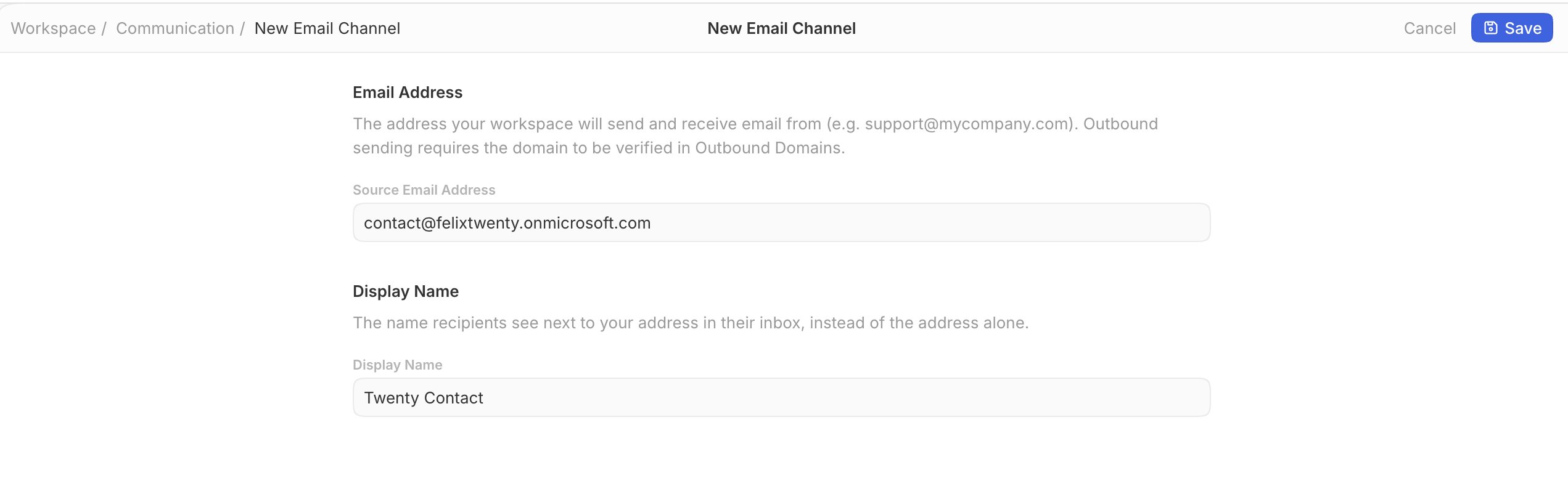
- In Source Email Address, type the group address, for example
sales@yourcompany.com. - In Display Name, type the name recipients see.
- Click Save.
- Twenty now shows a Forwarding address. It looks like
ch_2cd282d193b5@inbound.twenty.com. Click Copy.
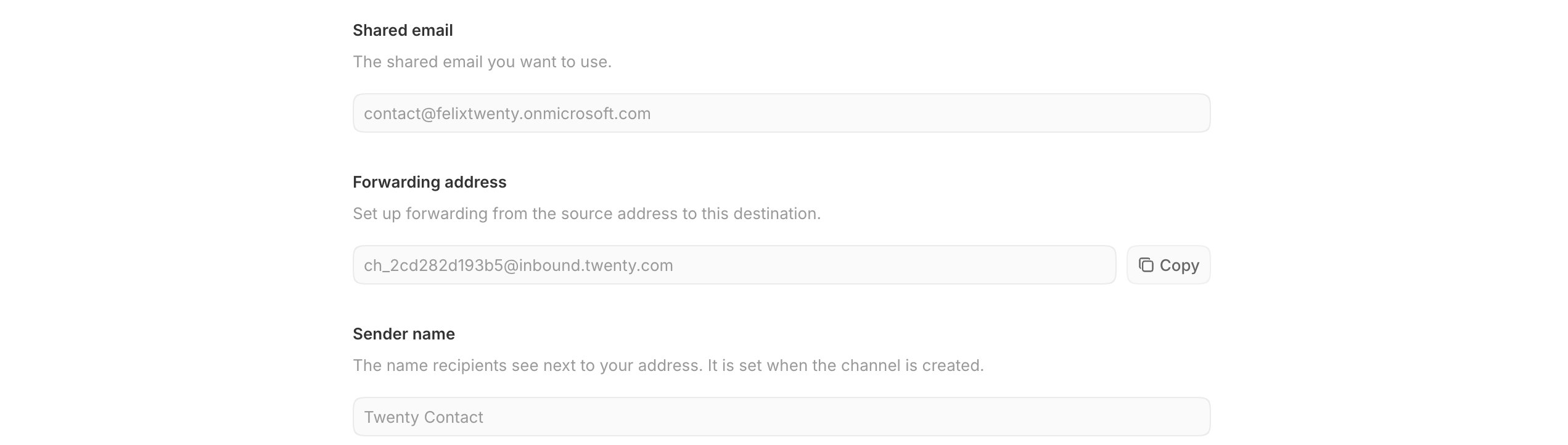
Each channel gets its own forwarding address. Never point two groups at the
same one, or their mail will land in the same place.
Part 2: Check the group’s settings
Two settings decide whether this works at all. Set them correctly before you continue.- Open Google Groups and click your group.
- Click Group settings in the left sidebar.
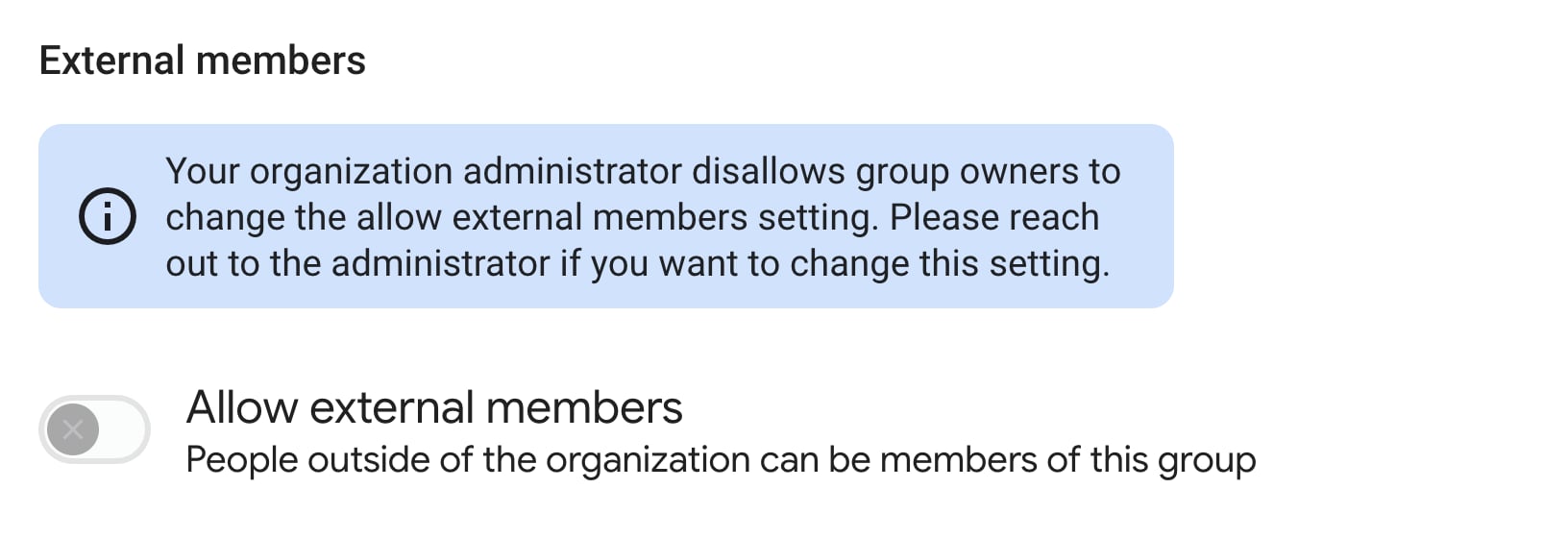
- Find External members and turn Allow external members on.
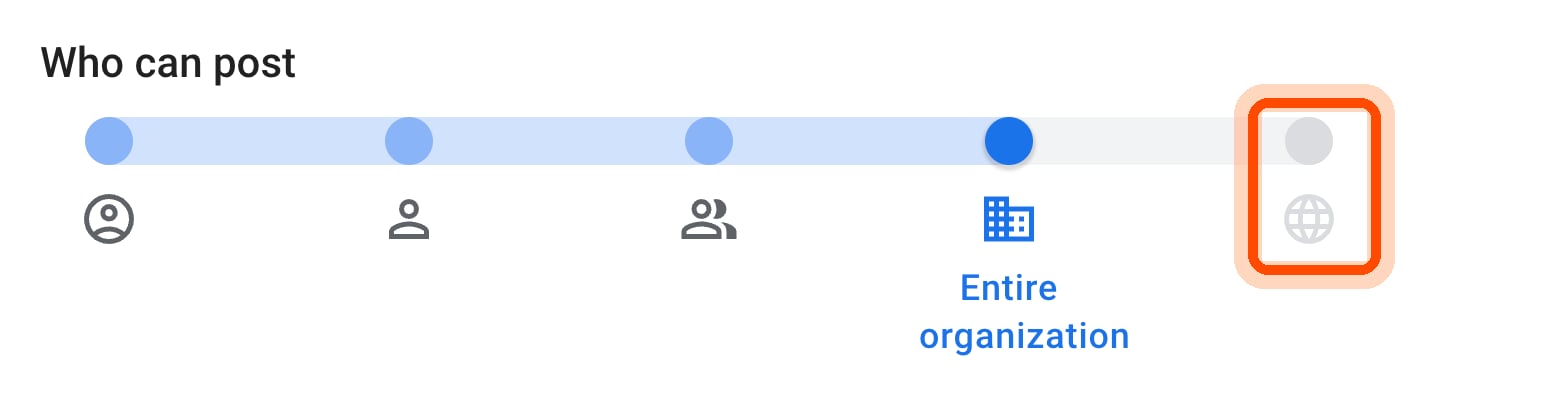
- Scroll down to Who can post and drag the slider all the way to the right, onto the globe. That is Anyone on the web.
- Click Save changes.
Part 3: Add Twenty to the group
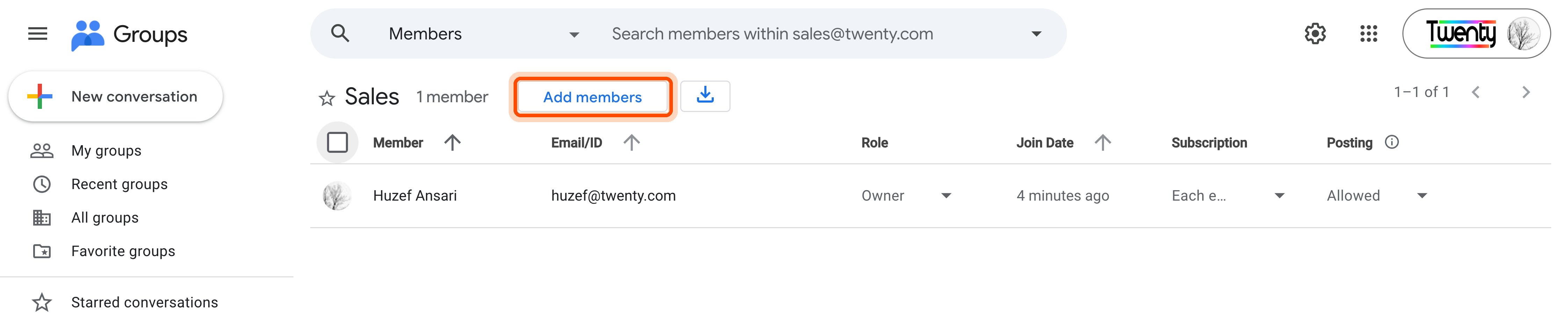
- Click Members in the left sidebar.
- Click Add members.
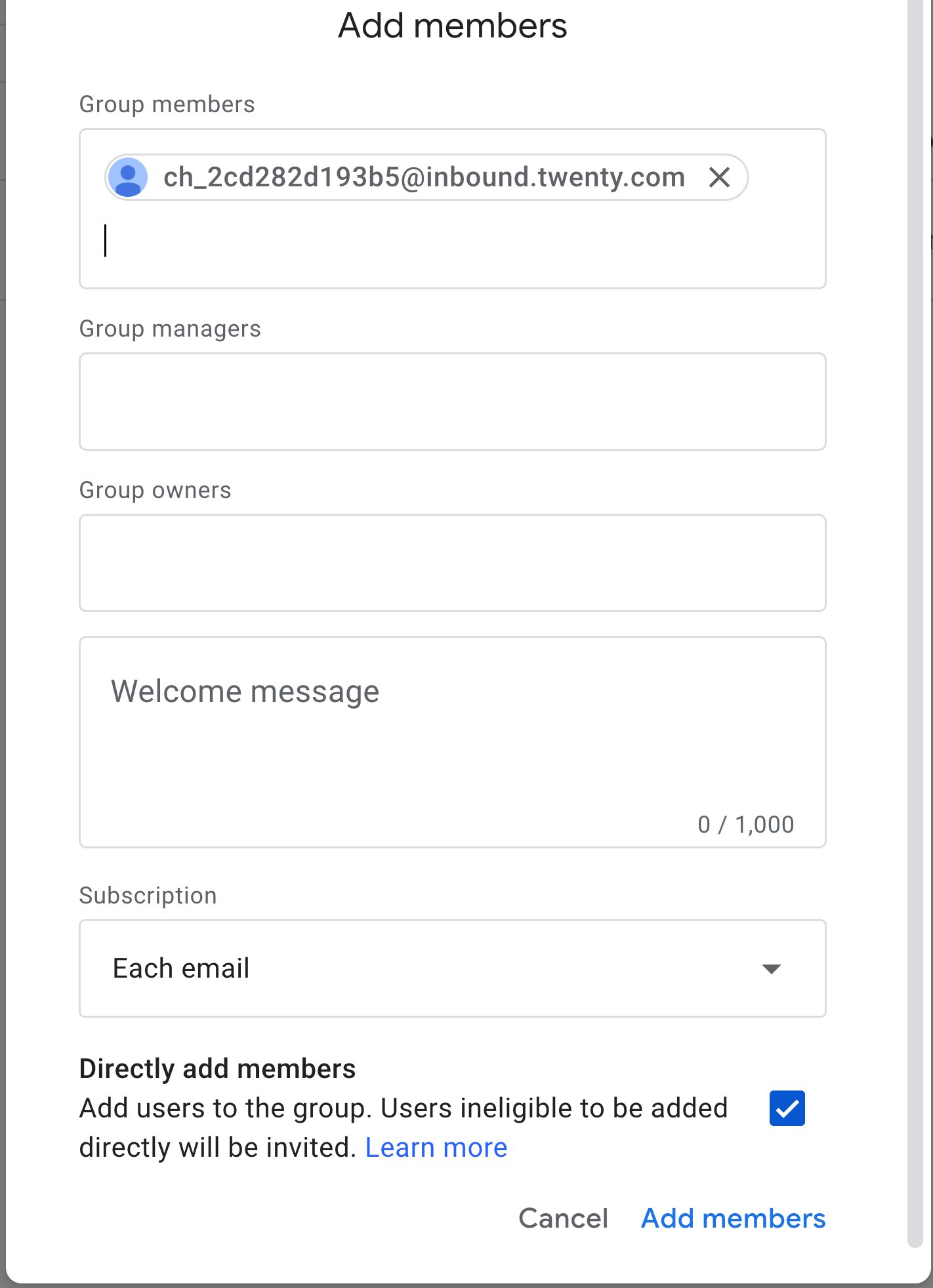
- Paste the forwarding address you copied from Twenty into Group members.
- Leave Subscription on Each email. This is what makes Google send every message through.
- Leave Directly add members ticked, so Google adds the address rather than sending an invitation that cannot be accepted.
- Click Add members.
If you do not have a group yet
- In Google Groups, click Create group.
- Fill in the Group name and the Group email prefix.
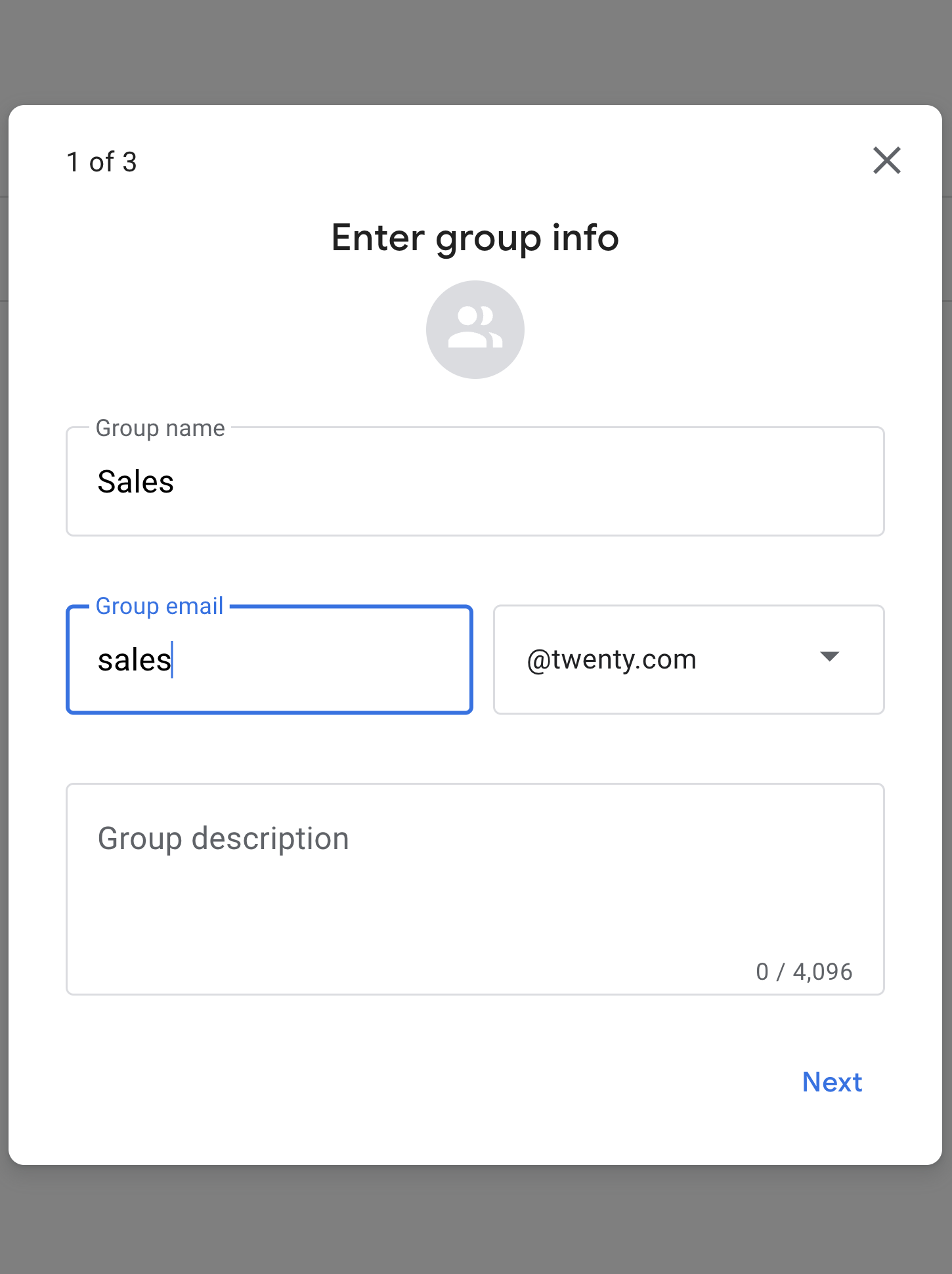
- Click Next twice, then Create group.
- Now follow Part 2 and Part 3.
Part 4: Test it
Send an email from an outside address (a personal Gmail works) tosales@yourcompany.com. It should appear in Twenty within a minute or two.
Troubleshooting
An error occurred: 1 user is outside of your organization
An error occurred: 1 user is outside of your organization
The group does not accept external members. Return to Part 2, step 3. If the
setting is locked, only a Workspace admin can unlock it.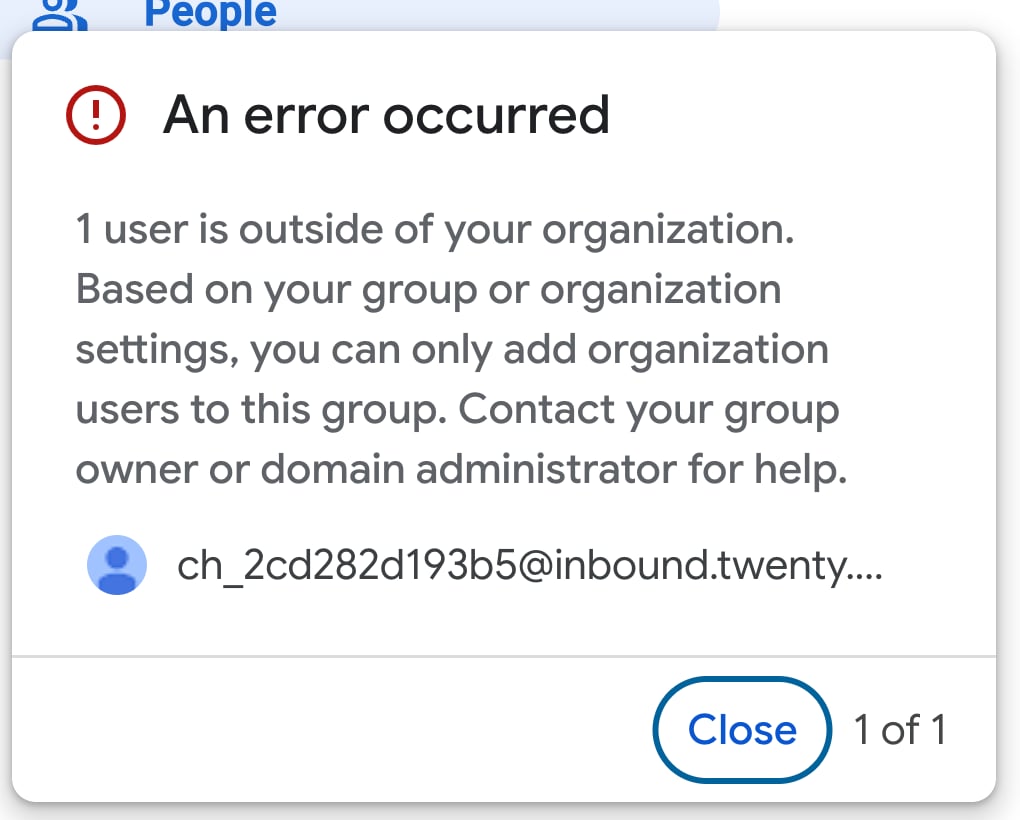
The group receives mail but Twenty does not
The group receives mail but Twenty does not
Open the member in the group and check its subscription is Each email, not
No email, Digest or Abridged.
Colleagues' emails arrive but customers' emails do not
Colleagues' emails arrive but customers' emails do not
Who can post is not set to Anyone on the web. See Part 2, step 4.
The channel receives mail but cannot send
The channel receives mail but cannot send
Receiving and sending are separate. Sending requires your domain to be
verified under the channel’s Sending domain section, which means adding
the DNS records Twenty lists there.