
AI can prepare a campaign, but it cannot send one. Sending is always your
decision.
Campaigns are one-to-many. AI creates one draft with one subject and one email
body for the selected list; it does not write a separate draft for each lead.
What AI can help with
The AI follows your permissions. It can only see and change records your role can access.
Pair AI with workflows
AI helps you decide what to say and who to say it to. Workflows keep the data and lists ready for the next campaign. Lists and List Members are records in Twenty. A workflow can create or update them as your CRM changes. This gives you a repeatable way to build sales segments instead of starting from scratch each time.
Workflows prepare or refresh the list. AI can research the CRM data and draft one campaign for that list. You still review the audience and choose when to send.
See Workflows to build the automation behind a sales play.
Part 1: Open the AI
Press@ anywhere in Twenty, or press Cmd+K (Ctrl+K on Windows) and choose Ask AI.
Part 2: Build your audience
Tell the AI who should receive the email. Use the fields in your workspace, just as you would when speaking to a teammate.Create a list called “Q4 product update” with everyone at companies that have more than 50 employees and are in the healthcare industry.The AI searches your records, creates the list, and adds the people it finds. Open the list and check the members before you send.
Part 3: Write the campaign
Tell the AI the goal, key points, tone, and call to action you need.Write a follow-up for people at open opportunities in the healthcare industry. Keep the subject under 50 characters. Start with a short, friendly intro that greets each person by first name, name three reasons the reporting dashboard can help their team, and end with a “Book a demo” button linking to https://example.com/demo.The AI creates a draft with a name, subject, and email body. Open it from Campaigns to review it in the editor.
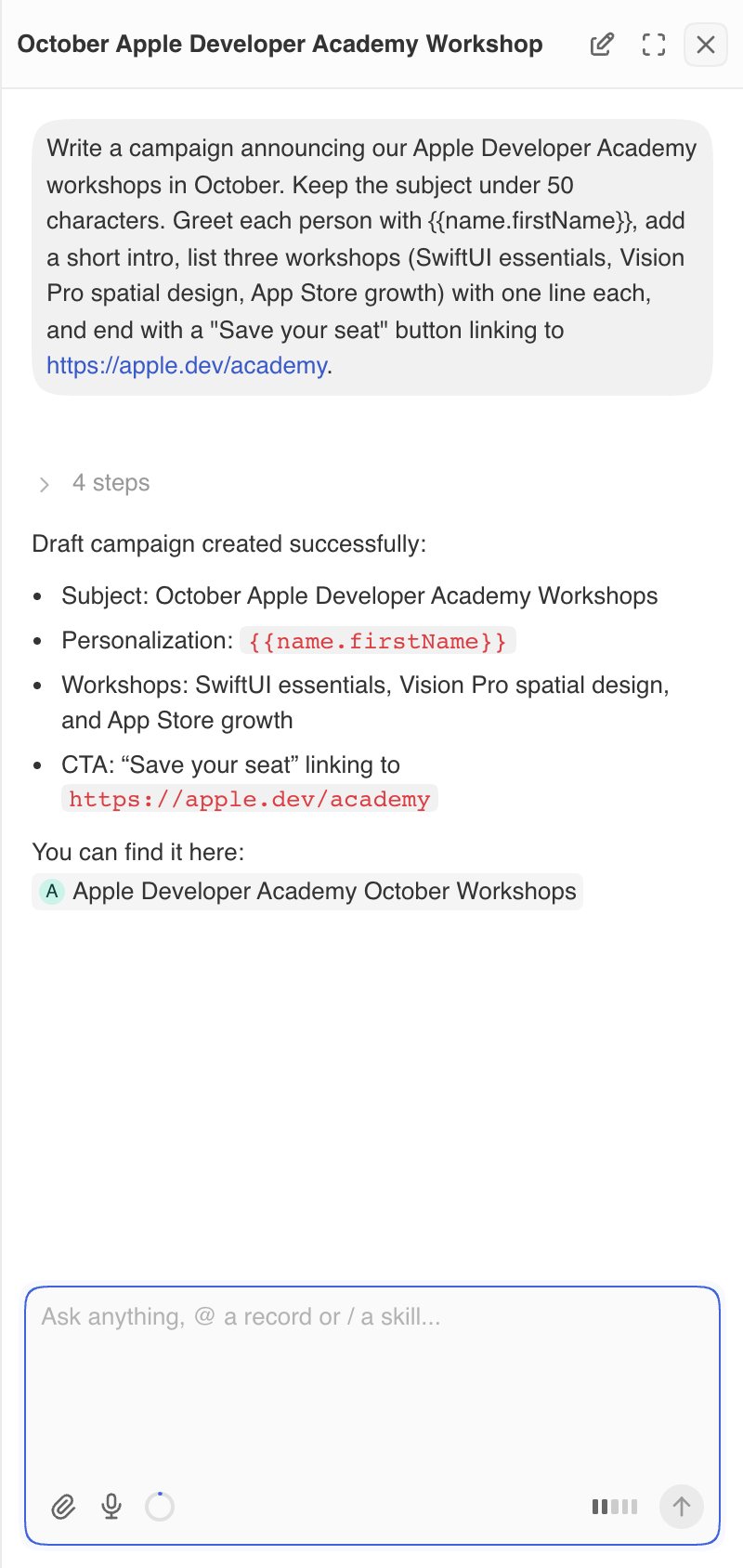
- “Make the tone more direct.”
- “Shorten the intro to two sentences.”
- “Replace the button text with Book a demo.”
- “Suggest three other subject lines.”
Part 4: Review and send
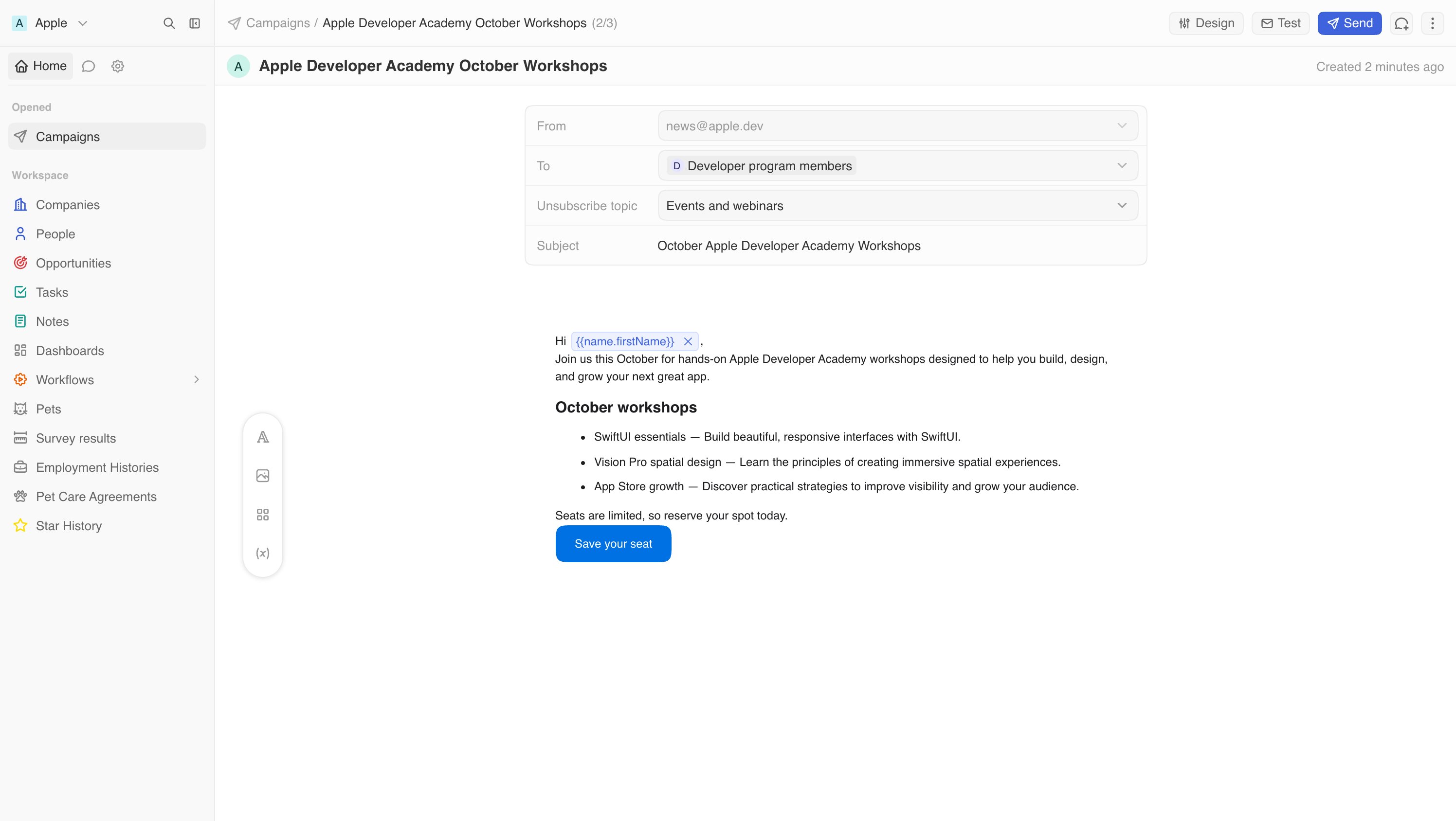
- Open the campaign’s Email tab.
- Choose the From address, the list under To and, optionally, an Unsubscribe topic.
- Read the email. Check the facts, links, and prices.
- Click Test and send yourself a copy.
- Click Send, then choose Send now or Send later.
Tips for good prompts
- Use the field name. “People at companies in the healthcare industry” is clearer than “healthcare leads.”
- Give it the facts. It does not know your offer, price, or sales motion unless you tell it or the information is in your CRM.
- Give it a job. Say who this is for, what you want them to do, and why it matters to them.
- Ask for options. Try three subject lines or two versions of the same message for different segments.
- Check the list size. Ask “How many people are in the Q4 product update list?” before you send.
Limitations
- The AI can only edit campaigns that are still Draft.
- Unsubscribe topics and the unsubscribe list are managed in Settings, not through the AI. See Manage unsubscribes and topics.
- AI can get facts wrong. Always read the email before you send it.