
Before you start
Before you start, make sure you have:- A verified sending domain. See Set up a sending domain.
- The Workspace settings permission to test, schedule, and send campaigns.
- Email credits if you use Twenty Cloud. Each sent email uses credits. See Credits.
Part 1: Build a list
Make a list of the people who should receive this email.- Press
Cmd+K(Ctrl+Kon Windows) and search for Go to Lists. - Click New List and give the list a name, for example
Newsletter subscribers. - Open the list and use the Members field to add people.
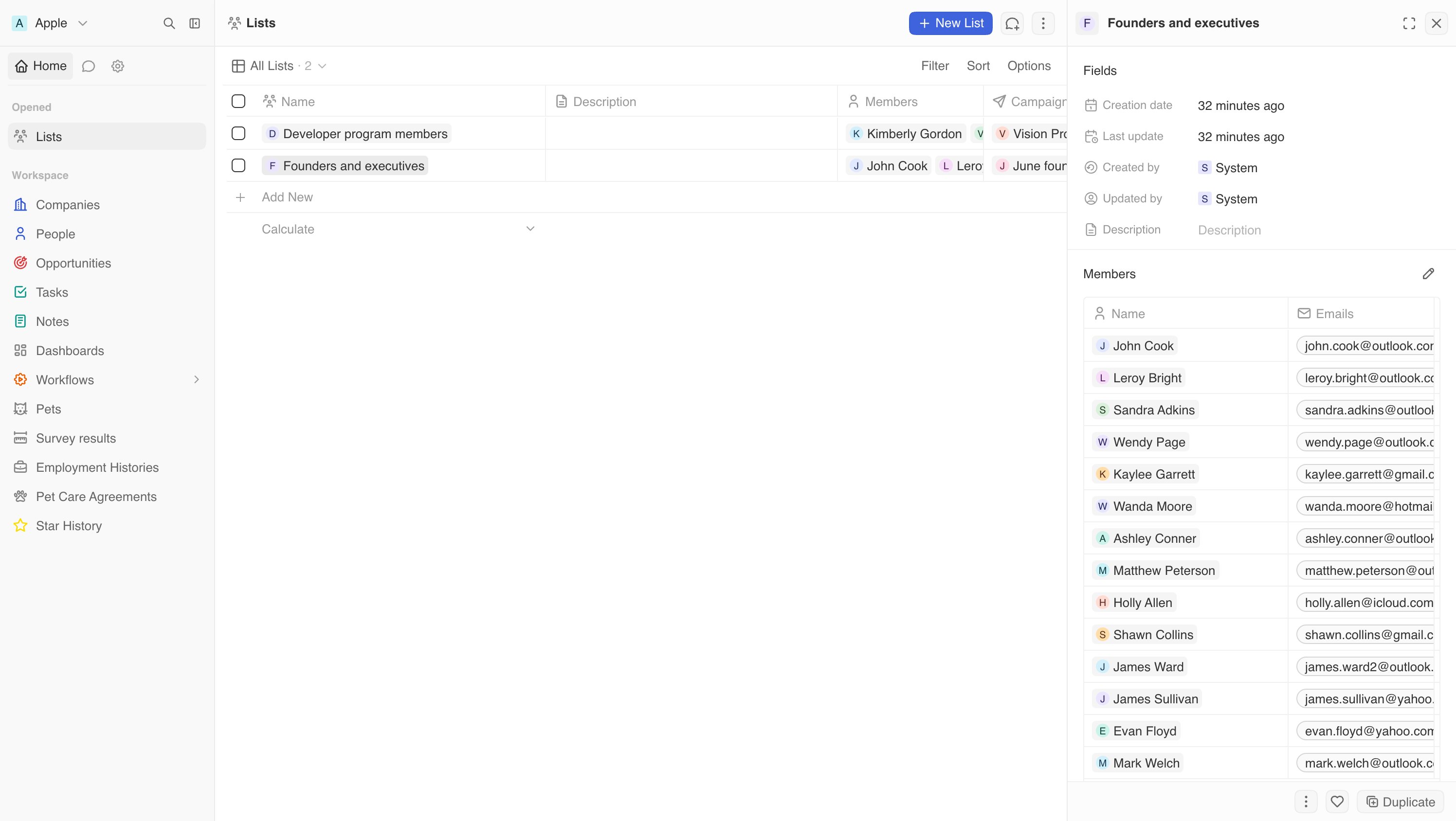
Twenty sends to each person’s primary email address. It skips people without
an address and people who unsubscribed, bounced, or reported spam.
Part 2: Create the campaign
- Press
Cmd+Kand choose Compose Campaign, or open Campaigns and click New Campaign. - Give the campaign a name. Only your team sees this name.
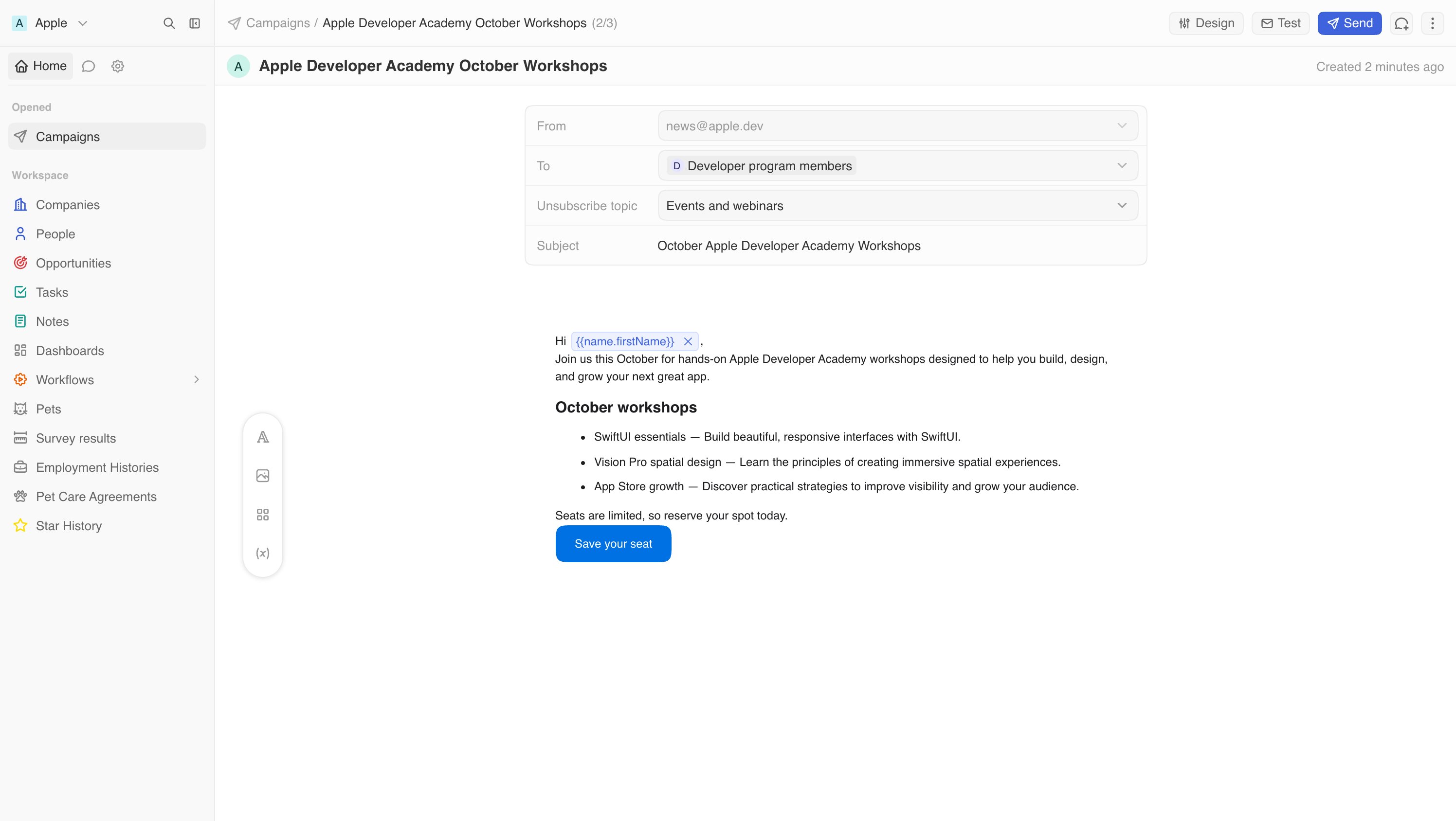
- Open the Email tab and fill in the envelope:
- From: the address people see as the sender. It lists your email channels.
- To: the list from Part 1. You can also make a new list here.
- Unsubscribe topic: optional. Choose a topic so people can leave this type of email without leaving every list. This field appears after you create a topic. See Manage unsubscribes and topics.
- Subject: the subject line people see in their inbox.
Part 3: Write the email
Write your email in the editor below the subject. Twenty saves the draft as you go.- Type
/to see commands, or use the left rail to add Text, Image, Blocks, and Variables. - Blocks include Section, 2 Columns, 3 Columns, Button, Divider, Image and HTML, for pasting your own HTML.
Personalize with variables
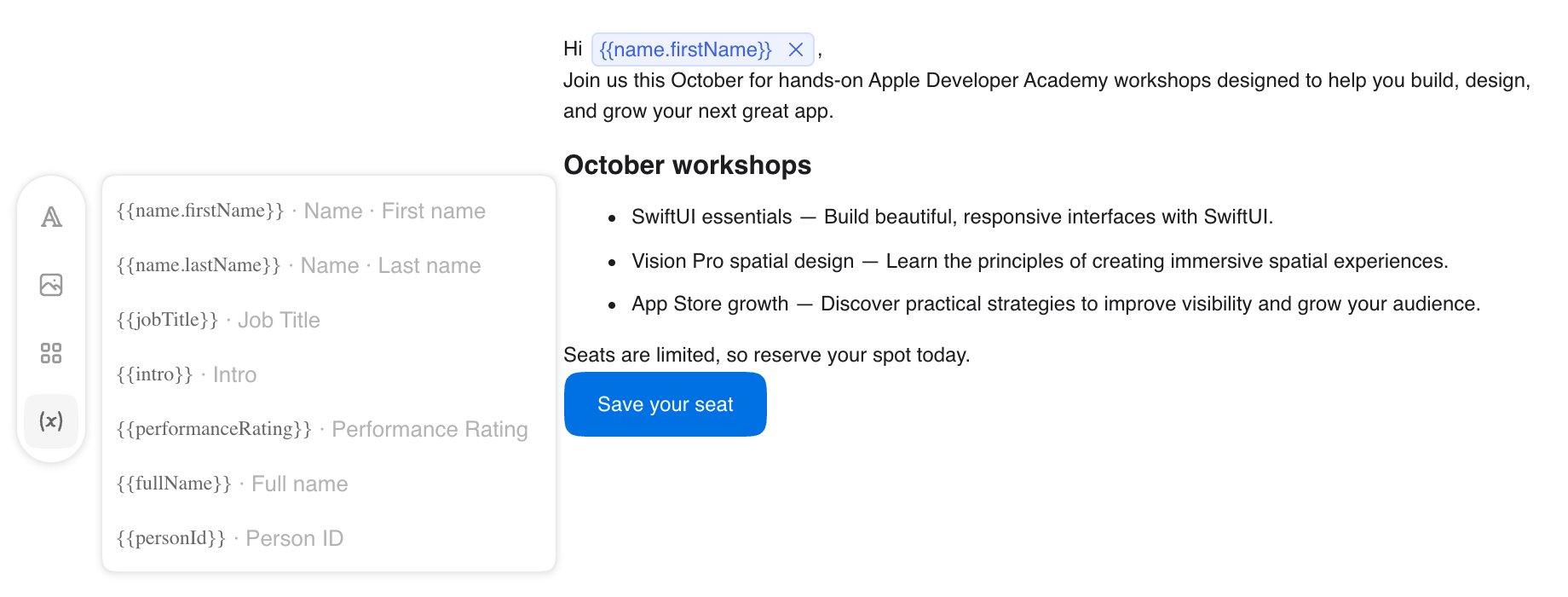
Variables are replaced with each person’s details when the campaign sends. Insert one from Variables, or type it in double curly braces:
You can also use text, number, date, and select fields from People, including custom fields. Variables work in the subject line, body, and link addresses.
For example,
Hi {{name.firstName}}, becomes Hi Ana, for Ana.
Part 4: Send a test
- Click Test at the top of the campaign, or press
Cmd+Kand choose Send Test Email. - In Recipient, type your own address.
- Click Send test email.
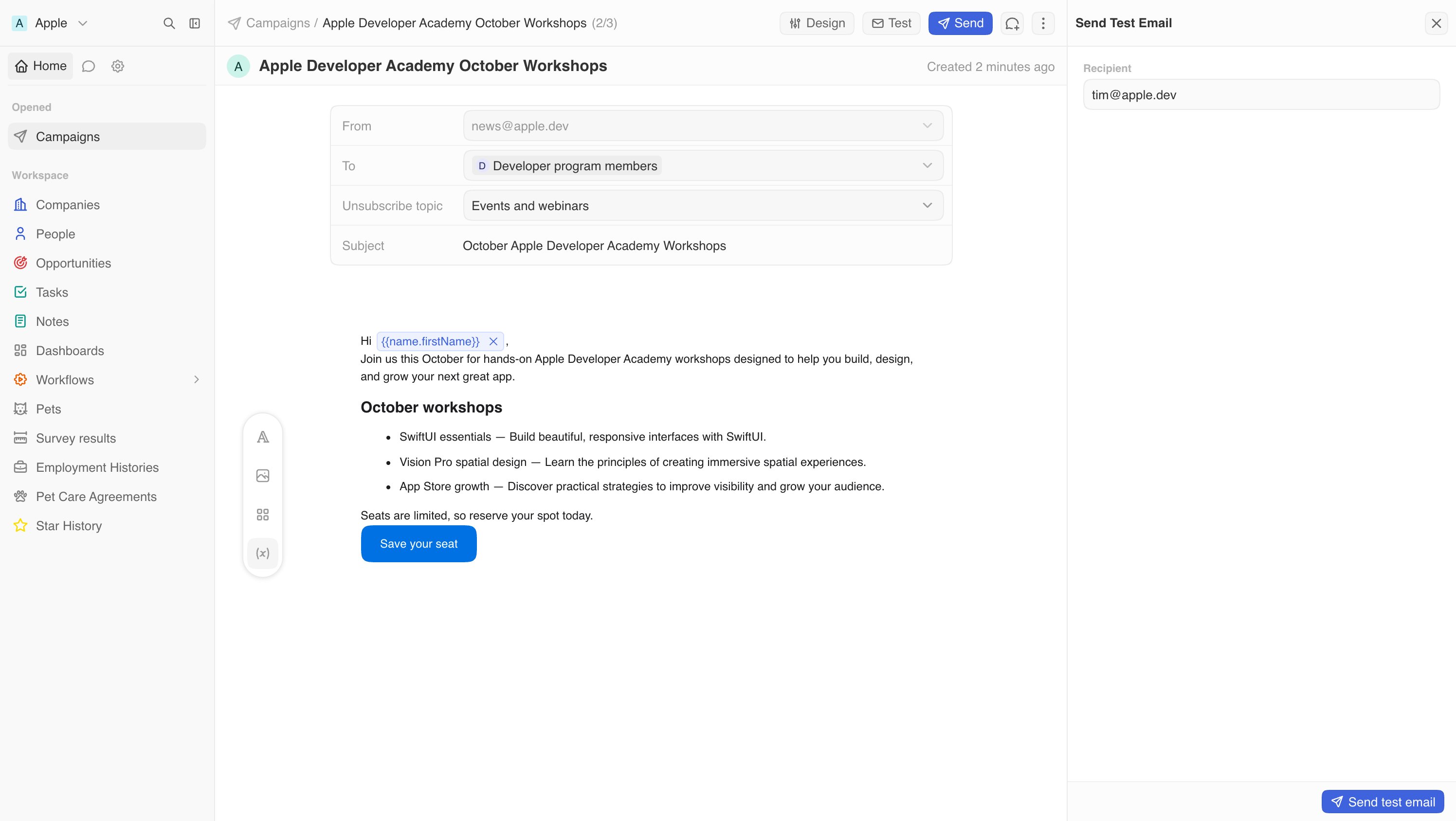
Variables are empty in test emails because a test is not sent to a specific
person. Your workspace can send three test emails a day.
Part 5: Send or schedule
- Click Send at the top of the campaign, or press
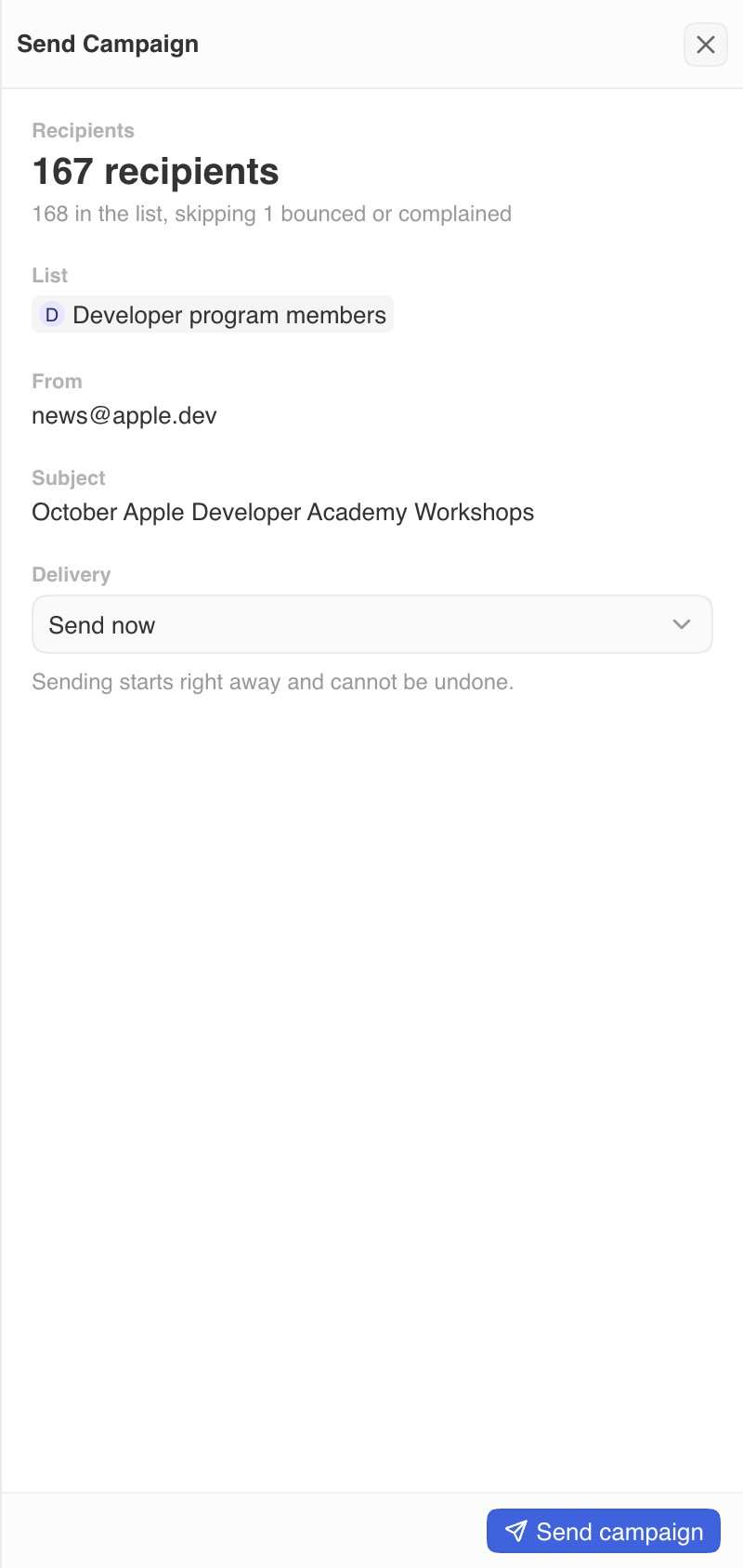
Cmd+Kand choose Send Campaign. - Check the summary. Recipients shows how many people will receive the email and why others are skipped, such as no email address or an unsubscribe.
- Under Delivery, choose:
- Send now: starts right away and cannot be undone.
- Send later: choose a date and time in Send at.
- Click Send campaign or Schedule campaign.
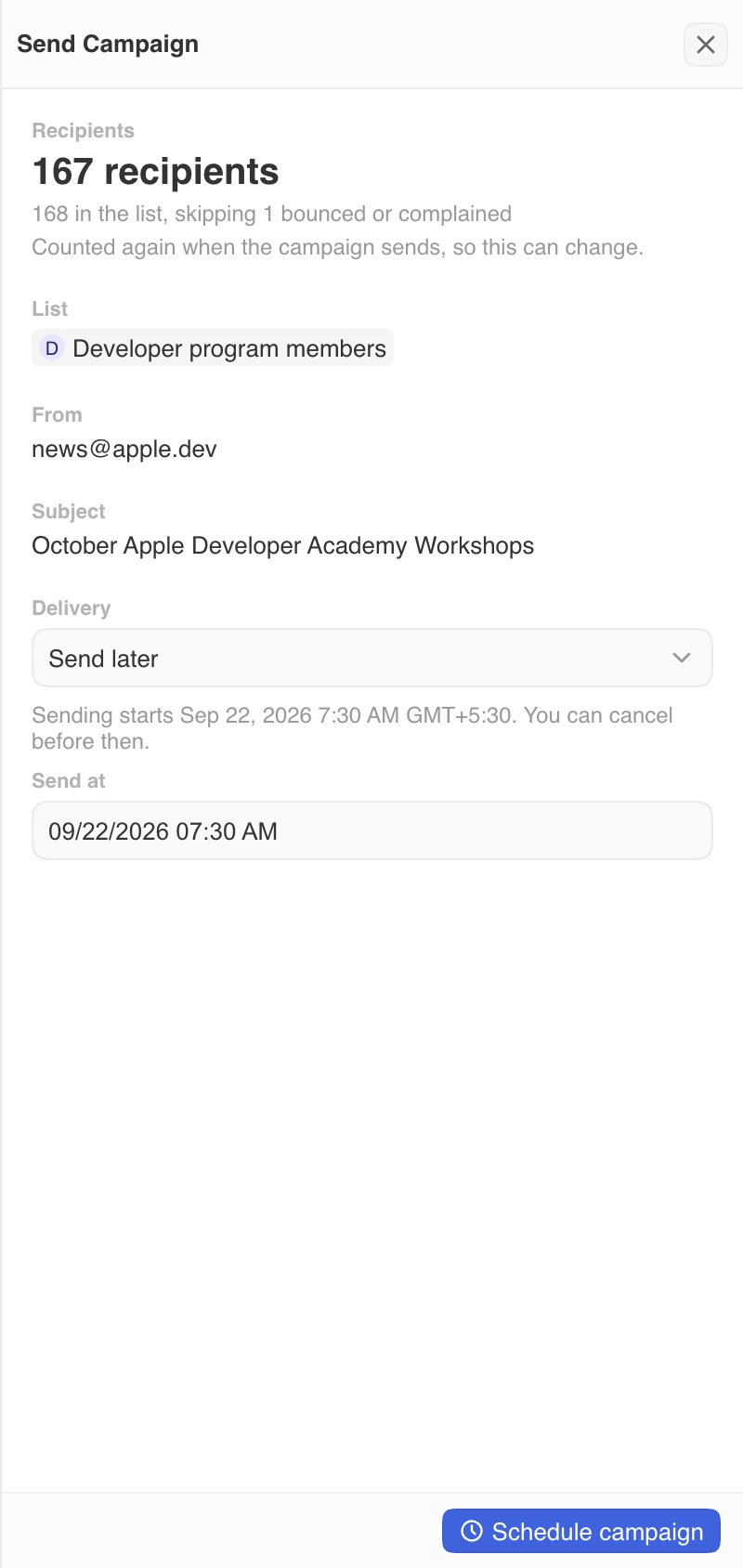
Twenty checks a scheduled campaign again when it is time to send. If nobody
can receive it or the sending domain is no longer verified, it goes back to
Draft instead of sending.
After you send
The campaign’s Status tells you where it is: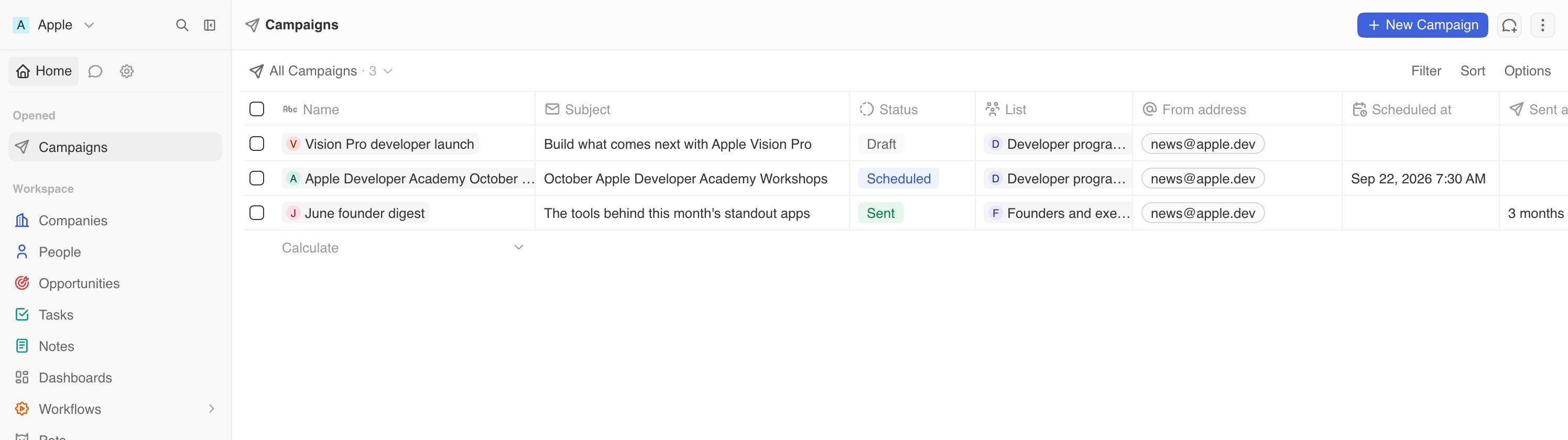
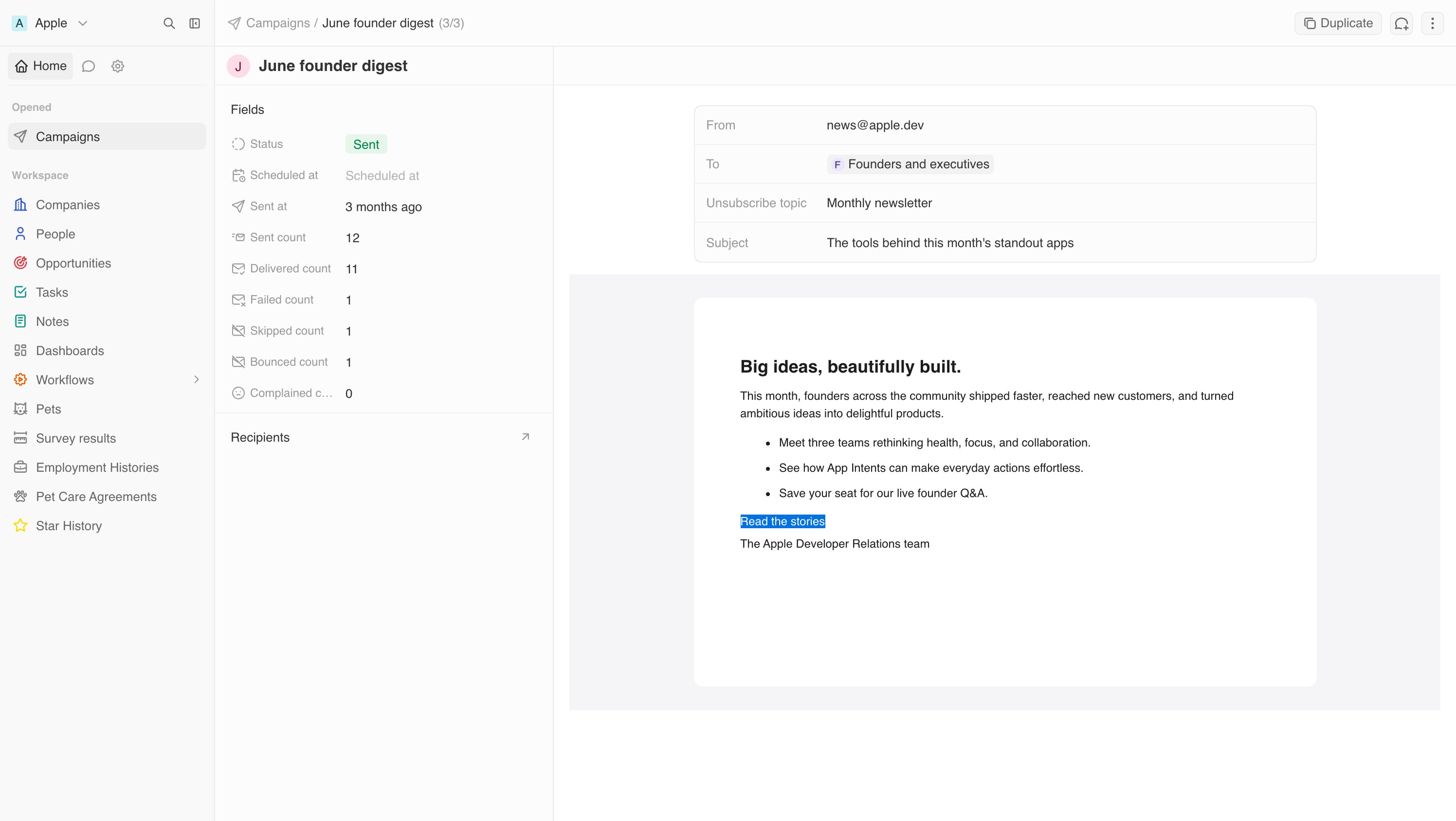
The Home tab shows sent, delivered, bounced, complained, failed, and skipped counts. The Recipients list shows who the campaign went to.
Cancel a campaign
Click Cancel at the top of the campaign, or pressCmd+K and choose Cancel Campaign:
- Scheduled: nothing has gone out. Confirm with Unschedule Campaign. The campaign returns to drafts, and you can edit or schedule it again.
- Sending: emails still waiting are stopped. You cannot recall emails already sent.
Troubleshooting
The From field has no addresses
The From field has no addresses
From lists your email channels. Create an email channel first, then verify
its domain. See Set up a sending
domain.
Sending fails with No verified sending domain matches this from address
Sending fails with No verified sending domain matches this from address
The From address is on a domain that is not verified yet. Finish the steps
in Set up a sending
domain, or
choose another address.
Send campaign is greyed out
Send campaign is greyed out
The campaign needs a From address, a list, a subject and a body, and at
least one person who can receive it. Check the Recipients summary for
people who are skipped. With Send later, the send time must also be in the
future.
Sending fails with This campaign cannot be sent
Sending fails with This campaign cannot be sent
Check that the campaign has a From address, a list and a subject. Then
check the variables: a variable that does not match a field on People blocks
sending. Insert variables from Variables rather than typing them, and use
{{name.firstName}}, not {{firstName}}.A scheduled campaign went back to Draft
A scheduled campaign went back to Draft
When it was time to send, the campaign could not go out, for example because
no one on the list could receive it or the domain was no longer verified. Fix
the cause, then schedule it again.
I can't find Campaigns
I can't find Campaigns
Email campaigns may not be turned on for your workspace yet. Contact us via
chat to enable them.