
Über Kanban-Ansichten
Kanban-Ansichten visualisieren Prozessabläufe, wobei jede Spalte eine eigene Phase darstellt und jede Karte einen Eintrag repräsentiert.Karten zwischen Phasen verschieben
Sie können jede Karte während des Workflows zwischen den Stufen verschieben, indem Sie auf eine Karte klicken und halten dann ziehen Sie es in die nächste Stufe.Phasen hinzufügen und löschen
Sie können Ihren Workflow an Ihre Bedürfnisse anpassen, indem Sie Stufen verwenden, die jeweils einen Wert in einem Auswahlfeld darstellen:Phasen hinzufügen
Um eine Stufe hinzuzufügen, klicken Sie auf die Feldeinstellungen auswählen, indem Sie auf Einstellungen > Datenmodell navigieren, die Auswahl des Objekts und dann die Auswahl des Feldes, von dem das Kanban-Board abhängt.Phasen entfernen
Um eine Phase zu entfernen, bewegen Sie den Mauszeiger über den Phasennamen oder das⋮-Symbol, klicken Sie in den Einstellungen des Auswahlfelds auf Aus Einstellungen bearbeiten und klicken Sie dann auf Löschen neben der entsprechenden Phase.
Felder anzeigen
Sie können Ihr Kanban-Board so konfigurieren, dass einige Felder angezeigt und andere ausgeblendet werden. Um ein Feld anzuzeigen oder auszublenden, klicke auf Optionen oben rechts dann auf Felder um die Liste der Optionen aufzurufen, und klicken Sie auf das Augensymbol neben dem Feld, um es anzuzeigen oder zu verbergen. Sie können auch die Reihenfolge der Felder ändern, indem Sie den Feldnamen festhalten und dorthin ziehen, wo Sie ihn haben möchten.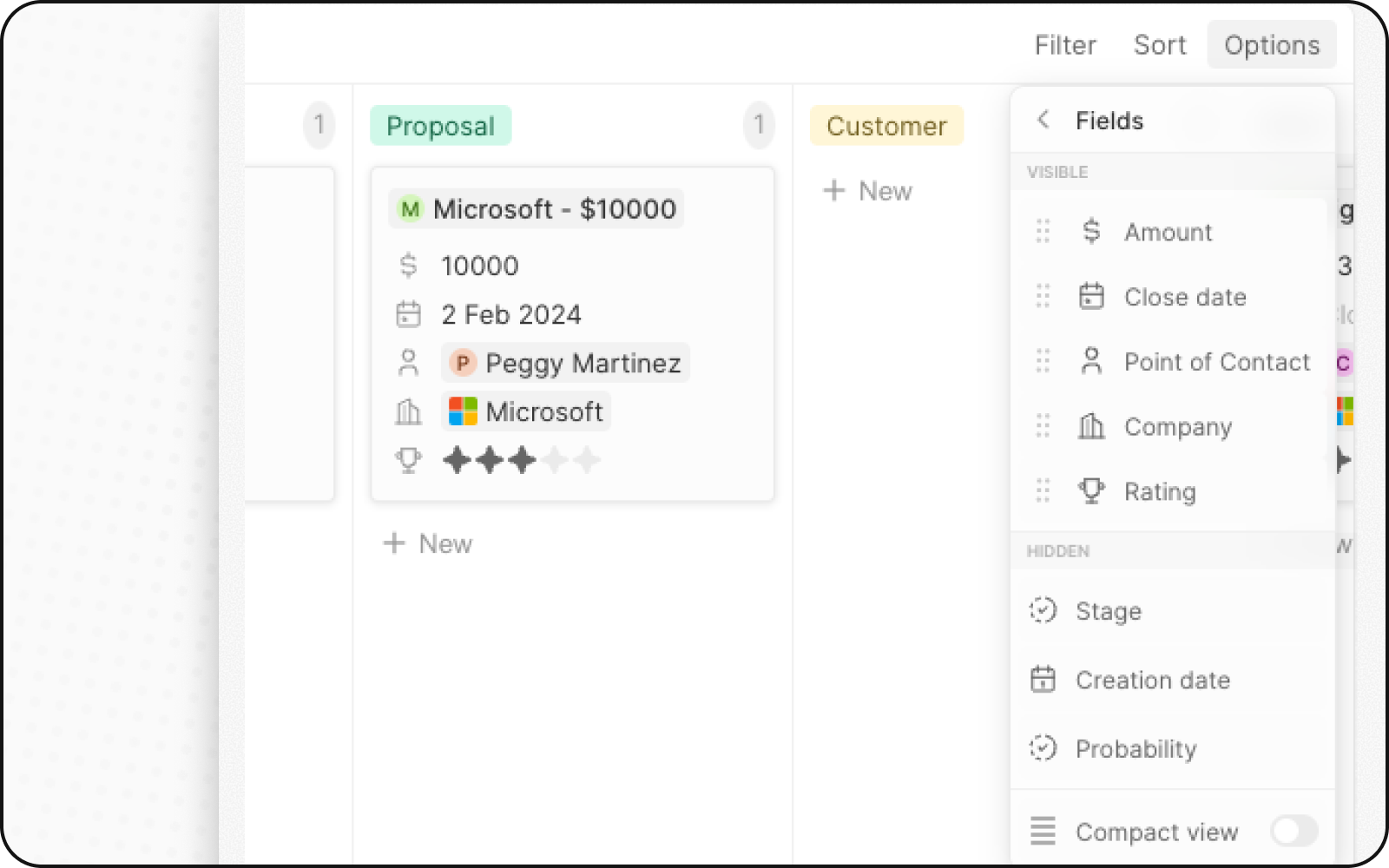
Kompaktansicht
Sie können alle Felder ausblenden und einen Überblick über alle Datensätze auf einen Blick erhalten. So aktivieren Sie es:- Klicken Sie oben rechts auf Optionen
- Aktivieren Sie den Schalter für Kompaktansicht
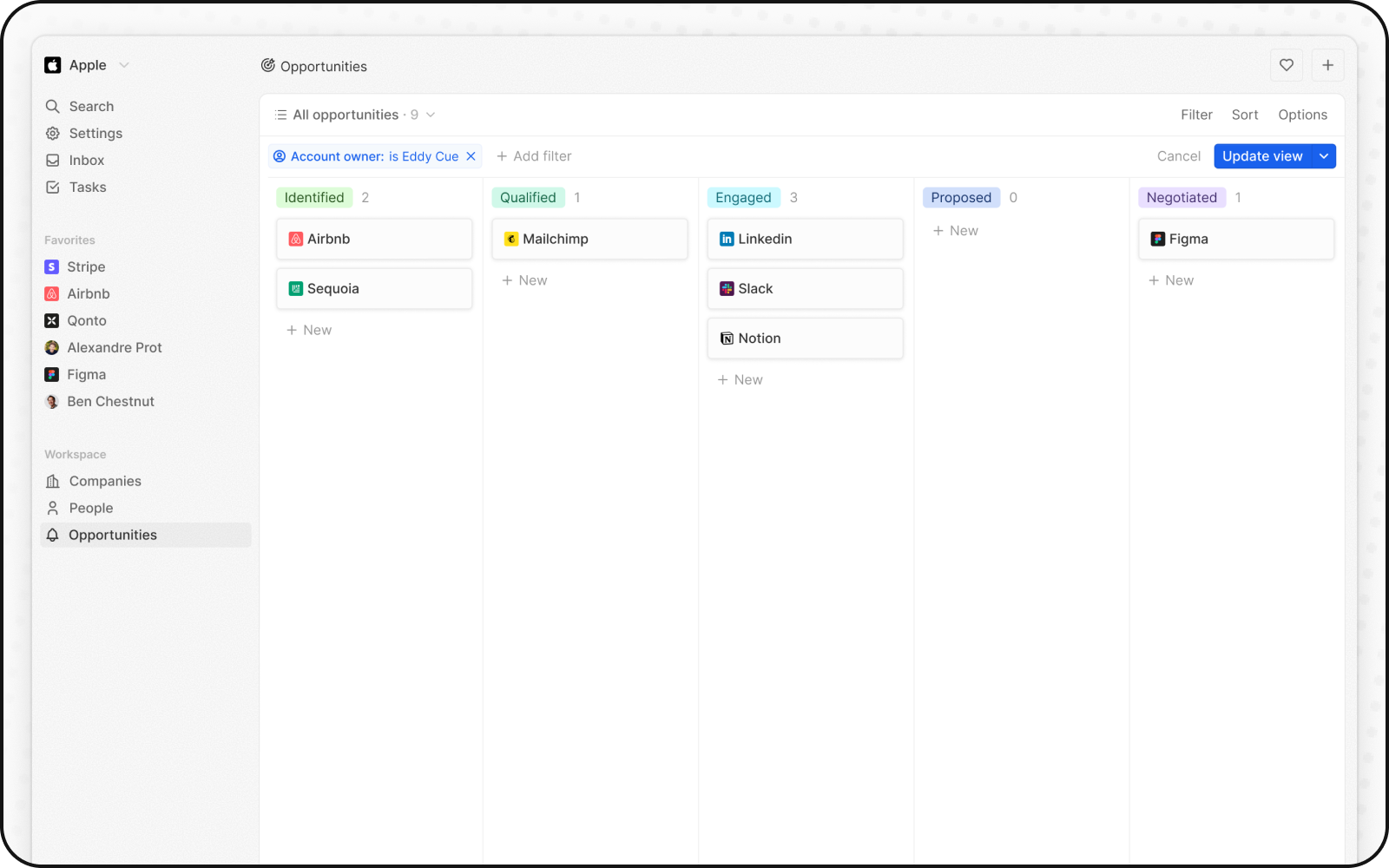
Spaltenaggregationen
Jede Spalte in einer Kanban-Ansicht kann oben aggregierte Werte anzeigen, was Ihnen hilft, Ihre Daten auf einen Blick zu erfassen.Verfügbare Aggregationen
Aggregationen konfigurieren
- Klicken Sie oben in einer Spalte auf die Zahl, die neben dem Phasennamen angezeigt wird
- Wählen Sie den Aggregationstyp aus
- Wählen Sie das zu aggregierende Feld aus
Wann Sie Kanban-Ansichten verwenden sollten
Kanban-Ansichten eignen sich ideal für:- Vertriebspipelines: Verfolgen Sie Deals durch die Phasen vom Lead bis zum Abschluss
- Projektmanagement: Überwachen Sie Aufgaben anhand von Workflow-Status
- Recruiting: Verfolgen Sie Kandidaten durch die Einstellungsphasen
- Jeder mehrstufige Prozess: Visualisieren Sie jeden Workflow mit definierten Phasen
Beste Praktiken
Organisieren Sie Ihre Phasen
- Phasen begrenzen: 5-7 Phasen sind ideal für die Übersichtlichkeit
- Klare Benennung: Verwenden Sie aussagekräftige Phasennamen
- Logische Reihenfolge: Ordnen Sie Phasen in Prozessreihenfolge an
Kartendarstellung optimieren
- Schlüsselfelder anzeigen: Zeigen Sie nur die wichtigsten Informationen an
- Kompaktansicht verwenden: Für Übersichten auf hohem Niveau
- Farbkodierung: Nutzen Sie Phasenfarben, um den Status schnell zu erkennen
Datenqualität sicherstellen
- Regelmäßig aktualisieren: Sorgen Sie dafür, dass Karten durch die Phasen fortschreiten
- Abgeschlossenes archivieren: Verschieben Sie geschlossene Elemente aus der aktiven Ansicht
- Veraltete Karten prüfen: Fassen Sie bei Karten nach, die in Phasen feststecken