
Obiecte standard
Obiectele standard sunt entități predefinite în spațiul tău de lucru care te ajută să începi. Fac parte dintr-un model de date comun accesibil tuturor utilizatorilor Twenty. Le poți folosi așa cum sunt, le poți personaliza sau le poți dezactiva.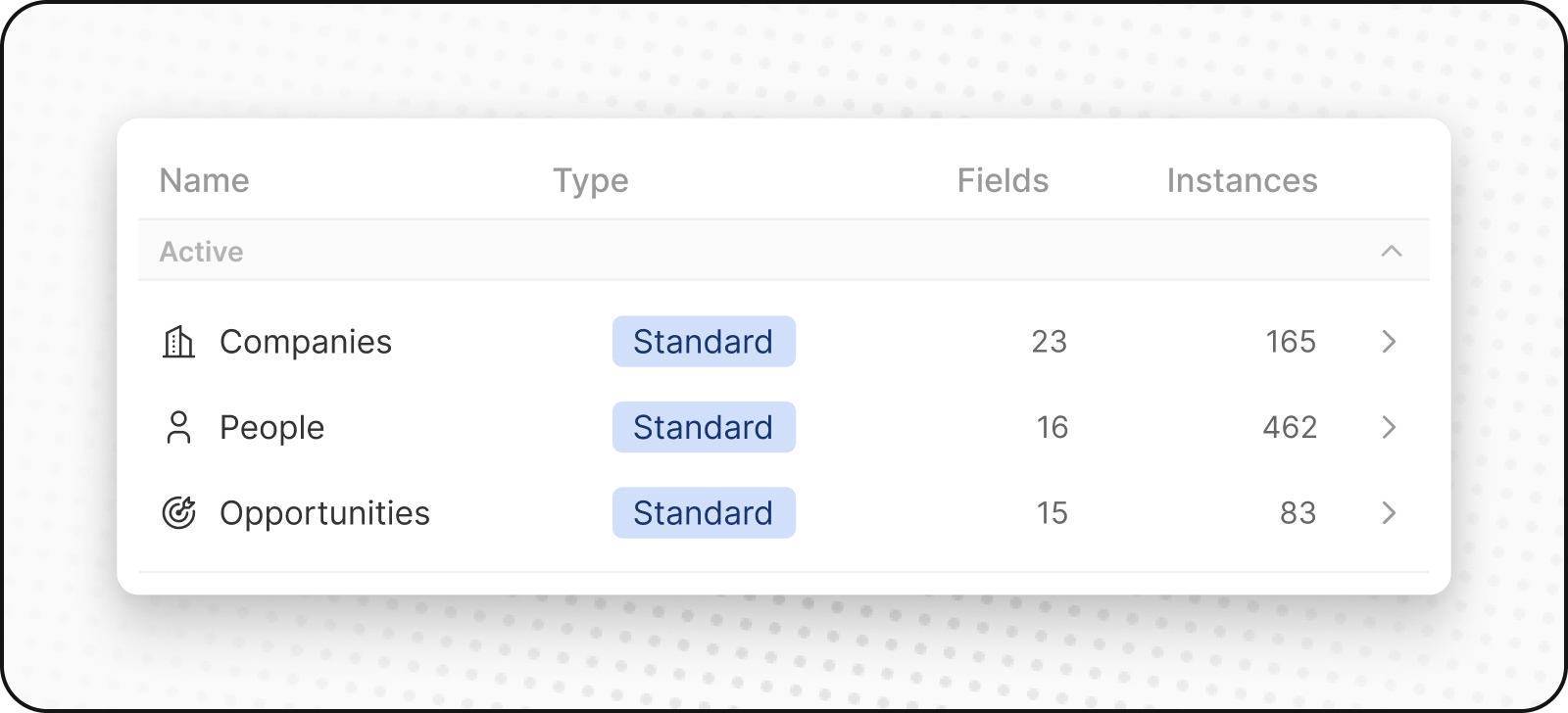
Persoane
ObiectulPeople stochează contactele tale. Include detalii de contact și istoricul interacțiunilor, astfel încât să poți vedea toate interacțiunile cu clienții într-un singur loc.
Companii
ObiectulCompanies stochează conturile tale de afaceri. Include detalii precum industria, dimensiunea și locația. Companiile se conectează la obiectele People și Opportunities.
Oportunități
ObiectulOpportunities stochează datele legate de afaceri. Urmărește progresia posibilelor vânzări, de la prospectare la încheiere, înregistrând etapele, dimensiunile tranzacțiilor, contul asociat și data anticipată de închidere. Poți vizualiza fluxul de vânzări într-un layout kanban.
Notițe
ObiectulNotes stochează note în format liber care pot fi atașate Persoanelor, Companiilor, Oportunităților și altor înregistrări. Folosiți notele pentru a consemna rezumate ale întâlnirilor, detalii importante sau orice informații contextuale.
Sarcini
ObiectulTasks stochează sarcini de făcut și elemente de acțiune. Sarcinile pot fi asociate Persoanelor, Companiilor, Oportunităților și altor înregistrări. Urmăriți termenele limită, persoanele desemnate și starea finalizării pentru a rămâne la zi cu activitățile de follow-up.
Obiecte personalizate
Obiectele personalizate îți permit să stochezi informații specifice organizației tale și pe care obiectele standard nu le pot gestiona. De exemplu, dacă ești SpaceX, poți dori să creezi un obiect personalizat pentru Rachete și Lansări.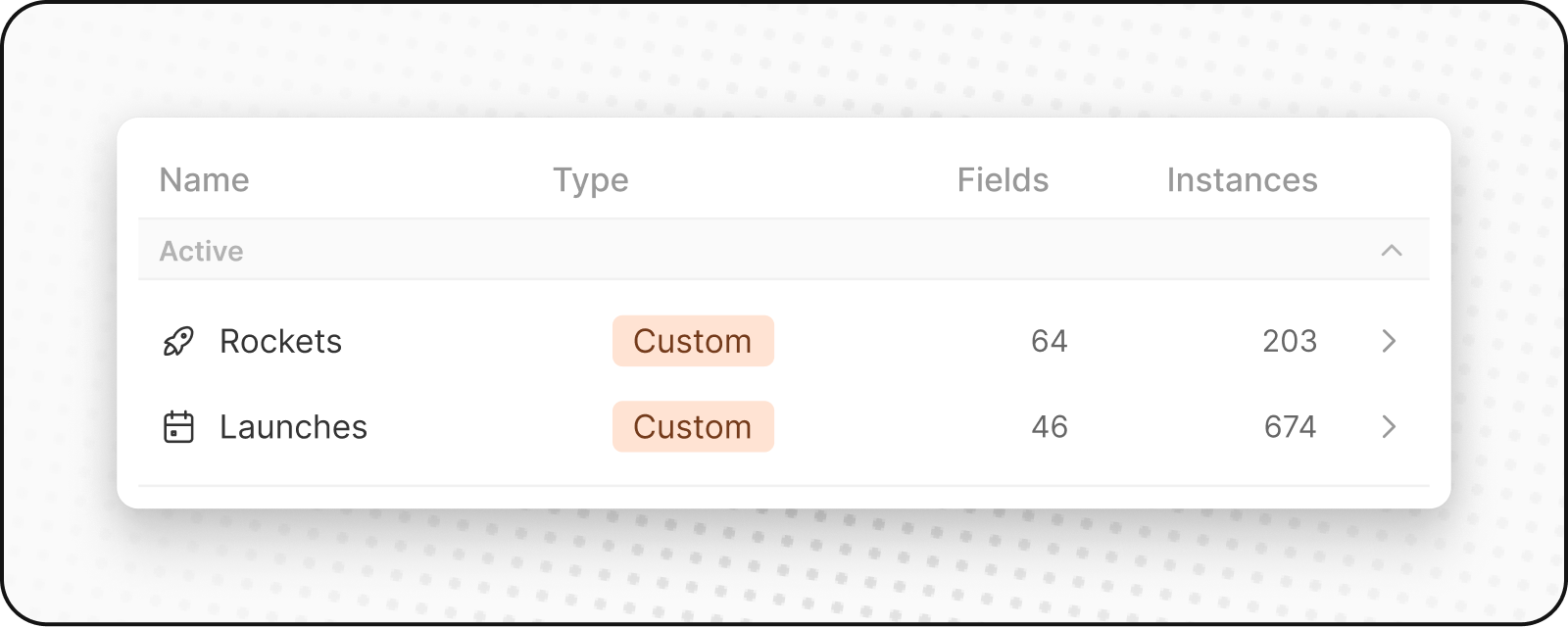
Crearea unui obiect personalizat nou
Pentru a crea un obiect personalizat nou:- Mergi la Setări, în bara laterală din stânga.
- În spațiul de lucru, mergeți la Modelul de date. Aici vei putea vedea o prezentare generală a tuturor obiectelor existente Standard și Personalizate (atât active cât și dezactivate).
- Fă clic pe
+ Obiect nouîn partea de sus. Introduceți numele (singular și plural), alegeți o pictogramă, adăugați o descriere pentru obiectul personalizat și apăsați Salvare (în dreptul sus). Folosind Listing ca exemplu de obiect personalizat, forma de singular ar fi “listing”, iar pluralul ar fi “listings”, împreună cu o descriere precum “Anunțuri pe care gazdele le-au creat pentru a-și prezenta proprietatea.” - Obiectul dvs. personalizat a fost creat și va apărea în bara laterală. Puteți începe să adăugați înregistrări imediat.
Gestionarea obiectelor
Dezactivarea obiectelor
Dacă nu aveți nevoie de un obiect standard sau personalizat:- Accesați Setări → Model de date
- Găsește obiectul pe care vrei să-l dezactivezi și fă clic pe el
- Du-te la fila Setări obiectului
- Faceți clic pe butonul
Deactivate - Obiectul va fi ascuns din spațiul dvs. de lucru, dar datele sunt păstrate
Reactivarea obiectelor
Pentru a readuce un obiect dezactivat:- Accesați Setări → Model de date
- Activează filtrul
Dezactivat - Caută obiecte dezactivate (ele au “dezactivat” lângă numele lor)
- Faceţi clic pe
·şi apoi peActiveazăpentru a reactiva - Obiectul și toate datele sale vor fi restaurate
Cele mai bune practici
Când să creați obiecte personalizate
- Entități de afaceri unice: Elemente specifice industriei sau procesului dvs.
- Relații complexe: Când trebuie să urmăriți conexiunile dintre mai multe entități
- Date scalabile: Când este posibil să aveți numeroase instanțe ale aceluiași lucru
Când să folosiți câmpuri în loc
- Atribute simple: Proprietăți care descriu obiecte existente
- Categorii sau etichete: Modalități de a clasifica înregistrările existente
- Valori unice: Informații care nu necesită un ciclu de viață propriu
Denumirea obiectelor
- Folosiți denumiri clare și descriptive: Să fie evident ce reprezintă obiectul
- Respectați convențiile: Folosiți singularul pentru numele obiectului, pluralul pentru colecție
- Țineți cont de echipa dvs.: Alegeți denumiri pe care toată lumea le va înțelege