
О действиях
Действия определяют, что произойдет после срабатывания триггера. Вы можете связывать несколько действий вместе, чтобы создавать сложные автоматизации.Действия с записями
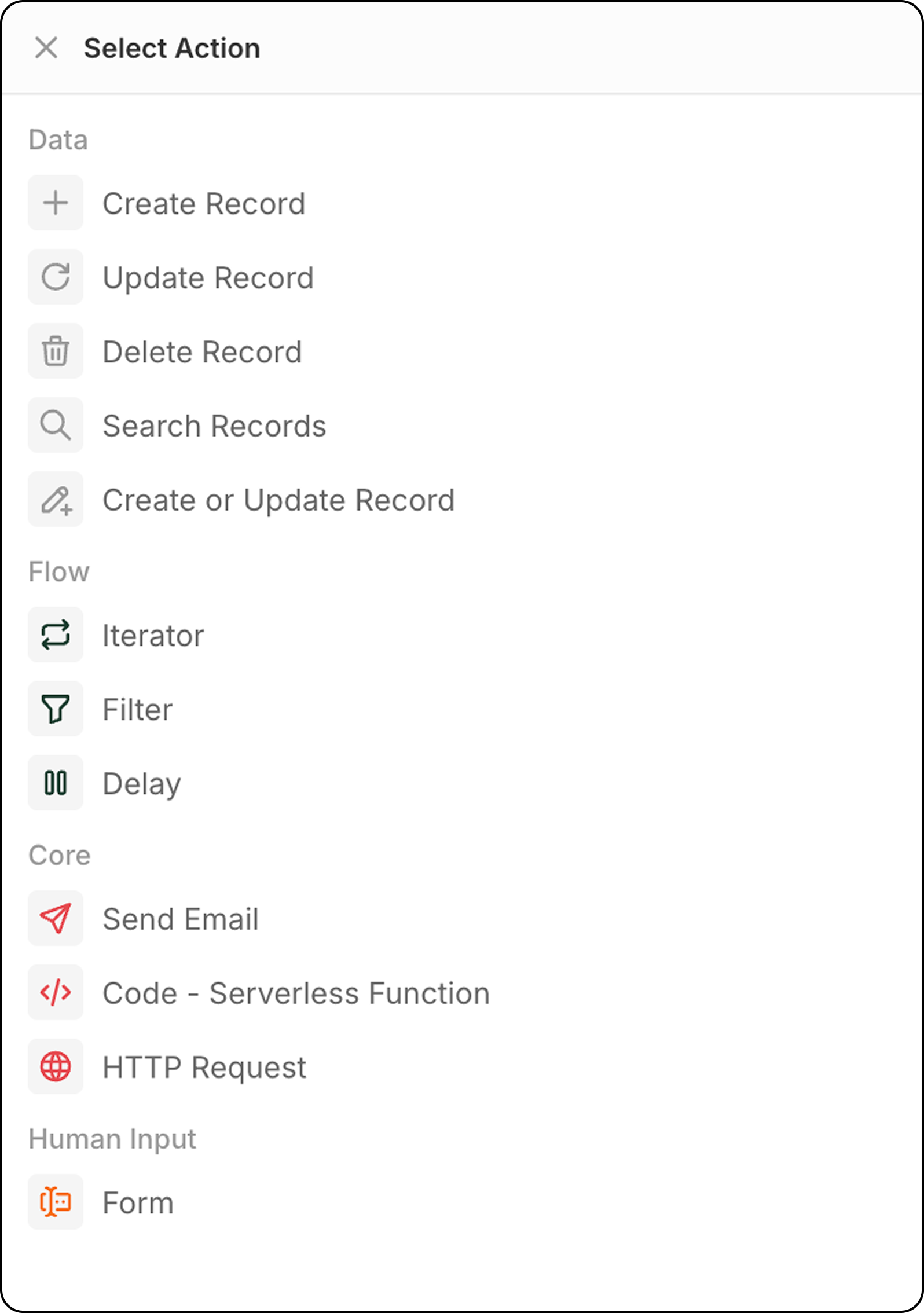
Создать запись
Добавляет новую запись в выбранный объект. Настройка:- Выберите целевой объект
- Заполните обязательные и необязательные поля
- Используйте данные из предыдущих шагов или введите значения вручную, чтобы заполнить поля
Обновление записи
Изменяет существующую запись в выбранном объекте.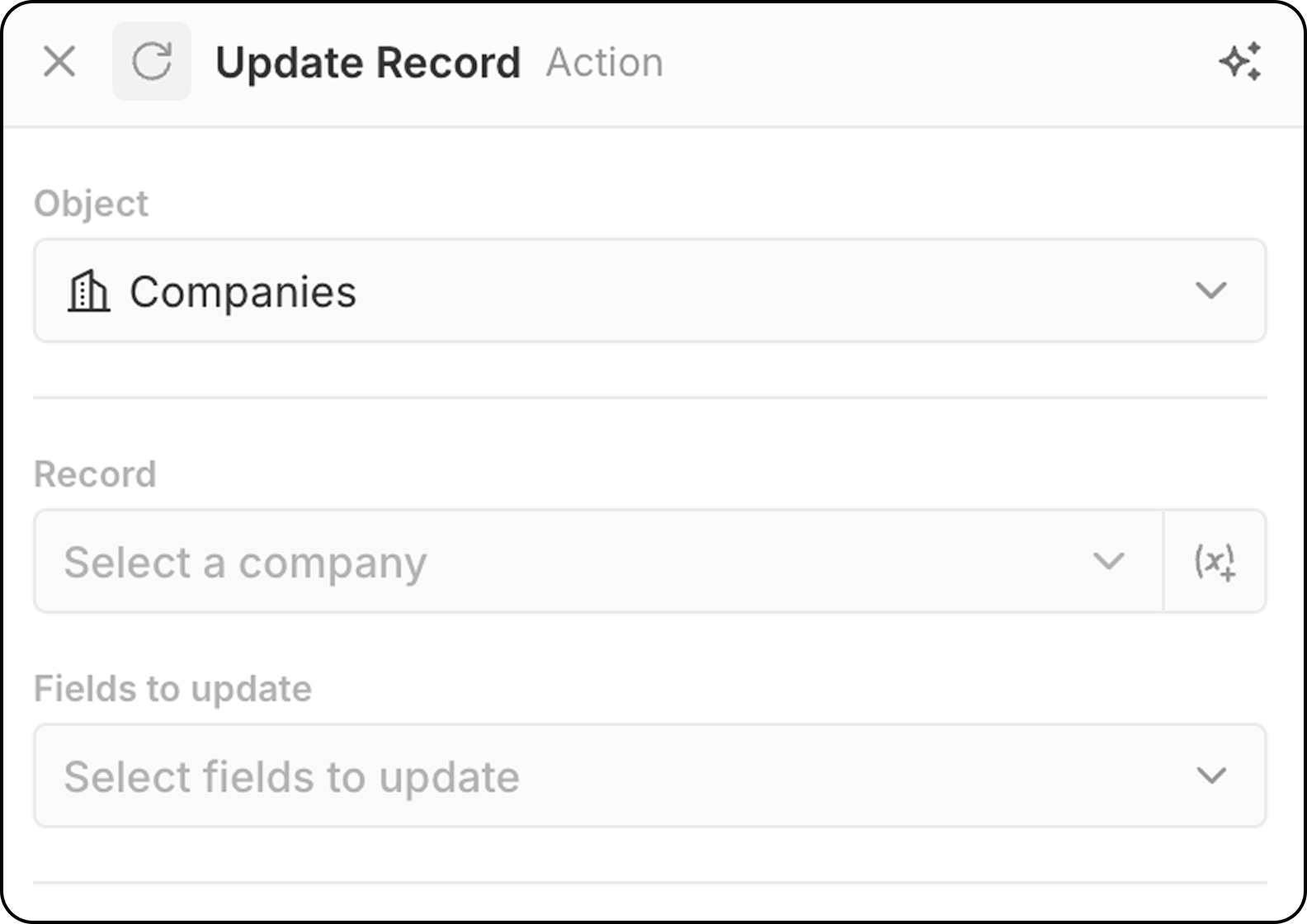
- Выберите целевой объект
- Выберите конкретную запись для обновления.
- Вы можете либо выбрать конкретную запись, используя раскрывающееся меню, где показаны все доступные записи.
- Либо можно выбрать запись динамически, указав запись, найденную на предыдущем шаге, с помощью
(x+). На этом этапе вы не можете искать запись по различным критериям. Если вы ещё не определили запись, добавьте шагSearch Recordперед шагомUpdate Record.
- Выберите поля для изменения и введите новые значения
Удаление записи
Удаляет запись из выбранного объекта. Настройка:- Выберите целевой объект
- Выберите конкретную запись для удаления
Поиск записей
Находит записи в выбранном объекте, используя условия фильтрации. Настройка:- Выберите объект для поиска
- Установите критерии фильтра для сужения результатов
- Настройте сортировку и ограничения
Ограничение: Search Records возвращает максимум 200 записей. Если нужно обработать больше, добавьте точные фильтры, чтобы сократить результаты, или используйте запланированные рабочие процессы для пакетной обработки.
Добавить или обновить запись
Создаёт новую запись или обновляет существующую на основе критериев сопоставления. Это полезно, если вы не уверены, существует ли уже запись.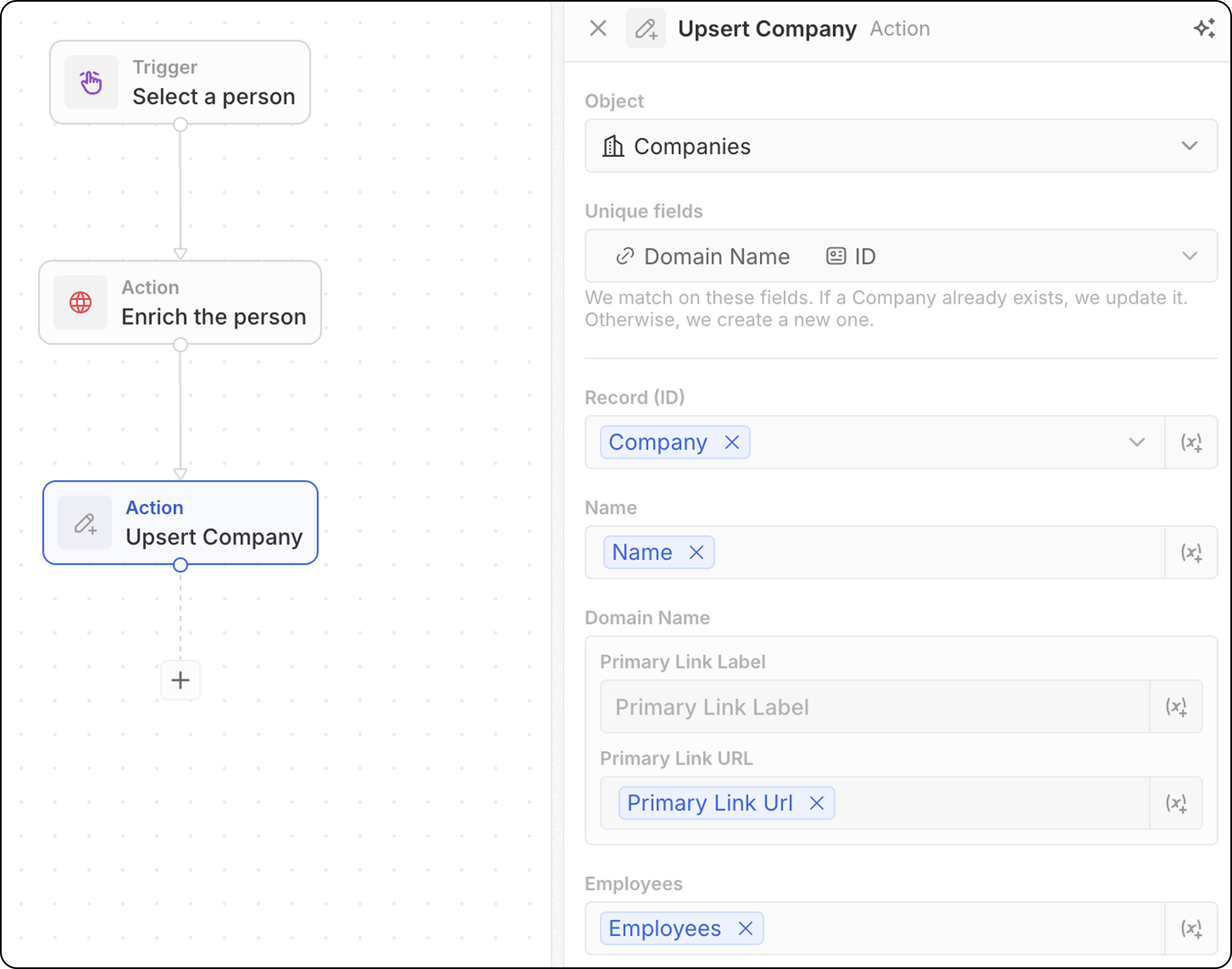
- Выберите целевой объект
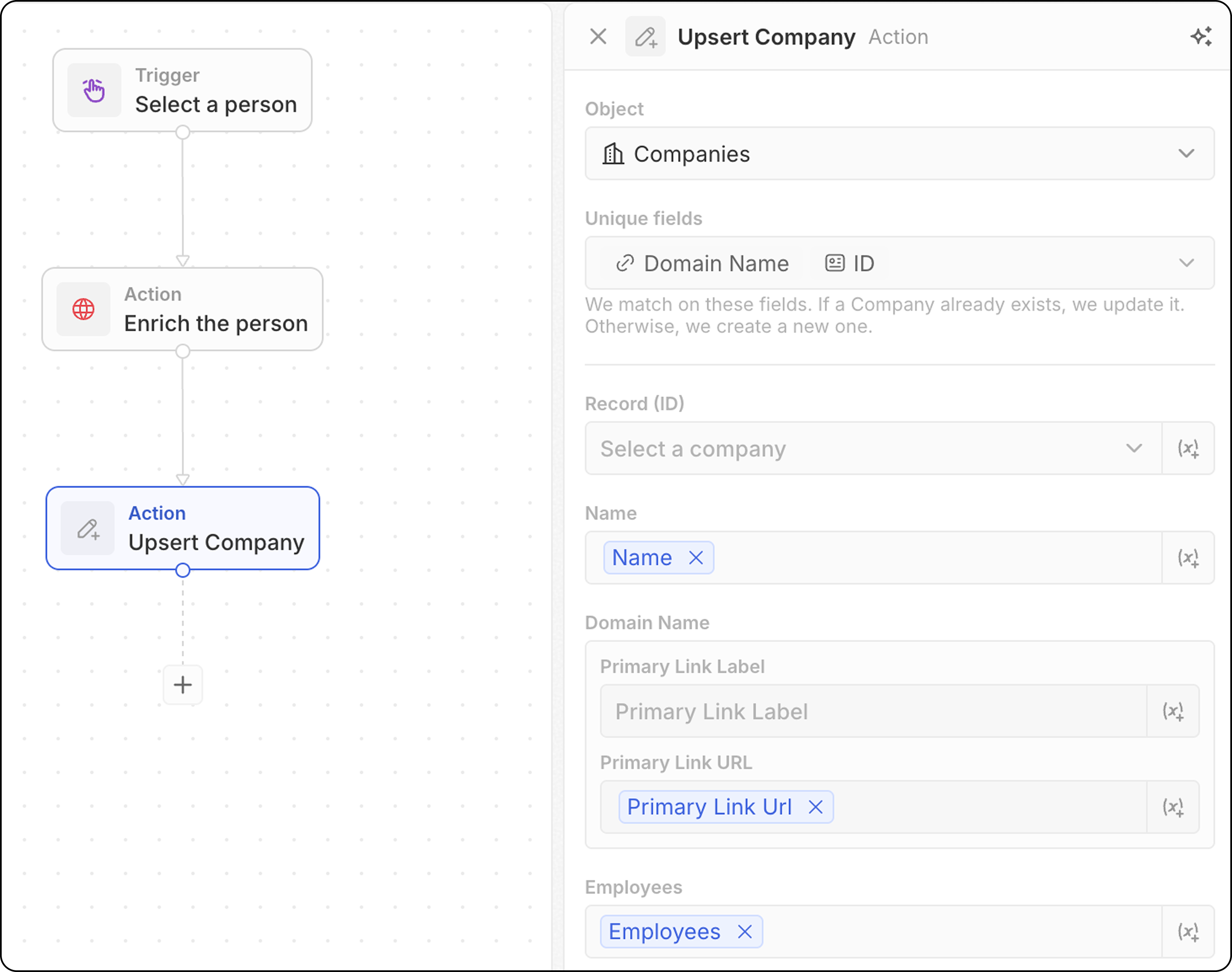
- Обратите внимание, какие поля можно использовать для сопоставления: email — для People, домен — для Companies, ID — для любого объекта или любое поле, помеченное как Unique. Ниже нужно заполнить как минимум одно из них.
- Заполните значения полей. Не забудьте указать как минимум один уникальный идентификатор.
Сопоставление обычно работает даже лучше, если указывать только один уникальный идентификатор. Например, на скриншоте ниже компании сопоставляются по их домену. Указывать ID не обязательно.
- Используйте данные из предыдущих шагов для заполнения полей
- Ищет запись, соответствующую вашим критериям
- Если найдена → обновляет существующую запись
- Если не найдена → создает новую запись
Действия потока
Итератор
Перебирает массив записей, возвращенный на предыдущем этапе, позволяя выполнять действия для каждой записи по отдельности. Настройка:- Выберите массив записей из предыдущего шага (например, результаты поиска записей, из ручного триггера с массовым доступом, из узла кода). Когда шаг Code или «Логическая функция» возвращает массив верхнего уровня, выберите параметр Whole list, чтобы выполнить цикл по всему результату.
- Определите действия, которые нужно выполнить для каждой записи в цикле.
- Вы можете добавить несколько действий в Итератор.
- При использовании ветвей внутри Итератора убедитесь, что последний шаг каждой ветви соединяется с Итератором для закрытия цикла.
- Доступ к полям
Current Item: чтобы использовать поля записи, которая обрабатывается в данный момент, нажмите на шаг Iterator, затем выберите Current item. Будет отображен список доступных полей этой записи, и их можно выбрать для использования в последующих действиях. Вы также можете выбрать Use the whole item, чтобы передать весь текущий элемент на следующий шаг.
Фильтр
Фильтрует записи на основе указанных условий, пропуская только записи, соответствующие критериям. Настройка:- Выберите запись для фильтрации
- Определите условия фильтрации и критерии
- Настройте, какие записи должны пройти через последующие шаги
- Вывод: Узлы фильтра не возвращают данные — они работают как шлюзы. Если условия выполнены, рабочий процесс продолжается. Если нет, рабочий процесс останавливается на этой ветке.
- Оператор
ISможно использовать с числовыми полями. Он работает какEQUAL.
Задержка
Приостанавливает выполнение рабочего процесса на указанное время или до определенной даты/времени. Типы задержек:
Настройка длительности:
- Укажите дни, часы, минуты и/или секунды
- Объединяйте несколько единиц (например, 2 дня и 4 часа)
- Выберите дату и время
- Можно ссылаться на поле даты с предыдущего шага (например, связаться повторно через 3 дня после встречи)
- Подождать 24 часа перед отправкой повторного письма
- Пауза до даты закрытия сделки
- Запланировать действия на рабочие часы
Запланированная дата не может быть в прошлом. Если используется поле даты с предыдущего шага и эта дата уже прошла, рабочий процесс завершится с ошибкой.
- Нет максимального ограничения по длительности — вы можете задавать задержки в минутах, днях, неделях или больше
- Списывается 1 кредит при выполнении узла Задержка, независимо от длительности
- Кредиты не списываются во время ожидания — задержка на 5 минут стоит столько же, сколько задержка на 5 дней
Коммуникационные действия
Отправить письмо
Отправляет email из вашего рабочего процесса. Подходит для шаблонных групповых писем. Письма будут выглядеть так же, как те, что вы отправляете из своего почтового ящика. Это не подходит для рассылок (которые требуют более насыщенного форматирования) или автоматических последовательностей писем. Предварительные условия: добавьте учетную запись электронной почты в Настройки → Учетные записи Настройка:- Выберите учетную запись электронной почты отправителя
Вы можете отправлять письма только из почтовых ящиков, синхронизированных с вашей собственной учетной записью Twenty. Отправка из почтовых ящиков других участников команды (например, из электронной почты владельца учетной записи) запланирована.
- Введите email-адрес получателя.
На данный момент возможен только один получатель.
- Установите строку темы.
- Составьте текст сообщения. Вы можете форматировать ссылки, создавать нумерованные списки, списки точек и добавлять вложения.
Добавление HTML-подписей пока невозможно.
Форма
Выводит форму во время выполнения рабочего процесса для сбора информации от пользователя. Ответы затем можно использовать на последующих шагах для создания записей, отправки писем или выполнения любых других действий на основе введенных данных. Настройка:- Настройте поля, которые пользователям предложат заполнить. Для каждого поля выберите
- тип: текст, число, дата, заданная запись, поле выбора. Поля из всех объектов доступны для выбора.
- метку
- значение по умолчанию в
Placeholder(необязательно)
- Отредактируйте заголовок формы
- Запустите ручной рабочий процесс из командного меню
Cmd+K - Заполните форму, отображаемую в боковой панели, и нажмите
Submit.
Поля нельзя сделать обязательными.
Интеграционные действия
Код
Выполняет кастомный JavaScript в вашем рабочем процессе. Под капотом каждое действие Code поддерживается собственной логической функцией — серверной функцией на TypeScript, которая выполняется на платформе Twenty. Когда вы добавляете действие Code, Twenty создает для этого шага отдельную логическую функцию и открывает ее редактор прямо в интерфейсе, поэтому написанный вами код хранится вместе с рабочим процессом. Настройка:- Получайте доступ к переменным из предыдущих шагов. Вы можете динамически редактировать имена переменных.
- Напишите код JavaScript в редакторе
- Возвращайте переменные для использования в последующих шагах
- Проверяйте код непосредственно в шаге
Если вам нужно использовать внешние ключи API в вашем коде, их необходимо вводить прямо в тело функции. Нельзя настроить ключи API в другом месте и ссылаться на них в логической функции.
Повторное использование логической функции в рабочих процессах
Встроенное действие Code отлично подходит для разовой логики, но код, который оно содержит, принадлежит только этому одному шагу. Когда вы хотите использовать одну и ту же логику в нескольких рабочих процессах — или вести ее как версионируемый исходный код в приложении — определите повторно используемую логическую функцию вместо копирования и вставки кода в каждое действие Code. Логическая функция определяется один раз в приложении (с помощью SDK-функцииdefineLogicFunction) и становится доступной в конструкторе рабочих процессов при добавлении workflowActionTriggerSettings. После установки вашего приложения эта функция появляется как отдельное действие в конструкторе рабочих процессов, наряду со встроенными действиями. При выборе этого действия отображаются объявленные вами поля ввода (с селекторами переменных, как и в других действиях) и выполняется ваш общий код — встроенный JavaScript не требуется.
Оба варианта работают в одной и той же среде выполнения логических функций, поэтому действие Code, которое вы прототипировали во встроенном режиме, позже можно с минимальными изменениями превратить в повторно используемую логическую функцию.
HTTP-запрос
Отправляет запрос внешнему API в рамках вашего рабочего процесса.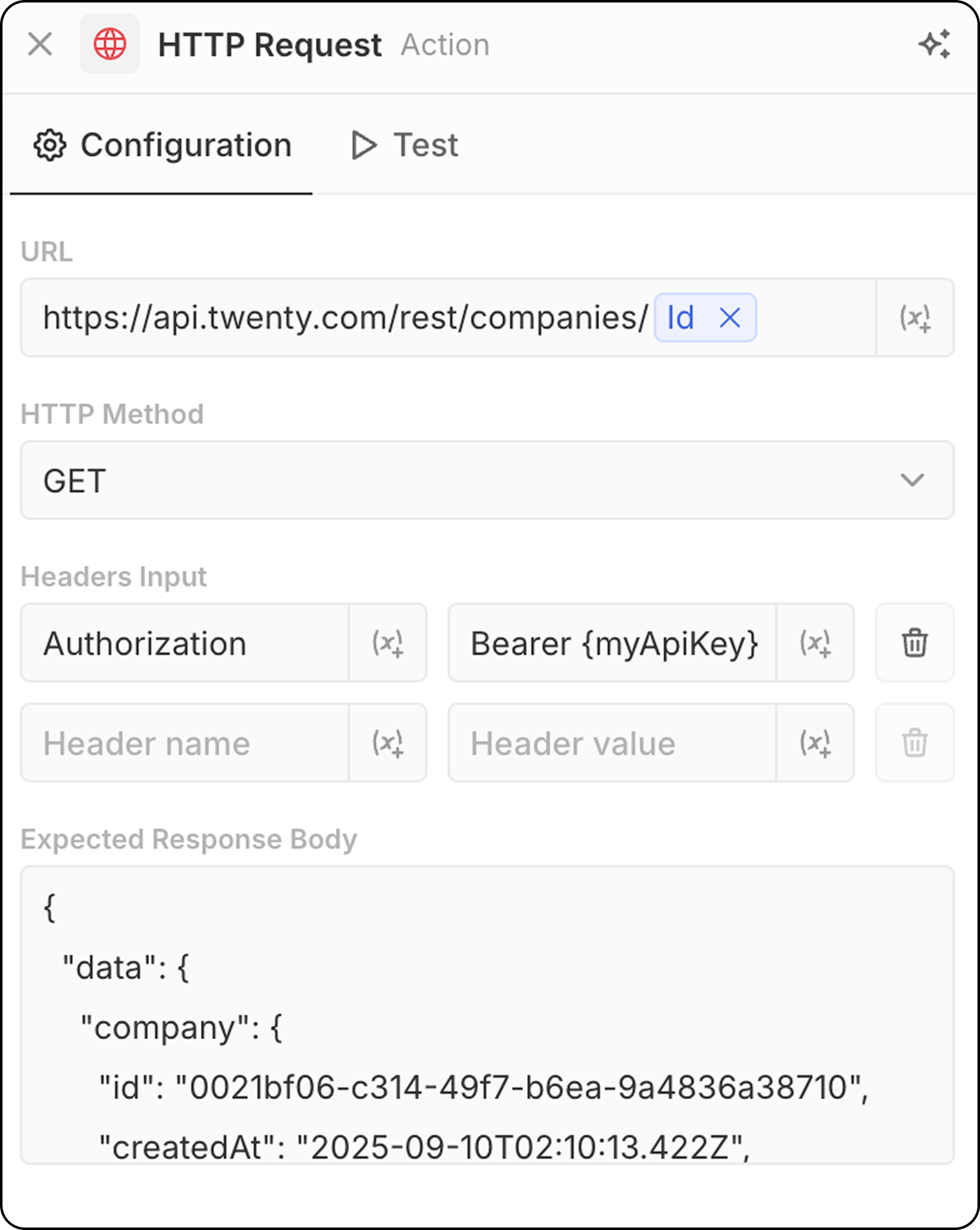
- Введите URL конечной точки API. Можно использовать параметры из предыдущих шагов.
- Выберите метод HTTP (GET, POST, PUT, PATCH, DELETE)
- Добавьте необходимые заголовки и значения
- Предоставьте пример ответа для предварительного просмотра структуры
Действия ИИ
ИИ-агент — скоро
Запускает ИИ-агента внутри вашего рабочего процесса для выполнения интеллектуальных задач. Настройка:- Агент: Выберите существующего ИИ-агента или используйте агента по умолчанию
- Промпт: Напишите инструкцию для ИИ-агента
- Ссылайтесь на переменные из предыдущих шагов в промпте
- Анализировать и резюмировать данные
- Классифицировать или категоризировать записи
- Генерировать текстовый контент
- Принимать решения на основе данных
- Взаимодействовать с данными вашей CRM с помощью инструментов
Действия ИИ-агента потребляют кредиты рабочего процесса в зависимости от используемой модели ИИ. См. Кредиты рабочих процессов для подробностей.
ИИ-агенты соблюдают права доступа на основе ролей. Вы можете назначать агентам конкретные роли в разделе Настройки → Участники → Роли, чтобы контролировать, к каким данным у них есть доступ. См. Разрешения для подробностей.