
Panoramica
Twenty supporta l’importazione delle relazioni tra oggetti durante l’importazione CSV. Ciò consente di collegare i record (ad es., associare Persone ad Aziende) come parte della migrazione dei dati.Attualmente supportate per l’importazione: Relazioni uno a molti che puntano a un singolo tipo di oggetto su ciascun lato (ad es., Persone → Aziende). Le relazioni che puntano a più tipi di oggetto non sono ancora supportate per importazione/esportazione.
Come funzionano le relazioni in Twenty
Uno a molti / Molti a uno
Twenty supporta relazioni standard in cui un record è collegato a molti altri:- Un’Azienda → Molte Persone: Un’azienda può avere più dipendenti, ma ogni persona appartiene a un’unica azienda
- Un’Azienda → Molte Opportunità: Un’azienda può avere più trattative, ma ogni opportunità appartiene a un’unica azienda
Relazioni che possono puntare a più tipi di oggetto
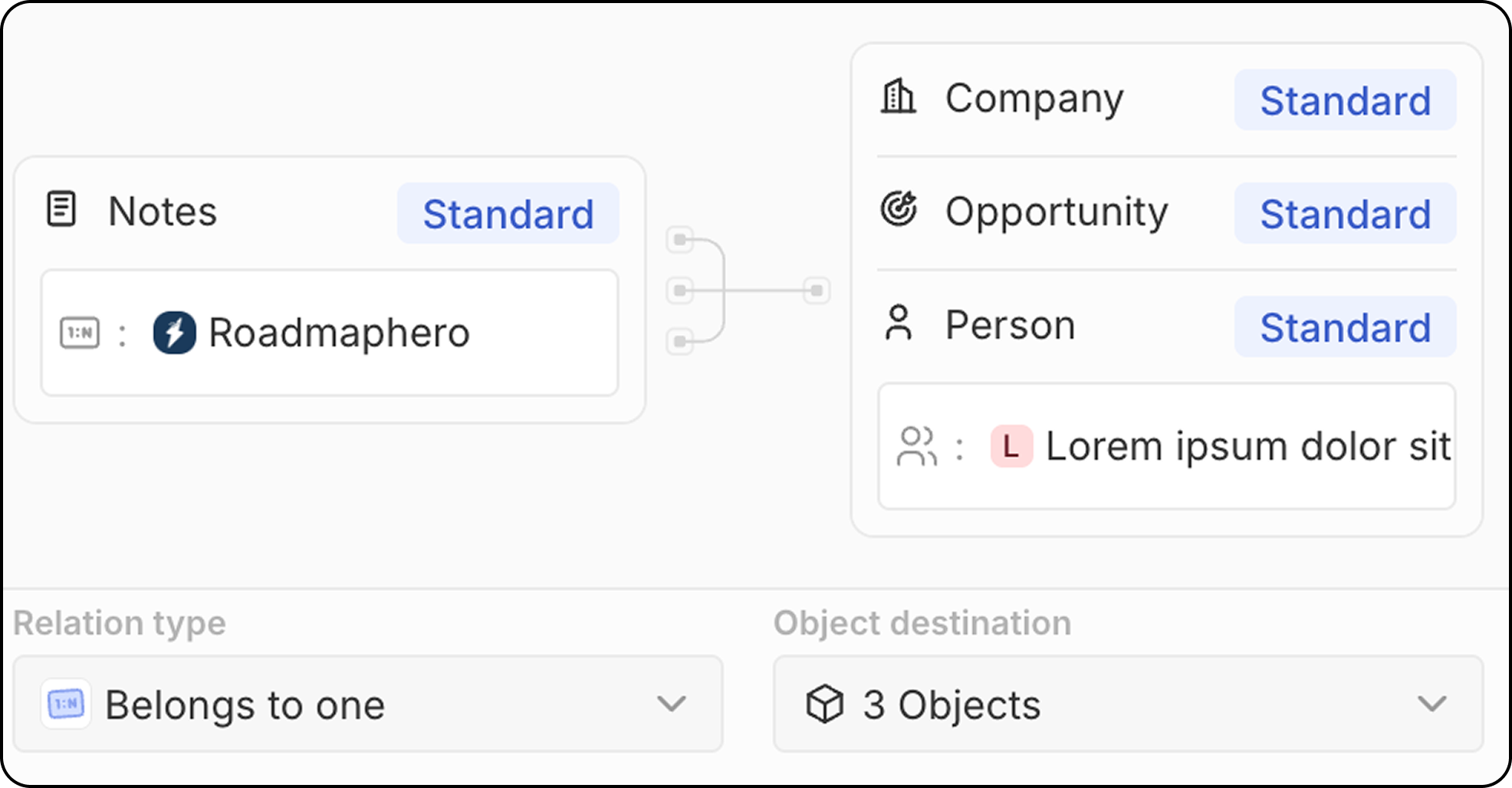
Alcune relazioni possono collegarsi a diversi tipi di oggetti. Questo funziona in due modi: Modello 1: Molti record che si collegano ognuno a un singolo record per ciascun tipo di oggetto Diverse note o attività possono essere attaccate a più tipi di oggetti contemporaneamente:- Le Note possono essere collegate a una Persona, a un’Azienda e a un’Opportunità contemporaneamente
- I Task possono essere collegati a una Persona, a un’Azienda e a un’Opportunità contemporaneamente
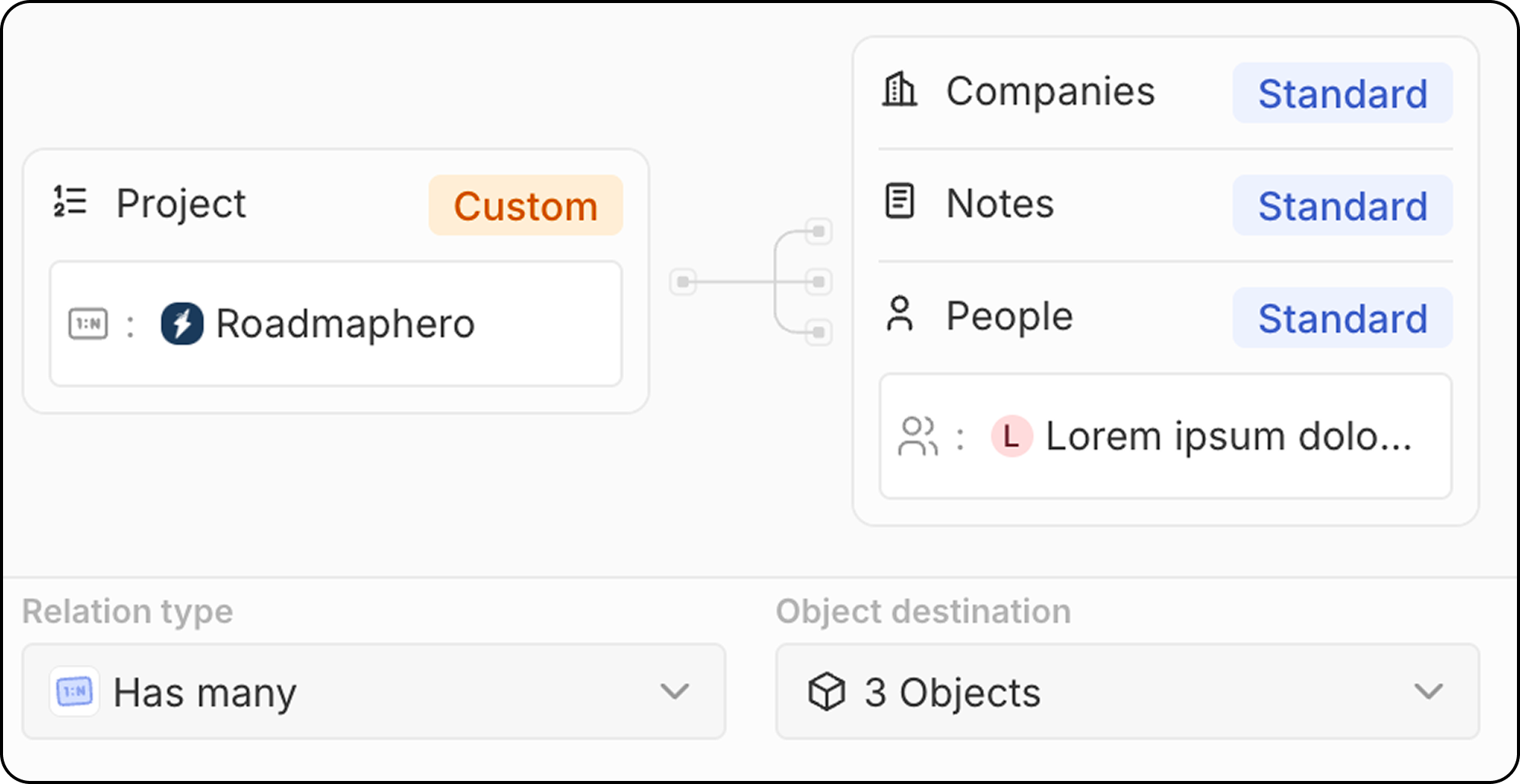
- Un Progetto può avere molte Persone collegate, molte Aziende collegate e molte Note allegate
Cosa non è supportato oggi
Relazioni molti a molti non sono ancora disponibili. Ad esempio, attualmente non è possibile creare una relazione in cui:- Molte Persone sono collegate a molti Progetti
Molti a molte relazioni sono previsti per H2 2026.
Collegare i record durante l’importazione
Promemoria: Possono essere importate solo relazioni uno a molti che puntano a un singolo tipo di oggetto (ad es., Persone → Aziende). Le relazioni che puntano a più tipi di oggetto (ad es., Note → Persone/Aziende/Opportunità) non sono ancora supportate.
Passaggio 1: Identifica i lati “Uno” e “Molti”
Per prima cosa, determina quale oggetto è sul lato “uno” e quale è sul lato “molti” della relazione. Esempio:- Azienda è il lato “uno” (un’azienda ha molti dipendenti)
- Persone è il lato “molti” (ogni persona appartiene a un’unica azienda)
Passaggio 2: Assicurati che i record del lato “uno” esistano
Prima di importare il lato “molti”, i record del lato “uno” devono già esistere in Twenty.- Importa o crea prima i record del lato “uno” (ad es., Aziende)
- Verifica il loro identificatore univoco. Può essere:
- L’
id(UUID di Twenty) - Un campo impostato come univoco (ad es.,
domainper le Aziende o un ID esterno dal tuo sistema precedente)
- L’
Passaggio 3: Prepara il tuo file CSV
Aggiungi una colonna nel file CSV del lato “molti” che faccia riferimento al record del lato “uno”. Esempio: Per un file CSV di Persone collegato ad Aziende:- Il valore deve corrispondere esattamente al campo univoco del record Azienda
- Per i domini, usa l’URL del dominio (ad es.,
https://acme.com), non l’etichetta del dominio - Mappa un solo identificatore univoco per relazione: questo rende l’importazione più fluida
Passaggio 4: Assicurati che il campo di relazione esista
Prima di caricare il file, assicurati che esista il campo di relazione tra i tuoi oggetti. Se non esiste:- Vai a Impostazioni → Modello dati
- Seleziona il tuo oggetto (ad es., Persone)
- Crea un campo di relazione che punti all’oggetto di destinazione (ad es., Azienda)
Passaggio 5: Carica e mappa la relazione
- Carica il file CSV tramite l’interfaccia di importazione
- Nel passaggio di mappatura dei campi, trova la colonna di relazione (ad es.,
companyDomain) - Mappala al campo di relazione (ad es., Azienda)
- Twenty collegherà automaticamente ogni record al genitore corrispondente
Campi univoci disponibili per le relazioni
Collegamento ai membri dello Spazio di lavoro: quando la relazione punta ai Membri dello Spazio di lavoro (il tuo team che accede a Twenty), fai riferimento al loro indirizzo email, non al nome.
Consigliamo di usare
domain per le Aziende ed email per le Persone, poiché sono leggibili e facili da mantenere nei fogli di calcolo.Promemoria: I record eliminati temporaneamente (visibili in Menu Comandi → Vedi record eliminati) contano ai fini dei criteri di unicità. Se importi un record con lo stesso valore univoco di un record eliminato, il record eliminato verrà ripristinato. Vedi Vincoli di unicità per maggiori dettagli.