
Informazioni sulle viste Kanban
Le viste Kanban mappano visivamente i flussi di processo, dove ogni colonna rappresenta una fase distinta e ogni scheda rappresenta un record.Sposta le Carte tra le Fasi
Puoi spostare ogni carta tra le fasi mentre attraversa il tuo flusso di lavoro facendo clic e tenendo premuto su una carta, quindi trascinandola alla fase successiva.Aggiungi ed elimina fasi
Puoi adattare il tuo flusso di lavoro alle tue esigenze usando le fasi, ognuna delle quali rappresenta un valore in un campo Seleziona:Aggiungi Fasi
Per aggiungere una fase, accedi alle impostazioni del campo Seleziona navigando in Impostazioni > Modello dati, selezionando il tuo oggetto e quindi il campo da cui dipende la tua bacheca Kanban.Rimuovi Fasi
Per rimuovere una fase, passa il mouse sul nome della fase o sull’icona⋮, fai clic su Edit from settings nelle impostazioni del campo Seleziona e quindi fai clic su Elimina accanto alla fase pertinente.
Campi da visualizzare
Puoi configurare la tua bacheca Kanban per mostrare alcuni campi e nasconderne altri. Per mostrare o nascondere un campo, fai clic su Opzioni in alto a destra, poi su Campi per visualizzare l’elenco delle opzioni e fai clic sull’icona dell’occhio accanto al campo per mostrarlo o nasconderlo. Puoi anche riordinare l’ordine dei campi tenendo premuto sul nome del campo e trascinandolo dove vuoi.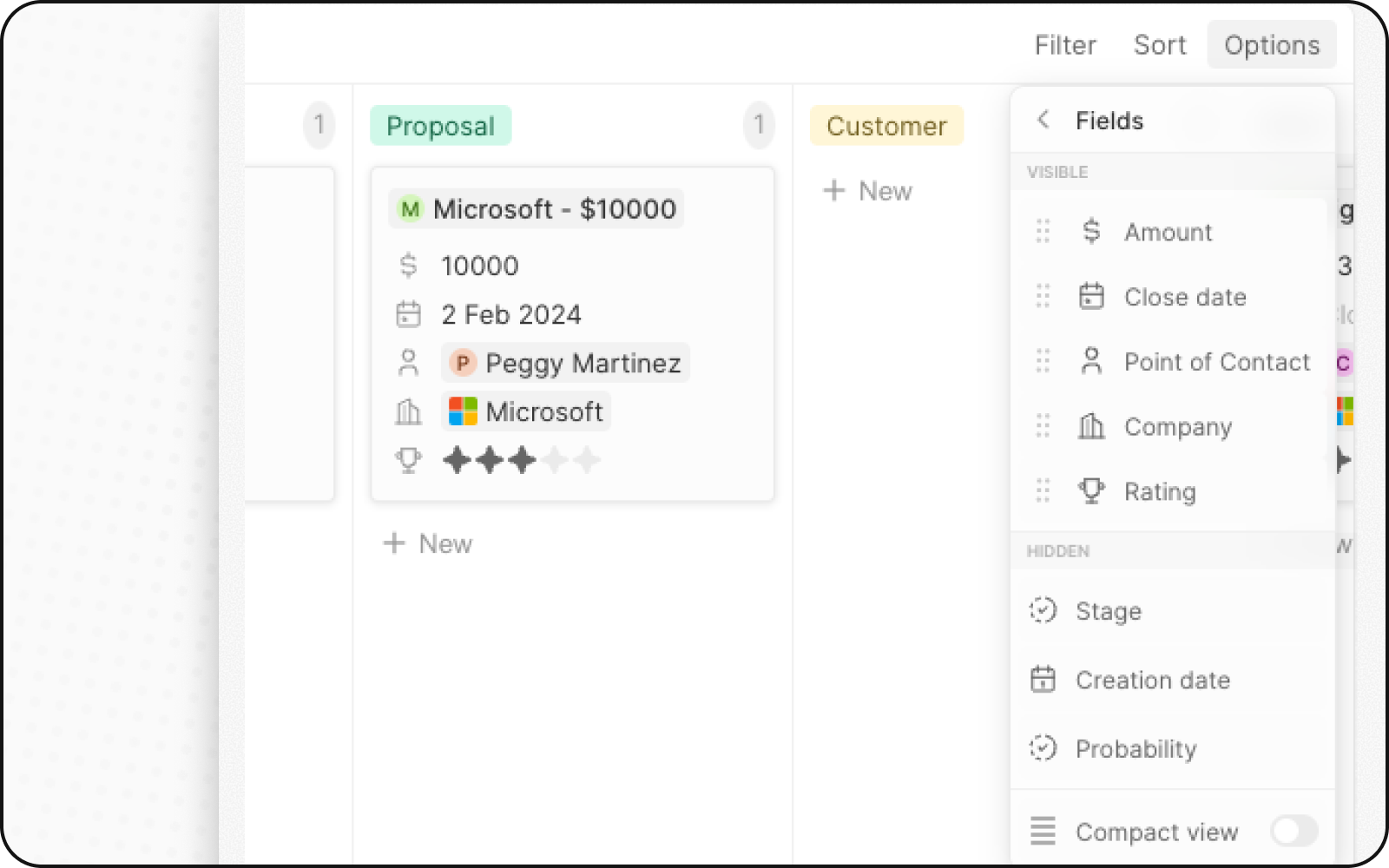
Vista compatta
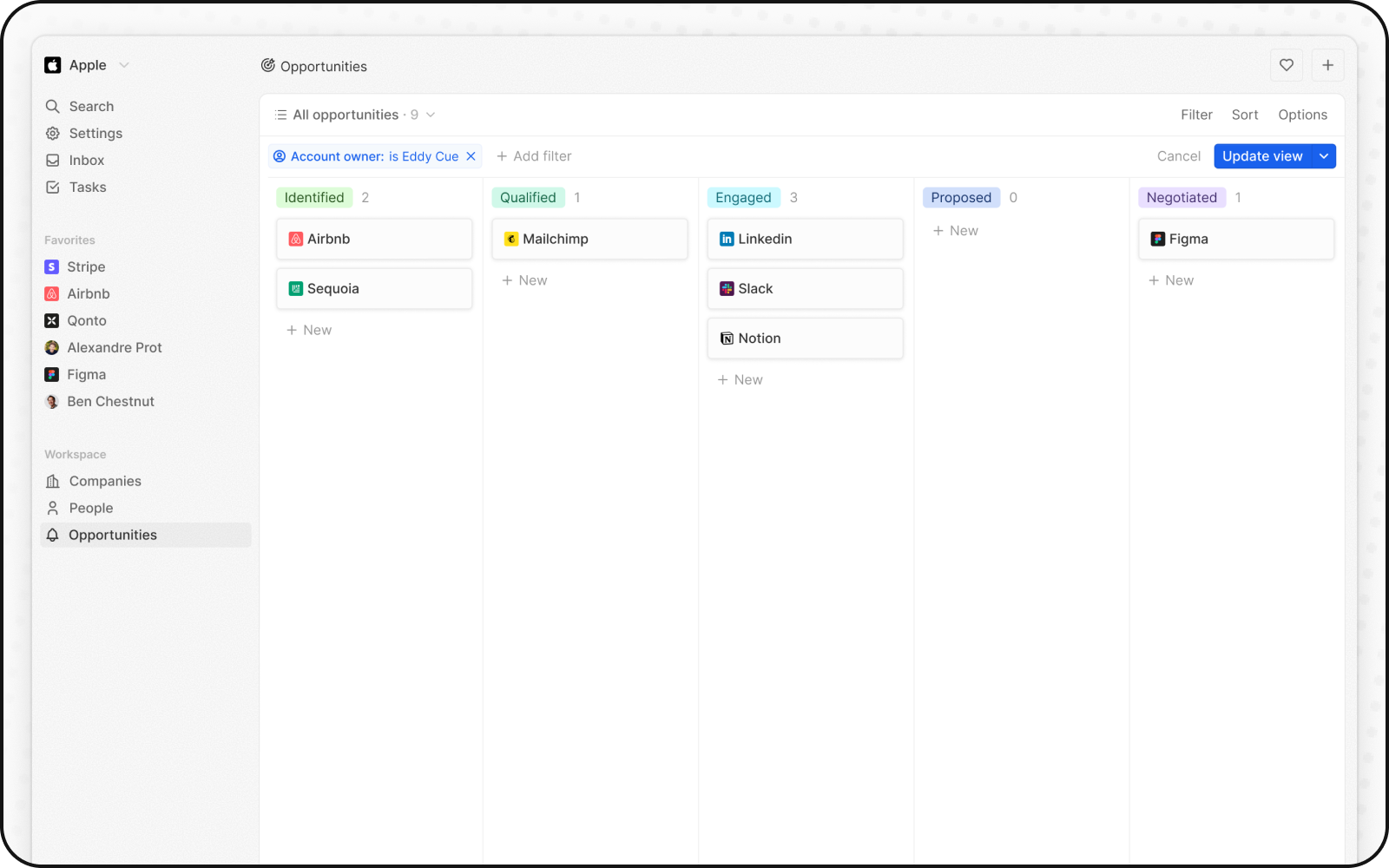
Puoi nascondere tutti i campi e ottenere una panoramica di tutti i record a colpo d’occhio. Per abilitare:- Fai clic su Opzioni in alto a destra
- Attiva l’interruttore per Vista compatta
Aggregazioni per colonna
Ogni colonna in una vista Kanban può mostrare in alto valori aggregati, aiutandoti a comprendere i dati a colpo d’occhio.Aggregazioni disponibili
Configurazione delle aggregazioni
- Fai clic sul numero visualizzato accanto al valore della fase, nella parte superiore di una colonna
- Seleziona il tipo di aggregazione
- Scegli il campo da aggregare
Quando utilizzare le viste Kanban
Le viste Kanban sono ideali per:- Pipeline di vendita: Tieni traccia delle trattative attraverso le varie fasi, dal lead alla chiusura
- Gestione progetti: Monitora le attività attraverso gli stati del flusso di lavoro
- Selezione del personale: Tieni traccia dei candidati attraverso le fasi di assunzione
- Qualsiasi processo a fasi: Visualizza qualsiasi flusso di lavoro con fasi definite
Migliori Pratiche
Organizza le fasi
- Limita le fasi: 5-7 fasi sono ideali per la visibilità
- Nomi chiari: Usa nomi di fasi descrittivi
- Ordine logico: Disponi le fasi nell’ordine del processo
Ottimizza la visualizzazione delle schede
- Mostra i campi chiave: Visualizza solo le informazioni più importanti
- Usa la vista compatta: per panoramiche di alto livello
- Codifica a colori: Usa i colori delle fasi per identificare rapidamente lo stato
Mantieni la qualità dei dati
- Aggiorna regolarmente: Mantieni le schede in movimento tra le fasi
- Archivia gli elementi completati: Sposta gli elementi chiusi fuori dalla vista attiva
- Rivedi le schede inattive: Esegui un follow-up sulle schede bloccate nelle fasi