
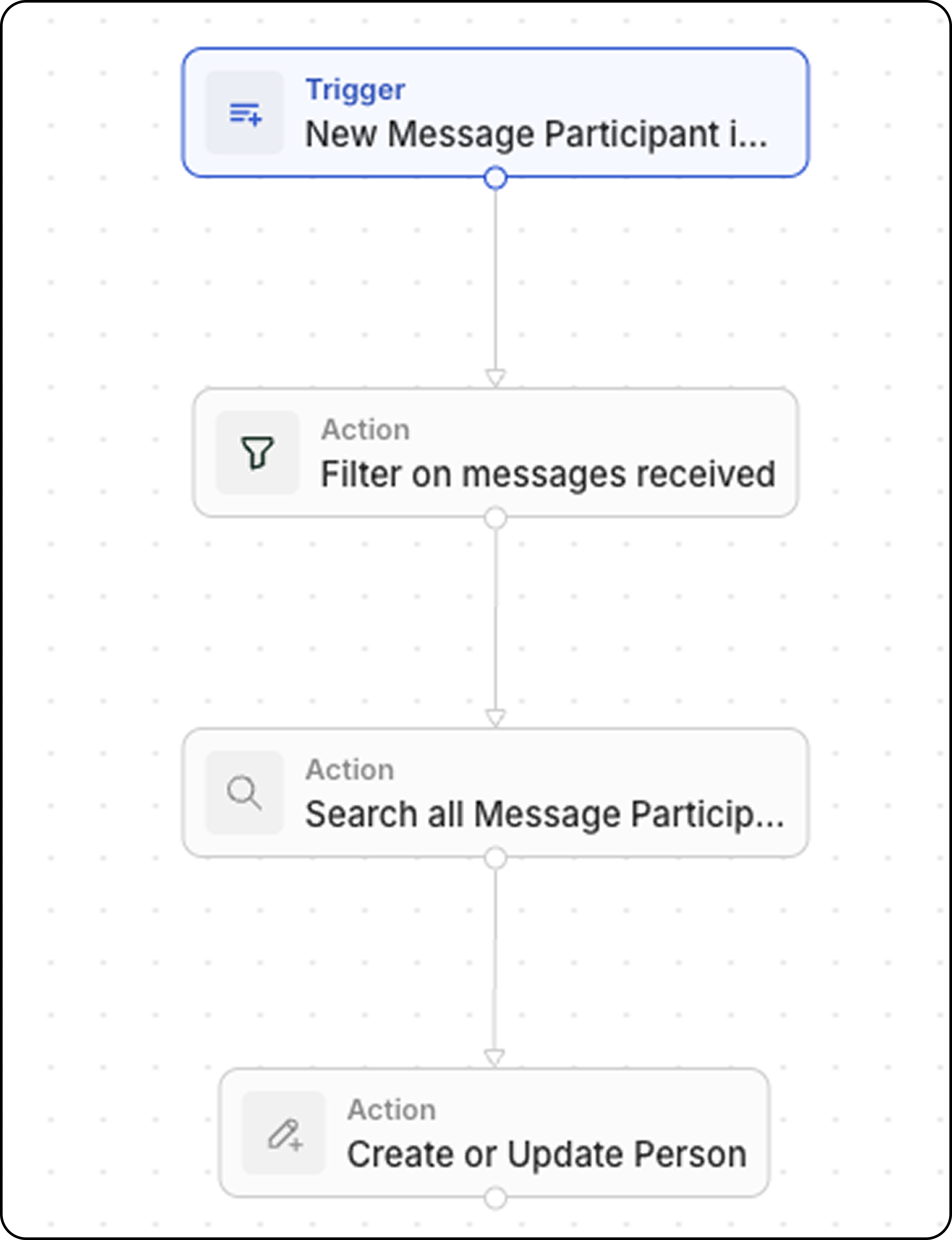
Обзор
Этот рабочий процесс срабатывает каждый раз при получении нового электронного письма и обновляет пользовательское поле в записи контакта значением общего количества писем от этого отправителя.Требования
Прежде чем настраивать этот рабочий процесс, создайте пользовательское поле в объекте Контакты:- Перейдите в Настройки → Модель данных → Контакты
- Добавьте новое поле Число
- Назовите его, например, “Количество писем, полученных от этого контакта”
Пошаговая настройка
Шаг 1: Настройте триггер
- Перейдите в Рабочие процессы и создайте новый рабочий процесс
- Выберите Запись создана в качестве триггера
- Выберите Участники сообщений (доступно в разделе «Дополнительные объекты»)
Участник сообщения — это комбинация идентификатора сообщения и идентификатора контакта, создающая одну уникальную запись на каждое сообщение. Это проще отслеживать, чем работать напрямую с объектом Messages, потому что мы можем получить доступ к полю
handle, которое содержит адрес электронной почты отправителя (или получателя).Шаг 2: Фильтр по роли
- Добавьте действие Фильтр
- Задайте условие: Role равно FROM
Шаг 3: Поиск всех участников сообщений с тем же handle
- Добавьте действие Search Records
- Выберите Участники сообщений в качестве объекта
- Добавьте фильтры: Handle равен значению handle из триггера (адрес электронной почты отправителя) и Role равно FROM
- Увеличьте Limit с 1 до 200 (максимум)
Действие Search Records ограничено возвратом максимум 200 записей. Однако, поскольку вы используете только значение
totalCount (а не отдельные записи), этот шаг вернет общее количество писем, отправленных этим контактом.Шаг 4: Обновите запись контакта с помощью действия Create or Update Record
- Добавьте действие Create or Update Record
- Выберите Контакты в качестве объекта
- Найдите контакт, сопоставив его адрес электронной почты со значением
handleиз участника сообщения - Установите значение вашего пользовательского поля “Количество полученных писем” равным
{{searchRecords.totalCount}}
totalCount из действия Search Records представляет общее количество писем, полученных от этого контакта.