
Prerequisiti
Il tuo oggetto necessita di un campo Select da usare come colonne (ad es., Stato, Stage, Fase). Se non ne hai uno:- Vai a Impostazioni → Modello dati
- Seleziona il tuo oggetto
- Aggiungi un campo Select con le opzioni di fase
Passaggi
- Vai al tuo oggetto (ad es., Progetti, Attività)
- Clicca sul menu a discesa della vista → + Aggiungi vista
- Dai un nome alla tua vista (ad es., “Bacheca progetti”)
- Clicca Crea
- Clicca su Opzioni e seleziona Kanban come layout
- La vista utilizza automaticamente il tuo campo Select per le colonne
- Clicca su Salva
Configura la tua bacheca
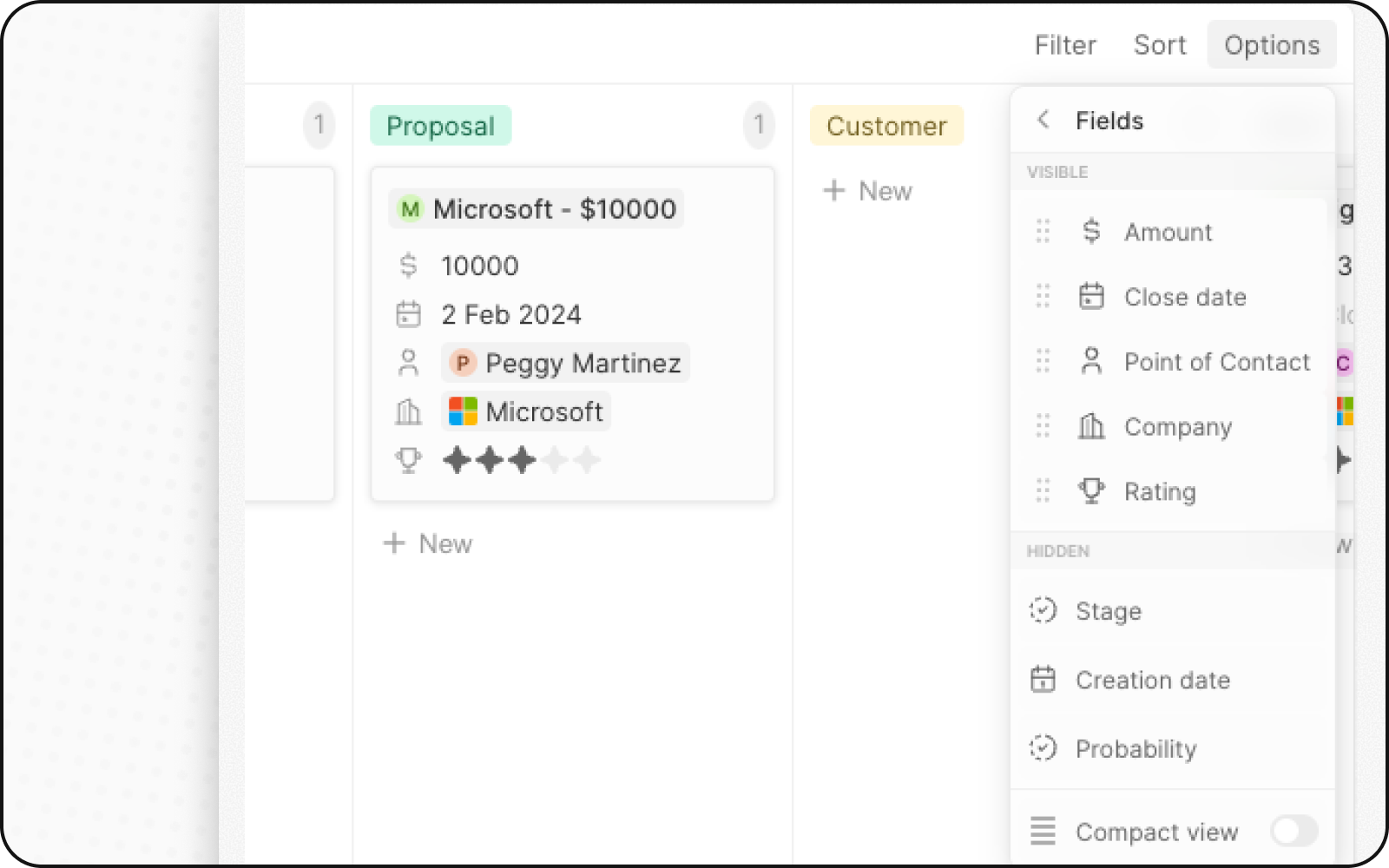
Mostra i campi chiave sulle schede
- Fai clic su Opzioni → Campi
- Cerca i campi nella sezione “Campi nascosti”
- Clicca sull’icona dell’occhio per visualizzarli sulle schede
- Trascina per riordinare
Abilita vista compatta
Per una panoramica di alto livello:- Clicca su Opzioni
- Attiva Vista compatta
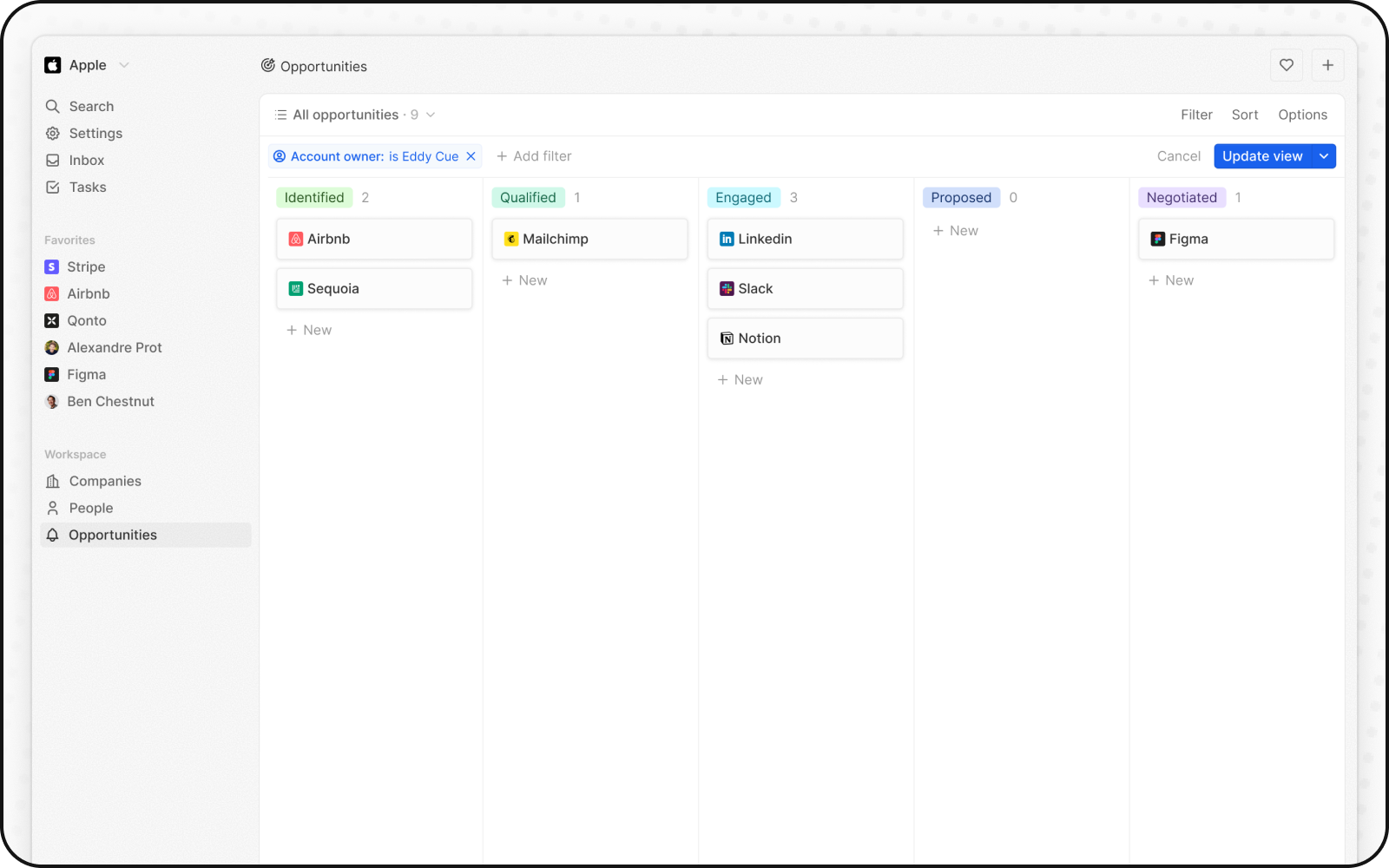
Aggiungi aggregazioni
Mostra conteggi o totali nella parte superiore di ogni colonna:- Clicca sul numero accanto al nome di una colonna
- Seleziona un’aggregazione (Conteggio, Somma, ecc.)
- Scegli un campo, se necessario
Spostare le schede
Trascina e rilascia le schede tra le colonne per aggiornarne lo stato.Esempio: Bacheca attività
Correlati
- Viste Kanban — aggregazioni, vista compatta, fasi
- Come configurare una pipeline di vendita — Kanban per le opportunità